
 AudioSettingsPanel and AudioOptions
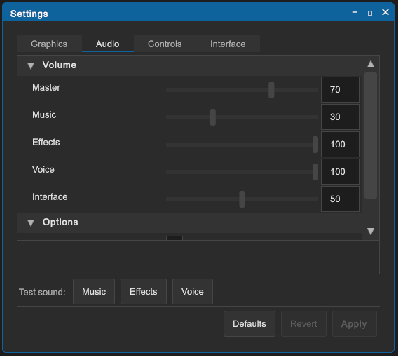
An AudioSettingsPanel is an audio settings screen. It is a PropertyGrid of AudioOptions with Defaults, Revert and Apply buttons. It has the members of the SettingsPanel base (see Custom settings panels), and Mixer.
<tb:AudioSettingsPanel prefs-key="mygame.audio" />
// The mixer of the Music, Effects and Voice volumes
var panel = root.Q<AudioSettingsPanel>();
panel.Mixer = myMixer;
| Category | Option | Sets |
|---|---|---|
| Volume | Master | AudioListener.volume. It works without a mixer. |
| Volume | Music, Effects, Voice | The exposed mixer parameters MusicVolume, EffectsVolume and VoiceVolume, in decibels. Without a mixer, these rows are disabled. |
| Volume | Interface | ToolboxAudio.Volume: the sounds of the windows, the buttons and the menus. |
| Options | Mute | AudioListener.volume 0. Master keeps its value. |
| Options | Mute in background | AudioListener.pause while the game does not have the focus. |
The volumes are percents. AudioOptions.ToDecibels(percent) gives 0 dB at 100, about -6 dB at 50 and -80 dB (SILENT_DB) at 0. ToPercent(decibels) is the reverse.
How to set up the mixer:
- In the Project window, right-click a folder and click Create > Audio Mixer.
- Open the mixer (double-click it). In the Groups list, click + three times. Name the groups
Music,EffectsandVoice. - Click the
Musicgroup. In the Inspector, right-click Volume and click Expose 'Volume (of Music)' to script. - Do step 3 for
EffectsandVoice. - In the mixer window, click Exposed Parameters (top right). Rename the three parameters to
MusicVolume,EffectsVolumeandVoiceVolume. - On each
AudioSourceof the game, set Output to its group. - Set the mixer on the panel:
panel.Mixer = mixer, orAudioOptions.Mixer = mixer. The GameMenu example has a Mixer field on itsSettingsController.
AudioOptions works without the panel:
// At the start of the game: set the saved options
AudioOptions.Mixer = mixer;
AudioOptions.LoadSaved("mygame.audio").Apply();
Tips:
- Call
LoadSaved(key).Apply()at the start of the game. Otherwise the saved volumes are in effect only after the player opens the panel. - Other parameter names: set
AudioOptions.MusicParameter,EffectsParameterandVoiceParameterbefore the panel attaches. AudioOptions.Mixeris static, so all the panels share it. Set it once.- A mixer takes a new value on its next update. Wait one frame before you read it with
GetFloat. - To play a test sound through a group, set
AudioSource.outputAudioMixerGrouptomixer.FindMatchingGroups("Music")[0]. The GameMenu example does this inSettingsController.PlayTestSound. - In the editor, the listener, the mixer and the toolbox sounds get their values back when play mode ends (
AudioOptions.RestoreProject).