

 EmojiPicker and EmojiButton
An EmojiPicker is a grid of emoji: a search field, a row of the recent emoji, a tab for each category and the emoji of the current tab. A click on an emoji raises EmojiPicked with its text.
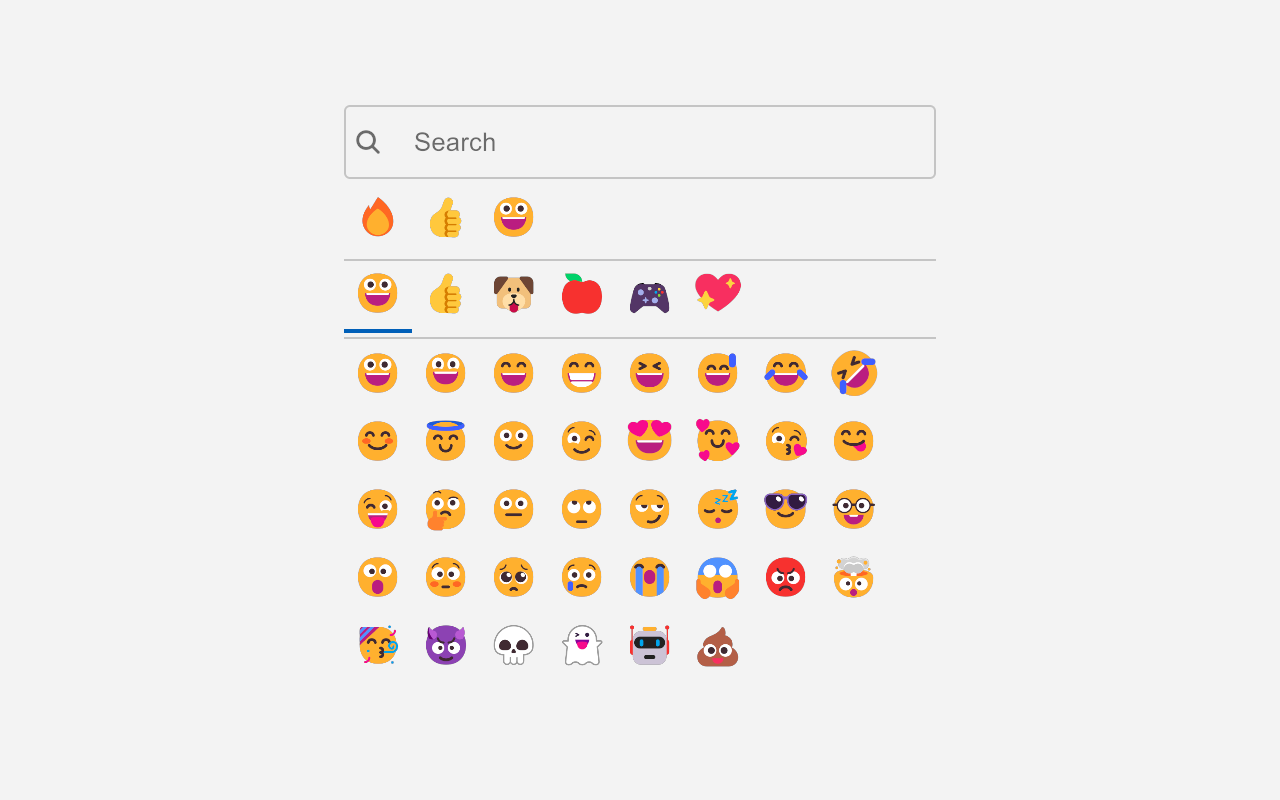
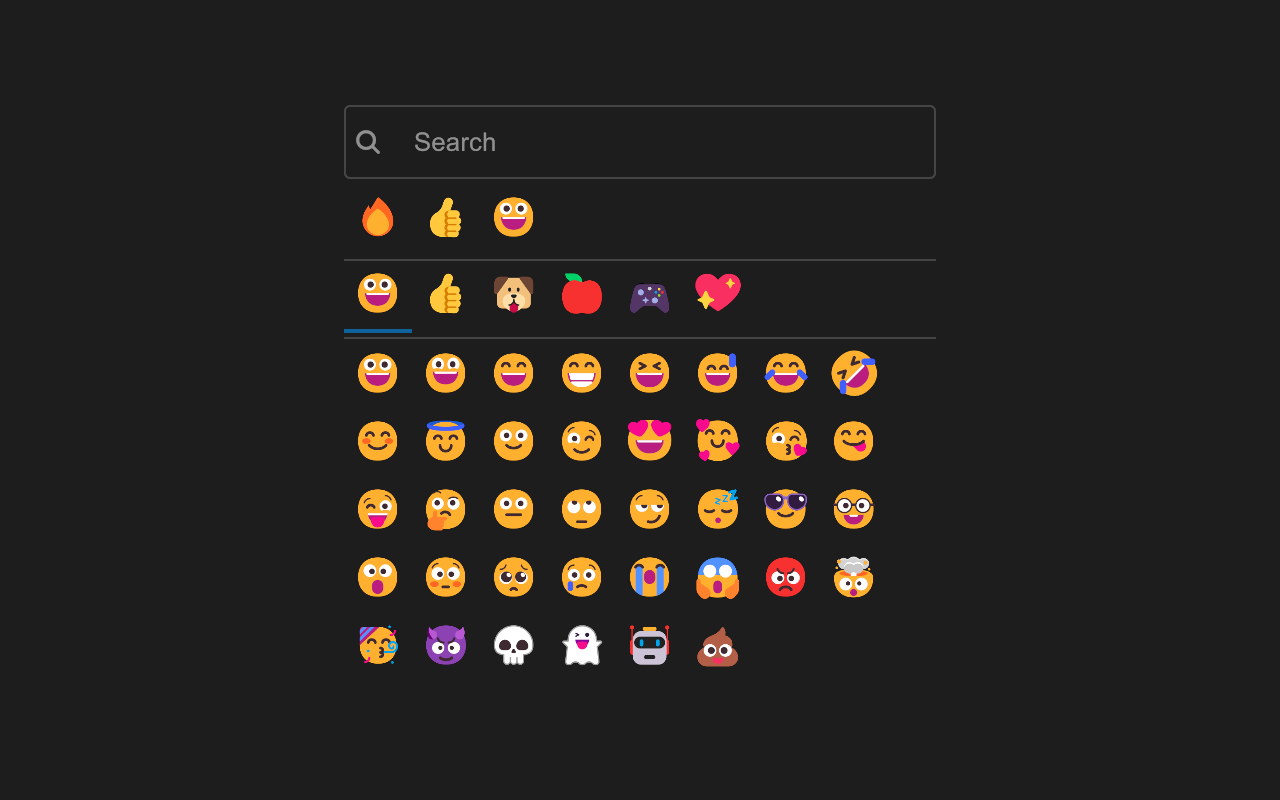
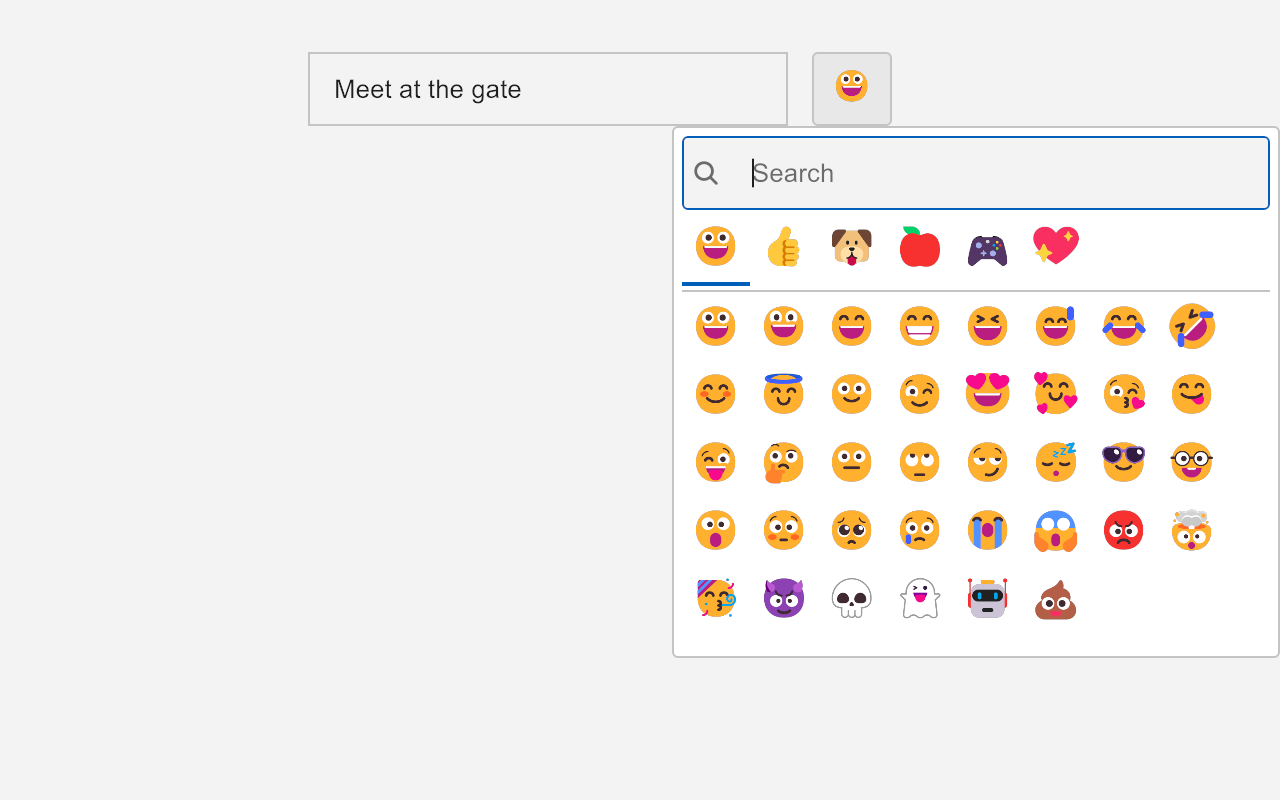
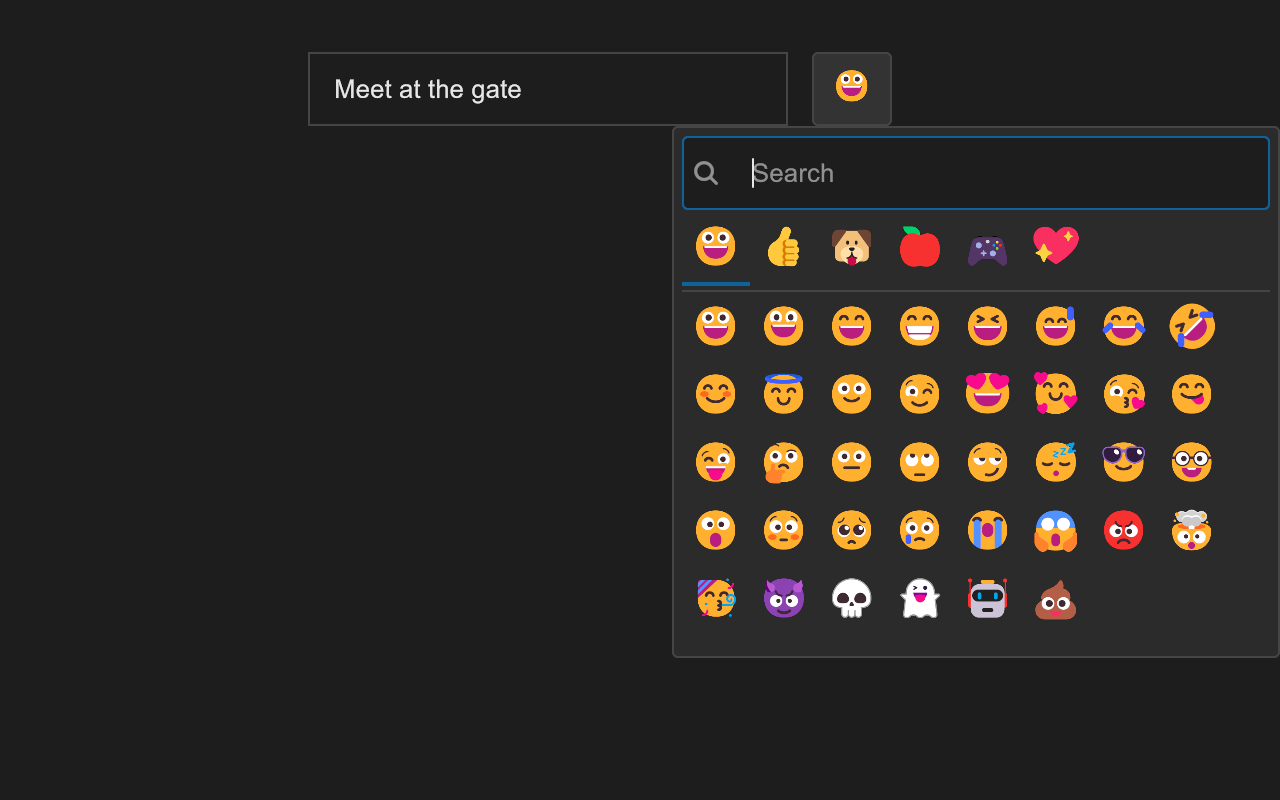
An EmojiButton is a button that opens an EmojiPicker in a popup. The picked emoji goes into a TextField at its caret.
<ui:TextField name="message" />
<tb:EmojiButton name="emoji" />
var input = root.Q<TextField>("message");
var emoji = root.Q<EmojiButton>("emoji");
// a picked emoji goes into the field at the caret
emoji.Target = input;
emoji.EmojiPicked += text => Debug.Log("Picked " + text);
To send an emoji at once (for example a quick reaction), do not set Target. Use EmojiPicked:
reactions.EmojiPicked += text => chat.Add("Me", text, ChatSide.Outgoing);
EmojiPicker
| Member | Description |
|---|---|
EmojiPicked |
Raised with the text of the emoji that the user clicked. |
Pick(emoji) |
Does what a click does: puts the emoji first in Recent and raises EmojiPicked. |
Category |
The index of the shown tab in CATEGORIES. A new category clears the search. |
Search |
The search text. When it is not empty, the grid shows the emoji of all categories whose words contain it. Case is ignored. |
SearchField |
The search field. It has a clear button (ClearButton) while it has text, and Escape in it clears the text. |
Recent |
The picked emoji, the last one first. At most MAX_RECENT (8). The row is hidden while it is empty. |
CATEGORIES |
The emoji by category: the text of each emoji and its search words. Smileys, People, Nature, Food, Objects and Symbols, 109 emoji in all. |
InsertAtCaret(field, text) |
Static. Puts the text into a TextField in place of the selected text, and puts the caret after it. The field gets the focus. |
- The picker makes the button of each emoji one time. A tab or a search shows and hides them, so typing in the search field makes no new buttons.
- The tab buttons show the first emoji of their category. The tooltip of a tab is the name of the category, and the tooltip of an emoji is its search words.
- The texts come from
ToolboxTextkeys, so a translation changes them: the search placeholderSEARCH, the tab tooltipsEMOJI_SMILEYStoEMOJI_SYMBOLS, the tooltipRECENTof a recent emoji and the empty textNO_RESULTS. The search words stay English. - The cursor and select index of a
TextFieldare indexes into the string, in chars. An emoji outside the basic plane is two chars: afterInsertAtCaretputs one at index 1 ofab, the caret and the selection are at index 3. The caret is always after the inserted text, never inside an emoji. - The emoji are plain Unicode text: a message or a label can keep them as text.
EmojiButton
| Member | Description |
|---|---|
Target |
The TextField that a picked emoji goes into. Null: the emoji only raises EmojiPicked. |
EmojiPicked |
Raised after the emoji went into Target. |
Picker |
The EmojiPicker in the popup. It keeps its recent emoji while the popup is closed. |
IsOpen, Open(), Close(), Toggle() |
The state of the popup. A click on the button toggles it. |
- The tooltip is "Emoji", the
ToolboxText.EMOJItext, which follows a language change. A tooltip that you set stays. - The button does not take the focus, so the text field keeps its caret while the user clicks the button.
Open()gives the focus to the search field. Type to search at once.- A pick closes the popup. Escape closes it and gives the focus back to
Target. A click outside the popup also closes it.
How to show the emoji in a player
UI Toolkit draws an emoji with a font of the operating system only when the system has one. The result is different on Windows, macOS and Linux, and some systems show empty boxes. The package has the Twemoji images (CC-BY 4.0) for all emoji of the picker, so the emoji look the same on each platform.
Do these steps one time:
- Run
Tools/generators/gen_twemoji.csin the Unity Editor (seeTools/generators/README.md). It writesTwemoji.png,Twemoji.assetandEmoji Text Settings.assetinAssets/UIToolbox/Runtime/Emoji. - Select your
PanelSettingsasset. Set Text Settings toEmoji Text Settings. If your panel already has text settings, addTwemojito its Emoji Fallback Text Assets list.
The script does step 2 for Assets/UIToolbox/Examples/Panel Settings.asset when it has no text settings.
- The fallback works with the standard text generator of UI Toolkit. Other text generators are not covered.
- The emoji are 72 px images. They are sharp up to a font size of about 40 px.
- An emoji that is not in the sprite asset uses the font of the system, as before.
- Your product must give credit for the Twemoji images. See
Third Party Notices.mdin the package.
Styling
The rules are in Assets/UIToolbox/Runtime/Resources/UIToolbox/Styles/Controls.uss.
| Class | Element |
|---|---|
tb-emoji-picker |
The picker (304 px wide). |
tb-emoji-picker__search |
The search field. |
tb-emoji-picker__recent |
The row of the recent emoji. |
tb-emoji-picker__tabs |
The row of tabs. |
tb-emoji-picker__tab |
One tab (a Button). The current tab also has tb-emoji-picker__tab--current: a line in the accent color under it. |
tb-emoji-picker__grid |
The ScrollView of the emoji (176 px high). |
tb-emoji-picker__emoji |
One emoji (a Button, 34 px square, font size 20 px). |
tb-emoji-picker__empty |
The EmptyState with the message "No results" (ToolboxText.NO_RESULTS) of a search with no result. |
tb-emoji-button |
The button that opens the popup. |
tb-emoji-button__popup |
The picker in the popup. |
To make the emoji bigger:
.unity-button.tb-emoji-picker__emoji {
    width: 44px;
    height: 44px;
    font-size: 28px;
}
The EmojiPickerDemo scene shows the picker with its recent emoji, an emoji button in the message box of a guild chat, reactions to a post with a quick row of the recent emoji, and the looks of the picker.