
Quest journal
A quest journal lists the quests of the player and shows the steps of the selected quest. This example uses a DataTree for the groups and quests, Badge controls for the kind and the status of a quest, a Separator and a field set for the parts of the page, a Timeline for the plan of the steps, and a SplitPanel that divides the window. The journal is a window in a workspace. The quest list is dark leather, the quest shows on a parchment page, and each quest has a wax seal. The journal has the look of the Character sheet and the Shop: a carved frame, a wood title bar and toolbar, the Cinzel font, and a room behind the window. Here the room is a study at night, where a candle flickers on the desk and dust rises in its light.
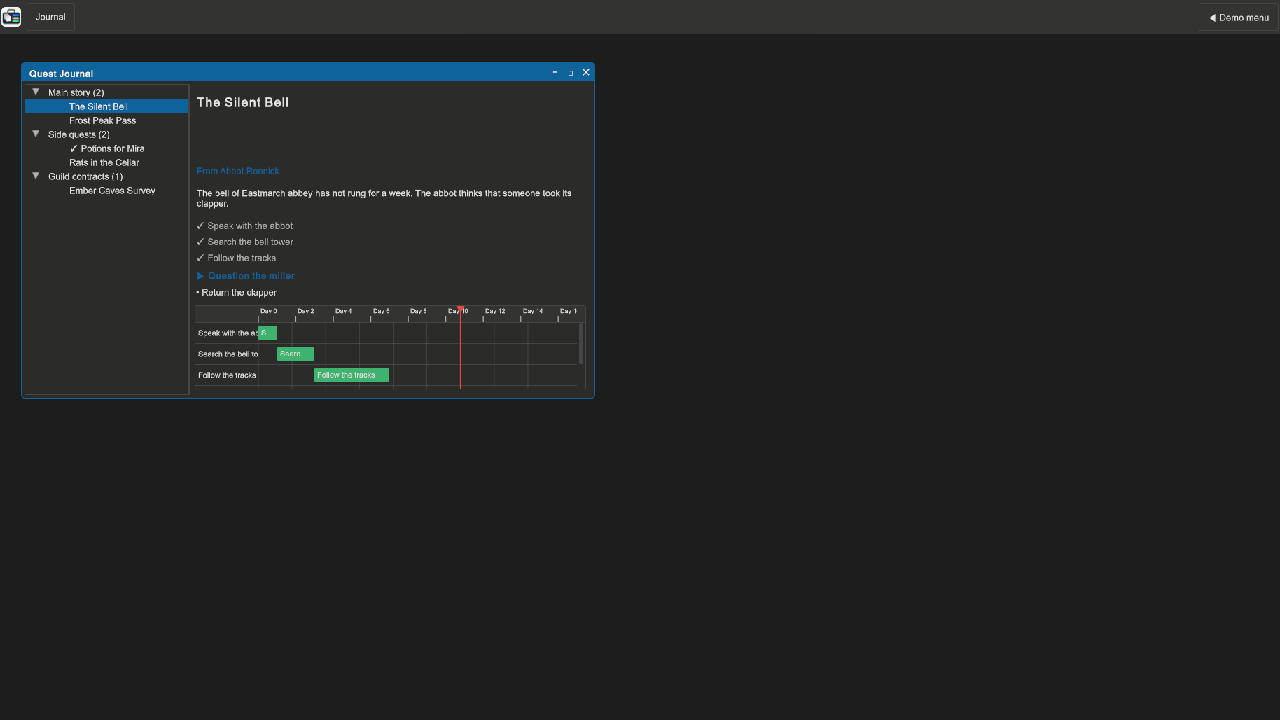
Scene: Assets/UIToolbox/Examples/Scenes/QuestJournal.unity. Folder: Assets/UIToolbox/Examples/QuestJournal.
Try it
- Open the scene. The first quest, "The Silent Bell", shows on the parchment page, and the tree has the focus.
- Look at the heading of the page. The wax seal shows the kind of the quest, and the two badges show the kind ("Fetch") and the status ("In progress 3/5").
- Press Down (or move the gamepad stick down) to select the next quest. The seal, the badges, the title, the objectives and the timeline change.
- Select a group, such as "Side quests". The page keeps the quest that shows.
- Select "Potions for Mira". The quest is complete: it has the crown seal and a green "Complete" badge, "Quest complete!" waves next to its title, and confetti bursts from the title.
- Select "Rats in the Cellar". The quest is new: "New" shimmers next to its title, and its badge reads "Not started".
- Look at the objectives. A done step has a check mark and a muted color. The current step has an arrow and a bold red ink. A pending step has a dot.
- Look at the timeline. Each step has a track: green when done, blue when current, gray when pending. The playhead stands at day 12.
- Close the window, then click Journal in the toolbar to open it again.
What it shows
The study
JournalBackdrop shows the study behind the window: walls of stone, an arched window with the moon at the right, a map on the wall at the left, and a desk with books, a candle, an inkpot and a scroll. The room is pixel art that Tools/skins/journal.mjs draws into Resources/QuestJournalArt. QuestJournal.uss shows each pixel as 4 x 4 screen pixels with point filtering: study.png (480 x 270) fills 1920 x 1080 at the bottom middle, and on a larger screen its wall and desk tiles repeat around it. The candlelight flickers, the flame is an AnimatedImage that plays the flicker clip of a torch sheet, dust rises over the candle on a ParticleLayer, and the edges are dark. The workspace has background-opacity="0", so the study shows around the window. The window wears the carved frame, the planks and the Cinzel titles of the Character sheet, and the theme tokens of the journal give the stock controls dark leather and old gold.
Quest tree
The DataTree shows three groups ("Main story", "Side quests", "Guild contracts"). A group row shows the name of the group and its quest count in gold. A quest row shows the wax seal of the quest before its title, and a complete quest has a check mark before its title. The tree opens every group at the start. The arrow keys and the gamepad move the selection, because the tree has the focus. Enter or the A button on a group row opens or closes the group. The details of the quest are in a scroll view: the right stick of the gamepad scrolls them when a quest is longer than the page.
Wax seals
Each quest has a kind: fetch, escort, hunt or slay. The seal of a kind has its crest and its color: a gold pouch to fetch, a blue shield to escort, a green arrow to hunt, and a red sword to slay. A complete quest has the crown seal. The seal images are from the Quest board example, and the USS tints the gray wax.
Quest details
The page shows the seal, the title, the kind and status badges, the giver ("From Abbot Rennick"), the story, the objectives and the plan of the selected quest. A Separator divides the heading from the story, and a Separator with the text "Plan" goes over the timeline. The objectives are in a field set: a GroupBox with the tb-field-set class, which has its title inside the border. The story wraps to the width of the page. The steps are plain Label elements with one USS class for each state.
The status badge has a tone for each state: accent for "Not started", warning for "In progress" with the steps done, and success for "Complete". A new quest shimmers "New" next to its title, and a complete quest waves "Quest complete!". Both are AnimatedLabel controls.
Plan timeline
The Timeline has one track for each step. The track holds one item that starts on the day of the step and lasts its days. The time-format attribute shows each time as "Day 3". The playhead stands at SampleQuests.TODAY. The duration of the timeline is the end of the last step plus one day, and ResetView shows all of it.
How it is built
| File | Does |
|---|---|
QuestJournal.uxml |
Declares the study, the workspace, the window, the split panel, the tree, the page with its empty seal, labels and badges, the separators, the objectives field set and the timeline. |
QuestJournal.uss |
Sets the palette, shows the pixel art of the study, gives the window the carved frame, the wood title bar and the Cinzel font, gives the tree the leather colors, puts the page on parchment, styles the seals of each kind, the heading, the badges and the three step states. |
JournalBackdrop.cs |
The study: the picture of the room, the candlelight and its flicker, the flame, the dust and the dark edges. |
QuestJournalController.cs |
Gives the tree its items and its rows with a seal, shows a quest, and builds the steps and the tracks. |
SampleQuests.cs |
The data: QuestGroup, Quest, QuestKind and QuestStep, and the sample quests. |
The UXML splits the window in two parts. The tree takes 1 part of the width and the page takes 2.4 parts. The heading has the seal, the title with its marks, and the badges.
<tb:SplitPanel class="sample-content quest-split">
  <tb:DataTree name="quests" class="quest-tree sample-grow" />
  <ui:VisualElement class="quest-detail" style="flex-grow: 2.4;">
    <ui:VisualElement class="quest-heading">
      <ui:VisualElement
          name="seal"
          picking-mode="Ignore"
          class="quest-seal quest-seal--large" />
      <!-- the title, the New and Quest complete! marks, and the
           badges -->
    </ui:VisualElement>
    <tb:Separator class="quest-rule" />
    <ui:Label name="description" class="quest-description" />
    <ui:GroupBox text="Objectives" class="tb-field-set quest-objectives">
      <ui:VisualElement name="steps" class="quest-steps" />
    </ui:GroupBox>
    <tb:Separator text="Plan" class="quest-rule" />
    <tb:Timeline name="plan" time-format="'Day '0" class="quest-plan" />
  </ui:VisualElement>
</tb:SplitPanel>
The controller gives the tree its own rows, then its roots, a function for the children of an item, and a function for the text of a row. A row is a seal and the label of the tree. The rows are set before the items, which build them. A selected quest shows itself. A selected group changes nothing.
_tree.RowHeight = 26;
_tree.View.makeItem = makeRow;
_tree.View.bindItem = bindRow;
_tree.SetRoots(SampleQuests.Groups, children, text);
_tree.View.ExpandAll();
// A group keeps the quest that shows; a quest shows itself
_tree.SelectionChanged += _ =>
{
    if (_tree.SelectedItem is Quest quest) Show(quest);
};
bindRow marks the row of a group, which hides its seal, and gives the seal of a quest its class.
private void bindRow(VisualElement row, int index)
{
    var item = _tree.View.GetItemDataForIndex<object>(index);
    row.EnableInClassList(GROUP_ROW_CLASS, item is QuestGroup);
    if (item is Quest quest) showSeal(row[0], quest);
    ((Label)row[1]).text = text(item);
}
The two functions return the quests of a group (a quest returns null) and the row text.
private static IEnumerable<object> children(object item) =>
    (item as QuestGroup)?.Quests;

private static string text(object item) => item switch
{
    QuestGroup group => $"{group.Name} ({group.Quests.Count})",
    Quest { IsComplete: true } quest => $"✓ {quest.Title}",
    Quest quest => quest.Title,
    _ => item.ToString(),
};
Show fills the heading. The seal class comes from SealClass: the crown of a complete quest, else its kind. The status badge takes a tone for each state.
showSeal(_seal, quest);
_kind.text = quest.Kind.ToString();
_status.text = quest.IsComplete ? "Complete"
    : quest.IsNew ? "Not started"
    : $"In progress {quest.DoneCount}/{quest.Steps.Count}";
_status.Tone = quest.IsComplete ? BadgeTone.Success : quest.IsNew
    ? BadgeTone.Accent : BadgeTone.Warning;
Show makes one label and one track for each step. The mark and the color depend on the state of the step.
var mark = step.Done ? "✓" : step == current ? "▶" : "•";
var label = new Label($"{mark} {step.Text}");
label.AddToClassList(STEP_CLASS);
label.EnableInClassList(STEP_DONE_CLASS, step.Done);
label.EnableInClassList(STEP_CURRENT_CLASS, step == current);
_steps.Add(label);

var color = step.Done ? DONE_COLOR : step == current ? CURRENT_COLOR
    : PENDING_COLOR;
_plan.AddTrack(step.Text, color)
    .AddItem(step.Text, step.Start, step.Days);
After the loop, Show sets the length and the playhead, and redraws the timeline.
_plan.Duration = Mathf.Ceil(end + 1);
_plan.ResetView();
_plan.Playhead = SampleQuests.TODAY;
_plan.Refresh();
The page sets the theme variables of a parchment look, so the badges, the separators, the field set and the timeline on it take ink colors with no rule of their own. The 9-slice keeps the edge of the parchment at its size.
.quest-journal .quest-detail {
    --tb-color-surface: #e9d8ae;
    --tb-color-border: #8a6436;
    --tb-color-text: #3b2410;
    --tb-color-accent: #8b1e1e;
    /* ... */
    background-image: url("../Kingdom/Art/parchment.png");
    -unity-slice-left: 24;
    /* ... */
}
A seal is a tinted image for each kind:
.quest-journal .quest-seal--slay {
    background-image: url("../QuestBoard/Art/seal-slay.png");
    -unity-background-image-tint-color: #b8302a;
}
Use it in your game
- Replace
SampleQuests.Groupswith the quests of your game. Keep the shapes: a group with quests, a quest with a kind and steps, a step with a start day, a length in days and a done flag. - Add a kind to
QuestKind, a case toSealClass, and a seal rule in the USS with the image and the tint of the kind. - Change the day of "now".
SampleQuests.TODAYis a constant of the sample. Your game gives the real day. - Call
Show(quest)when the game updates a quest, so the badges, the steps and the tracks redraw. - Change the colors of the tracks with
DONE_COLOR,CURRENT_COLORandPENDING_COLOR. - Change the
time-formatattribute to show another unit, for example'Hour '0. - Remove the parchment rule from
.quest-detailto have the page follow the theme of the workspace. - The quests, the day and the group names are sample data. The tree, the labels and the timeline code stay the same for your data.