
Expedition
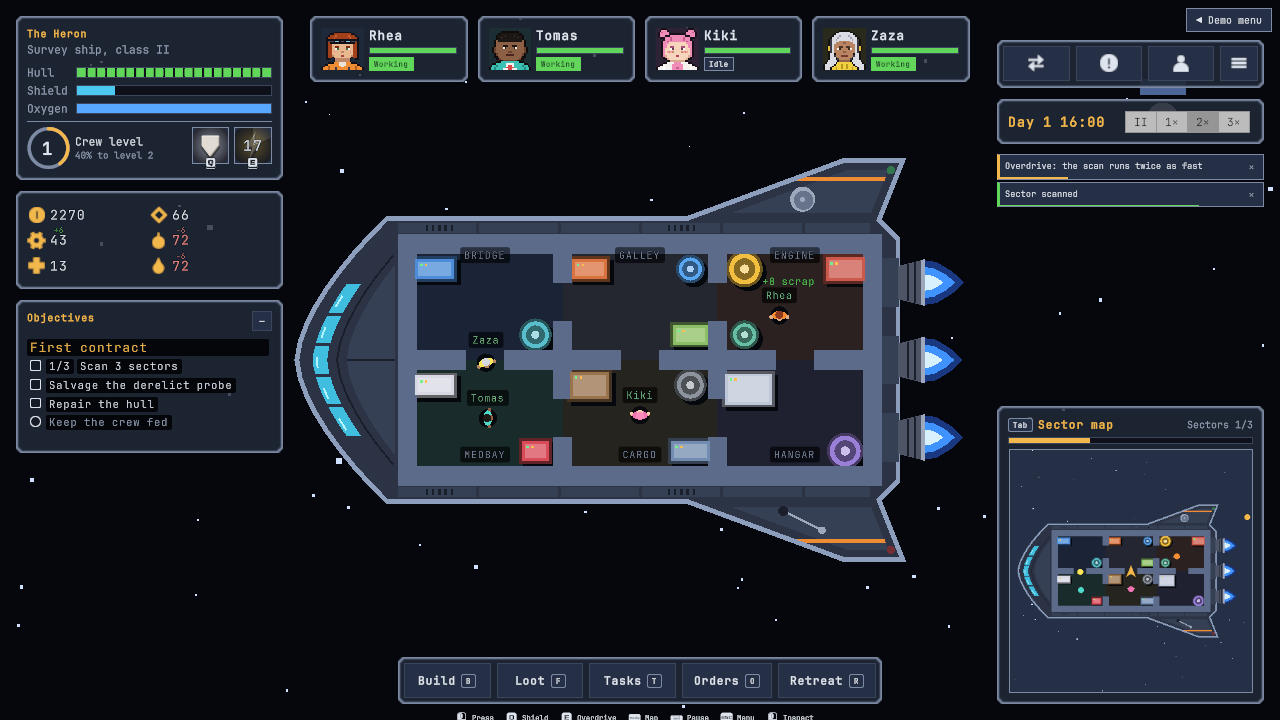
A crew sim on a small ship, shown as a full-screen HUD in its own skin. The crew of "The Heron" keeps the ship alive while it scans three sectors. Debris hits the rooms, the crew walks to the damage and repairs it, and at 18:00 a derelict probe passes the ship. The screen shows StatBars with pips, a ProgressRing, two AbilitySlots, a ResourceCounter for each resource, a UserAvatar, a Badge and a HoverCard for each crew member, an ObjectiveTracker, a NotificationArea, a Minimap, Kbd key caps, Cards, a TypewriterLabel and a GlassPanel that blurs the ship behind the event.
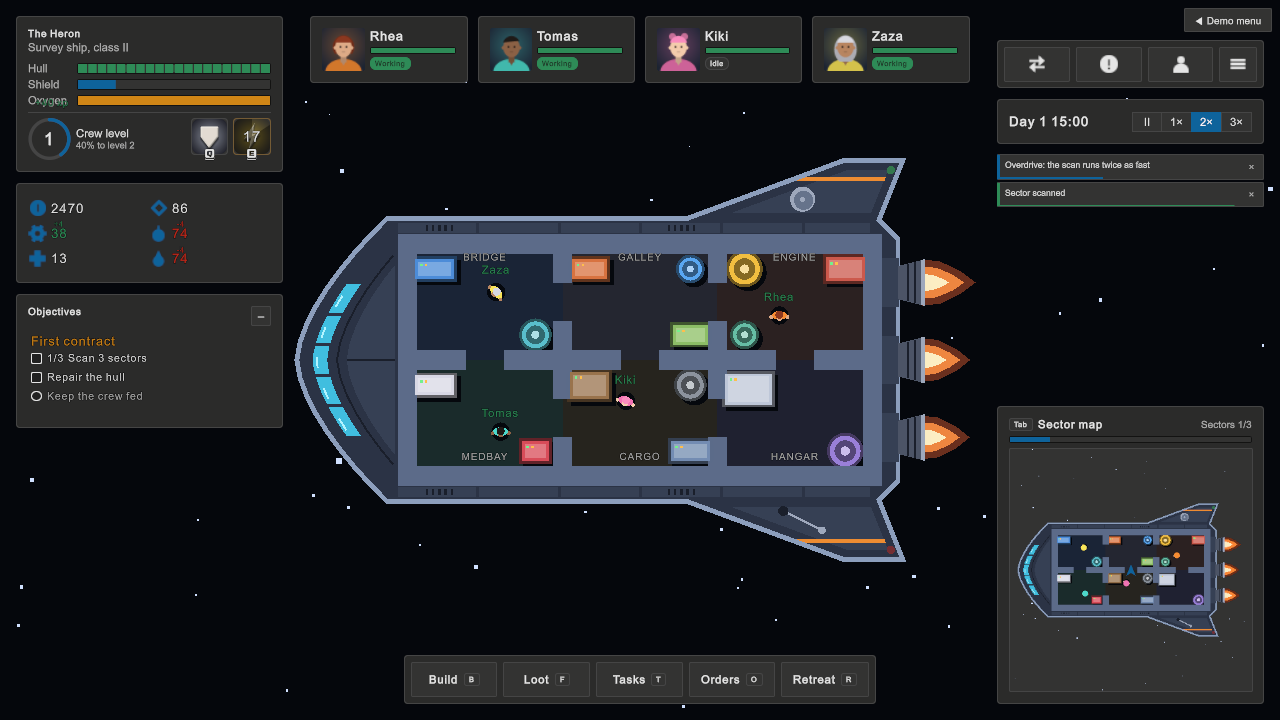
The same HUD in the default toolbox theme. Only the class skin-hull on the root changes:
Scene: Assets/UIToolbox/Examples/Scenes/Expedition.unity. Folder: Assets/UIToolbox/Examples/Expedition.
Try it
- Open the scene and press Play. The clock starts at Day 1 06:00 and runs at 1x: one game hour passes each second.
- Click the speed buttons beside the clock: pause, 1x, 2x and 3x. Space pauses the game, and Space again runs it at 1x. With a gamepad, the left trigger pauses and the right trigger steps the speed through 1x, 2x and 3x. Start opens the menu of the demo frame (it does not pause), X and Y use the abilities, Select enlarges the map, LB and RB step the inspector through the modules, B closes it, and the d-pad and A move the focus over the HUD buttons and press them. The key caps hide while a gamepad is in use.
- Watch the hull bar at the top left. Debris hits a room every few hours. The shield takes the hit first, one pip at a time, and the hull takes the rest. A number floats over the room and the camera shakes.
- Watch the crew. The nearest crew member walks to the room with the damage, works there for one game hour, and repairs the hull for 5 scrap a pip. The badge of the card says what each crew member does: Idle, Working, Hungry or Hurt.
- Hold the pointer on a crew card. A hover card shows the name, the job, the room and the task. Click the card to select it.
- Press Q, or click the slot, for Shield boost. The shield refills, and the slot cools down for 12 seconds.
- Press E, or click the slot, for Overdrive. The scan runs twice as fast for 6 game hours, and the slot cools down for 20 seconds.
- Hold the pointer over a module of the ship. A short card shows its name. Click the module: the inspector opens with its health, its sell value and its recycle value. Esc or the × button closes it.
- Press Tab. The sector map opens large in the middle of the screen, and Tab again puts it back at the bottom right. The scan bar under the map fills in 12 game hours, and each scanned sector gives the crew 40 experience:
+40 xprises from the ring at the top left, and the ring fills toward the next level. - Wait for 18:00. The game pauses, the ship and the HUD blur behind frosted glass, and the event "Derelict probe" opens with a live picture of the probe. The text types in. Click the panel, or press Enter, to show the whole text at once. The pointer reaches only the event while it is open: the modules show no tooltip and the HUD takes no click.
- Pick a choice. Pull it in with the arm gives 10 scrap. [Medium] Rhea: Cut the core out clean is a skill check with a 65% chance: a success gives 20 data and 200 credits, and a failure hurts Rhea. Leave it keeps the probe, and it passes again the next day. The numbers of the reward rise over the glass and stay sharp, and so does a toast that the choice causes. Then press Continue. The glass goes away, and the game runs again at its speed before the event.
- Complete the contract: scan three sectors, salvage the probe and repair the hull after a hit. A toast says "Contract complete", and after 5 seconds the game starts again.
- Click Menu at the top right. Pick Skin: Default to see the HUD in the default toolbox theme, Skin: Hull to go back, or Restart. Help beside it shows the keys in a toast. Trade and Crew are not part of the sample; a toast says so. The buttons of the HUD take no focus, so Tab and Space stay the keys of the game after a click.
- Take your hands off the keys and the mouse. After 3 seconds the game plays on its own at 2x. It uses the abilities, picks the skill check in the event and goes on 2 seconds after the outcome. Any key, click or pointer move gives the control back.
| Key | Does |
|---|---|
| Space | Pause, or run at 1x. |
| Q | Shield boost. |
| E | Overdrive. |
| Tab | Make the sector map large or small. |
| Esc | Close the inspector. |
| B, F, T, O | Build, Loot, Tasks and Orders. These modes are not part of the sample; a toast says so. |
| R | Retreat: start the contract again. |
| Enter | In the event: show the whole text, then pick the focused choice. Up and Down move between the choices. |
What it shows
The ship
ExpeditionWorld builds the ship at run time: six rooms in a 3 x 2 grid (Bridge, Galley, Engine, Medbay, Cargo and Hangar) from Unity primitives, the doors between them, the modules in each room, the four crew members and the stars. A hull around the rooms gives the ship its shape: a tapered nose with a cyan cockpit window at the Bridge, swept fins toward the stern, plating with a light trim, seams, vents, a dish and an antenna, three engines with a pulsing exhaust, and a red running light on the port fin and a green one on the starboard fin that blink. The hull is one mesh with a part for each color, and the exhaust is one more mesh; both are made once. While Overdrive runs, the exhaust burns longer and turns from blue to orange. The camera fits the whole hull, from the nose to the end of the exhaust and from fin to fin, between the panels of the HUD. A camera looks straight down at it. The ship lies 1600 meters under the scene, so the camera of the scene does not see it. The crew walks along fixed waypoints through the doors, and the paths are made once, so a walk makes no garbage.
The camera sees flat colors, so the depth is painted. Each station has a shadow, a dark base plate and a lighter top: a panel with two status lights on a box, a bright core in a ring on a round station. Each crew member is a small figure seen from above: a shadow, the shoulders in the color of the uniform, the hands, the face and the hair. The figure turns to the way it walks and faces the bottom of the screen at rest. The name of each room is a HudTarget with no renderer, of the kind Custom, on the WorldMarkerLayer. Expedition.uss hides the icon of the Custom kind and shows the name in muted capitals:
.expedition .tb-hud--custom .tb-world-marker__icon { display: none; }
A second camera draws the probe into a 512 x 288 RenderTexture, ExpeditionWorld.EventTexture. The event panel shows it in an Image. The camera is on only while the event is open.
The frosted glass
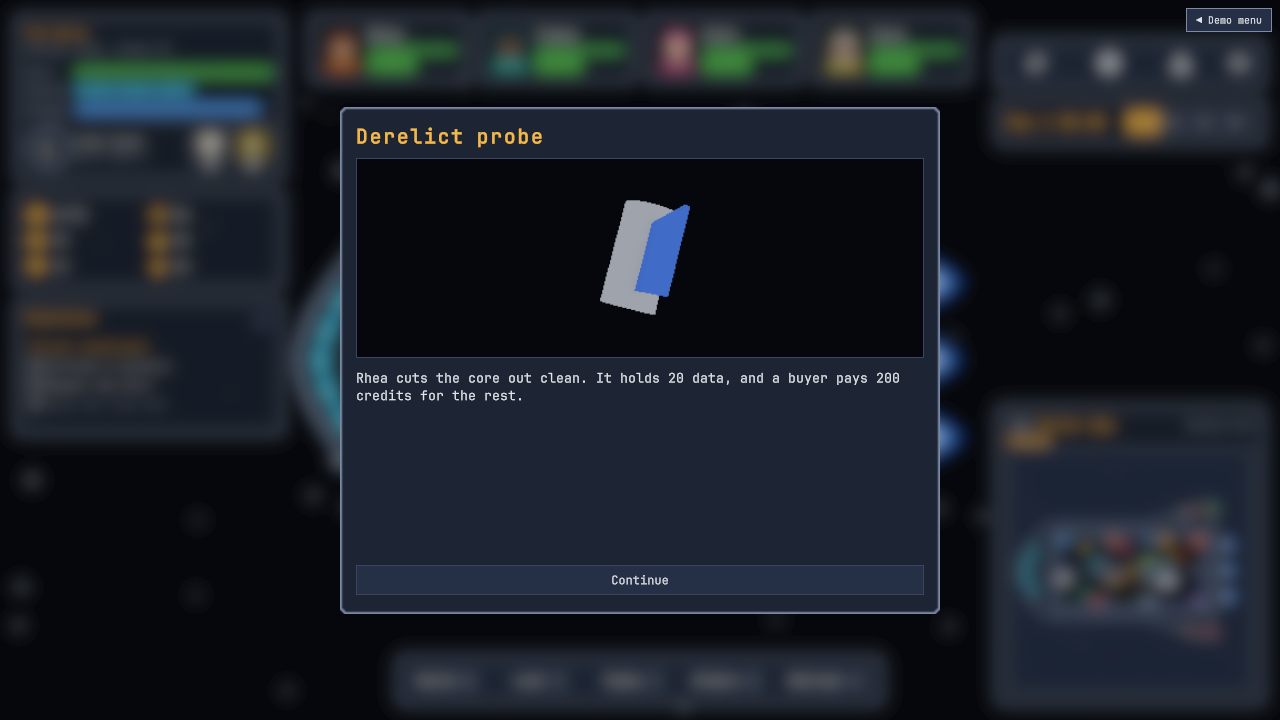
A GlassPanel blurs only the UI behind it in the same panel, and the camera of the ship draws straight to the screen, outside the UI. While an event is open, ExpeditionWorld.SetBackdrop(true) puts the ship into the UI:
- The camera of the ship draws into a
RenderTextureof the size of the screen,ExpeditionWorld.Backdrop, and a second camera that draws nothing clears the screen under the UI. - The root shows the texture as its background image.
- The
GlassPaneleventScrimcovers the screen over the HUD:tint="Dark"and the default blur. It blurs the ship and the HUD behind the event panel.
Closing the event, or Restart, takes the glass away, clears the background image and releases the texture, and the camera draws on the screen again. The texture has the size of the screen, so the markers, the floating texts, the minimap and the picking project to the same pixels with or without it. The glass is not motion, so it shows when the animations of the workspace are off.
The bars and the ring
| Bar | Setting | Does |
|---|---|---|
hull |
segments="20", max-value="20" |
The hull in pips. A hit leaves a trail. |
shield |
segments="5", max-value="5" |
The shield in pips. It takes the hits first. |
oxygen |
max-value="100", low-threshold="0.2" |
The air. It falls while the hull is below 15 pips and rises again after. |
scan |
max-value="100" |
The scan of the current sector, under the map. |
inspectorHealth |
segments="10" |
The health of the picked module, in the inspector. |
The ProgressRing levelRing holds the crew level in its middle and fills toward the next level. Each crew card has a health StatBar too.
The resources
The six resources are credits, data, scrap, food, medkits and water, in the order of the enum ExpeditionResource. Each one is a ResourceCounter with an icon and an amount. AddResource sets the value, and the counter rolls the amount and shows the change as a delta over it:
// the delta shows "-10"
AddResource(ExpeditionResource.Scrap, -pips * SCRAP_PER_PIP);
Each hour the crew eats and drinks, and the engine makes 2 scrap. Below 5 scrap a toast warns once. With no food or no water the crew is hungry, loses health and the optional objective "Keep the crew fed" fails.
The quest and the toasts
The objectives card at the left, under the resources, holds the ObjectiveTracker. The quest "First contract" has four objectives:
_quest = Tracker.AddQuest("First contract");
_scanObjective = _quest.Add("Scan 3 sectors", SECTOR_GOAL);
_salvageObjective = _quest.Add("Salvage the derelict probe");
_repairObjective = _quest.Add("Repair the hull");
_fedObjective = _quest.Add("Keep the crew fed", 0, true);
The – button of the card folds it. The NotificationArea stands under the clock at the right, as wide as the right column, so the toasts line up with the sector map below. The area has a top edge and no bottom edge: the toasts set its height, so a long toast keeps all its lines, and when the top toast goes, the one below slides up. It shows at most two toasts: a scanned sector, a new level, low scrap, a hungry crew, the abilities and the end of the contract.
The crew
Each crew card has a UserAvatar, a name, a health bar and a Badge. At the start the controller loads the pixel portrait of each crew member, such as Resources/UIToolboxSamples/Portraits/crew-rhea.png, and sets it as UserAvatar.Image, which takes the place of the initials. The health bar takes the class expedition-crew-card__health--ok, --hurt (under 80) or --low (under 40), and Expedition.uss gives each the success, warning or danger color of the theme. One HoverCard serves the four cards: AttachTo attaches it to each card, and its Opened event fills the title, the text and the task from the crew member under the pointer. A click selects the card and puts the class expedition-crew-card--selected on it.
The inspector, the tooltip and the event
The inspector, the tooltip, the glass and the event panel are in the UXML from the start. They are hidden until the class expedition--open is on them. ShowInspector, ShowTooltip and ShowEventPanel put the class on or take it off, and the USS shows or hides the panel. ShowEventPanel also turns the backdrop of the glass on or off.
The glass takes the pointer, so the modules and the HUD do not answer behind the event. Opening the event closes the tooltip and the crew card. The NotificationArea and the FloatingTextLayer stand over the glass in the UXML, so the toasts and the numbers that rise from the world stay sharp.
The event panel takes the focus when it opens, as a dialogue box does. A click or a submit on it completes the typing. The skill-check choice holds a Badge with the level of the check, the name of the crew member and the chance in percent. Roll lets a test or a game decide the roll, and SkillChance sets the chance.
The skin
The skin is one USS file, Skins/Hull.uss. Each rule starts with .skin-hull. The class on the root sets the toolbox color variables (--tb-color-*) and the radii, so every control under it takes the colors. The panels get a 9-sliced frame, Art/hull-frame.png, and the text uses the mono font JetBrains Mono NL.
Skin puts the class on the root, on the scope of the menu and on the hover card, or takes it off. The menu and the hover card open outside the root, so they need the class too. Nothing else changes: Expedition.uss only places the parts, and no C# or UXML changes with the skin.
Auto play
With AutoPlay on, the game plays on its own after AutoPlayDelay seconds with no input (3 by default). It sets the speed to 2x once. It uses Shield boost when the shield is empty and the hull is hurt, and Overdrive while a sector is left to scan. In the event it picks the skill check, and it presses Continue 2 seconds after the outcome. Set AutoPlay to false for a game with no demo mode.
Public members
| Member | Description |
|---|---|
HullBar, ShieldBar, OxygenBar, ScanBar, InspectorHealth |
The StatBars of the HUD. |
LevelRing, LevelLabel |
The ProgressRing of the crew level and the level in its middle. |
ShieldBoost, Overdrive |
The two AbilitySlots, with the key caps keyboard-q and keyboard-e. |
ResourceCounters |
The ResourceCounter of each resource, in the order of ExpeditionResource. |
CrewCards, CrewHover, CrewHoverStats |
The four crew cards, the HoverCard over them and its task label. |
DayLabel, SpeedGroup |
The day clock and the speed ToggleButtonGroup. |
Tracker, Quest, Notes |
The ObjectiveTracker, the contract and the NotificationArea. |
Minimap, SectorLabel |
The sector map and the count, such as "Sectors 2/3". |
Inspector, InspectorSell, InspectorRecycle, InspectorClose, Tooltip |
The inspector Card, its labels and close button, and the short card at the pointer. |
ActionButtons |
The five action buttons: Build, Loot, Tasks, Orders and Retreat. |
EventPanel, EventScrim, EventTitle, EventImage, EventText, EventChoices |
The event panel, the GlassPanel behind it and the parts of the panel. |
Markers, Texts |
The WorldMarkerLayer and the FloatingTextLayer. |
MenuButton, Menu, RestartRequested |
The Menu button, its ContextMenuComponent and the event of its Restart item. |
World |
The ExpeditionWorld: the ship, the crew and the cameras. Backdrop is the texture that the ship draws into while an event is open, and SetBackdrop(on) turns it on or off. |
Day, Hour, Speed |
The clock and the speed: 0 pauses, 1 to 3 run that many game hours a second. |
Hull, Shield, Oxygen, Level, Xp, SectorsScanned, ScanProgress |
The state of the ship and the crew. |
Crew, SelectedCrew, InspectedModule, EventOpen |
The crew members, the selection, the picked module and whether the event is open. The Color, Skin and Hair of an ExpeditionCrew color its figure on the ship. |
Skin |
"Hull" (the default) or "Default". |
AutoPlay, AutoPlayDelay |
Auto play on or off, and the seconds without input before it starts (3 by default). |
Roll, SkillChance, Seed |
The source of the skill-check roll, the chance of the check (0.65) and the seed of the debris and the walks. |
Tick(deltaTime), Advance(hours) |
Run the game for real seconds at the current speed, or for game hours at once. |
SetSpeed(speed) |
Sets the speed and selects its button. While the event is open the speed stays 0. |
GetResource(resource), AddResource(resource, amount) |
Read or change a resource. |
HitHull(pips, room), Repair(room) |
Debris hits a room; repair the damage of a room for scrap. |
OpenEvent(), Choose(choice), Continue() |
Open the event, pick a choice (0 arm, 1 skill check, 2 leave) and close it after the outcome. |
Inspect(module), CloseInspector(), SelectCrew(index), ToggleMap() |
Open or close the inspector, select a crew member, and make the map large or small. |
Hover(screen, click) |
The pointer at a screen point: the tooltip of the module under it, and with click the inspector. Each frame calls it with the mouse. |
ShowInspector(open), ShowTooltip(open), ShowEventPanel(open) |
Show or hide a panel with the class expedition--open. ShowEventPanel also shows or hides the frosted glass behind the event. |
Restart() |
Starts the contract again: the ship, the crew, the resources, the quest and the clock return to the start. |
How it is built
| File | Does |
|---|---|
Expedition.uxml |
The HUD: the ship bars and the level ring, the abilities, the resources, the crew cards and the hover card, the clock and the speed group, the objectives, the toasts, the sector map, the action bar, the inspector, the tooltip, the frosted glass and the event panel. |
Expedition.uss |
Places the parts. It sets no colors of the skin. |
Skins/Hull.uss |
The Hull skin: the color variables, the frame, the font and the pips. |
Art/hull-frame.png, Art/hull-frame-solid.png |
The 9-sliced frames of the panels. |
ExpeditionController.cs |
Finds the parts, draws the icons in code, loads the crew portraits, gives the controls their data, runs the rules and the auto play. |
ExpeditionWorld.cs |
Builds the ship, its hull and engines, its stations, the room names and the crew figures, walks the crew, picks the module under the pointer, shakes the camera, draws the event picture and the backdrop of the glass. |
ExpeditionPanelSettings.asset |
The panel settings of the HUD. |
The HUD root has picking-mode="Ignore", so the pointer reaches the ship between the panels. A click on the ship picks a module only when no part of the HUD is under the pointer.
The key code has three versions: the Input System package, the legacy Input Manager, or none. The project settings choose one at compile time.
The game makes no garbage per frame. The texts of the clock, the numbers and the floating texts are made once at the start. The texture of the glass is made when an event opens and released when it closes, and the open event makes no garbage per frame either.
Use it in your game
- Copy the HUD from
Expedition.uxmland keep the names of the controls. ReplaceExpeditionWorldand the rules in the controller with your own game. - Make a skin for your game the same way: one USS file whose rules start with a class on the root. Set the
--tb-color-*variables there, and add frames and fonts. Put the class on every part that opens outside the root, such as a menu scope or a hover card. - Keep the panels in the UXML and show them with one class, so the USS decides how they show.
- To blur a 3D scene behind a panel, draw the camera into a
RenderTextureof the size of the screen, show it as the background image of the root, and put a GlassPanel over it, asShowEventPaneldoes. Keep the texture the size of the screen, so the layers that project with the camera land on the same pixels. - Give each object that the minimap should show a
HudTarget. Set theCameraof the layers and the minimap when your game draws with a camera other thanCamera.main. - Sample-only parts: the ship, the crew, the resources and their costs, the debris, the probe, the cooldowns and the auto play.