
Character sheet
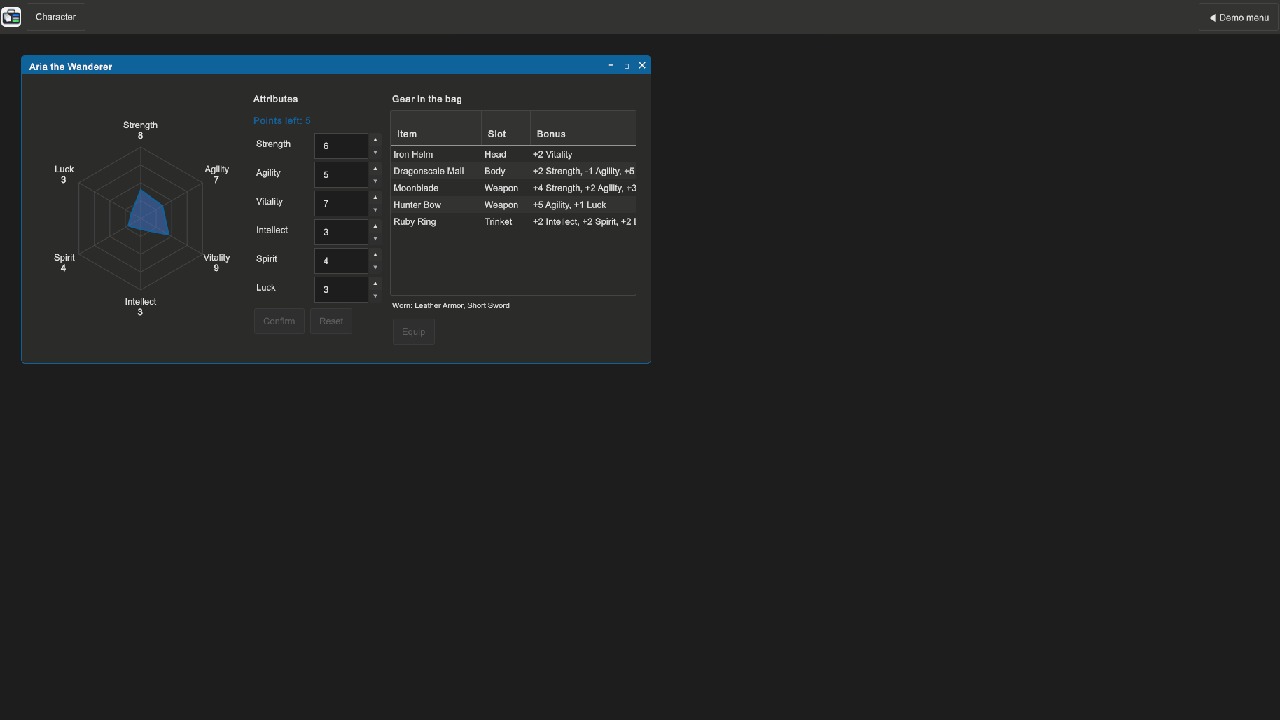
Character sheet is the stats screen of a role-playing game: Aria the ranger at a night camp. The sheet shows their portrait with the worn gear around it, their level, experience, health and mana, a chart of six stats, fields that spend free points, and a list of gear to try on. Each change shows before you make it: the chart outlines the new stats, a delta beside each field shows the change, and the health and mana bars show the new maximum. It uses a SpiderChart, a NumericUpDown and a StatDelta for each stat, StatBar controls for the experience, health and mana, a Badge for the level, a UserAvatar and ItemSlot controls for the hero, and a DataGrid for the gear. The gear and the bag come from the Inventory example.
Scene: Assets/UIToolbox/Examples/Scenes/CharacterSheet.unity. Folder: Assets/UIToolbox/Examples/CharacterSheet.
Try it
- Open the scene. Pines stand against a starry sky, a campfire glows under the window, and embers rise from it. The window "Character" shows the green crest, "Aria the Wanderer" with a Level 7 badge, the experience bar, and the bars Health 130 / 130 and Mana 55 / 55. Under the header are the hero with their armor and sword, the chart, the six stats with "Points left: 5" in gold, and the gear in the bag. The Strength field has the focus.
- Click the up arrow of Strength. The value goes from 6 to 7, the number pops with a small sparkle and a tick plays. "Points left" falls to 4, and the chart outlines the new stat. The Short Sword adds 2, so the Strength axis shows "8 → 9", and a green "+1" shows beside the field. The Spend button starts to glow.
- Spend a point on Vitality. The health bar shows "130 → 140", and a green ghost fill shows the health that the point adds.
- Try to lower Strength under 6. The field stops at the base stat. Spend all 5 points on Strength. The other stats turn off, and so does the up arrow of Strength. Its down arrow stays on: press it, and a point comes back and the other stats turn on again.
- Press Reset. A soft tone falls, the points are free again, Spend stops glowing, and the status line says "The points are free again."
- Spend two points and press Spend. Three notes rise, the chart pops, and the status line says "You spent 2 points." The stats keep the new values, and "Points left" is 3.
- Select the Dragonscale Mail in the gear grid. Its name is purple, the color of an epic item, and the bonus column reads "+2 Strength, -1 Agility, +5 Vitality". The Body slot on the hero glows gold. The chart outlines the stats with the mail worn in place of the Leather Armor: a better axis shows in green, and a worse axis in red. Agility shows a red "-3", and the health bar shows "130 → 160".
- Press Equip. Metal clanks, the Body slot pops with purple sparkles and shows the mail, and the status line says "You wear the Dragonscale Mail." The Leather Armor goes to the bag, and the "Worn" line changes.
- Select the Leather Armor. The health bar shows "160 → 130", and the health that the armor would take away shows red.
- Use the keyboard or a gamepad. Up and Down move between the stat fields. Left and Right give back and spend points. X (west) moves between the stats and the gear in the bag. On a row of the gear, A wears the item. The hint bar of the window names the buttons of the part that has the focus.
What it shows
The camp
CharacterBackdrop shows the camp behind the window: a night sky with stars and a pale moon glow, two rows of pines and the ground, and a campfire of stones and logs under the window. The sky and the trees are pixel art that Tools/skins/camp.mjs draws into Resources/CharacterSheetArt. CharacterSheet.uss shows each pixel as 4 x 4 screen pixels with point filtering, the sky at the top and the trees at the bottom, and both repeat left and right on a wide screen. The firelight glows behind the pines, so they stand dark against it; the light flickers, the flames are three AnimatedImages that play the flicker clip of a torch sheet, embers rise from the fire on a ParticleLayer, and the edges are dark. The workspace has background-opacity="0", so the camp shows around the window. The window wears the carved frame, the planks, the dark leather and the stone buttons of the Kingdom example.
The header
The crest is the hunt seal of the Quest board example, tinted green. Under the name are a Badge with the level, the class, and a StatBar with the experience to the next level. At the right, two StatBar controls show the most health and mana. Vitality sets the health (40, and 10 for each point), and Spirit and Intellect set the mana (10 for each point of Spirit and 5 for each point of Intellect).
The hero
A UserAvatar shows the 24 x 24 pixel face of Aria, aria.png in Resources/UIToolboxSamples/Portraits, which CharacterSheet.uxml sets as its image. Around it is an ItemSlot for each kind of gear: Head, Weapon, Trinket and Body. Each slot shows the picture of the worn item in its rarity frame, with its name and bonus as a tooltip. The slot that the selected gear would go in glows gold. Under the hero, a line lists the worn items.
Chart
A SpiderChart with max-value="20" and four rings. It has one SpiderAxis for each stat, in the order Strength, Agility, Vitality, Intellect, Spirit and Luck. The controller sets Value (the stat now, with the worn gear) and Compare (the stat with the spent points and the item tried on). ShowCompare is true only when one axis differs, so the outline shows only during a change.
Attributes
The label "Points left" and six NumericUpDown fields. The minimum of a field is the base stat. The maximum is the base stat plus the points that are left, and never more than 20. The value is the base stat plus the spent points. A field that cannot change is disabled: with no free points left, each stat without spent points. A stat with spent points stays enabled, with its down arrow on and its up arrow off, so the player can give a point back. Spend and Reset are disabled until you spend a point.
A StatDelta beside each field shows the change of its stat, from the stat now to the stat after the change: green arrows and "+1" for a gain, red arrows and "-3" for a loss. One arrow shows for a small change, two from 2 and three from 4. A stat without a change keeps the room of its delta, so the fields do not move.
Gear in the bag
A read-only DataGrid with the columns Item and Bonus. It lists the equipment in the bag. The Item column draws a small ItemSlot with the picture and the name in its rarity color. The Bonus column draws the bonus text of the item. The selected row is the item that the sheet tries on.
Spend and Equip
Spend glows on and off with AttentionFlash while spent points wait. Equip wears the selected item. The button reads "Equip" and the name of the item, and it is disabled without a selection.
Sounds
The sheet makes its sounds in code with SampleTones and plays them with ToolboxAudio.Play: a tick for a point, three rising notes for Spend, a falling tone for Reset and a clank for Equip.
How it is built
| File | Does |
|---|---|
CharacterSheetController.Pad.cs |
The gamepad: X moves the focus between the stats and the gear, and A on a row of the gear wears it. |
CharacterSheetController.cs |
Finds the controls, connects the fields, the grid and the buttons, writes the whole sheet in one refresh, and plays the sparkles and the sounds. |
SampleCharacter.cs |
The data: the six stats, the free points, the spent points, the gear bonuses, Preview, and the health and mana. A plain C# object. |
CharacterBackdrop.cs |
The night camp: the sky, the pines, the campfire with its flickering light and its animated flames, the embers and the dark edges. |
CharacterSheet.uxml |
The header, the hero, the chart with its six axes, the fields with their deltas, the grid columns and the buttons. |
CharacterSheet.uss |
The leather and gold look, the camp layers and the layout: the header over four columns. |
The sheet holds no state of its own. Each change of the hero or the inventory raises an event, and one method draws the sheet again.
_character.Changed += refresh;
_character.Inventory.Changed += refresh;
A field edit spends points. The value of the field is the base stat plus the spent points, so the difference is what the field spends. A flag stops the limit changes in refresh from spending points. A point that goes onto a stat pops its number with a sparkle.
field.RegisterValueChangedCallback(evt =>
{
    if (_refreshing) return;
    var spent = _character.Spent[(int)stat];
    if (_character.SetSpent(stat,
        (int)evt.newValue - _character.Base[(int)stat]) > spent) cheer(
            field);
});
refresh writes the limits, the two values of each axis and the delta. Value is the stat now, and Compare is the stat after the change. A field whose minimum and maximum are the same cannot change, so it is disabled. The NumericUpDown turns off its own up or down arrow at the end of its range.
field.MinValue = _character.Base[i];
field.MaxValue =
    Mathf.Min(SampleCharacter.MAX_STAT,
        _character.Base[i] + _character.Spent[i] + _character.Remaining);
field.SetValueWithoutNotify(_character.Base[i] + _character.Spent[i]);
field.SetEnabled(field.MinValue < field.MaxValue);
var axis = Axis(stat);
axis.Value = _character.Current(stat);
axis.Compare = _character.Preview(stat, tryOn);
_deltas[stat].SetValues(axis.Value, axis.Compare);
A bar fills to the lower of the two values, and its maximum is the higher one. PreviewValue draws a ghost fill to the higher value, so the part between them is the change. A gain keeps the green ghost; a loss gets a class that turns it red. The text format puts the value now first in both cases.
bar.MaxValue = Mathf.Max(now, then);
bar.SetValue(Mathf.Min(now, then), false);
bar.PreviewValue = then == now ? -1 : Mathf.Max(now, then);
var format = then > now ? GAIN_FORMAT : then < now ? LOSS_FORMAT
    : STEADY_FORMAT;
if (bar.FormatString != format) bar.FormatString = format;
bar.EnableInClassList(LOSS_CLASS, then < now);
Preview puts the tried-on item in place of the worn item of its kind. It is a loop, not LINQ, so a game can read the stats each frame without garbage.
for (var i = 0; i < slots.Count; i++)
{
    var slot = slots[i];
    sum += Bonus(tryOn != null
        && slot.Accepts == tryOn.Kind ? tryOn : slot.Item, stat);
}
The d-pad of a gamepad moves the focus off a NumericUpDown, and A starts an edit mode in which it changes the value. A character sheet wants a faster way to spend points, so SampleNavigation.SpinnerRows makes Left and Right change the value of the field under the focus, with no edit mode. Up and Down move the focus and skip a disabled field. After a Spend that uses the last point, each field is disabled, so the gear grid takes the focus.
SampleNavigation.SpinnerRows(
    content.Q(className: "character-attributes"),
        SampleCharacter.Stats.Select(s => _fields[s]).ToList());
The look
Every rule of CharacterSheet.uss starts with .character-sheet, so it does not reach other screens. The theme tokens on the workspace give the stock controls a dark leather and old gold palette, and the titles, the headings and the buttons use the Cinzel font. The chart colors come from its custom properties.
.character-sheet .character-chart {
    --tb-spider-chart-fill: rgba(96, 170, 90, 0.5);
    --tb-spider-chart-line: #8fd16a;
    --tb-spider-chart-compare: #ffd76a;
}
The window content is a header over a row of four columns. The hero, the chart and the attributes have fixed widths, and the gear column takes the rest with flex-basis: 0 and flex-grow: 1.
Use it in your game
- Keep the refresh pattern. Raise one event on each change of your hero, and write the sheet from the data in one method.
- Replace
SampleCharacterwith your hero. Keep aValuefor each axis, aComparefor the preview, and a limit for each field. - Change
Statand the axes in the UXML together. The order of the enum is the order of the axes. SetMAX_STATand themax-valueof the chart to the same number. - Use
SampleNavigation.SpinnerRowsfor a column ofNumericUpDowncontrols that a gamepad changes with Left and Right, with no edit mode. Copy it from theSharedfolder of the examples. - The base stats, the 5 free points, the level, the experience and the gear bonuses are sample-only. The bonuses are a table by item name.
- The pixel portrait, the camp and the sounds are made in code, so the sample ships no picture of the hero and no audio file.