

 HudTarget and WorldAnchor
A HudTarget is a component that puts a GameObject on the HUD. The WorldMarkerLayer, the CompassBar and the Minimap find every enabled HudTarget by themselves: add the component, and the object shows on each HUD control in the panel. A WorldAnchor is the projection that these controls and the Callout use. Use it to make your own element follow an object of the 3D scene.
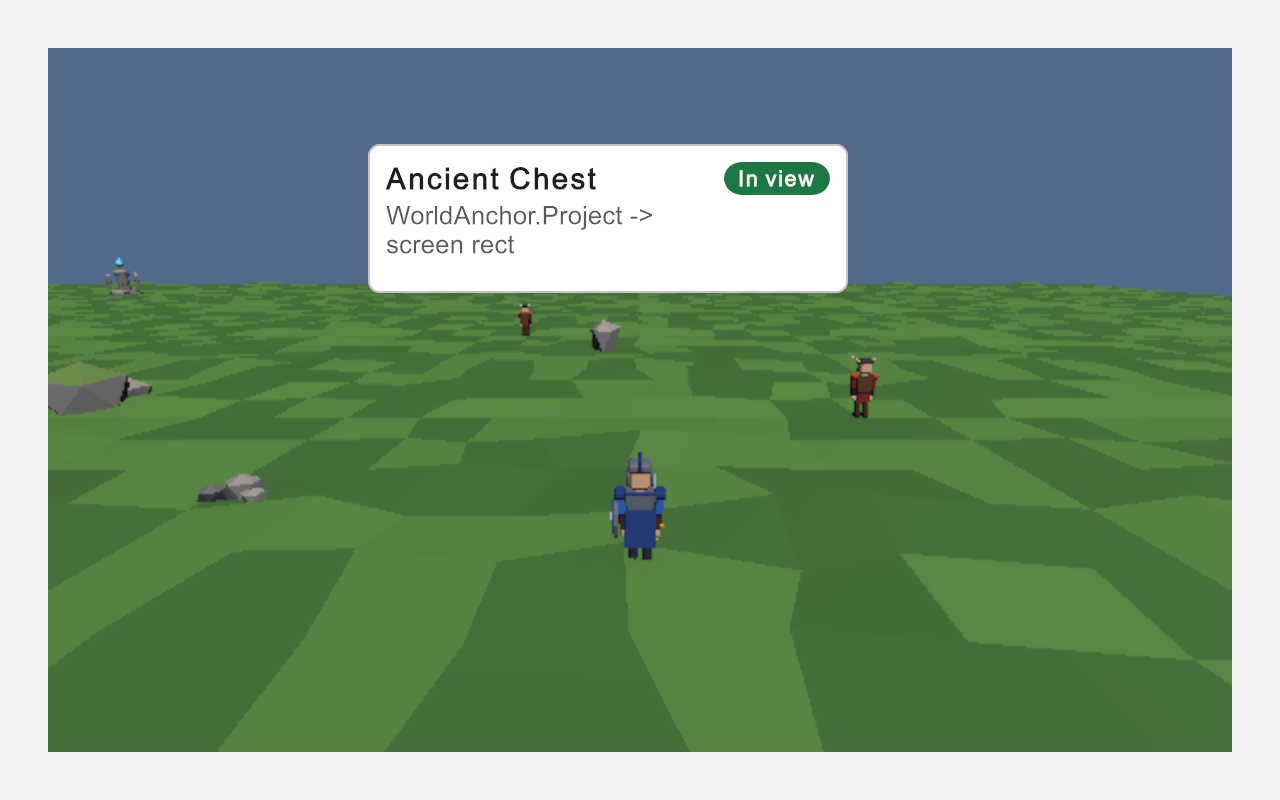
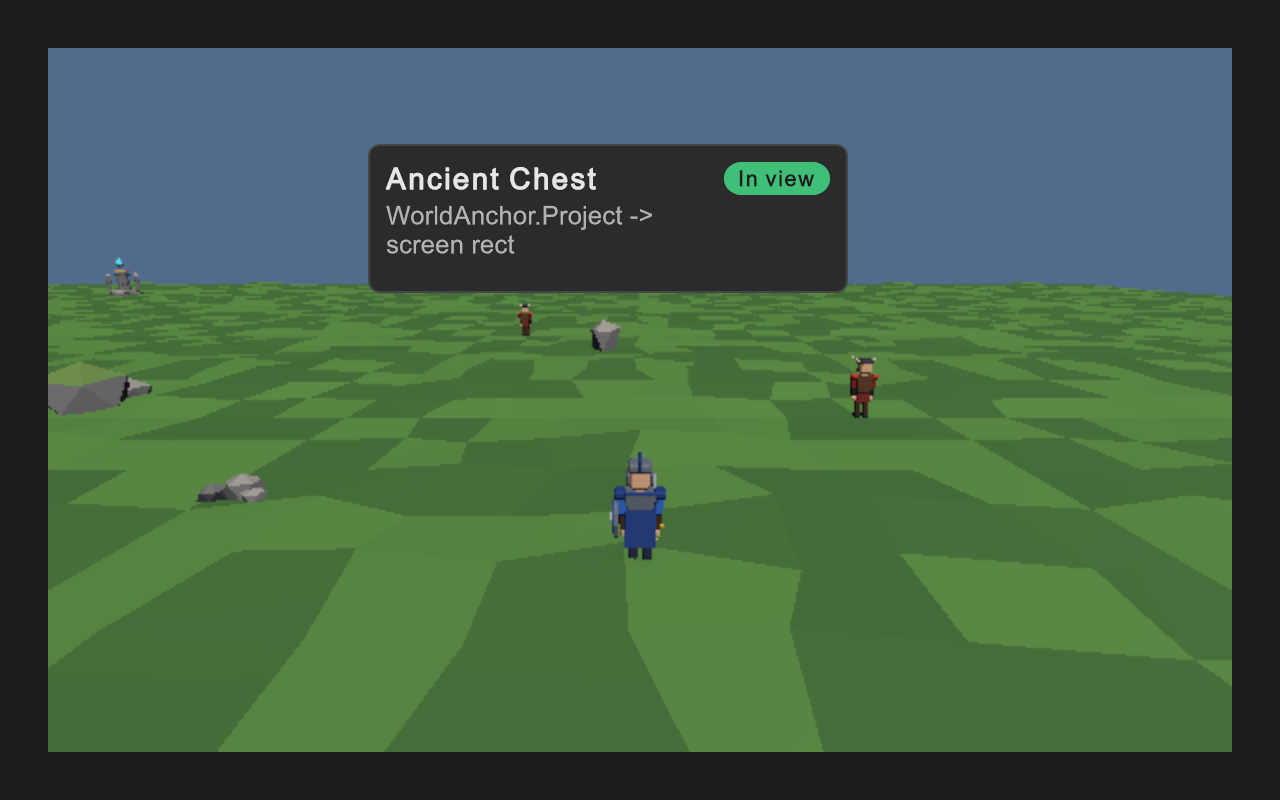
Video tutorial: World-space HUD. All videos: Video tutorials. Demo scene: WorldHudDemo.unity.
How to mark a quest giver:
- Select the GameObject of the quest giver.
- Add the component UI Toolbox > HUD Target (
HudTarget). - Set Kind to
Objectiveand give it an Icon.
How to mark the player:
// Every HUD control with no Player set measures from this object, and
// the minimap centers on it
player.AddComponent<HudTarget>().IsPlayer = true;
How to add a target in code:
var target = enemy.AddComponent<HudTarget>();
target.Kind = HudTargetKind.Enemy;
target.Icon = skullSprite;
target.Label = "Orc chief";
// not on the compass
target.ShowOn = HudShowOn.Marker | HudShowOn.Minimap;
// hides beyond 80 m
target.MaxDistance = 80;
How to show a target only for a while:
// A disabled HudTarget does not show. The Units example marks only the
// selected units.
target.enabled = unit.Selected;
| Member | Description |
|---|---|
Icon |
The icon on the marker, the compass and the minimap. Empty (the default) draws a dot. |
Color |
The tint of the icon. White by default. |
Label |
The text of the marker. Empty (the default) uses the name of the GameObject. |
DisplayLabel |
Label, or the name of the GameObject when the label is empty. |
Kind |
Objective (the default), Enemy, Ally, Item or Custom. The marker of the target on a WorldMarkerLayer gets the class tb-hud--{kind}, such as tb-hud--enemy. The icons on the compass and the minimap take their tint from Color. |
ShowOn |
The HUD controls that show the target: Marker, Compass, Minimap, or a combination. All by default. |
ClampToEdge |
Off the screen, the marker stays at the edge with an arrow; on the compass and the minimap, the icon stays at the end or the rim. On by default. |
MaxDistance |
The target hides beyond this distance from the player, in meters. 0 (the default) has no limit. |
IsPlayer |
This object is the player of every HUD control that has no Player set. Off by default. A player target never draws as a marker, a compass icon or a minimap icon. |
RevealsFog |
The target opens the fog of war of the minimaps around it, as the player does. Off by default. |
RevealOnEnable |
When the target is enabled, the minimaps open the fog around it once. Off by default. |
Changed |
After a property of this target changes. |
HudTarget.All |
Every enabled target. |
HudTarget.Player |
The first enabled target with IsPlayer, or null. |
HudTarget.Added, HudTarget.Removed |
After a target is enabled, and after a target is disabled or destroyed. |
HudTarget.KindClass(kind) |
The class of a kind, such as tb-hud--enemy. |
- The target uses the bounds of the first
Rendererin its children for the box of the marker. With no renderer, the target is a point at its position. - The HUD controls project all targets once per frame and share the result. From 16 targets, a parallel job does the projection, compiled with Burst when the Burst package is in the project.
- A change to a property updates the icon and the classes on the next frame. The controls do not read the properties each frame.
- The player comes from the
Playerof the control, elseHudTarget.Player, else the camera.
WorldAnchor
A WorldAnchor maps a target of the 3D scene to a rectangle in an element.
var anchor = new WorldAnchor();
anchor.SetRenderer(chest.GetComponentInChildren<Renderer>());

// Each frame, in a scheduled item of your element
if (anchor.Project(hudRoot, clampToEdge: true, out var rect,
    out var inView, out var edge))
{
    lootTag.style.translate = new Translate(rect.center.x, rect.yMin);
    lootTag.EnableInClassList("loot-tag--edge", !inView);
}
else lootTag.style.display = DisplayStyle.None;
| Member | Description |
|---|---|
Camera |
The camera that shows the scene. Null (the default) uses Camera.main each time. |
Viewport |
The element that shows the render texture of Camera, or null when the camera draws on the screen. The edges of the viewport are then the edges of the screen. |
SetPoint(position) |
Targets a fixed point of the scene. |
SetTransform(transform) |
Targets the position of a Transform, each time the anchor projects. |
SetRenderer(renderer), SetCollider(collider) |
Targets the rectangle around the 8 corners of the bounds on the screen. |
Clear() |
Removes the target, the camera and the viewport. |
HasTarget |
True after a Set method, until Clear. |
IsLost |
True when the object of the target was destroyed. |
Project(host, clampToEdge, out rect, out inView, out edgeDirection) |
The rectangle of the target in the coordinates of host. inView is false when the target is off the screen or behind the camera; with clampToEdge, rect is then a point at the edge and edgeDirection is the unit direction to it, for an arrow. False when the target does not show: the host is not in a panel, no camera, no target, a lost target, a hidden viewport, a renderer or a collider that is off, an object that is not active, or a target that is out of view with clampToEdge off. |
Projectdoes not allocate memory. Call it once per frame per target.- Behind the camera, the position is mirrored through the center of the view before it is clamped to the edge, so the arrow points the way to turn.
Tips:
- Give the player a
HudTargetwithIsPlayer. Then no HUD control needs aPlayerin code. - Use
ShowOnto keep the compass clean: items on the minimap only, quests on all three. - Turn
ClampToEdgeoff for a target that only matters on the screen, such as a loot sparkle. - Use
MaxDistancefor enemies, so the far ones do not crowd the screen. The marker fades out before the limit; seeFadeStartof the WorldMarkerLayer. - Use a
WorldAnchorfor a one-off element. For many targets, useHudTargetand the HUD controls: they share one projection. - An InteractionPrompt follows the one
HudTargetthat you give to itsShow. Its marker in aWorldMarkerLayerstands at the same point, so takeMarkerout of theShowOnof that target while the prompt shows.
Styling
| Class | Element |
|---|---|
tb-hud--objective, --enemy, --ally, --item, --custom |
The kind of a target, on its marker in a WorldMarkerLayer. Use it to style the marker in your USS. |
/* Larger, brighter labels for items, in your theme */
.tb-hud--item .tb-world-marker__label {
    color: rgb(255, 220, 90);
    font-size: 14px;
}
SVG: HudTarget.VectorIcon and Interactable.HintVectorIcon take an SVG in place of Icon and HintIcon. The marker, the compass and the minimap draw it with its own colors, so Color does not tint it. An SVG imported as a VectorImage works as well as a texture. See Pictures: PNG or SVG.