

 SaveSlotList
 in UIToolbox is the slot screen of a game: one slot for each saved game, with a picture, a title, the place, the date and the play time. A slot can be empty, an autosave, or corrupt, and each looks different. In Save mode a pick saves to the slot and asks first when the slot has a game; in Load mode a pick loads it. A ✕ button and the Delete key delete a game after a question. The list is a GridView, so only the slots in view have elements, the keyboard and the gamepad move between the slots, and the layout is one row for each slot or a grid of cards.
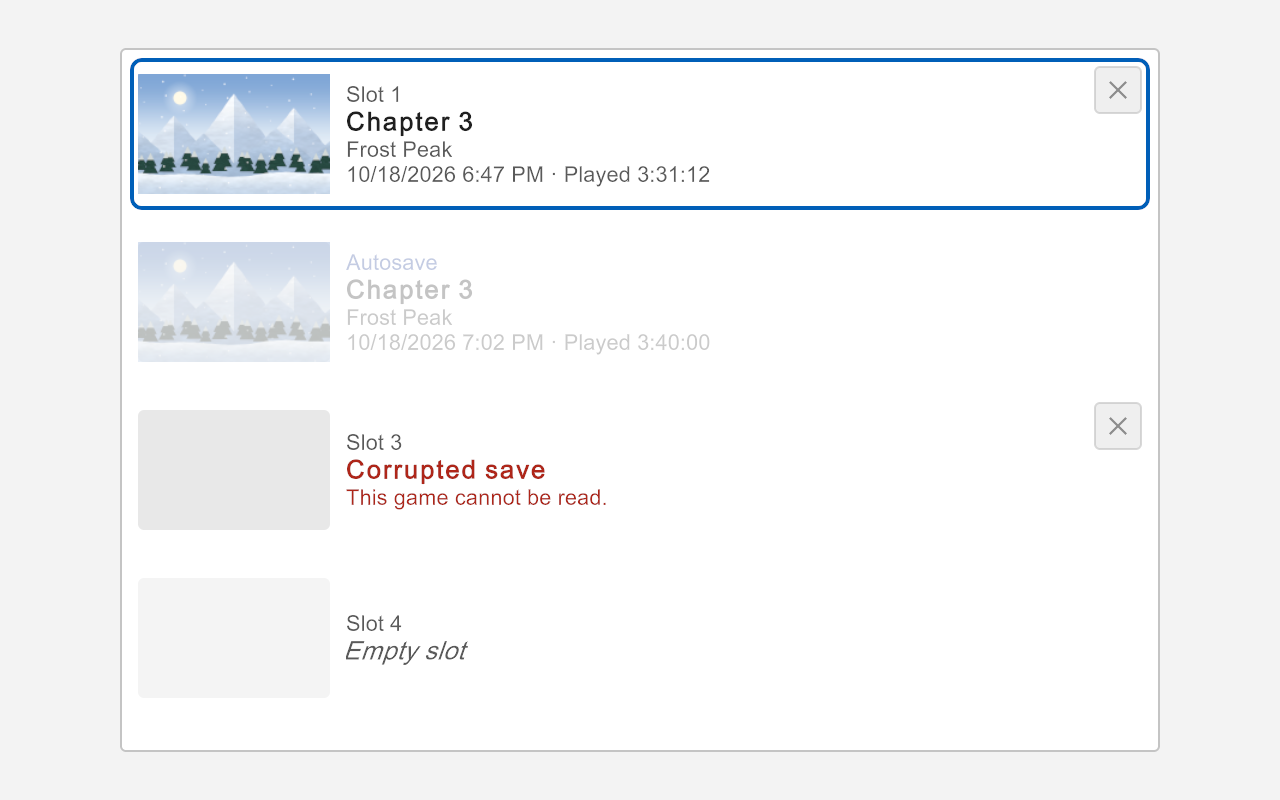
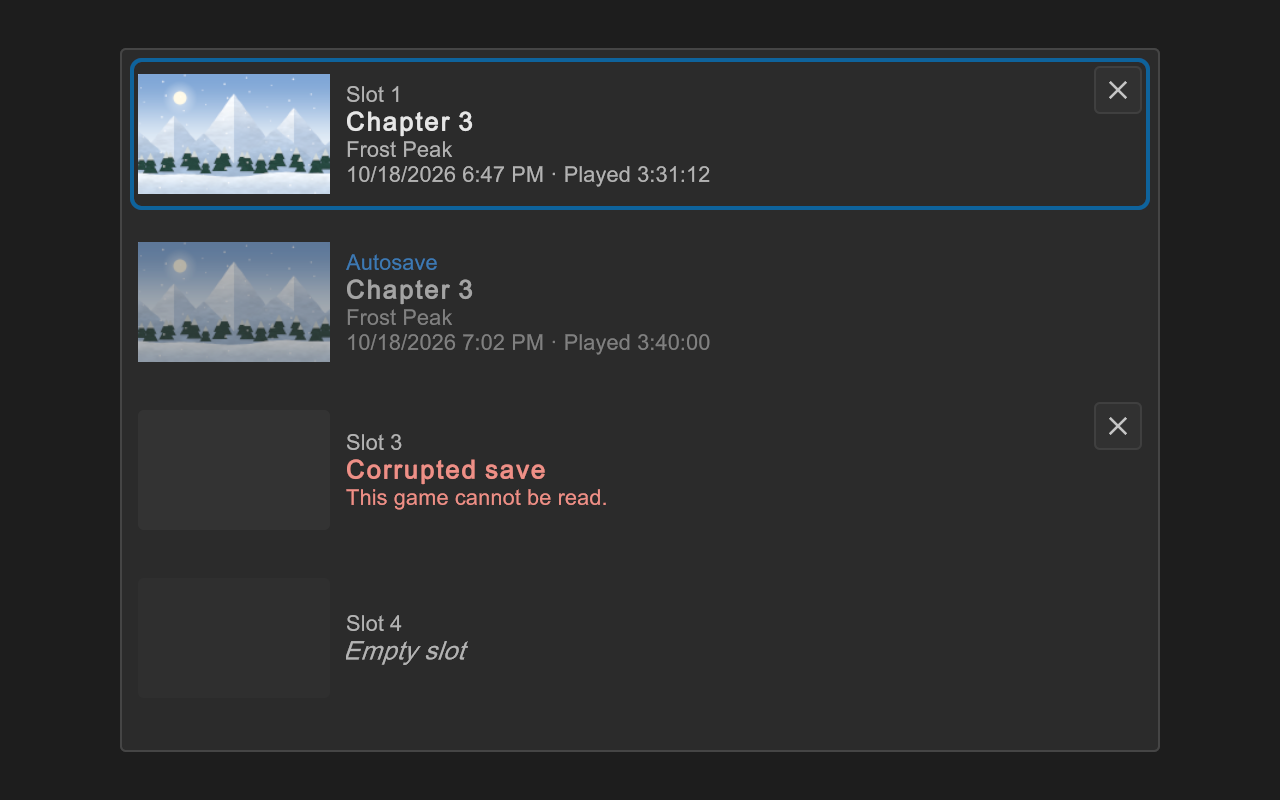
Video tutorial: Save slots. All videos: Video tutorials.
<tb:SaveSlotList name="slots" mode="Save" layout="List" />
var list = root.Q<SaveSlotList>("slots");

// A null entry is an empty slot
var slots = new List<SaveSlotData?>
{
    new SaveSlotData
    {
        Title = "Chapter 2",
        Place = "Old Mill",
        Thumbnail = picture,
        SavedAt = DateTime.Now,
        PlayTime = TimeSpan.FromMinutes(192)
    },
    new SaveSlotData
    {
        Kind = SaveSlotKind.Autosave,
        Place = "Frost Peak",
        SavedAt = DateTime.Now,
        PlayTime = TimeSpan.FromMinutes(220)
    },
    null,
};
list.Slots = slots;

// The list asks the player; your game does the work
list.SaveRequested += i => { slots[i] = WriteSave(i); list.Refresh(); };
list.LoadRequested += i => LoadSave(i);
list.DeleteRequested += i =>
{
    DeleteSave(i);
    slots[i] = null;
    list.Refresh();
};

list.SelectedIndex = 0;
list.FocusSlots();
SaveSlotData holds what a slot shows. Derive from it to carry the data of your game, or keep your own object in Tag. The list never writes to it, and it does not own Thumbnail: you create the texture and you destroy it.
Settings
| Setting (UXML) | Type | Default | Does |
|---|---|---|---|
mode |
SaveSlotMode |
Save |
What a pick does. Save saves to the slot. Load loads its game. |
layout |
SaveSlotLayout |
List |
List is one slot in each row, with the picture on the left. Grid is slots in cells that wrap to the width, with the picture on top. |
item-width |
float | 0 | The width of a slot, in pixels. 0 is automatic: the whole row in a list, 200 in a grid. |
item-height |
float | 0 | The height of a slot, in pixels. 0 is automatic: 76 in a list, 176 in a grid. |
show-delete |
bool | true | Shows the ✕ button on a slot that has a game the player may delete. The Delete key still works. |
confirm-overwrite |
bool | true | Asks before a save over a game. |
confirm-delete |
bool | true | Asks before a delete. |
loading |
bool | false | Shows a skeleton in each slot while your game reads the saved games. The slots do not respond. |
Set these from code:
| Property | Does |
|---|---|
Slots |
The slots, one entry for each. A null entry is an empty slot. A list or an array works. Change an entry in place and call Refresh(). |
SelectedIndex |
The selected slot, or -1. The keys move it, and a pick selects the slot. |
Grid |
The GridView inside, for its own settings such as Spacing. |
Slot kinds
SaveSlotData.Kind |
Looks | Save mode | Load mode | Delete |
|---|---|---|---|---|
Normal |
Picture, title, place, date and play time. | Asks, then saves. | Loads. | Yes |
Autosave |
The caption says "Autosave". | Disabled: the player does not save over it. | Loads. | No |
Corrupt |
The title says "Corrupted save", with a hint. | Saves over it. | Disabled. | Yes |
An empty slot (null) |
The title says "Empty slot" and is italic. | Saves. | Disabled. | No |
The title is Title, or Place when there is no title. With a Title, the place is the second line. SaveSlotData.DisplayName gives the name of the game that the questions of the list use: Title, else Place, else empty.
Methods
| Method | Does |
|---|---|
Refresh() |
Shows the slots again, after an entry changed in place or the count changed. |
FocusSlots() |
Gives the focus to the slots, so the keys and the gamepad work. The list itself takes no focus. |
ScrollToSlot(index) |
Scrolls so that a slot shows. |
SlotElement(index) |
The element that shows a slot, or null while the slot is out of view. The list reuses the elements as it scrolls, so look it up when you need it, such as for an effect just after a save. |
CanActivate(index) |
True when a pick on the slot does something in the current mode. |
CanDelete(index) |
True when the slot has a game that is not an autosave. |
Activate(index), ActivateAsync(index) |
Does what a pick does. The async one ends when the question closes. |
Delete(index), DeleteAsync(index) |
Asks to delete the game, then raises DeleteRequested. |
ConfirmOverwriteAsync(index) |
The question "Overwrite slot N?" as a MessageBox. It is true when the player picks Overwrite, and at once for a slot with no game. |
ConfirmDeleteAsync(index) |
The question "Delete slot N?". |
Events
| Event | When |
|---|---|
SaveRequested |
The player picked a slot in Save mode, and confirmed when the slot had a game. It gives the index. Save the game, set the new SaveSlotData in Slots and call Refresh(). |
LoadRequested |
The player picked a slot with a game in Load mode. |
DeleteRequested |
The player pressed ✕ or Delete on a slot, and confirmed. Delete the game, set the slot to null and call Refresh(). |
Take the picture before the question
A game often takes a picture of the world when it saves. The dimmed screen under the question must not be in that picture. Set confirm-overwrite to false, take the picture on SaveRequested, then ask with ConfirmOverwriteAsync yourself:
list.ConfirmOverwrite = false;
list.SaveRequested += i => AsyncRunner.Run(async () =>
{
    var picture = await Capture(world);
    if (!await list.ConfirmOverwriteAsync(i))
    {
        Destroy(picture);
        return;
    }
    slots[i] = WriteSave(i, picture);
    list.Refresh();
}, "Save");
Mouse, keyboard and gamepad
| Input | Does |
|---|---|
| Click | Selects the slot and does what a pick does: saves or loads. |
| Click on ✕ | Asks to delete the game. |
| Arrows, gamepad stick and d-pad | Move between the slots. In the grid layout they also move across a row. |
| Enter, Space, gamepad submit | Does what a pick does on the selected slot. |
| Delete | Asks to delete the game of the selected slot. |
| Home, End, Page Up, Page Down | The first and the last slot, and a page. |
| Mouse wheel, touch drag | Scroll. |
The questions are MessageBox controls: Cancel has the focus, so a quick second submit does not overwrite or delete. When the question closes, the focus goes back to the slots.
Texts
The texts of the list come from ToolboxText keys, so a language file can change them: tb.save-slot ("Slot {0}"), tb.save-slot-empty, tb.save-slot-autosave, tb.save-slot-corrupt, tb.save-slot-corrupt-hint, tb.save-slot-played, tb.save-slot-delete, tb.save-slot-overwrite-title, tb.save-slot-overwrite-message, tb.save-slot-overwrite, tb.save-slot-delete-title and tb.save-slot-delete-message. The slots show the new texts when the language changes.
Performance
- Only the slots in view, and one row above and below, have elements. The other elements wait in a pool of the
GridView. - A scroll, a
Refresh()and a language-free rebind allocate nothing: the captions and the "date · Played h:mm:ss" line are made once for each slot and kept. - A skeleton exists only while
loadingis on, because its pulse runs while it is on a panel.
In the examples
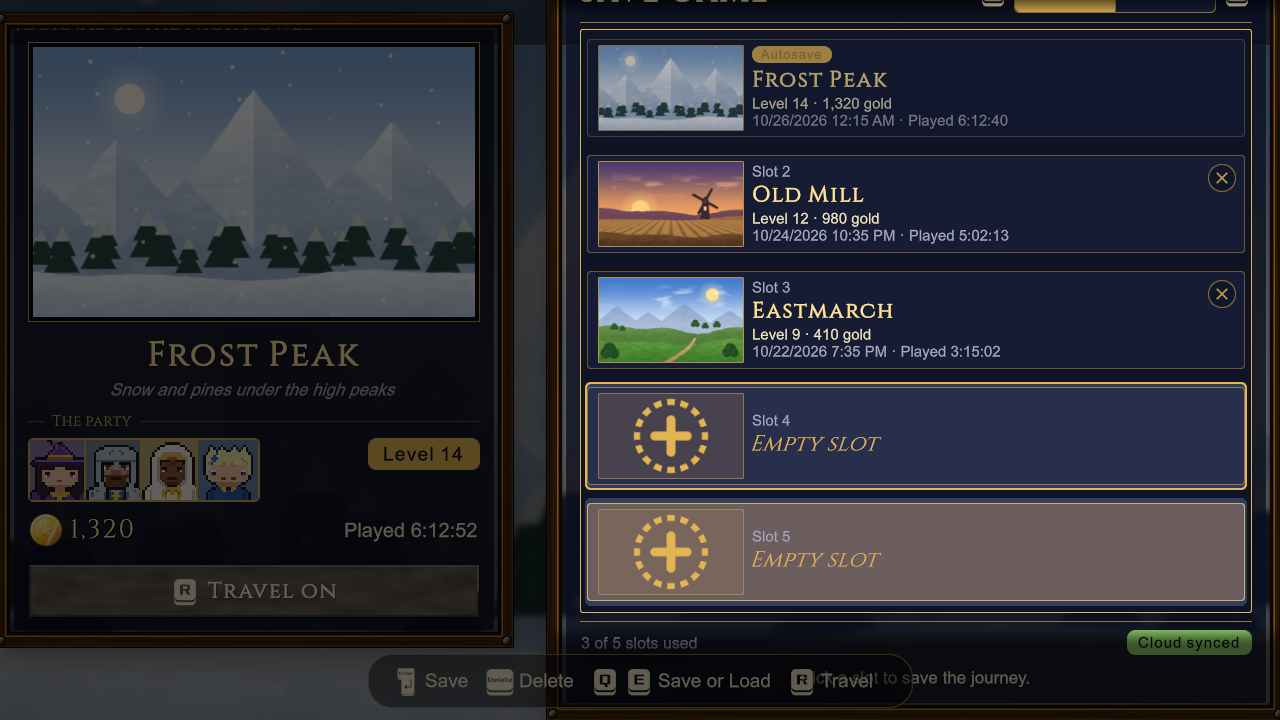
Styling
| Class | Element |
|---|---|
tb-save-slot-list |
The list. With --list or --grid. |
tb-save-slot |
One slot. With --empty, --autosave, --corrupt, --disabled and --loading. The selected slot has the tb-grid-view__item--selected ring on its cell. |
tb-save-slot__thumbnail |
The picture. |
tb-save-slot__body |
The column with the texts. |
tb-save-slot__caption |
"Slot 1" or "Autosave". |
tb-save-slot__title, __place, __meta |
The title, the place, and the date and play time. |
tb-save-slot__delete |
The ✕ button. |
tb-save-slot__skeleton |
The skeleton while loading is on. |
The SaveSlotListDemo scene shows the save screen of a pause menu, a title screen that asks before a load and shows skeletons while it reads the saves, the rules of the autosave and of a save that cannot be read in each mode, and the layout, the sizes, the spacing and the pictures. A status line under the list tells each selection, save, load and delete.
The SaveLoad example scene uses the list with four slots, a picture of the world in each, and a question before an overwrite or a delete. See Save and load.