
Retro PC
A retro PC is a prop in a game world that the player can sit down at and use. This example shows an old computer in a 3D room. The monitor shows the desktop of "Toolbox 95", which is a toolkit Workspace with a 90s look. The programs use ToolBarMenu for the Notepad menu and ColorPicker for the desktop color, with stock buttons, labels, text fields and scroll views. The windows are normal windows.
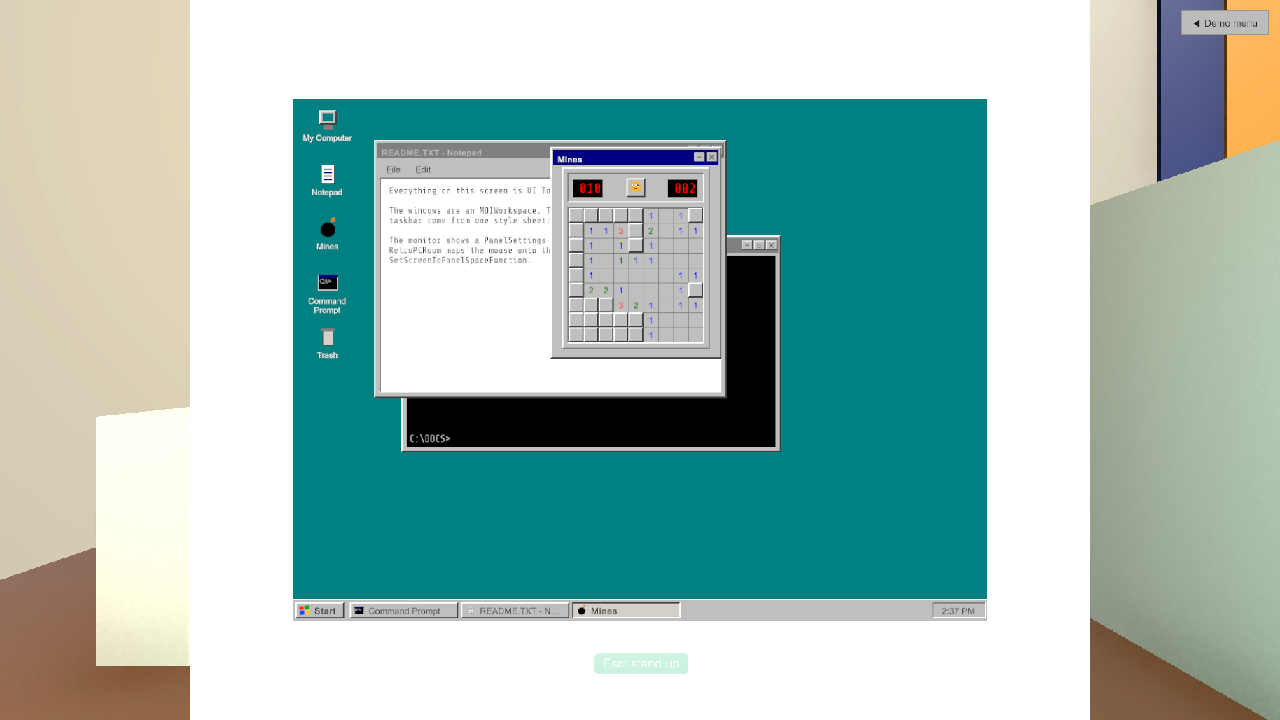
Scene: Assets/UIToolbox/Examples/Scenes/RetroPC.unity. Folder: Assets/UIToolbox/Examples/RetroPC.
Try it
- Open the scene. The hint at the bottom says "Click to look around". Click once to lock the mouse.
- Walk with W, A, S and D (or the arrow keys). Look with the mouse.
- A dot on the monitor shows that you can use the computer. Look at the computer. A prompt with the key E and "Use PC" shows over the monitor, and the text under the crosshair says "Click: use the computer". Press E or click. The camera moves to the seat.
- The mouse is free now. The Welcome window shows a tip. Click Next Tip, then Close.
- Double-click the Notepad icon on the desktop. Type some text. Open Edit, then Time/Date to insert the time.
- Click Start, then Mines. The first click is safe. A right click sets a flag. The face starts a new game.
- Open Command Prompt. Type
HELP, thenDIR,CD DOCSandTYPE README.TXT. - Open Display Properties, pick a color in the
ColorPicker, and click Apply or OK. The desktop changes color. - Click a button on the taskbar. A click on the button of the focused window minimizes it, and the window leaves the screen. Click the button again to bring it back where it was. A window that was maximized comes back maximized, and its restore button returns it to its size and place from before the maximize.
- Click Start, then Shut Down.... The screen goes black. A click starts the computer again.
- Press Escape to stand up. While you walk, press Escape to open the Paused menu. The mouse comes free. Click Resume or press Escape again to walk on. On a gamepad, the left stick walks, the right stick looks, A uses the computer or the door, and Start opens the menu or stands up.
- Walk to the door in the right wall and click it, or press E. The example closes and the demo menu opens.
What it shows
Desktop
The desktop has a teal background, a column of icons (My Computer, Notepad, Mines, Command Prompt and a Trash that does nothing), a taskbar and a clock. One click selects an icon, a double click opens it, and Enter or a gamepad submit opens a focused icon. The icons are plain elements with borders and boxes, so the example needs no image files.
Start menu and taskbar
The Start menu lists the programs, Display Properties, Welcome and Shut Down. It gives its first item the focus when it opens. The workspace uses minimize-mode="Hide": minimize takes a window off the screen, and its taskbar button is the way back. It uses allow-merge="false", so a window never becomes a tab of another one. The taskbar has a button for each open window, hidden ones too, in the order the windows opened. It follows each open, close, minimize, focus and title change of the workspace. A click on a button focuses the window, restores it or, for the focused window, minimizes it.
Programs
| Program | What it does |
|---|---|
| Welcome | A fixed-size window with five tips and Next Tip. It is open at the start. |
| Notepad | A ToolBarMenu (File: New, Exit; Edit: Select All, Time/Date) and a multiline TextField. |
| My Computer | Folders, drives, text files and programs. A double click on a text file opens Notepad. Up goes to the parent folder. |
| Mines | A 9 x 9 field with 10 mines (RetroMines). The mines go in after the first click, never on the first cell or next to it. |
| Command Prompt | HELP, DIR, CD, TYPE, CLS, VER, ECHO, DATE, TIME, NOTEPAD, MINES, DISPLAY and EXIT, on the same folders as My Computer. |
| Display Properties | A preview monitor and a ColorPicker. The picker changes the preview. Apply and OK set the desktop color. Cancel closes the window. The monitor and the picker are in a scroll view, so the buttons stay in reach with a larger font. |
Room and monitor
RetroPCRoom builds the room from colored primitives, so it needs no models or textures. The window in the left wall looks out on a yard of primitives too: grass, a fence, a tree, and two hills, the far one pale like a silhouette in the haze. The sky is the clear color of the camera (RetroPCRoom.SKY), which shows only through the window. The panel of the desktop renders into a RenderTexture (1024 x 768) on the screen of the monitor. The mouse reaches the desktop only while you sit. A HUD shows on the real screen: a Crosshair with the Dot shape, a hint, and an InteractionLayer. The monitor is an Interactable with the verb "Use" and the noun "PC", so the layer shows a hint dot on it while you walk. The layer is in the Manual focus mode: while you look at the computer, the room gives it the focus, the prompt with the key E shows, and the crosshair is in its Interact state with the InteractText "Click: use the computer". The Used event of the layer sits down, and a click does the same. While you walk, Escape opens the pause menu: a Card in the middle of the HUD with Resume, and with Quit when the demo menu opened the scene. The menu frees the mouse, and the room waits under it. Resume, or Escape again, locks the mouse for the look. On the seat, Escape stands up. The door in the right wall is a second Interactable with the verb "Leave" and the noun "Room". Its prompt, or a click on it, calls Leave, which raises Left and opens the demo menu when the demo menu opened the scene. ShowMenu shows and hides the menu from code. Shut Down closes all windows and a click starts the computer again. Set BuildRoom off to show the desktop flat on the screen.
How it is built
| File | Does |
|---|---|
RetroPC.uxml |
Declares the desktop, the workspace with six windows, the Start menu, the taskbar and the shut down screen. |
RetroPC.uss |
The 90s look: palette, bevels, window chrome, menus, icons and their art, taskbar, programs. |
RetroPCController.cs |
Builds the icons, the Start menu items, the taskbar buttons, the file lists and runs the programs. |
RetroMines.cs |
The Mines game as a VisualElement made of Button and Label elements. |
RetroPCRoom.cs |
Builds the room and the HUD with the pause menu, renders the panel on the monitor, sends the mouse to the panel, walks and sits. |
Resources/UIToolboxSamples/RetroRoom.uss |
The HUD: the white crosshair, the hint box and the place of the pause menu. |
The look comes from the theme tokens. The USS sets them on the workspace, so the stock window chrome and controls turn gray with navy title bars.
.retro .tb-workspace,
.tb-message-box {
    --tb-color-surface: #c0c0c0;
    --tb-color-border: #808080;
    --tb-color-text: #000000;
    --tb-color-accent: #000080;
    --tb-radius-sm: 0;
    --tb-radius-md: 0;
    --tb-font-size: 13px;
    --tb-size-title-bar: 22px;
}
The icons sit under the workspace. The workspace ignores the pointer, so a click on the empty desktop reaches them.
Workspace.pickingMode = PickingMode.Ignore;
Icons = _root.Q("icons");
foreach (var program in PROGRAMS.Take(4))
    Icons.Add(
        icon(program.Name, program.Art, () => Launch(program.Window)));
An icon selects on one click and opens on a double click.
element.RegisterCallback<PointerDownEvent>(evt =>
{
    if (evt.button != 0) return;
    select(element);
    if (evt.clickCount == 2) open();
});
element.RegisterCallback<NavigationSubmitEvent>(_ => open());
The taskbar code reads the open windows from the workspace, so it works for any set of windows.
Workspace.WindowStateChanged += _ => ShowTasks();
Workspace.WindowFocusChanged += _ => ShowTasks();
foreach (var window in Workspace.GetAllWindows())
    window.TitleChanged += _ => ShowTasks();
The menu of Notepad uses ToolBarMenu.AddMenu and AddItem. The & marks the access key.
var file = bar.AddMenu("&File");
file.AddItem("New", () =>
{
    NotepadText.value = "";
    Workspace.GetWindow(NOTEPAD).Title = UNTITLED;
});
file.AddItem("Exit", () => Workspace.CloseWindow(NOTEPAD));
The room copies the PanelSettings, so the asset of the project does not change. The copy renders into the texture and gets a function that maps the mouse to the panel.
_panel = Instantiate(_source);
_panel.targetTexture = _texture;
_panel.scaleMode = PanelScaleMode.ConstantPixelSize;
_panel.scale = 1;
_panel.SetScreenToPanelSpaceFunction(position =>
    ScreenToPanel(new Vector2(position.x, Screen.height - position.y)));
ScreenToPanel casts a ray from the camera to the MeshCollider of the screen and turns the texture coordinate into a panel position. It returns NaN when the position is not on the monitor, or when you do not sit.
var ray = _camera.ScreenPointToRay(screenPosition);
if (!_screenCollider.Raycast(ray, out var hit, 10)) return none;
var uv = hit.textureCoord;
return new Vector2(uv.x * SCREEN_WIDTH, (1 - uv.y) * SCREEN_HEIGHT);
RetroMines flags a cell on a right click. The Button acts on the left button only.
cell.RegisterCallback<PointerDownEvent>(evt =>
{
    if (evt.button != 1) return;
    ToggleFlag(index % SIZE, index / SIZE);
    evt.StopPropagation();
});
Use it in your game
- Copy
RetroPCRoom.ShowandScreenToPanelto put any UI on a screen in your 3D scene. The screen needs aMeshCollider, because the raycast reads the texture coordinate of the hit. The UXML, USS and controller of the UI do not change. - Keep the
Workspaceand replace the programs with the windows of your game.ShowTasksworks for any set of windows. - Change the look in
RetroPC.uss. Set the palette tokens first, then the bevels. - Change
SCREEN_WIDTH,SCREEN_HEIGHTandREACHinRetroPCRoomfor another screen size and use distance. - The files, the tips, the commands, the Mines game and the room are sample content. The room is a box with clamped walls, not physics.
RetroPCRoomhas one key reader for the Input System (symbolUITOOLBOX_INPUT_SYSTEM) and one for the legacy Input Manager.- Escape opens the pause menu of the room, also when the scene opens on its own. When the demo menu opens the scene, the back button is on the HUD and the menu has Back to demo menu.