

 PromptBar
A PromptBar is the footer of a game screen that tells the player what each button does, such as "A Select" and "B Back". Each hint is a glyph and a text. The glyphs follow the device that the player used last: the buttons of an Xbox, a PlayStation or a Switch gamepad, or the keys of the keyboard. With no settings, the bar shows Select and Back. You give it a list of hints, or put the hints in child elements in UXML, or give a screen hints of its own: the bar shows the hints of the screen that has the focus.
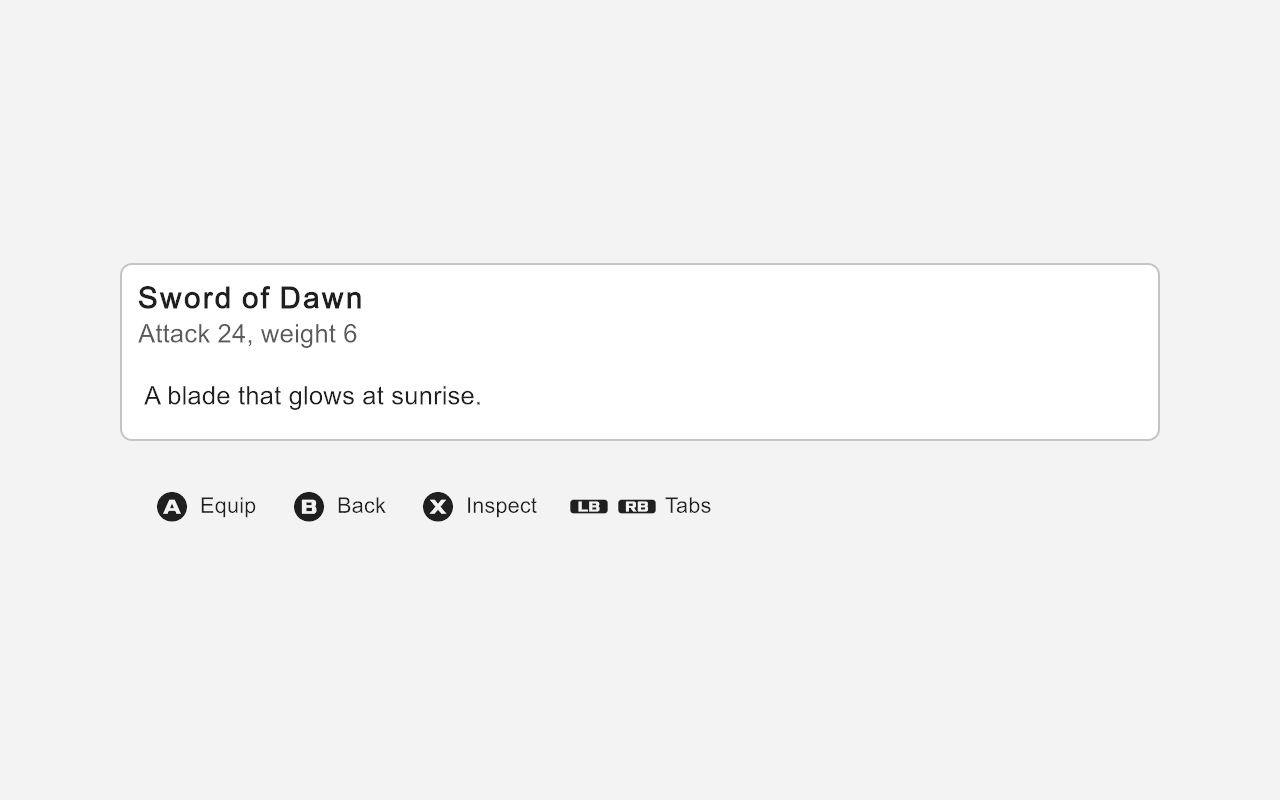
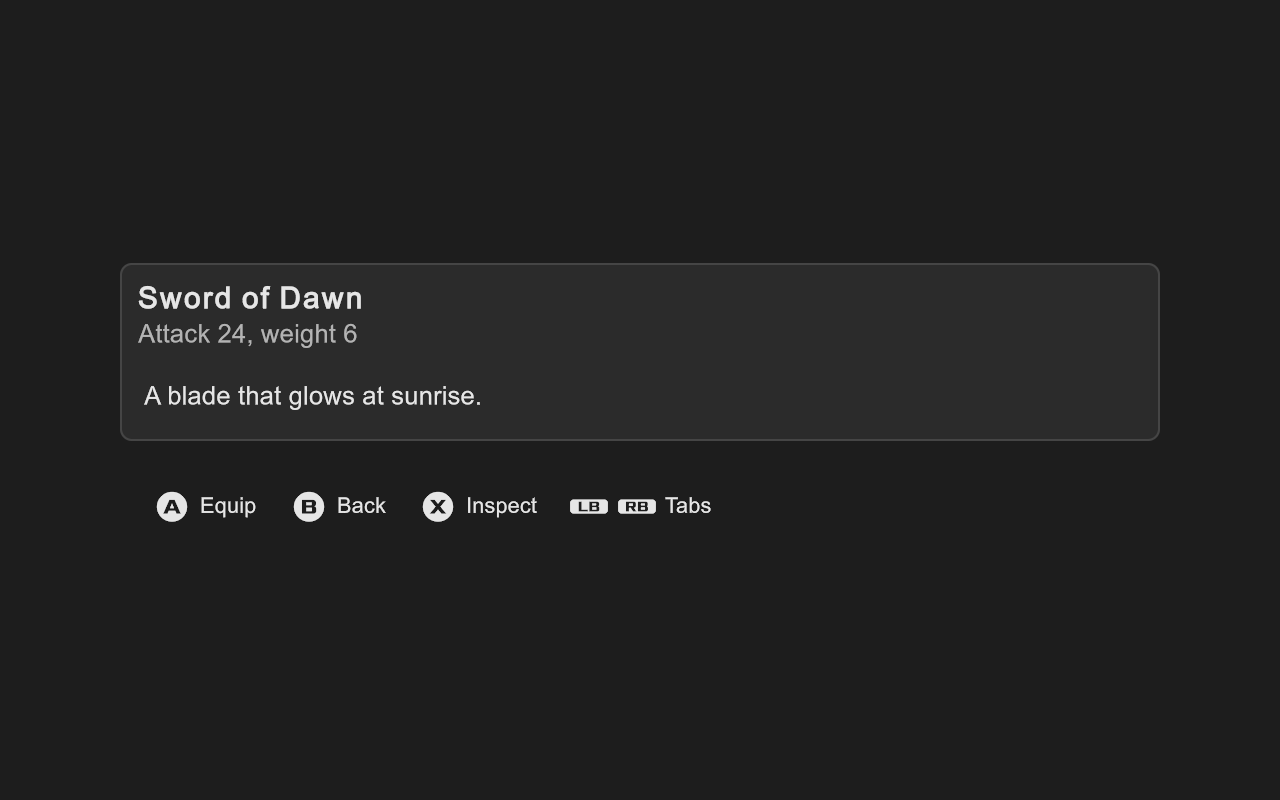
Demo scene: PromptBarDemo.unity. Sample: Game menu.
How to add a bar with hints in UXML:
<tb:PromptBar name="bar">
    <tb:PromptHint button="Dpad" text="Move" />
    <tb:PromptHint button="South" text="Select" />
    <tb:PromptHint button="East" text="Back" />
    <tb:PromptHint
        button="West"
        text="Drop"
        keyboard-glyph="keyboard-x" />

    <!-- these show while the focus is in the element named "shop" -->
    <tb:PromptHint scope="shop" button="LeftShoulder" />
    <tb:PromptHint scope="shop" button="RightShoulder" text="Tabs" />
    <tb:PromptHint scope="shop" button="South" text="Buy" />
</tb:PromptBar>
UI Builder shows the hints in the Hint List of the Inspector.
How to set the hints from code:
var bar = root.Q<PromptBar>("bar");
bar.Hints = new[]
{
    new PromptHint(GamepadGlyphButton.South, "Select"),
    new PromptHint(GamepadGlyphButton.East, "Back"),
    new PromptHint(GamepadGlyphButton.West, "Drop",
        keyboardGlyph: "keyboard-x"),
};

// Hints for one screen: the bar shows them while the focus is in
// shopCard or in a child of it
PromptBar.SetHints(shopCard,
    new[] { new PromptHint(GamepadGlyphButton.South, "Buy") });
// the bar shows its own hints again
PromptBar.SetHints(shopCard, null);
| Member | Description |
|---|---|
Hints |
The hints of the bar, as an IReadOnlyList<PromptHint>. Null (default) shows Select and Back. An empty list shows nothing. The bar copies the list, so set it again after a change. |
FollowFocus (follow-focus) |
The bar shows the hints of the screen that has the focus. On by default. Off: the bar shows the hints that have no scope, wherever the focus is. |
PromptBar.SetHints(element, hints) |
Gives an element hints of its own. The bar shows them while the focus is in the element or in a child of it. Null removes them. The hints go away with the element. |
PromptBar.GetHints(element) |
The hints that SetHints gave to an element, or null. |
The members of PromptHint:
| Member | Description |
|---|---|
Button (button) |
The gamepad button, a GamepadGlyphButton. Default South. |
Text (text) |
What the button does. A key of the text table of the game, such as ToolboxText.SELECT, shows its translation. Any other text shows as it is. An empty text shows the glyph alone, close to the next hint: "LB RB Tabs". |
KeyboardGlyph (keyboard-glyph) |
The glyph that shows after the player used the keyboard or the mouse, a PromptFont name such as "keyboard-x" or "mouse-left". Empty (default) shows the key from the table below. |
Action (code only) |
An InputAction of the game. The hint shows the binding of the action in place of Button and KeyboardGlyph, so a rebind shows at once. A hint with an action shows on the keyboard when the action has a keyboard or mouse binding. Needs the Input System package. |
Scope (scope) |
The name of an element. The hint shows while the focus is in that element. Empty (default) puts the hint in the base of the bar. |
The key that a hint shows on the keyboard, when KeyboardGlyph is empty:
| Button | Key |
|---|---|
South |
Enter |
East, Start |
Escape |
LeftShoulder, RightShoulder |
Q, E |
DpadUp, DpadDown, DpadLeft, DpadRight |
The arrow key |
Dpad, LeftStick |
The four arrow keys |
| Any other button | None. The hint hides while the keyboard is the last device, unless it has a KeyboardGlyph. |
- The scope is a name. The bar looks at the element that has the focus, then at its parents. The first element that has hints from
SetHints, or that has the name of a scope, decides. The hints with no scope show when there is none. - Hints with the same scope are one group, in the order of the list.
- A number or time field has hints of its own (A, Y, B). They show first, and the hints of the scope or the element
around the field follow for the other buttons.
SetHintson the field replaces them. - The bar shows the hints again on each change of the focus, of the hints and of the device. The player who presses a button of the gamepad sees the buttons of that gamepad at once. A key or a mouse button brings the keys back.
- The bar takes no focus and no pointer events. It only shows the hints; your screen does what the buttons say.
- Keep the hints true. Each hint should name a button that the screen reads, and the hints of a screen should show the buttons of that screen only.
Tips:
- Put the bar at the bottom of the screen. Give it a class with a background and
position: absolute; left: 0; right: 0; bottom: 0, or make it the last child of a column. - Name the element of each screen and use the name as the
Scopeof its hints. The Game menu example does this, so its code does not set any hint. - Use
SetHintsfor a screen that you make in code, andHintsfor the hints that always show. - Show the shoulder buttons of a NavigableTabView with
BumperSwitchas a pair:LeftShoulderwith no text, thenRightShoulderwith "Tabs". In a workspace the tabs are on the triggers:LeftTrigger, thenRightTrigger. - Choose the key for a
WestorNorthhint withKeyboardGlyph, for example "keyboard-x". Without a key, the hint is not on the keyboard.
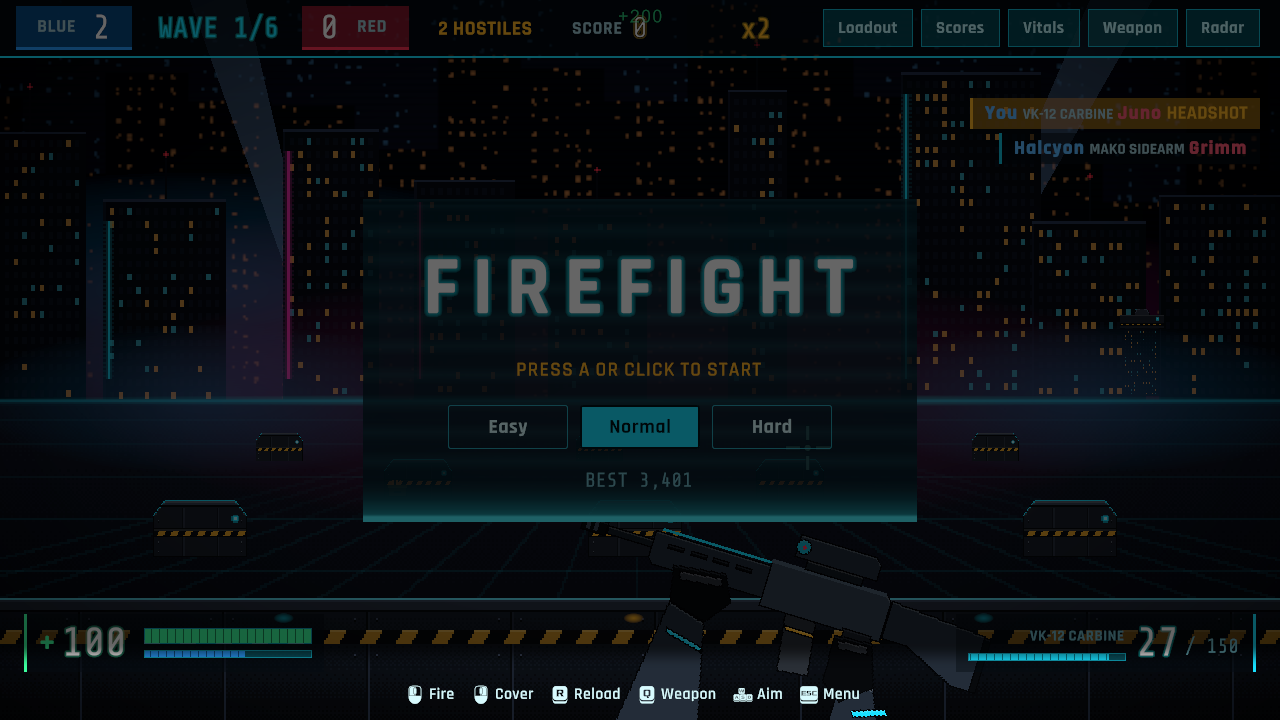
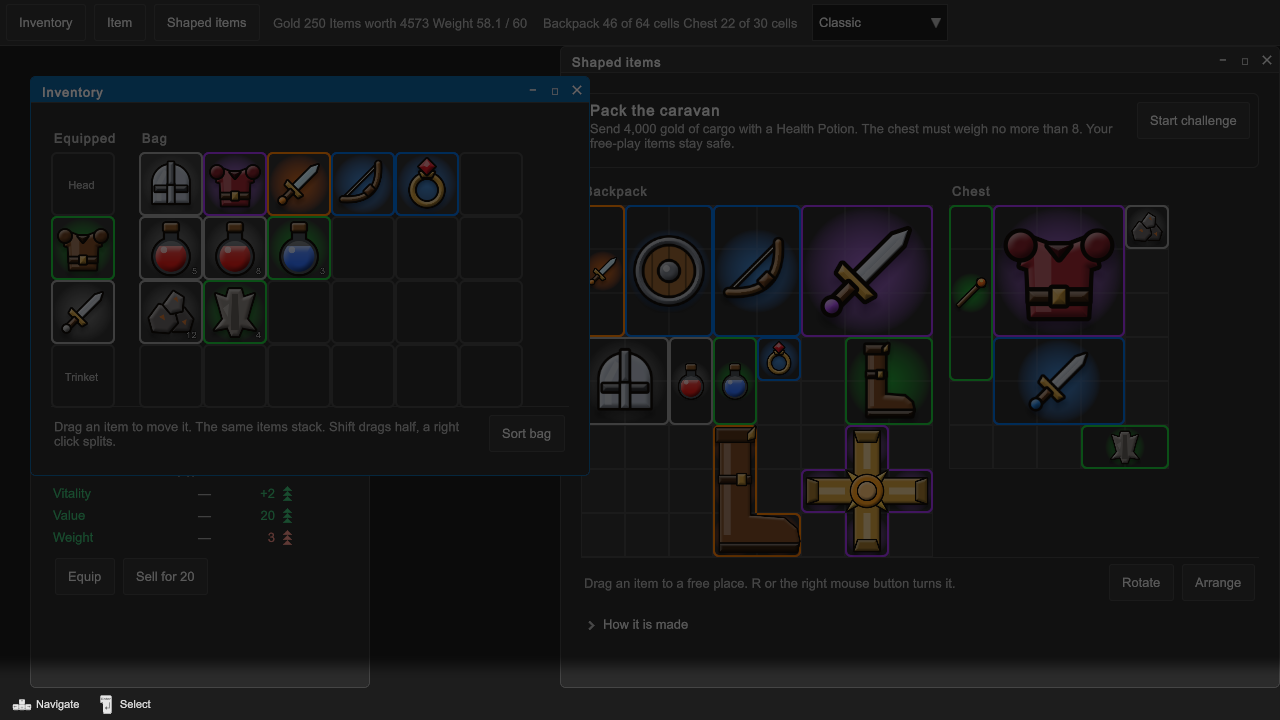
In the examples
Styling
| Class | Element |
|---|---|
tb-prompt-bar |
The bar: a row. |
tb-prompt-bar__item |
One hint: a glyph and a text. |
tb-prompt-bar__item--hidden |
A hint that does not show: an unused one, or one with no key while the keyboard is the last device. |
tb-prompt-bar__item--bare |
A hint with no text. It sits close to the next hint. |
tb-prompt-bar__glyph |
The GamepadGlyph of a hint. font-size is its size. |
tb-prompt-bar__text |
The text of a hint. |
/* A bar for the bottom of the screen, with a larger glyph */
.my-menu .tb-prompt-bar {
    position: absolute;
    left: 0;
    right: 0;
    bottom: 0;
    justify-content: center;
    background-color: var(--tb-color-overlay);
}

.my-menu .tb-prompt-bar__glyph {
    font-size: 26px;
}
Performance
- A bar at rest runs no scheduled item and allocates no memory.
- The hints are pooled: a hint is a glyph and a label that the bar makes once and binds again. A bar with more hints than before makes the missing ones, and a bar with fewer hides the rest.
- The bar watches the device of the player only while it is on a panel. All glyphs share one tracker (see GamepadGlyph).
The PromptBarDemo scene shows a bar with no setup under a pause menu, an Inventory and a Shop whose hints follow the focus, hints with no Buy for a weapon the player cannot afford, the key and the button of a hint, and the looks of the bar. A dropdown under the preview fixes the glyphs to the keyboard or to a gamepad family.
See also
- GamepadGlyph and InputGlyph: the glyphs and the last used device
- NavigableTabView:
BumperSwitch - InteractionPrompt
- Game menu example