
Units
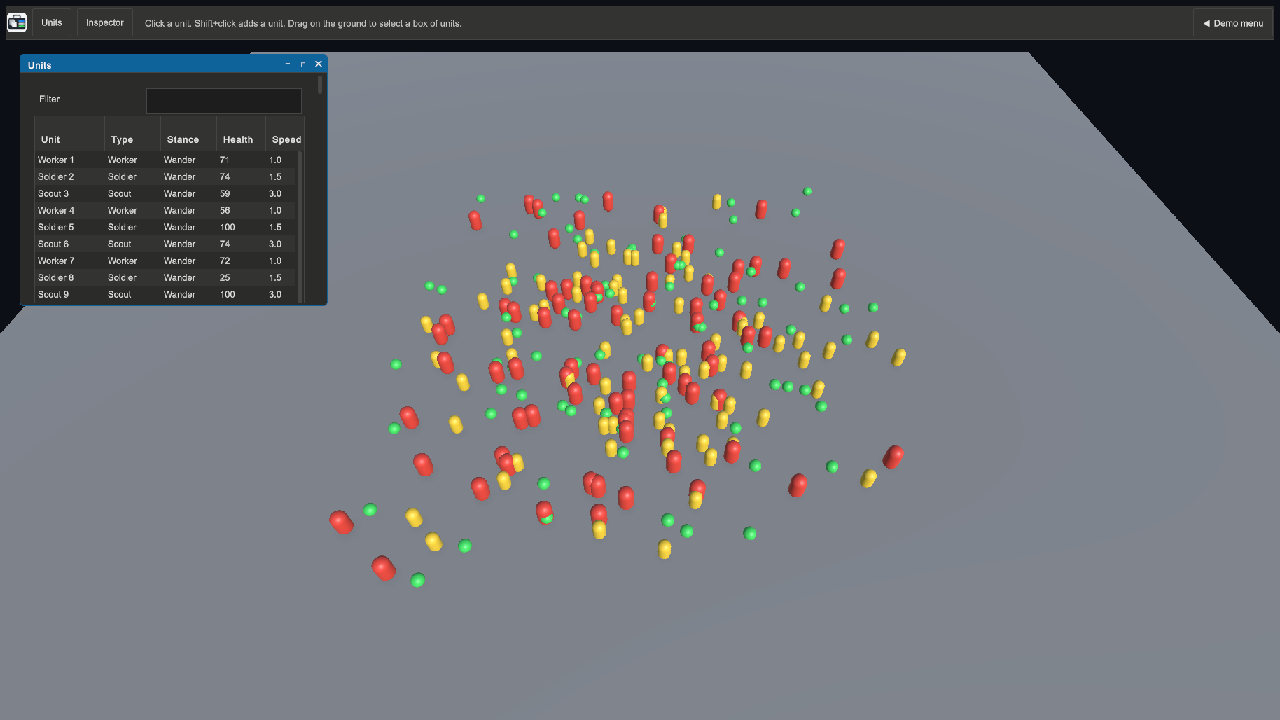
An RTS field of 240 units with one shared inspector window. The player clicks a unit, adds units with Shift, or drags a box on the ground. The inspector shows one unit, or a summary of the group. The scene uses a DataGrid for the unit list, a PropertyGrid for the inspector and a WorldMarkerLayer for the brackets around the selected units.
Scene: Assets/UIToolbox/Examples/Scenes/Units.unity. Folder: Assets/UIToolbox/Examples/Units.
Try it
- Click a unit in the 3D field. The Inspector window opens with the unit. Its title is the name of the unit, and brackets mark the unit.
- Hold Shift and click another unit. The unit joins the selection. Shift and click a selected unit to remove it.
- Press on the ground and drag. A box shows. Release to select every unit in the box. Shift while you release adds the units to the selection.
- Look at the Inspector. With more than one unit, the title reads "12 units" (with your count) and the rows sum up the group.
- Change Stance or Speed in the group inspector. The change applies to every selected unit.
- Open the Units window from the toolbar. Click a row, or select several rows. The field follows the rows.
- Type in the Filter field. The grid shows only the rows that match.
- Click the ground without a drag. The selection clears and the Inspector closes.
What it shows
Unit list
The Units window is a read-only DataGrid with selection-mode="Multiple". Its five columns bind to the public fields of SampleUnit: Unit, Type, Stance, Health and Speed. The Health and Speed columns use the format setting (0 and 0.0). The filter field above the grid sets the SearchText of the grid. A timer calls Refresh() once a second, so the health values change on screen as the units get hurt and heal. The window has enable-scrolling="false": the grid scrolls its own rows, so the window shows one scroll bar, not two.
Inspector
The Inspector is one window with a PropertyGrid. The grid builds a row for each public field of the data. It reads the Range attribute for a slider and the Tooltip and Description attributes for the text under a row. The window has title-format="{Name}", so the title reads the Name of the data. This is one SampleUnit or one UnitGroup.
A UnitGroup has these rows:
Count,TypesandAverage health: read-only rows with a getter only.StanceandSpeed: editable rows. A change writes to every selected unit.
Selection markers
Each unit has a HudTarget with ShowOn = HudShowOn.Marker. The component is off until the unit is selected. The WorldMarkerLayer draws a bracket box around each active target, with no label and no distance (target-mark="Brackets", show-label="false", show-distance="false"). A selected unit also shows brighter and 30 percent larger.
Selection box
A plain VisualElement draws the box. It has pickingMode = Ignore, so clicks go through it. A drag of 6 pixels or less counts as a click.
How it is built
| File | Does |
|---|---|
Units.uxml |
Declares the marker layer, the workspace, the toolbar, the Units window and the Inspector window. |
UnitsController.cs |
Makes the units, keeps the selection list, the grid rows and the inspector in step, and reads the pointer for the box. |
SampleUnit.cs |
One unit: public fields for the inspector, wandering, health changes and the color. |
UnitGroup.cs |
The inspector data for a selection of more than one unit. |
The example has no USS file of its own. It uses Samples.uss.
The inspector window is in the UXML with its data left empty. The title reads Name from whatever data the window gets. Its size fits the rows of one unit and of a group, so it opens without a resize. The PropertyGrid scrolls its own rows, so the window turns its scrolling off:
<tb:Window
    id="unitInspector"
    title="Inspector"
    title-format="{Name}"
    width="400"
    height="400"
    x="480"
    y="20"
    initial-window-state="closed"
    enable-scrolling="false">
  <tb:PropertyGrid
      class="sample-grow"
      name="inspectorGrid"
      show-description="true" />
</tb:Window>
The controller gives the grid its units and links the filter field to the search:
_grid.ItemsSource = _units;
_grid.SelectionChanged += onGridSelection;
ClearButton.Attach(list.Q<TextField>("unitFilter"));
list.Q<TextField>("unitFilter")
    .RegisterValueChangedCallback(e => _grid.SearchText = e.newValue);
Each unit gets an OpenWindowOnClick that points to the one inspector window. The controller listens to its Opened event to set the selection:
var click = unitObject.AddComponent<OpenWindowOnClick>();
click.Window = INSPECTOR_WINDOW;
click.Document = document;
// ...
private void onOpened(OpenWindowOnClick click, WindowDescriptor window)
{
    if (!click.TryGetComponent<SampleUnit>(out var unit)) return;
    _unitClickFrame = Time.frameCount;
    if (readPointer(out _, out _, out _, out var shift) && shift)
        Toggle(unit);
    else Select(new[] { unit });
}
One method keeps the three views in step. It marks the units, selects the same rows in the grid, and gives the window one unit or a UnitGroup. ShowData opens the window with that data:
object data = _selection.Count == 1 ? _selection[0]
    : new UnitGroup(_selection.ToList());
_inspector.Target = data;
_workspace.ShowData(INSPECTOR_WINDOW, data);
The _syncingGrid flag is true while the code sets the grid selection. This stops onGridSelection from answering its own change.
The group applies a change to every unit in a property setter:
public UnitStance Stance
{
    get => _units.Count == 0 ? default : _units[0].Stance;
    set
    {
        foreach (var unit in _units) unit.Stance = value;
    }
}
[Browsable(false)] keeps a member out of the PropertyGrid. SampleUnit.Selected and UnitGroup.Name use it.
Use it in your game
- Copy the pattern of one window id for many objects. Each object has an
OpenWindowOnClickwith the sameWindow, and the data comes from the object. - Give your unit class public fields with
Range,TooltipandDescriptionattributes. ThePropertyGridbuilds the inspector from them. - Write a small group class for a multi-selection. Use getter-only properties for sums and averages, and setters that write to every member.
- Put a
HudTargeton each selectable object and turn it on while the object is selected. TheWorldMarkerLayerneeds no other code. - Sample-only parts: the 240 random units (
UnitCount,Area), the fixed random seed (InitState(7)), the random hits to health, and the wandering. SelectusesList.Contains, which is O(n). For thousands of units, keep aHashSetnext to the list.- The box selection uses
Camera.main. ChangeSelectInScreenRectif your game uses another camera. - The pointer code reads the Input System or the old Input Manager, whichever the project uses.