
Shop
Shop is the trade screen of a game: the smithy of Brom. The vendor stands behind the counter and talks in a speech bubble, the stock is on one side, the bag of the player on the other, and a card in the middle shows the selected item. Coins fly between the purse and the card at each deal. It uses two DataGrid controls, a Card with an ItemSlot and an ItemCompare, a NumericUpDown for the quantity, a ResourceCounter that collects the coins of a ParticleLayer, and a MessageBox that asks before a big deal. The first time the Shop opens, Hesta walks the player through it in a TourOverlay in the look of the Shop. The rules live in a plain C# class, so the screen only shows them.
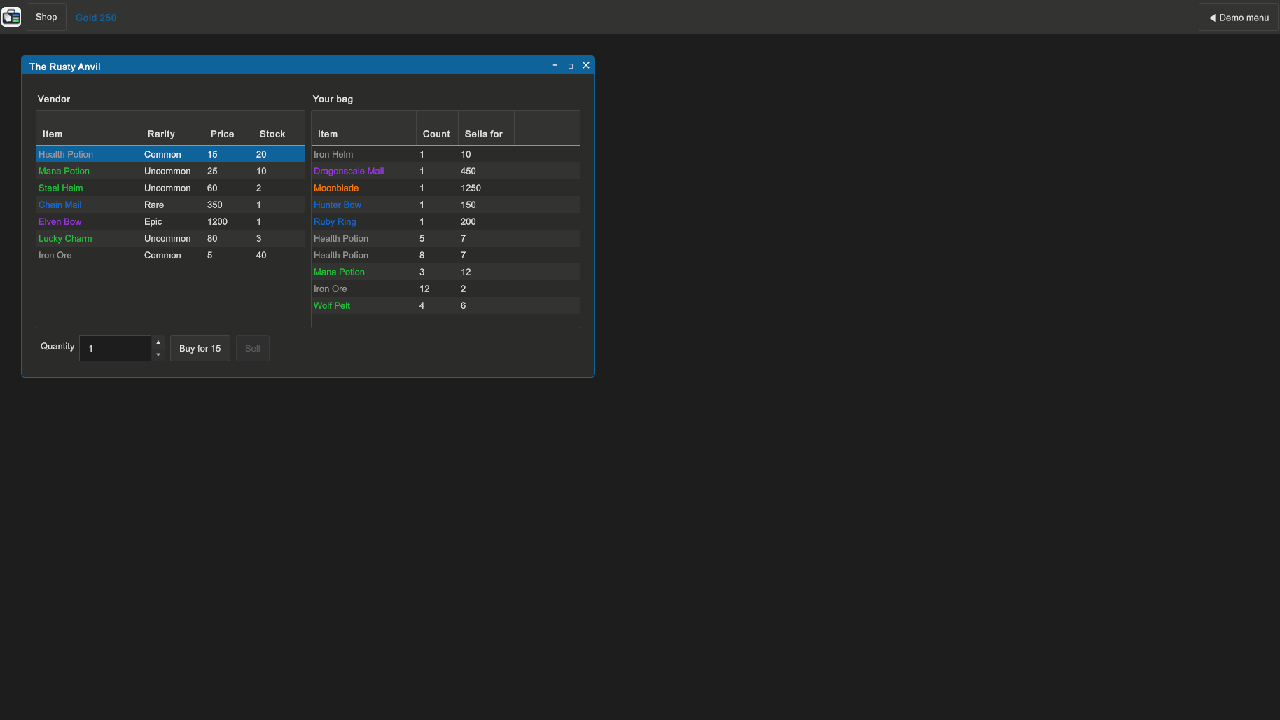
Scene: Assets/UIToolbox/Examples/Scenes/Shop.unity. Folder: Assets/UIToolbox/Examples/Shop.
Try it
- Open the scene. A lamp lights a wall of shelves, and Brom stands behind the counter. Their bubble types "Welcome to the Rusty Anvil!". The window "The Rusty Anvil" shows the For sale grid, the card and the Your bag grid. The toolbar shows your gold. The first stock row is selected, and the stock grid has the focus. The first time, the tutorial of Hesta starts over the Shop: press Next through its steps and buy a potion when she asks, or press End tour (Escape) to leave it. The ? button at the end of the deal row starts it again.
- Press Buy. The button reads "Buy for 15", because one Health Potion costs 15 gold. Coins fly from your purse to the card, a coin sound plays, and the gold rolls down. The potion joins the stack in your bag, and the status line says "You bought 1 Health Potion for 15 gold."
- Set the quantity to 10 and press Buy. A question asks "Buy 10 Health Potion for 150 gold?". Cancel has the focus. Choose Buy to confirm, or Cancel (or Escape) to stop.
- Select the Chain Mail. It has a Sale badge, and its price is struck out: 350 becomes 245. The card compares it with the Leather Armor that you wear: the armor goes up from 8 to 16, and the weight from 8 to 10. Small sparks rise from the card, because the item is rare.
- Select the Elven Bow. The status line says "You do not have enough gold.", and the Buy text turns red. Press Buy anyway. The purse and the button shake, the gold flashes red, a low tone plays, and Brom says "That costs more than your purse holds, friend."
- Click a row in the bag grid. The stock selection clears. The column "Sells for" shows half of the value, and the card shows the sell price. Select the Moonblade: its name shines, the card glints gold, and Brom wants it.
- Select Iron Ore in the bag, set the quantity to 12 and press Sell. Coins fly from the card into your purse, which pops and rings as they arrive. The gold grows with each coin.
- Set the quantity higher than the stack. Sell is disabled, and the status line says how many you have.
- Use the keyboard or a gamepad. Tab and the arrows move between the grids, the quantity and the buttons. Enter presses the focused button.
- Use only a gamepad. The d-pad moves in the list, and A on a row buys it from the stock or sells it from the bag. X (west) moves to the other list, and Down on the last row goes on to the Buy or Sell button. Y (north) shows the tutorial, and the d-pad also reaches the ? button. The hint bar under the deal row names the buttons of the list that has the focus. In the tutorial, Buy shows the button of the pad that the buy step waits for.
What it shows
The room and the vendor
ShopBackdrop shows the room behind the window as a pixel picture, Resources/ShopArt/smithy.png (480 x 270, drawn by node Tools/skins/shop.mjs): a wall of planks, two shelves of bottles, jars, books and crates, and the counter. It shows each pixel as at least 4 x 4 screen pixels, at the whole zoom that covers the screen, and keeps the top of the counter ShopBackdrop.COUNTER_HEIGHT over the bottom, where the vendor stands. The lamp is a second picture, lamp.png, that hangs from the top. Its light is a soft glow that flickers, dust drifts in it on a ParticleLayer, and the edges of the room are dark. The workspace has background-opacity="0", so the room shows around the window. Brom and the window stand side by side on the counter in the middle of the room: the window has placement="Bottom", and the vendor and the lamp keep the same distance left of the center (ShopBackdrop.VENDOR_FROM_CENTER).
Brom is a UserAvatar with a 24 x 24 pixel face, brom.png in Resources/UIToolboxSamples/Portraits, that Shop.uxml sets as its image. Point filtering keeps the pixels sharp. Their speech bubble is a TypewriterLabel: each new line types itself, and the face bobs once as they start to talk. They greet the player, praise a buy, comment on a sale, name the item on sale and the rare items, and refuse a buy that the purse cannot pay.
Vendor grid and bag grid
Two read-only DataGrid controls. The stock has the columns Item, Price and Stock; the bag has Item, Count and "Sells for". The Item column has stretch="true", so it takes the width that the other columns leave and the grids never show a side scroll bar, even in the smallest window. Stock is the number that the vendor has. An item that the player sells and the vendor lacks joins the end of the stock. The bag lists the items in the bag, in slot order. Equipped items do not show, so the player cannot sell them here.
Item cells
Each name cell has a small ItemSlot with the picture of the item in its rarity frame, then the name in its rarity color, with the description as a tooltip. An epic name blends to pink. A legendary name blends to gold, and a light runs over it. The Chain Mail is on sale this week: its cell has a red Sale Badge, and its price shows the old value struck out.
The item card
A Card between the grids shows the selected item. The frame and the title take the color of the rarity; an epic title blends, and a legendary title blends and shines. The stage holds a large ItemSlot with the picture, which pops when the item changes. Under it are the price, the description and, for gear, an ItemCompare against the gear of the same kind that the player wears: armor for a helm or a body, damage for a weapon, luck for a trinket, and the weight, where less is better. Sparks in the rarity color rise from a rare item, more from an epic one and most from a legendary one.
Deal row
The row under the grids has the quantity (NumericUpDown, 1 to 99), the Buy and Sell buttons, and the status line. A selection in one grid clears the other, so only one deal is open. The buttons show the total: "Buy for 150". A button is disabled while the deal cannot happen, and the status line tells why. The reasons are, in order: no item chosen, sold out, too few in stock, not enough gold, and a full bag. For a sale: no item chosen, or too few in the stack.
Buy stays enabled when only the gold is missing, with its text in red. A press makes the vendor refuse: the purse and the button shake, the purse flashes red, and a low tone plays.
Gold and coins
The toolbar shows your gold in a ResourceCounter. A buy lowers the counter at once and bursts coins from the purse to the card. A sale calls ResourceCounter.Collect: the coins fly from the card into the purse, and each coin that arrives adds its share, so the amount grows with the coins. The first coin pops the purse and rings. The sounds are short clips that SampleTones makes at start, so they need no audio file.
Confirmation
A deal of 100 gold or more asks first with MessageBox.ConfirmAsync. Cancel has the focus. After the box, the focus returns to the button. While a box is open, a second click starts nothing.
The tutorial
The first time the Shop opens in a session, Hesta, who keeps the books of Brom, walks the player through it: the stock, the card, a first buy, the purse, the bag and the way out. It is a TourOverlay with the look of a game. Hesta speaks from a carved frame with her name on a wood plate, and her face changes mood and talks while her line types itself out. A click, Enter or the south button of a gamepad first shows the whole line, then goes on. Coins count the steps, a gold arrow and a glowing ring show the target, and the buttons are the stone buttons of the Shop with their key hints. The buy step waits until the player buys something. The ? button at the end of the deal row shows the tutorial again. ShopController.Tutorial.cs builds it, and Shop.uss gives it its look through the classes of the tour (see Styling a tour for your game).
The voice of Hesta
Hesta reads each line aloud. Each step has a clip, hesta-step1.mp3 to hesta-step6.mp3 in Resources/UIToolboxSamples/Voice, as its TourStep.Sound. The tour plays it on the voice channel of ToolboxAudio, and the line types over the length of the clip, so the text and the voice end together. The first Next shows the whole line and lets the voice play on; a move to another step or End tour stops it. The replay button and the R key play the line of the step again. The mute button left of End tour, or the M key, silences the voice, and the tour keeps the choice.
for (var i = 0; i < steps.Count; i++)
    steps[i].Sound = Resources.Load<AudioClip>(VOICE + (i + 1));
The lines are in LINES in ShopController.Tutorial.cs, and the clips are ElevenLabs text to speech takes of them. After you change a line, make a new take with any text-to-speech tool or voice actor and save it as hesta-stepN.mp3 in the same folder (MP3 and OGG both import). Tools/voice is an optional local fallback that speaks the lines offline; see Tools/voice/README.md.
How it is built
| File | Does |
|---|---|
ShopController.cs |
Gives each grid its list, draws the name cells, fills the card, plays the coins and the sounds, makes the vendor talk, connects the buttons, asks the confirmation and shows the result. |
SampleShop.cs |
The vendor and the rules: prices, the item on sale, the stats of the gear, CanBuy, CanSell, Buy and Sell. A plain C# object. |
ShopBackdrop.cs |
The room: shows the picture of the smithy and the lamp, and adds the lamp light and its flicker, the dust and the dark edges. |
Resources/ShopArt/*.png |
The smithy and the lamp, drawn by node Tools/skins/shop.mjs, with point filtering and no compression. |
ShopController.Pad.cs |
The gamepad: A on a row deals, X moves between the lists, Y shows the tutorial, Down on the last row reaches the deal button, and Buy shows the button of the pad on the buy step. |
ShopController.Tutorial.cs |
The tutorial of Hesta: the title and the line of each step in LINES, the voice of each step, the target and the wait for the buy. |
Shop.uxml |
The room, the vendor and the sign, the workspace with the gold counter, and the window with the grids, the card and the deal row. |
Shop.uss |
The leather and wood look, the bubble, the card frames for each rarity, the item cells, and the red purse. |
The shop reuses the bag of the Inventory example. Player is a SampleInventory, so the shop uses its Add, Room and Remove.
public readonly SampleInventory Player = new();
The vendor sells for the value, less for the item on sale, and buys for half, rounded down.
public static int BuyPrice(InventoryItem item) =>
    OnSale(item) ? item.Value * SALE_PERCENT / 100 : item.Value;
public static int SellPrice(InventoryItem item) => item.Value / 2;
CanBuy returns the reason, or null. The controller uses the same text for the status line and for the buttons.
if (item.Count == 0) return $"The {item.Name} is sold out.";
if (count > item.Count) return $"The vendor has only {item.Count}.";
if (BuyPrice(item) * count > Player.Gold) return NOT_ENOUGH_GOLD;
if (Player.Room(item) < count) return "Your bag is full.";
Stats gives a piece of gear its stats for the compare. The card compares them with the stats of the worn gear.
var worn = _shop.Worn(item.Kind);
_compare.SetStats(SampleShop.Stats(worn), stats);
A buy bursts coins toward the card. A sale lets the counter collect them, so the amount grows as they land.
_coins.Burst(_gold.IconElement,
    ParticleSettings.Coins(_cardSlot, coinCount(total)));
_gold.Collect(_coins, _cardSlot, total,
    ParticleSettings.Coins(_gold.IconElement, coinCount(total)));
A cell renderer replaces the default text cell of a column. The Name cells and the price cells use one each.
_stockGrid.SetCellRenderer("Name", (_, item) =>
    nameCell((InventoryItem)item, true));
_bagGrid.SetCellRenderer("Value", (_, item) =>
    new Label(SampleShop.SellPrice((InventoryItem)item).ToString()));
A deal below CONFIRM_GOLD runs at once. A bigger deal waits for the box. A button starts the async method with AsyncRunner.Run, which logs an exception instead of losing it.
_buy.clicked += () => AsyncRunner.Run(Buy, "Buy");
_sell.clicked += () => AsyncRunner.Run(Sell, "Sell");
The look
Shop.uss sets the theme tokens of the workspace to dark leather and gold, and every rule starts with .shop, so it does not reach other screens. The window uses the frame, the wood and the parchment of the Kingdom sample, and the buttons use its stone button. The titles, the sign and the gold use the Cinzel font. Each card frame has a class for its rarity, for example shop-card--epic. While the purse is too light, the gold counter has the class shop-gold--short, which turns the amount and the coin red.
Use it in your game
- Replace
SampleShopwith your own vendor. KeepCanBuyandCanSellas the one place for the rules, and call them from the buttons too. - Change the prices in
BuyPriceandSellPrice, and the item on sale inSALE_ITEMandSALE_PERCENT. The half price on a sale is sample-only. - Give your gear real stats in
Stats. The compare shows any number of rows. - Change
CONFIRM_GOLDto set the deal size that asks first, or ask for every deal. - Replace the face of Brom with your own portrait: set the
imageof theUserAvatarin the UXML, orUserAvatar.Imagein code, to any texture or sprite. - Write your own vendor lines in the controller, or turn the bubble off.
- The room, the window title "The Rusty Anvil", the stock and the start gold of 250 are sample content.