
Custom chrome templates
A template is a UXML file in a Resources folder. Set it with template-uri in UXML or WithTemplate in code.
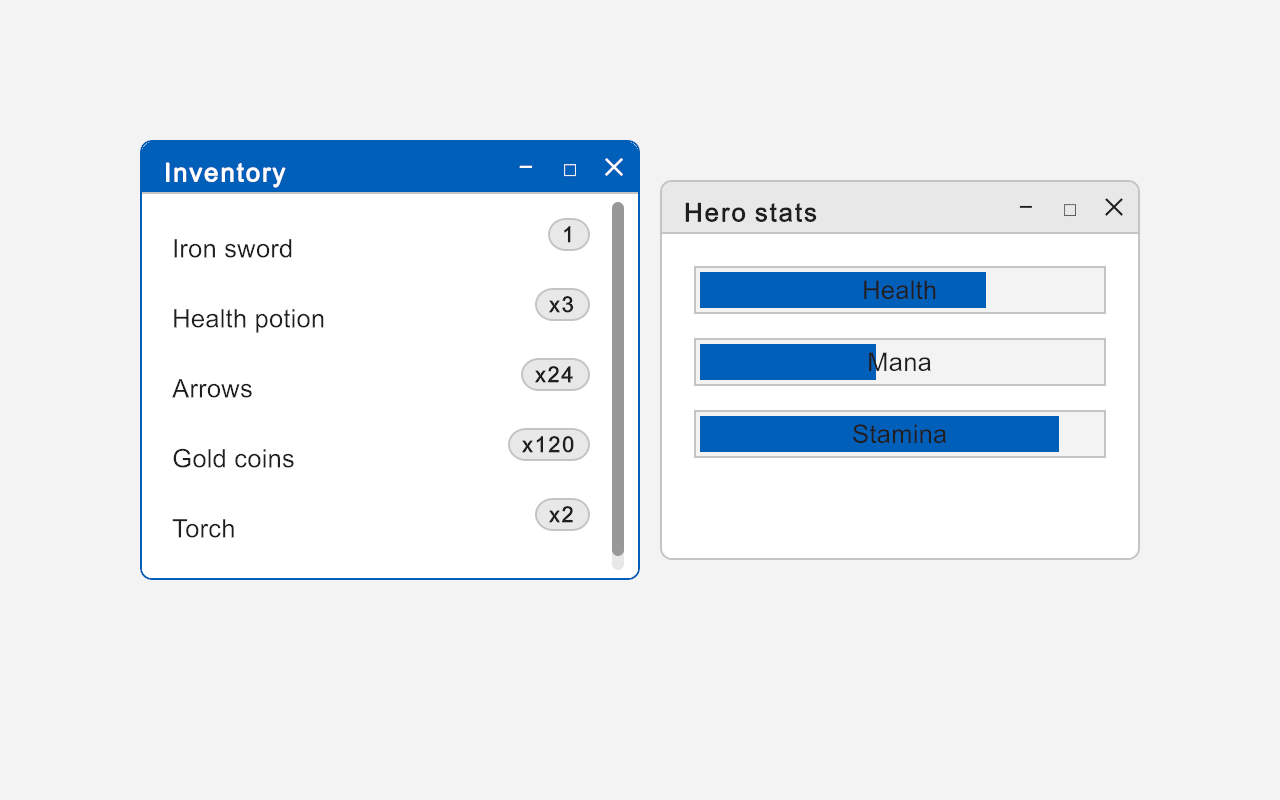
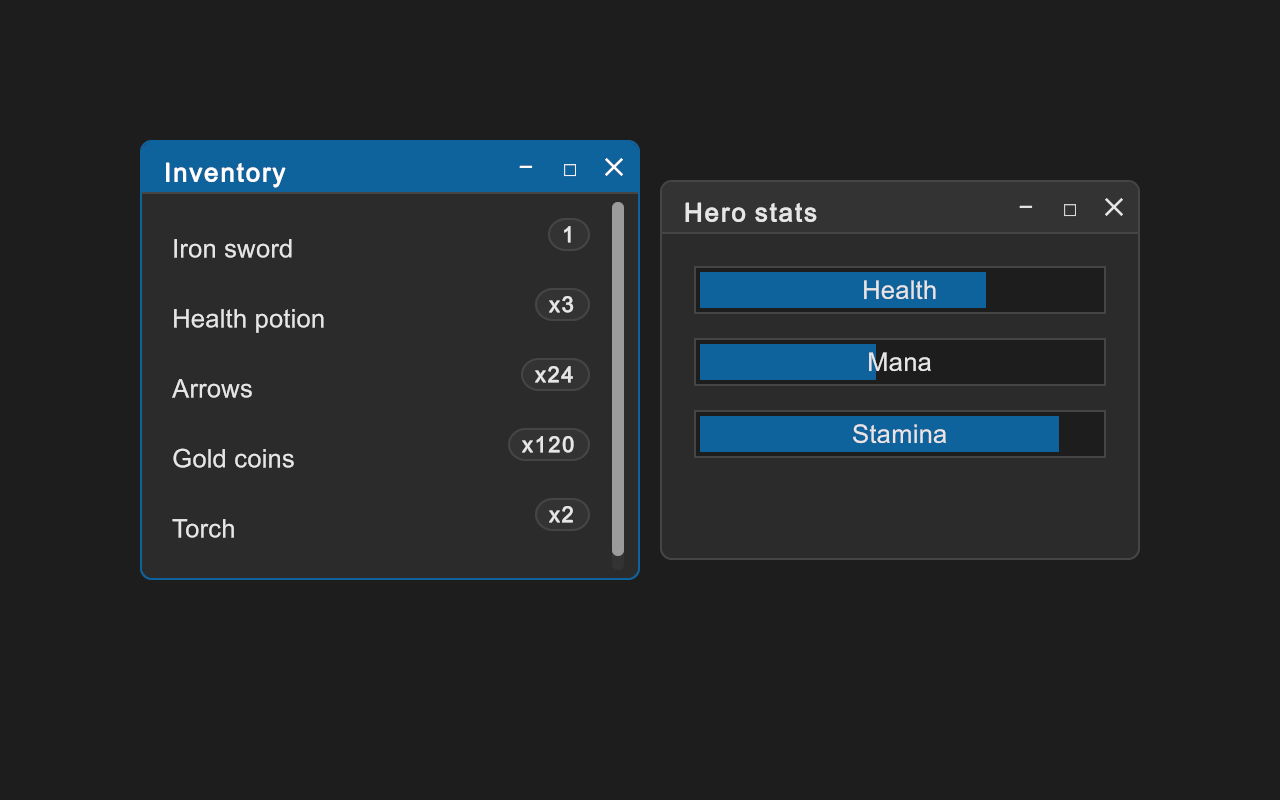
The template name is resolved in this order:
Resources/UIToolbox/Templates/{name}Resources/Templates/{name}Resources/{name}
The chrome factory resolves the name each time it creates chrome, so it does not matter when the window registers. A template given to IChromeFactory.RegisterTemplate under that name wins over Resources.
The chrome comes from the first source that works:
- The custom template.
DefaultWindowTemplate.IChromeFactory.CreateFromDefault(chrome built in code).- An error chrome (
tb-error-chrome). The workspace also shows the error dialog.
The package has one more chrome template: UIToolbox/Templates/GlassWindowTemplate. The window blurs the windows and the wallpaper behind it, and the theme variables --tb-color-glass-frost and --tb-color-glass-border set its frost and border. See GlassPanel.
Required and recognized elements
Only the content slot is required. The other parts are optional. A window without a close button cannot be closed by the user.
The workspace finds each part by element name or by class. The first name in each row is the canonical name.
| Part | Required | Element names | Classes |
|---|---|---|---|
| Chrome root | Yes | windowContainer, window-container, tb-window-container, window-chrome, chrome |
|
| Content slot | Yes | windowContent, content, tb-window-content, window-content, content-slot, slot |
tb-window-content |
| Frame | No | childWindow, child-window, tb-child-window, window |
tb-child-window |
| Title bar | No | titleBar, title-bar, tb-title-bar, header |
tb-title-bar |
| Title label | No | title, titleLabel, tb-title-label, titleText |
tb-title-label |
| Minimize button | No | minimizeButton, btnMinimize, tb-minimize-button, minimize, min |
tb-minimize-button |
| Maximize button | No | maximizeButton, btnMaximize, tb-maximize-button, maximize, max |
tb-maximize-button |
| Close button | No | closeButton, btnClose, tb-close-button, close-btn, close |
tb-close-button |
| Drag handle | No | An DragHandle element, or dragHandle, drag-handle, tb-drag-handle, handle. The title bar is the fallback. |
tb-drag-handle |
| Resize handle | No | tb-resize-handle plus one resize-* direction class |
ToolboxNames.Lookup.Names and ToolboxNames.Lookup.Classes hold these lists.
Use the canonical names in new templates. The other names exist for older templates.
The workspace adds the canonical classes to the parts it finds. Your template does not need them, but WindowStyles.uss then styles it like the default window.
Example Assets/UIToolbox/Runtime/Resources/UIToolbox/Templates/CompactWindow.uxml:
<ui:UXML xmlns:ui="UnityEngine.UIElements" xmlns:tb="UIToolbox">
  <ui:VisualElement name="windowContainer">
    <ui:VisualElement name="childWindow">
      <tb:TitleBar name="titleBar">
        <ui:Label name="title" text="Window" />
        <ui:Button name="closeButton" text="x" />
      </tb:TitleBar>
      <ui:VisualElement name="windowContent" />
      <ui:VisualElement class="tb-resize-handle resize-bottom-right" />
    </ui:VisualElement>
  </ui:VisualElement>
</ui:UXML>
<tb:Window
    id="Notes"
    title="Notes"
    template-uri="UIToolbox/Templates/CompactWindow"
    initial-window-state="open">
  <ui:TextField multiline="true" />
</tb:Window>
Anything in the title bar
The title bar is an ordinary element, so a template can put any control in it: a Badge, a search field, a slider, even a VideoView. The title label grows to fill the free space, so the extra elements sit between the label and the buttons.
<ui:UXML xmlns:ui="UnityEngine.UIElements" xmlns:tb="UIToolbox">
  <ui:VisualElement name="windowContainer">
    <ui:VisualElement name="childWindow">
      <tb:TitleBar name="titleBar">
        <ui:Label name="title" text="Mail" />
        <tb:Badge name="unread" count="3" tone="Error" />
        <ui:TextField name="search" />
        <tb:VideoView name="strip" show-controls="false"
                      autoplay="true" loop="true" muted="true" />
        <tb:DragHandle name="grip" class="tb-drag-handle" />
        <ui:Button name="closeButton" text="x" />
      </tb:TitleBar>
      <ui:VisualElement name="windowContent" />
    </ui:VisualElement>
  </ui:VisualElement>
</ui:UXML>
- The title bar has a fixed height (
--tb-size-title-bar). Give yourTitleBaraheightin USS or astyleattribute for a taller strip. - A control that takes focus in the title bar (Button, TextField, Slider, Switch) handles its own pointer. A press on it never starts a window drag, so a slider or a search field in the title bar works as it does anywhere else.
- A press on an empty part of the title bar drags the window. A
DragHandleelement is a strip that always drags: give it the classtb-drag-handle, a width, and a place between the controls. - Name your own elements something that is not in the parts table above. The window finds the title bar, the title label and the buttons by name, so a field named
title,closeorhandlecould be taken for one of them.unread,searchandstripare safe.
Insert an element at run time
WindowDescriptor.TitleBarElement is the title bar of the window once it has chrome. Add an element to it and remove it again when the window should lose it. The change shows at once and needs no template.
var window = workspace.GetWindow("Mail");
var bar = window.TitleBarElement;
var badge = new Badge { name = "unread", Count = 3,
                        Tone = BadgeTone.Error };

// Before the buttons
var buttons = window.ButtonClose?.parent;
bar.Insert(buttons == null ? bar.childCount : bar.IndexOf(buttons),
           badge);

badge.RemoveFromHierarchy();
The element stays when the window minimizes and comes back. A new chrome (a different template) starts without it, so add it again after you make the chrome again.
Custom chrome factory
To build chrome in code, give the workspace your own IChromeFactory, or a DefaultChromeFactory with your own IChromeBuilder.
Set ChromeFactory at any time. Chrome created after that uses the new factory; existing chrome is kept.
using UIToolbox;
using UnityEngine.UIElements;

public sealed class BadgeChromeBuilder : IChromeBuilder
{
    private readonly DefaultChromeBuilder _inner = new();

    public VisualElement CreateContainer(
        IChromeSpecification specification)
    {
        var chrome = _inner.CreateContainer(specification);
        chrome.AddToClassList("my-badge-window");
        return chrome;
    }

    public VisualElement CreateFromTemplateClone(
        VisualElement clonedTree, IChromeSpecification specification)
    {
        var chrome =
            _inner.CreateFromTemplateClone(clonedTree, specification);
        chrome.AddToClassList("my-badge-window");
        return chrome;
    }
}

public static class ChromeSetup
{
    public static void Apply(Workspace workspace)
    {
        workspace.ChromeFactory =
            new DefaultChromeFactory(new BadgeChromeBuilder());
    }
}