

 FileBrowser and FileDialog
FileBrowser in UIToolbox browses folders and files: a toolbar with Back, Up, a breadcrumb of the path, the view buttons, New folder and a search box; a tree of the folders with favorite and recent places; and the files of the folder as a table or as icons with image thumbnails. A filter dropdown shows only some file types. FileDialog puts a browser in a modal dialog for Open, Save and folder pickers, and gives the chosen path as a Task or through a callback. Both browse an IFileSystem: the disk of the device by default, files in memory with MemoryFileSystem, or storage of your own.
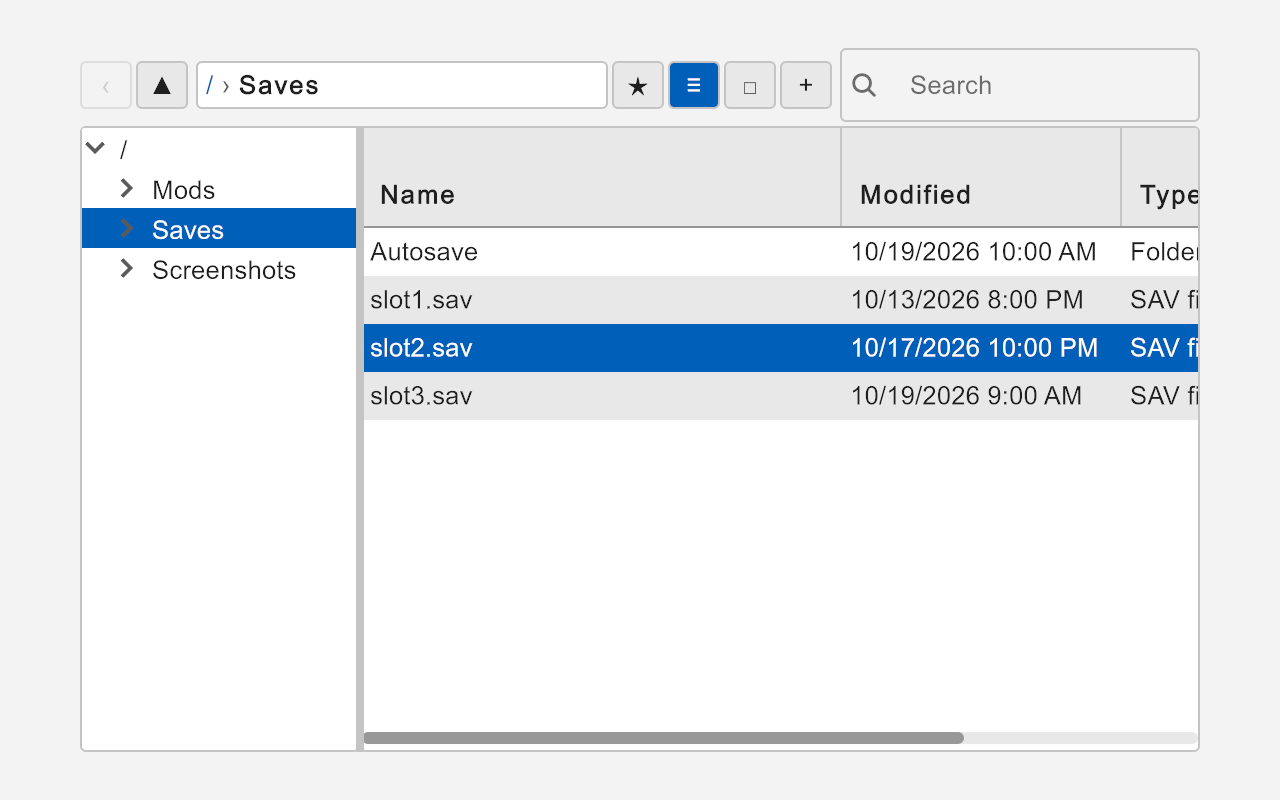
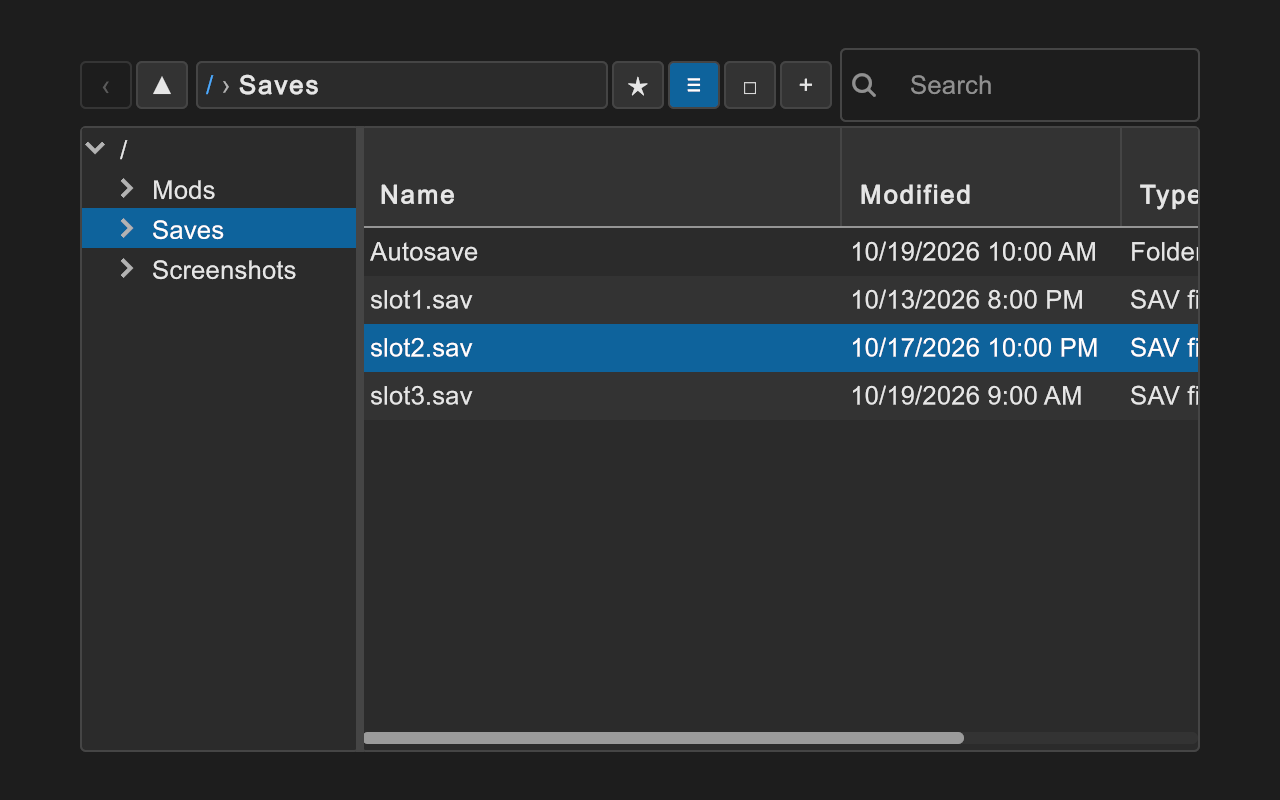
Video tutorial: File browser and file dialogs. All videos: Video tutorials.
<tb:FileBrowser
    name="saves"
    view="Details"
    filter="Save games|*.sav|All files|*.*" />
var browser = root.Q<FileBrowser>("saves");
browser.RootFolder = Application.persistentDataPath;
browser.FilesChosen += paths => Load(paths[0]);

// A modal Save dialog: the task has the path, or null when the user
// cancels
var path = await FileDialog.SaveAsync(root, new FileDialogOptions
{
    RootFolder = Application.persistentDataPath,
    Filter = "Save games|*.sav",
    FileName = "slot1",   // .sav is added
});
if (path != null) File.WriteAllBytes(path, save);

// Or with a callback
FileDialog.Open(root, path => { if (path != null) Load(path); });
The browser and the dialogs read and write no file themselves, except a new folder that the user makes: the game opens or writes the file with the path.
Settings
| Setting (UXML) | Type | Default | Does |
|---|---|---|---|
root-folder |
string | "" | The top folder: the user cannot go above it, and the tree starts at it. Empty shows the roots of the file system, such as the drives. Set it to a sandbox such as the save folder or the mods folder. |
start-folder |
string | "" | The folder that shows first. Empty shows the root folder, or Application.persistentDataPath on the disk of the device. A start folder outside the root folder is ignored. |
view |
FileBrowserView |
Details |
Details shows a table with the name, the time of the last change, the type and the size. Icons shows a grid with a thumbnail of each image. |
filter |
string | "" | The file types of the filter dropdown, as "Images|.png;.jpg|All files|.": pairs of a name and patterns. Empty shows all files and no dropdown. The first filter is on at the start. |
multi-select |
bool | false | Ctrl and Shift select more than one file. |
folders-only |
bool | false | Shows only folders, to pick a folder, and hides the filter. |
allow-new-folder |
bool | true | Shows the New folder button. |
show-folder-tree |
bool | true | Shows the tree of folders and places at the left, and the favorite button. |
show-thumbnails |
bool | true | The icons view shows a thumbnail of each PNG and JPG image of up to 8 MB. |
Set these from code:
| Property | Does |
|---|---|
FileSystem |
The files and folders to browse, an IFileSystem. The default is LocalFileSystem.Instance, or a MemoryFileSystem in a WebGL player. Setting it shows the start folder of the new one. Set it before the browser is in a panel, so the browser never reads the disk. |
CurrentFolder |
The path of the folder that shows (read only). |
Items |
The files and folders that show, after the filter and the search, folders first (read only). |
SelectedPaths |
The paths of the selected files and folders (read only). |
FilterIndex, Filters, CurrentFilter |
The filter that is on, and the filters that Filter gives. |
SearchText |
Shows only the files and folders whose name holds this text, case ignored. The search box sets it. |
Favorites |
The favorite folders, at the top of the tree. The star button adds and removes the folder that shows. Give several browsers the same list to share it, and save it to keep it. |
Recent |
The folders where the user chose files last, most recent first, under the favorites. |
DetailsView, IconView, FolderTree, SearchField |
The DataGrid, the GridView, the DataTree and the search box inside the browser, for their own settings, such as more columns or the cell size of the icons. |
Items, filters and file systems. Each entry of Items is a FileBrowserItem: the Entry (a FileSystemEntry), its Path, IsFolder and Modified, and the columns of the details view: Name (a NameKey that sorts folders first), Type (such as "Folder" or "PNG file") and Size (a SizeKey with the Bytes and the Text, such as "12.4 KB").
Each entry of Filters is a FileFilter: a Name for the dropdown and the Extensions, in lower case without the dot (empty shows all files). Matches(fileName) tells whether a name passes. FileFilter.Parse(text) reads the text of filter; new FileFilter("Saves", "*.sav") makes one in code.
A file system implements IFileSystem. LocalFileSystem and MemoryFileSystem implement each member:
| Member | Does |
|---|---|
Roots |
The top folders, such as the drives. The browser shows them without a root folder. |
PathComparer |
Compares two paths; it ignores the case when the file system does. |
GetFullPath(path) |
The path in one form, so two paths to one place are equal. |
Combine(folder, name), GetParent(path), GetName(path) |
Build and split paths. GetParent gives null for a root. |
FolderExists(path), FileExists(path) |
True when the folder or the file is there. |
List(folder, results) |
Fills the list with a FileSystemEntry for each file and folder: Name, Path, IsFolder, Size in bytes, Modified and Extension. |
CreateFolder(path) |
Makes the folder and the folders above it. |
ReadAllBytes(path) |
The content of a file, for the thumbnails. |
var files = new MemoryFileSystem();
files.AddFolder("/Saves");
files.AddFile("/Saves/slot1.sav", data);
browser.FileSystem = files;
FileDialog options
Each dialog takes a FileDialogOptions. Each option has a default, so new FileDialogOptions() or no options at all works.
| Option | Default | Does |
|---|---|---|
Title |
null | The title. Null shows "Open file", "Save file" or "Select folder". |
FileSystem |
null | The files to browse. Null uses the default of FileBrowser.FileSystem. |
StartFolder, RootFolder, Filter, View |
the browser defaults | As the settings of the browser. |
FileName |
null | The name in the file name field of a Save dialog at the start. |
DefaultExtension |
null | The extension that a Save dialog adds to a name without one, such as "sav". Null adds the first extension of the filter that is on. |
ConfirmOverwrite |
true | A Save dialog asks with a MessageBox before it gives the path of a file that is there already. |
FileDialog.Favorites and FileDialog.Recent are the places that all the dialogs share. Set them to lists that the game loaded to keep them between sessions.
Methods
| Method | Does |
|---|---|
NavigateTo(path) |
Shows the folder. False when it is not there, it is outside the root folder, or the path is not valid. |
GoBack(), GoUp() |
Show the folder that showed before, or the folder that holds this one. False when there is none. |
Refresh() |
Reads the folder and the tree again, after the game wrote files or code changed Favorites or Recent. |
Select(path), ClearSelection() |
Select a file or folder that shows and scroll to it, or select nothing. |
CreateFolder(name) |
Makes a folder in the folder that shows and selects it. Returns its path, or null when the name is not valid or taken. |
AddRecent(folder) |
Adds a folder to the top of Recent. The browser calls it when the user chooses files. |
IsFavorite(folder), ToggleFavorite(folder) |
Ask for, add or remove a favorite. |
| FileDialog method | Does |
|---|---|
OpenAsync(anchor, options) |
Asks for a file to open. The task has its path, or null on Cancel. |
OpenManyAsync(anchor, options) |
Asks for files: Ctrl and Shift select more than one. The task has their paths, or none on Cancel. |
SaveAsync(anchor, options) |
Asks for a path to save to, with a file name field. The file need not be there. Typing the name of a folder opens it. |
PickFolderAsync(anchor, options) |
Asks for a folder: the selected folder, or the folder that shows when none is selected. |
Open, Save, PickFolder |
The same with a callback that gets the path, or null on Cancel. |
The anchor is any element in the panel, such as the root of the UI Document; the dialog shows over the whole panel.
Events
| Event | When |
|---|---|
FolderChanged |
The browser shows another folder. It gives the path. |
SelectionChanged |
The selection changes, by the user or by code. It gives the selected paths. |
FilesChosen |
The user chooses files: a double click, Enter, or the submit button of a gamepad on a file. A folder opens instead. |
Mouse, keyboard and gamepad
| Input | Does |
|---|---|
| Click | Selects a file or folder. Ctrl + click and Shift + click select more with multi-select. |
| Double click, Enter, gamepad submit | Opens a folder, or chooses a file. |
| Arrows, gamepad stick and d-pad | Move in the table, the icons and the tree. |
| Backspace, Alt + Up | Go up a folder. |
| Alt + Left | Go back. |
| F5 | Reads the folder again. |
| A breadcrumb part | Shows that folder. |
| Escape | Closes a dialog with null. |
| Enter in the file name field | Accepts a Save dialog. |
The keys of the browser do nothing while the search box or another text field has the focus, so Backspace edits the text there.
Platforms
- Windows, macOS and Linux, in the editor and in a player:
LocalFileSystemreads the disk throughSystem.IO. The roots are the drives, or "/" on macOS and Linux. SetLocalFileSystem.Instance.ShowHiddento list hidden and system files. - Android and iOS: an app reads only its own folders, so without a root folder the browser keeps to
Application.persistentDataPath. Give it a root folder inside that folder to show less. - WebGL: a player has no disk, so the default file system is an empty
MemoryFileSystem. Fill it withAddFileandAddFolder, or give the browser a file system of your own. - Consoles and other storage: implement
IFileSystemto show a cloud save, an archive, a mod store or the save API of a platform. The browser gets each path from the file system, so a path can have any form that the file system reads back.
MemoryFileSystem keeps files in memory with paths such as "/Saves/slot1.sav". It writes nothing to a disk, so it also suits tests and game data that lives elsewhere.
Performance
- The table and the icons are virtual: only the rows in view have elements, so a folder of thousands of files scrolls without garbage.
- The tree reads a folder only when the user opens it.
- A thumbnail reads its image once, when it first comes into view, and keeps it until the browser shows another folder or leaves the panel. Images over 8 MB show the file icon.
- A folder is read on the main thread when it opens. A slow file system, such as a network drive, stalls that frame; read slow storage into a
MemoryFileSystemfirst, or implementIFileSystemover a cache. - No scheduled item runs while the browser rests.
Styling
| Class | Element |
|---|---|
tb-file-browser |
The browser. |
tb-file-browser__toolbar |
The toolbar. |
tb-file-browser__button |
A toolbar button, with --active on the view that shows and on the star while the folder is a favorite. |
tb-file-browser__breadcrumb |
The breadcrumb of the path. |
tb-file-browser__search |
The search box. |
tb-file-browser__split |
The split between the tree and the files. |
tb-file-browser__tree |
The pane of the folder tree. |
tb-file-browser__view |
The pane of the files. |
tb-file-browser__details, __icons |
The DataGrid and the GridView. |
tb-file-browser__empty |
The text that shows when a folder is empty, everything is filtered out, or it cannot be read. |
tb-file-browser__tile |
A cell of the icons view. |
tb-file-browser__icon |
The icon of a tile, with --folder and --thumbnail. |
tb-file-browser__icon-text |
The extension on the icon of a file without a thumbnail. |
tb-file-browser__tile-name |
The name under the icon. |
tb-file-browser__footer, __filter |
The footer and the filter dropdown. |
tb-file-dialog |
The Dialog of a file dialog. |
tb-file-dialog__browser |
The browser in the dialog. |
tb-file-dialog__name |
The file name field of a Save dialog. |
tb-file-dialog__accept |
The Open, Save or Select folder button. |
The FileBrowserDemo scene shows a browser over the files of a game kept in memory, with save slots, screenshots that show as thumbnails and mods, and opens the Open, Save and folder dialogs.