

 ChatView
A ChatView is a list of chat messages: incoming messages on the left, outgoing messages on the right, and system messages in the middle.
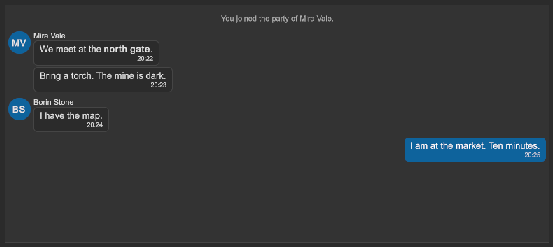
How to add a chat:
<tb:ChatView name="chat" max-messages="200" />
<ui:TextField name="chatInput" />
<ui:Button name="chatSend" text="Send" />
var chat = root.Q<ChatView>("chat");
var input = root.Q<TextField>("chatInput");

chat.Add("", "Ada joined the chat", ChatSide.System);
chat.Add("Ada", "Hello! Are you <b>there</b>?", time: "10:02");

root.Q<Button>("chatSend").clicked += () =>
{
    chat.Add("Me", input.value, ChatSide.Outgoing, DateTime.Now.ToString("HH:mm"));
    input.value = "";
};

// History: the user scrolled to the top
chat.OlderMessagesRequested += () => chat.Prepend(history.NextPage());
The view has no text input. Add a TextField and a button under it, as in the example.
The view fills the room that its parent has (flex-grow: 1), and its messages do not make it higher. Give the parent a height, or set flex-grow: 0 and a height on the view. With no height, the view is 80 px high.
| Member | Description |
|---|---|
Add(sender, text, side, time) |
Adds a message at the end and returns it. side is ChatSide.Incoming (the default), Outgoing or System. |
Add(message) |
Adds a ChatMessage that you built, for example with an Avatar. |
Prepend(messages) |
Adds older messages at the start, the oldest first. The messages on the screen stay where they are. |
Update(message) |
Shows a message again after you changed its properties. |
Remove(message) |
Removes a message. Returns false when the view does not have it. |
Clear() |
Removes all messages. |
ScrollToEnd() |
Scrolls to the newest message. |
MaxMessages (max-messages) |
The most messages kept (200). Add drops the oldest ones. 0 or less keeps all. |
ShowAvatars (show-avatars) |
Shows the avatar of the sender next to an incoming message (true). |
AnimateTyping (animate-typing) |
The dots of a Typing message move in a wave (true). False shows still dots. |
ReplaceEmoticons (replace-emoticons) |
A word such as ;-), :D or <3 shows as its emoji (true). The message keeps the typed text. Only a whole word changes, so http:// stays. The change applies to the messages added after it. |
ChatView.EMOTICONS |
The emoticons and their emoji. Add or remove entries to change the set. ChatView.WithEmoji(text) applies them to any text. |
Messages |
The messages, the oldest first. |
IsAtEnd |
True while the list shows the newest message. |
NewCount |
The messages that came while the list was not at the end. |
OlderMessagesRequested |
Raised when the user scrolls to the top. Answer with Prepend. |
ScrollView, ScrollToEndButton |
The parts of the view. |
A ChatMessage has these properties:
| Property | Description |
|---|---|
Sender |
The name of the sender. It shows above the first message of a group. |
Text |
The text. Rich text tags work. |
Time |
The time stamp, a text that shows as it is. Empty shows none. |
Side |
Incoming, Outgoing or System. |
Avatar |
The picture of the sender. None shows the initials of Sender. |
Typing |
True shows three dots in place of the text and the time: the sender writes the message. |
To show that a sender writes, add a message with Typing set. When the text comes, set Typing to false and call Update:
var message = chat.Add(new ChatMessage { Sender = "Ada", Typing = true });
// later
message.Typing = false;
message.Text = "On my way.";
message.Time = "10:04";
chat.Update(message);
- Messages of one sender in a row make a group. Only the first message of the group shows the name and the avatar.
- While the list is at the end, it follows each new message.
- When the user scrolls up, the list stays. A button in the bottom right corner shows the count of new messages. A click on it scrolls to the end.
- An outgoing message scrolls the list to the end.
- The view drops the oldest messages only while the list is at the end, so a user who reads older messages keeps them. When the list comes back to the end (the user scrolls down, or clicks the button), the view drops the extra messages.
Prependhas no limit. - The dots of a
Typingmessage go up one after the other. They stop whenAnimateTypingis false or when the workspace has its animations off (WindowAnimations). - To put an emoji into the text field, add an EmojiButton next to it.
- Up and Down scroll the list when the view has the focus, also with a gamepad. Page Up, Page Down, Home and End work too. At the top and at the end, Up and Down move the focus to the next control.
- An outgoing message and a system message show no avatar and no name.
- In the UI Builder, a view without messages shows a sample conversation in a dashed outline. The sample does not show in Play mode or in a build, and the UI Builder does not save it to the UXML file.
- The tooltip of the button comes from
ToolboxText(SCROLL_TO_END).
Tips:
- Each message is a set of elements, so keep
MaxMessageslow. Load the history in pages withOlderMessagesRequested. - Give the view a height, or put it in a parent with
flex-grow. The view grows to fill its parent. - For a status such as "sending", change
TimeorTextof the message and callUpdate. - The text of a message is rich text. Remove the tags from text that a user typed if the user must not use them.
Styling
The rules are in Assets/UIToolbox/Runtime/Resources/UIToolbox/Styles/Controls.uss.
| Class | Element |
|---|---|
tb-chat-view |
The view: a border, on --tb-color-surface-alt. The border has the accent color while the view has the focus. |
tb-chat-view--no-avatars |
State class: ShowAvatars is off. |
tb-chat-view__list |
The ScrollView with the rows. |
tb-chat-view__row |
One message. Modifiers: --incoming, --outgoing, --system. |
tb-chat-view__row--grouped |
State class: the message before has the same sender. It hides the name and the avatar and makes the gap small. |
tb-chat-view__avatar |
The UserAvatar of the sender. |
tb-chat-view__column |
The name and the bubble. Its max-width is 80% of the row. |
tb-chat-view__sender |
The name of the sender. |
tb-chat-view__bubble |
The bubble: --tb-color-surface for an incoming message, --tb-color-accent for an outgoing message. |
tb-chat-view__text, tb-chat-view__time |
The text and the time stamp in the bubble. |
tb-chat-view__typing |
The row of dots of a Typing message. |
tb-chat-view__dot |
One dot. The state class tb-chat-view__dot--up moves it up (translate) and makes it opaque. The next dot goes up after ChatView.TYPING_STEP_MS (180 ms). |
tb-chat-view__to-end |
The scroll to end button. |
To make the bubbles square and the outgoing bubbles green:
.tb-chat-view__bubble { border-radius: 0; }
.tb-chat-view__row--outgoing .tb-chat-view__bubble { background-color: var(--tb-color-success); }