Sounds and window events
WorkspaceAudio plays a sound set for the windows and the controls of a UIDocument. The default sounds need no code.
Add sounds to a scene
- In the Hierarchy, select the GameObject that has the
UIDocument. - In the Inspector, click Add Component, then UI Toolbox > Workspace Audio.
- In the Project window, open
Assets/UIToolbox/Examples/Audio. - Drag
DefaultSounds(orKenneySounds) into the Sounds field of the component. - Set Volume (0 to 1). Press Play. Move the pointer over a button, then click it.
To make your own set: right-click in the Project window, then Create > UI Toolbox > Sound Set. Drag an audio clip into each slot. An empty slot plays nothing. To change one sound of a sample set, select the set and drag another clip into its slot.
The sounds of a set
| Sound | When |
|---|---|
window-open, window-close, minimize, maximize, restore |
The window state changes, in each workspace of the document. Windows that change together play one sound: the same window sound plays again after 0.1 s (WorkspaceAudio.STATE_INTERVAL). |
focus |
A window gets focus with no state change. An open or a restore plays only its own sound. A click on an MDI tab chip plays focus too. |
button |
A click on a Button. |
menu |
A click on a context menu item, a ToolBarMenu item or a ChoiceList row, and a pick in the list of a dropdown. |
toggle |
A click on a Toggle, a Switch or a RadioButton. |
tab |
A click on a header of a TabView. |
dropdown |
A click on a DropdownField, a PopupField or an EnumField, which opens its list. |
slider |
A Slider or a SliderInt changes its value from the pointer or the keys. At most one sound each 0.08 s (WorkspaceAudio.SLIDER_INTERVAL). |
hover |
The pointer goes over a control that has a click sound. It plays one time while the pointer stays in that control. |
notification, error |
A notification bubble or a MessageBox shows. error is for the Error severity and the Error icon. |
- A disabled element plays nothing.
- A value that code sets plays nothing.
slider.value = 0.5fanddropdown.index = 1are silent. - A keyboard submit plays the click sound too: Enter, Space or the gamepad submit on a button or a toggle, and Enter or Space on the highlighted context menu item. The access keys of the menu items play nothing.
- A touch pointer plays no hover sound.
- A slider has no default hover sound.
--tb-hover-soundon the slider adds one.
Sounds from USS
--tb-sound sets the click sound of an element and its children. --tb-hover-sound sets the hover sound. The value is a name of the set, or a name of its Custom list. "none" plays no sound.
.shop-button { --tb-sound: "coin"; }           /* another click sound */
.quiet-panel { --tb-sound: "none"; }           /* no click sound and no hover sound */
.shop-button { --tb-hover-sound: "none"; }     /* keep the click sound, stop the hover sound */
.card { --tb-hover-sound: "focus"; }           /* a hover sound on an element with no click sound */
.volume-slider { --tb-sound: "tick"; }         /* another sound for the changes of a slider */
| Property | Default |
|---|---|
--tb-sound |
By control: button, toggle, tab, dropdown, menu. On a slider it is the sound of a value change (slider). |
--tb-hover-sound |
hover on each control that has a click sound. No sound on other elements. |
- The nearest element with the property wins.
- An element with no click sound has no hover sound:
--tb-sound: "none"stops the two. --tb-hover-soundon an element with no click sound gives it a hover sound. It plays one time while the pointer stays in the element.- The stock sheet sets
--tb-sound: "none"on.tb-window-buttonand.tb-tab-close.
Sounds from code and from bindings
- The
Customlist of the set adds named sounds. Play one withsound="coin"onAnimateBinding, or withToolboxAudio.Play(element, "coin")in code. The name resolves through theWorkspaceAudioof the element's panel.Playreturns false when the set has no clip for the name. Volume(0 to 1) andMuteapply to each sound. A disabled component plays nothing.audio.Sounds = otherSetchanges the set at run time.ToolboxAudio.Volumeis a global volume for each panel. The Interface slider ofAudioSettingsPanelsets it.- All sounds go through one hook,
ToolboxAudio.PlayClip(clip, volume). The default plays on one hidden 2DAudioSource. Replace it to use a mixer or your own audio system. - One
WorkspaceAudiofor each panel.
The sample sound sets
| Sound set | Origin | Used in |
|---|---|---|
Assets/UIToolbox/Examples/Audio/DefaultSounds |
The Toolbox sounds: our own, made for the package. Own sound: confirm. |
WorkspaceDemo, Styles |
Assets/UIToolbox/Examples/Audio/KenneySounds |
Kenney "Interface Sounds", CC0. Own sound: confirm. |
WorkspaceDemo, GameMenu, Settings |
Examples/Kingdom/KingdomSounds |
Our own, made for the example. Own sound: coin. |
Kingdom |
Examples/Firefight/FirefightSounds |
Our own, made for the example. Own sound: hit. |
Firefight |
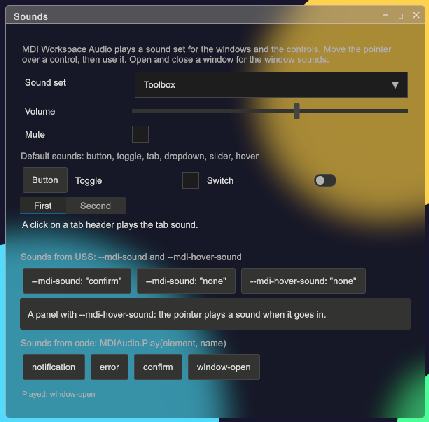
Open Assets/UIToolbox/Examples/Scenes/WorkspaceDemo.unity and press Play. The Sounds window is open. The window changes the set, the volume and the mute, and it shows the name of each clip that plays. The license of the Kenney clips is in Third Party Notices.md of the package and in Assets/UIToolbox/Examples/Audio/Kenney/License.txt.
Tips:
- Keep the hover and the slider clips short (below 0.05 s) and quiet. They play often.
- Use a set volume near 0.6. Give the player a volume control:
AudioSettingsPanelhas the Interface slider. - Put
--tb-sound: "none"on a panel of many small buttons (a keypad, a grid of cells) and play one sound from code for the result. - When a control plays two sounds, look for a second
WorkspaceAudioon the same panel, or for your ownclickedhandler that also plays a sound. - No sound in the scene: the scene needs one Audio Listener. A camera from GameObject > Camera has one; a camera that a script made does not. Select the camera, click Add Component, then Audio > Audio Listener. At the first sound, the console shows a warning when the scene has no listener.
- Also make sure that
Muteis off, thatVolumeis above 0 and that the slot of the set has a clip.
Window events
Add UI Toolbox > Window Events (WindowEvents) to raise UnityEvents with no code: Opened, Closed, Minimized, Maximized, Restored, Focused and Unfocused. Each event gets the window id. WindowId limits the events to one window; empty means each window. Workspace is the name of the workspace element; empty means the first workspace. A scene object can play an AudioSource or set an Animator trigger from these events.
Both components derive from ToolboxDocumentComponent. It hooks the document root at Start and after each re-enable, and unhooks at OnDisable.