
이 페이지는 번역본입니다. 지원과 동영상 튜토리얼은 주로 영어로 제공되며, 영어 페이지가 기준입니다. 영어 버전

 알림 (NotificationArea)
NotificationArea는 부모를 채우고 토스트 말풍선을 한 모서리에 쌓습니다.
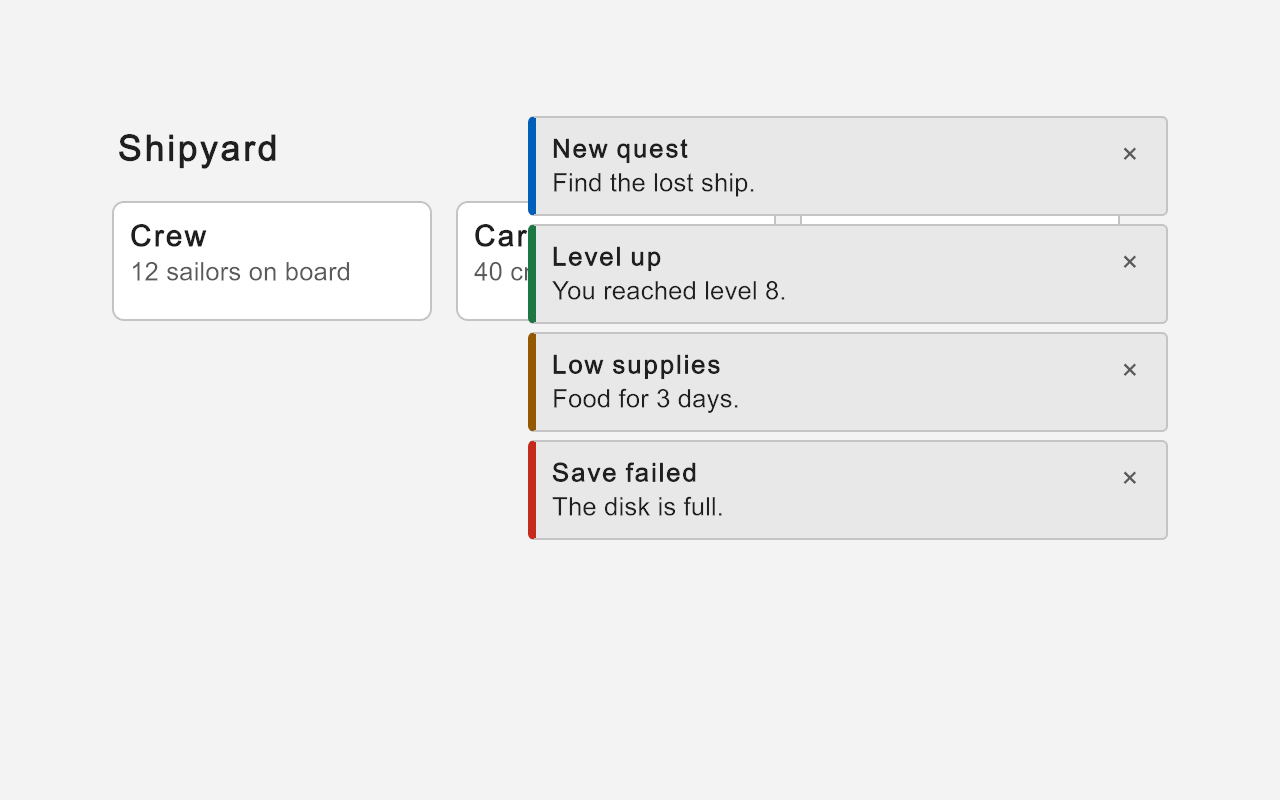
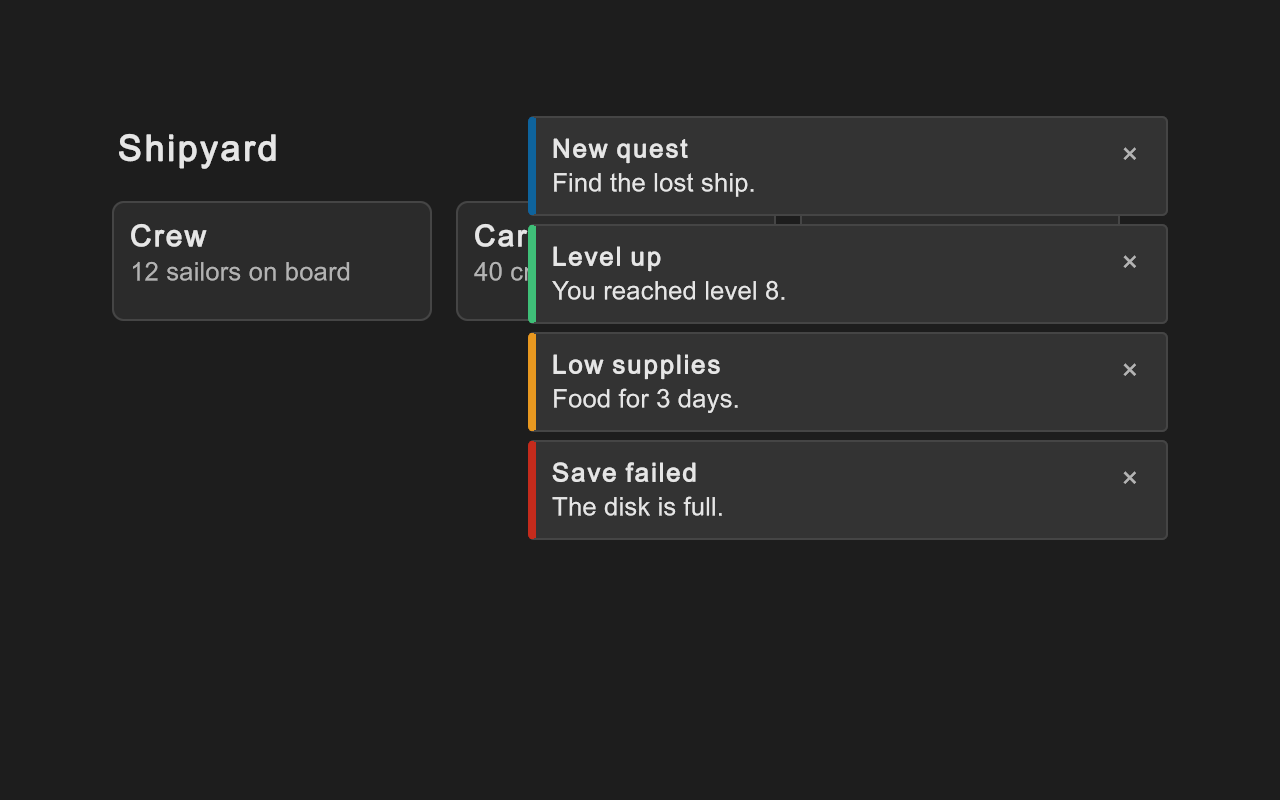
비디오 튜토리얼: Notifications. 모든 비디오: 비디오 튜토리얼.
각 워크스페이스에는 처음 사용할 때 만들어지는 하나가 있습니다.
workspace.Notifications.Show("Layout saved", Severity.Success);

var bubble =
    workspace.Notifications.Show("Connection lost", Severity.Error,
        durationMs: 0);
bubble.Title = "Network";
bubble.AddAction("Retry", Reconnect);
bubble.Clicked += _ => OpenLog();
워크스페이스 밖에서는 직접 영역을 추가하십시오.
<UIToolbox.NotificationArea
    name="toasts"
    corner="BottomRight"
    max-visible="3"
    stack-duplicates="true" />
UI Builder에서는 영역이 이름이 있는 점선 윤곽을 보여 주므로 찾을 수 있습니다. 윤곽은 플레이 모드나 빌드에서는 표시되지 않습니다.
| 멤버 | 설명 |
|---|---|
NotificationArea.Show(message, severity, durationMs) |
말풍선을 추가하고 반환합니다. 메시지는 리치 텍스트입니다. |
NotificationArea.Show(bubble) |
직접 만든 말풍선을 추가합니다. |
NotificationArea.ShowBanner(title, message, severity, durationMs) |
Banner 말풍선(작은 줄 위의 큰 제목, 2500 ms)을 추가하고 반환합니다. 아래의 "배너 보여 주기"를 참고하십시오. |
NotificationArea.ShowTask(task, loading, success, error) |
Task용 로딩 말풍선을 추가하고 반환합니다. 아래의 "작업 보여 주기"를 참고하십시오. |
NotificationArea.Corner (corner) |
TopRight(기본값), TopLeft, BottomRight, BottomLeft, TopCenter, BottomCenter, Center(부모의 가운데, 배너용). |
NotificationArea.MaxVisible (max-visible) |
동시에 표시되는 최대 말풍선 수 (5). 그 이상의 새 말풍선은 대기열에서 기다립니다. |
NotificationArea.Queue (queue) |
MaxVisible을 넘는 말풍선을 대기열에 유지합니다 (true). 기다리는 말풍선은 표시된 말풍선이 떠날 때 나타나며 그때 타이머가 시작됩니다. false는 자리를 만들려고 가장 오래된 말풍선을 닫습니다. |
NotificationArea.StackDuplicates (stack-duplicates) |
같은 메시지를 개수가 있는 말풍선 하나로 보여 줍니다 (false). Show는 메시지, 제목, 심각도가 같은 말풍선의 Count에 더하고, 카운트다운을 다시 시작하며, 그 말풍선을 반환합니다. |
NotificationArea.ShowProgress (show-progress) |
각 말풍선에 카운트다운 막대를 보여 줍니다 (true). |
NotificationArea.SlideBubbles (slide-bubbles) |
말풍선이 오고, 가고, 높이가 바뀔 때 새 자리로 미끄러집니다 (true). false이면 점프합니다. |
NotificationArea.EnterAnimation (enter-animation), ExitAnimation (exit-animation) |
말풍선이 나타나고 사라지는 방식: Preset(기본값, 말풍선의 Preset 모양), SlideFromEdge, Fade, Zoom, Rise. 아래의 "말풍선의 등장과 퇴장 바꾸기"를 참고하십시오. |
NotificationArea.EnterEasing (enter-easing), ExitEasing (exit-easing) |
USS 이징 이름(NotificationEasing): Default(테마의 이징), Linear, Ease, EaseInOutBack 등. |
NotificationArea.EnterDurationMs (enter-duration), ExitDurationMs (exit-duration) |
등장 또는 퇴장의 밀리초. 0(기본값)이면 프리셋의 시간을 유지합니다. |
NotificationArea.EnterCurve (enter-curve), ExitCurve (exit-curve) |
USS 전환 대신 등장 또는 퇴장을 움직이는, 0에서 1까지의 AnimationCurve. 1을 넘는 곡선은 끝을 지나칩니다. null(기본값)이면 USS 전환을 씁니다. |
NotificationArea.QueuedCount |
대기열에서 기다리는 말풍선 수. |
NotificationArea.DismissAll() |
대기열의 말풍선을 포함해 모든 말풍선을 닫습니다. |
NotificationBubble.Title (title) |
메시지 위의 굵은 줄. 비어 있으면(기본값) 줄을 보여 주지 않습니다. |
NotificationBubble.Description (description) |
메시지 (리치 텍스트). |
NotificationBubble.Icon |
텍스트 앞의 이미지, Background(텍스처, 스프라이트, 벡터 이미지). null(기본값)이면 이미지를 보여 주지 않습니다. |
NotificationBubble.IconAnimation (icon-animation), IconAnimationClip (icon-animation-clip) |
말풍선이 표시되는 동안 아이콘에서 재생되는 SpriteSheet(예: 획득 시 회전하는 동전)와 재생할 클립. Icon을 덮습니다. 없으면(기본값) 정지 아이콘을 유지합니다. |
NotificationBubble.Severity (severity) |
Info(기본값), Success, Warning, Error. |
NotificationBubble.Preset (preset) |
모양과 등장: Toast(기본값), Banner, Achievement, KillFeed. 아래의 "배너 보여 주기"와 "업적이나 킬 피드 보여 주기"를 참고하십시오. |
NotificationBubble.EnterAnimation, ExitAnimation, EnterEasing, ExitEasing, EnterDurationMs, ExitDurationMs, EnterCurve, ExitCurve |
영역과 같은 멤버로, 말풍선 하나에서 영역의 설정을 덮어씁니다. Inherit(애니메이션), Default(이징), 0(시간), 빈 곡선(기본값)은 영역의 값을 따릅니다. |
NotificationBubble.DurationMs (duration) |
말풍선이 스스로 닫히기까지의 게임 시간 밀리초 (5000). Time.timeScale이 0인 동안 카운트다운이 멈춥니다. 0 이하이면 사용자가 닫을 때까지 유지합니다. |
NotificationBubble.RemainingMs |
말풍선이 스스로 닫히기까지의 밀리초. |
NotificationBubble.Loading (loading) |
텍스트 앞에 스피너를 보여 줍니다 (false). 로딩 말풍선은 스스로 닫히지 않습니다. |
NotificationBubble.Count |
말풍선이 나타내는 같은 메시지의 수 (1). 1보다 크면 말풍선이 "x3"으로 보여 줍니다. |
NotificationBubble.ShowProgress |
이 말풍선에 카운트다운 막대를 보여 줍니다. null(기본값)은 영역의 ShowProgress를 사용합니다. |
NotificationBubble.Closable (closable) |
닫기 버튼을 보여 줍니다 (true). |
NotificationBubble.AddAction(text, callback) |
버튼을 추가합니다. 클릭하면 콜백을 실행한 뒤 말풍선을 닫습니다. |
NotificationBubble.Detail (detail) |
메시지 아래의 더 많은 텍스트 (리치 텍스트). 포인터가 말풍선 위에 있는 동안 표시됩니다. 상세가 있는 말풍선은 그때까지 메시지 아래에 "..."를 보여 줍니다. |
NotificationBubble.Expanded |
코드에서 상세를 보여 줍니다. 포인터가 들어오면 설정하고 떠나면 해제합니다. |
NotificationBubble.Dismiss() |
퇴장 애니메이션을 재생한 뒤 말풍선을 제거합니다. |
NotificationBubble.Clicked |
버튼 밖을 클릭하거나, 말풍선에 포커스가 있을 때 확인하면 발생합니다. |
NotificationBubble.Dismissed |
말풍선이 계층에서 떠난 뒤 발생합니다. |
- 카운트다운은 포인터가 말풍선 위에 있는 동안 멈춥니다. 포인터가 떠나면 같은 시간부터 이어집니다.
- 표시된 말풍선의 메시지, 제목, 심각도, 지속 시간이 바뀌면 카운트다운이 다시 시작됩니다.
- 카운트다운 막대는 아래쪽 가장자리에 심각도의 색으로 있습니다. 전체 너비에서 0으로 줄어들며 카운트다운과 함께 멈춥니다.
- 스스로 닫히지 않는 말풍선(지속 시간 0, 또는 로딩 말풍선)에는 막대가 없습니다.
- 카운트다운은 실제 시간을 사용하므로 일시 정지된 게임에서도 실행됩니다.
- 영역은 포인터를 무시하므로 그 아래의 워크스페이스가 여전히 클릭을 받습니다.
Show는 영역을 형제들의 맨 앞으로 가져오므로 말풍선이 창 위에 표시됩니다.
표시된 말풍선 갱신
Show가 반환하는 말풍선을 보관하고 속성을 설정하십시오. 말풍선이 제자리에서 바뀌고 카운트다운이 다시 시작됩니다.
var bubble = workspace.Notifications.Show("3 files left");
// Later
bubble.Description = "2 files left";
bubble.Severity = Severity.Warning;
작업 보여 주기
ShowTask는 작업이 실행되는 동안 로딩 말풍선을 보여 줍니다. 작업이 끝나면 같은 말풍선이 성공이나 오류로 바뀐 뒤 스스로 닫힙니다.
workspace.Notifications.ShowTask(SaveAsync(), "Saving...", "Saved",
    "Cannot save");

// The success message from the result of the task
workspace.Notifications.ShowTask(LoadAsync(), "Loading...",
    (int count) => $"{count} items loaded", "Cannot load");
- 오류 말풍선은 예외의 메시지를 상세로 가집니다.
- 취소된 작업은 말풍선을 닫습니다.
말풍선을 직접 제어하려면 Loading을 설정하고 작업이 끝날 때 해제하십시오.
var bubble =
    workspace.Notifications.Show(
        new NotificationBubble { Description = "Connecting...",
            Loading = true });
// Later
bubble.Description = "Connected";
bubble.Severity = Severity.Success;
bubble.Loading = false;
클릭하면 창 열기
Clicked는 말풍선의 클릭에서 발생하며, 닫기 버튼이나 동작 버튼에서는 발생하지 않습니다. OpenWindow는 창을 열고, 열려 있으면 포커스를 줍니다.
var bubble = workspace.Notifications.Show("New message: click to open");
// Keyboard and gamepad users can move to the bubble and press Submit
bubble.focusable = true;
bubble.Clicked += clicked =>
{
    workspace.OpenWindow("chat");
    clicked.Dismiss();
};
게임에서 획득 보여 주기
각 획득에 아이콘과 개수를 주십시오. stack-duplicates를 쓰면 같은 메시지의 획득이 표시된 말풍선에 개수를 더하므로, 나무 열 번의 획득이 "Wood x10" 한 줄로 표시됩니다.
<tb:NotificationArea
    name="feed"
    corner="BottomLeft"
    stack-duplicates="true"
    show-progress="false"
    queue="false" />
feed.Show(new NotificationBubble
{
    Description = "Wood",
    Count = amount,
    Icon = Background.FromTexture2D(woodIcon),
    Severity = Severity.Success,
    DurationMs = 2500,
    Closable = false,
});
queue="false"는 피드가 가득 차면 가장 오래된 획득을 버리므로 새 획득이 기다리지 않습니다.- 아이콘과 텍스트만 원하면 USS에서 말풍선에 배경과 테두리를 주지 마십시오.
Gathering예제 장면에는 패널 모양과 이 평범한 모양, 퀘스트 말풍선, 플레이어가 팔 때까지 남는 "Backpack full" 말풍선이 있습니다.
배너 보여 주기
배너는 "Wave 3"이나 "Quest complete"처럼 화면 가운데의 큰 메시지입니다. 배너가 차례로 오도록 corner="Center"와 max-visible="1"인 영역을 사용하십시오.
<tb:NotificationArea name="banners" corner="Center" max-visible="1" />
var banners = root.Q<NotificationArea>("banners");
banners.ShowBanner("WAVE 3", "Hold the gate", Severity.Warning);
// waits until "WAVE 3" leaves
banners.ShowBanner("QUEST COMPLETE", "The lost caravan");
- 심각도는 배너 주위 프레임의 색을 줍니다.
ShowBanner는 다른 값을 넘기지 않으면Success와 2500 ms를 사용합니다. - 배너에는 닫기 버튼과 카운트다운 막대가 없습니다. 더 큰 크기에서 확대되며 들어오고 페이드 아웃됩니다. 막대를 그리려면 말풍선에
ShowProgress = true를 설정하십시오. - 남아 있는 배너는 말풍선을 직접 만드십시오:
Show(new NotificationBubble { Preset = NotificationPreset.Banner, Title = "Outpost held", DurationMs = 0 }),AddAction으로 동작을 추가하고, 게임이 계속될 때Dismiss()를 호출합니다.Outpost예제가 이렇게 합니다. NotificationDemo예제에는 Banners 탭이 있습니다.
업적이나 킬 피드 보여 주기
Preset은 말풍선에 게임 메시지의 모양과 등장을 줍니다. 어떤 말풍선에도 설정할 수 있습니다.
// Achievement: a gold edge, a larger icon, and the card rises into place
workspace.Notifications.Show(new NotificationBubble
{
    Preset = NotificationPreset.Achievement,
    Title = "ACHIEVEMENT",
    Description = "Pathfinder: find 10 hidden places.",
    Icon = Background.FromTexture2D(trophyIcon),
    DurationMs = 6000,
});

// Kill feed: one small line with no close button, from the right edge
killFeed.Show(new NotificationBubble
{
    Preset = NotificationPreset.KillFeed,
    Description = "<b>Mira</b>  [Bow]  Raider",
    DurationMs = 3000,
});
- 킬 피드는 가장 오래된 줄이 자리를 비우도록
corner="TopRight",max-visible="6",queue="false"인 자체 영역에 두십시오. - 프리셋은 USS 클래스(
tb-notification--achievement,tb-notification--killfeed)이므로, 게임 스킨은 USS에서 색, 크기, 전환을 바꿉니다.
말풍선의 등장과 퇴장 바꾸기
등장과 퇴장은 영역에 설정하거나 말풍선 하나에 설정합니다. 등장과 퇴장은 따로 설정합니다. 아무것도 설정하지 않으면 각 프리셋(Toast, Banner, Achievement, KillFeed)이 자기 모양을 유지합니다.
var area = workspace.Notifications;
area.EnterAnimation = NotificationAnimation.SlideFromEdge;
area.EnterEasing = NotificationEasing.EaseOutBack;
area.EnterDurationMs = 350;
area.ExitAnimation = NotificationAnimation.Fade;

// A curve drives one bubble instead of the easing
var bubble = new NotificationBubble
{
    Description = "Quest complete",
    EnterAnimation = NotificationAnimation.Zoom,
    EnterCurve = NotificationCurves.Overshoot(),
};
area.Show(bubble);
SlideFromEdge는 영역의 가장자리에서 말풍선을 들여오며, 쪽은Corner를 따릅니다.Fade는 불투명도만 바꾸고,Zoom은 60퍼센트에서 커지고,Rise는 32픽셀 위로 올라옵니다. 퇴장은 같은 길로 돌아갑니다.- USS 이징 이름(
NotificationEasing)은 프레임 시간이 들지 않습니다. USS 전환이기 때문입니다. 곡선을 쓰면 대신 말풍선에서 작은 틱이 돌아갑니다. 할당은 없고 틱은 끝에서 멈춥니다. 1을 넘는 곡선은 끝을 지나쳤다가 자리를 잡습니다. NotificationCurves.Bounce(),Overshoot(),QuickInSlowOut()은 미리 만든 곡선을 돌려줍니다. Inspector와 UI Builder에서 곡선 특성은CurveField로 보입니다. NotificationDemo 예제에는 스타일, 이징, 곡선을 써 볼 수 있는 애니메이션 창이 있습니다.- 시간의 단위는 밀리초입니다. 0이면 프리셋의 시간을 유지합니다.
Workspace.AnimationsEnabled가 꺼져 있으면(움직임 줄이기), 곡선이 있든 없든 말풍선은 바로 나타나고 바로 사라집니다.
팁
- 제목은 메시지의 출처에, 상세는 대부분의 사용자에게 필요 없는 텍스트에 사용하십시오.
- 사용자가 반드시 봐야 하는 오류에는
durationMs: 0을 사용하십시오. - 말풍선에 동작이 있으면 사용자가 남은 시간을 볼 수 있도록 카운트다운 막대를 켜십시오.
스타일
규칙은 Assets/UIToolbox/Runtime/Resources/UIToolbox/Styles/Controls.uss에 있습니다.
| 클래스 | 요소 |
|---|---|
tb-notification-area |
오버레이. 수식자: --top-right, --top-left, --bottom-right, --bottom-left, --top-center, --bottom-center, --center. |
tb-notification |
말풍선 하나. 수식자: --info, --success, --warning, --error. |
tb-notification--banner, tb-notification--achievement, tb-notification--killfeed |
Preset 클래스. 배너는 넓고 가운데에 있으며 심각도 색의 프레임이 있고 확대되며 들어옵니다. 업적은 금색 가장자리가 있고 제자리로 올라옵니다. 킬 피드 줄은 작고 닫기 버튼이 없으며 오른쪽에서 미끄러져 들어옵니다. 테마가 다시 스타일할 수 있습니다. |
tb-notification__body, __title, __message, __actions, __action, __close |
말풍선의 부분. |
tb-notification__detail, tb-notification__more |
상세 텍스트(흐림, 작음, 숨김)와 "..." 표시. |
tb-notification__icon |
Icon의 이미지 (32 x 32 픽셀). |
tb-notification__count |
"x3"으로 된 같은 메시지의 개수. Badge이므로 tb-badge도 있으며, tb-notification__count 규칙이 말풍선의 모양을 유지합니다. |
tb-notification__spinner |
로딩 말풍선의 스피너 (ProgressRing). |
tb-notification__progress |
카운트다운 막대. |
tb-notification--loading |
상태 클래스: 말풍선이 스피너를 보여 줍니다. |
tb-notification--expanded |
상태 클래스: 상세를 보여 주고 표시를 숨깁니다. |
tb-notification--hidden |
상태 클래스: 입장 애니메이션이 시작하고 퇴장 애니메이션이 끝나는 곳. |
tb-notification--anim-in, tb-notification--anim-out |
입장과 퇴장 애니메이션의 전환 클래스. |
tb-notification--motion, tb-notification--motion-slide, --motion-fade, --motion-zoom, --motion-rise |
등장 또는 퇴장 스타일이 재생되는 동안의 상태 클래스. tb-notification--hidden과 함께 등장이 시작하고 퇴장이 끝나는 자리를 정합니다. |
tb-notification--slide |
전환 클래스: 앞의 말풍선이 오고, 가고, 높이가 바뀔 때 말풍선이 새 자리로 미끄러집니다. |