
本页为译文。技术支持和视频教程主要使用英语,内容以英文页面为准。 英文版
动画
窗口动画是 USS 过渡。它们位于 Assets/UIToolbox/Runtime/Resources/UIToolbox/Styles/WindowAnimations.uss。
AnimationsDemo 示例场景展示了本页的每一种动画及其代码:预设、自定义预设、AnimateBinding、你自己的过渡,以及重新设计样式的窗口动画。
类有两种:
- 过渡类只包含
transition-*属性。动画播放期间,它位于外框上。 - 状态类包含被动画驱动的值。
常量(WindowAnimations) |
类 | 种类 | 默认值 |
|---|---|---|---|
WINDOW_OPEN |
tb-window--anim-open |
过渡 | opacity, scale,正常时长,进入缓动。 |
WINDOW_CLOSE |
tb-window--anim-close |
过渡 | opacity, scale,快速时长,退出缓动。 |
WINDOW_MINIMIZE |
tb-window--anim-minimize |
过渡 | height,快速时长,退出缓动。 |
WINDOW_MAXIMIZE |
tb-window--anim-maximize |
过渡 | left, top, width, height,快速时长。 |
WINDOW_RESTORE |
tb-window--anim-restore |
过渡 | 与最大化相同。 |
WINDOW_CLOSED |
tb-window--closed |
状态 | opacity: 0; scale: 0.9 0.9。打开从这里开始,关闭在这里结束。 |
WINDOW_MINIMIZED |
tb-window--minimized |
状态 | 隐藏 tb-window-content。C# 设置外框的高度。 |
最大化、还原和最小化会对 C# 写入的边界(left、top、width、height)做动画。
如果 Workspace.AnimationsEnabled 为 false(animations-enabled="false"),则不播放任何过渡。更改立即生效。
重新设计内置动画的样式
把覆盖规则放在用户样式表或主题中。有两种方法:
- 更改
--tb-animation-*变量。这会改变所有动画。 - 覆盖类。这会改变一个动画。
示例:窗口打开时向上滑动。
.tb-window--closed {
    opacity: 0;
    scale: 1 1;
    translate: 0 24px;
}

.tb-window--anim-open,
.tb-window--anim-close {
    transition-property: opacity, translate;
}
要关闭某个动画,请把它的时长设为零:
.tb-window--anim-minimize {
    transition-duration: 0s;
}
添加动画
在你自己的元素上使用 WindowAnimations.PlayAsync 或 WindowAnimations.EnterAsync。
| 方法 | 用途 |
|---|---|
PlayAsync(element, transitionClass, change, cancellationToken) |
元素已在面板中,且它的样式已解析。 |
EnterAsync(element, transitionClass, change, cancellationToken) |
元素刚刚添加到面板。它在 change 运行之前等待一次样式处理,因为 UI Toolkit 不会对第一次解析的样式做过渡。 |
两个方法都会:
- 把
transitionClass添加到元素。 - 运行
change(例如添加或移除状态类)。 - 在该更改启动的过渡结束或被取消时完成。如果没有收到结束事件,后备计时器(最长时长加延迟再加 100 ms)会让任务完成。
- 移除
transitionClass。
如果元素不在面板中、令牌已被取消,或 transitionClass 为空,任务会立即完成,更改仍会应用。
USS:
.my-panel--hidden {
    opacity: 0;
    translate: 0 -12px;
}

.my-panel--anim-show {
    transition-property: opacity, translate;
    transition-duration: var(--tb-animation-duration-normal);
    transition-timing-function: var(--tb-animation-easing-entrance);
}
C#:
using System.Threading.Tasks;
using UIToolbox.Animation;
using UnityEngine.UIElements;

public static class PanelAnimations
{
    public static Task ShowAsync(VisualElement panel)
    {
        panel.AddToClassList("my-panel--hidden");
        return WindowAnimations.EnterAsync(panel, "my-panel--anim-show",
            () => panel.RemoveFromClassList("my-panel--hidden"));
    }
}
动画预设
预设是适用于任何元素的具名动画。可以在 C# 或 UXML 中播放,无需过渡代码。
await WindowAnimations.PlayPresetAsync(goldLabel, "flash");
// until StopPreset
_ = WindowAnimations.PlayPresetAsync(healthBar, "pulse", loop: true);
// stays hidden until StopPreset
await WindowAnimations.PlayPresetAsync(panel, "fade-out", keep: true);
WindowAnimations.StopPreset(healthBar, "pulse");
<ui:Label>
  <Bindings>
    <ui:DataBinding
        property="text"
        data-source-path="Gold"
        binding-mode="ToTarget" />
    <tb:AnimateBinding property="anim-gold" preset="flash" path="Gold" />
  </Bindings>
</ui:Label>
AnimateBinding 监视元素的数据源中 path 处的值。property 只是一个唯一 id,因为该绑定不写入任何内容。trigger(AnimateTrigger)设置预设何时播放:
trigger |
播放时机 |
|---|---|
Change(默认) |
每次值变化时。第一个值不播放。 |
Attach |
一次,在第一次更新时。 |
Loop |
从第一次更新起循环播放。 |
WhileTrue |
布尔值为 true 期间循环播放。 |
内置预设(WindowAnimations.PRESETS):
| 预设 | 外观 |
|---|---|
fade-in |
从不透明度 0 开始。 |
fade-out |
到不透明度 0。与 keep 一起使用。 |
slide-up、slide-down、slide-left、slide-right |
淡入,并从下方 24 px、上方 24 px、右侧 40 px 或左侧 40 px 移入。 |
pop |
从不透明度 0 和缩放 0.6 开始,带过冲。 |
shake |
四次快速的左右移动。 |
pulse |
缩放到 1.08 再返回。 |
flash |
文字变为 --tb-color-warning 并缩放到 1.15,然后返回。 |
blink |
不透明度降到 0.25 再返回。 |
bounce |
上升 12 px,下落,上升 5 px,下落。 |
预设只用 USS。要添加一个预设,请在任意样式表中写下这些类。PlayPresetAsync 会添加和移除它们:
| 类 | 包含 |
|---|---|
.tb-anim-{name} |
transition-* 属性,以及 --tb-anim-steps: n(默认 0)。预设播放期间它位于元素上。 |
.tb-anim-{name}--from |
可选。起始外观,带 transition-duration: 0s,使它立即应用。 |
.tb-anim-{name}--1 到 --n |
可选。各步骤。每一步从上一步开始过渡。 |
结束时元素过渡回它自己的外观。示例:分两步增强的辉光。
.tb-anim-glow {
    --tb-anim-steps: 2;
    transition-property: border-color, scale;
    transition-duration: 120ms;
}

.tb-anim-glow--1 { border-color: #ffd54a; scale: 1.1 1.1; }
.tb-anim-glow--2 { border-color: #fff3b0; scale: 1.2 1.2; }
规则:
- 同一元素上同一预设的新播放,会停止旧的播放。不同的预设可以同时播放,只要它们驱动的是不同的属性。
- 播放会在结束时、
StopPreset时、令牌被取消时,或元素离开面板时结束。元素不在面板中,或AnimationsEnabled为 false 时,不会播放任何东西。 - 预设类加载在面板根上。样式表中离元素更近、特异性相同的元素规则会胜出。如果元素规则设置了相同的属性(例如
opacity),请让预设选择器更具体,例如.my-card.tb-anim-glow--1。 - 一个步骤会等待最长的
transition-duration加transition-delay,而不是等待结束事件。
逐步计时
步骤规则可以设置它自己的 transition-duration、transition-delay 和 transition-timing-function。它们作用于进入该步骤的过渡。步骤规则必须位于基础规则之后,因为特异性相同时后面的规则胜出。回到元素自己外观的过渡使用基础规则的计时。
.tb-anim-coin {
    --tb-anim-steps: 2;
    transition-property: translate;
    transition-duration: 220ms;
}
.tb-anim-coin--1 { translate: 0 -8px; transition-duration: 70ms; }
.tb-anim-coin--2 {
    translate: 0 0;
    transition-duration: 260ms;
    transition-timing-function: ease-out-bounce;
}
Animation Editor
Tools > UI Toolbox > Animation Editor 在编辑模式下编辑预设,带实时预览。
- 列表显示项目 USS 文件中的每个预设及其文件。
- 预览在示例元素(标签、按钮、卡片、仪表或窗口)上播放预设。有 Play、Loop、Step(一次一步)和 Stop。
- 编辑器设置名称、基础计时、带属性和各自计时的步骤,以及范围选择器。一条曲线显示缓动。"One play" 显示总时间。
- 属性行为其类型提供辅助控件:
opacity是滑块,scale和translate是两个字段,rotate是角度字段,颜色是颜色字段。其他 USS 属性接受文本。 - Save 把预设写入 "Save To" 中的样式表。"Generated USS" 折叠区显示文本。
编辑器把预设写在两个标记之间。下次保存时只替换那一块:
/* tb-anim-editor: begin coin */
...
/* tb-anim-editor: end coin */
标记之外的预设(例如内置预设和手写的预设),编辑器以只读方式打开。Duplicate 会制作可编辑的副本。编辑器不会保存到 WindowAnimations.uss。
范围是预设类之前的选择器文本,例如 .kingdom .tb-toolbar Label。它让步骤规则比元素规则更具体。基础类 .tb-anim-{name} 不受范围限制。
AnimateBinding 的 preset 特性在 Inspector 和 UI Builder 中有一个 ComboBox。它的列表显示已知的预设,并对没有样式表定义的名称发出警告。在你自己的字符串字段或属性上添加 [PresetName],即可得到同样的编辑器。
在代码中弹出和抖动
ToolboxAnimation 可在代码中让任何元素弹出或抖动,无需样式表和类。弹出适用于奖励、新值或升级,抖动适用于错误、被拒绝的操作或受击。
// grows to 1.2 times its scale and back, in 300 ms
ToolboxAnimation.Pop(goldCounter);
ToolboxAnimation.Pop(levelBadge, 1.4f, 450);  // a bigger, slower pop
// swings 6 px left and right in 400 ms, and settles
ToolboxAnimation.Shake(nameField);
ToolboxAnimation.Shake(portrait, 3, 250);     // a small hit
| 方法 | 动作 |
|---|---|
Pop(element, scale, milliseconds) |
增大到元素缩放的 scale 倍再返回。默认 1.2 和 300 ms。 |
Shake(element, distance, milliseconds) |
左右摆动三次,幅度最大 distance 像素,摆动逐渐减弱。默认 6 px 和 400 ms。请保持距离较小,使文字仍可阅读。 |
- 元素在第一次弹出或抖动期间再次弹出或抖动,会从元素的外观重新开始。动作不会叠加。
- 结束时,内联的
scale或translate回到StyleKeyword.Null,所以元素的 USS 再次生效。弹出从 USS 的缩放开始,抖动从它的 translate 开始。 - 元素不在面板中、在编辑器面板中,或它的
Workspace的AnimationsEnabled关闭时,不播放任何东西,方法返回 null。否则它返回该动作的调度项。 - 动作按真实时间运行,所以在暂停的游戏中也会播放。它运行时不产生垃圾。
pop 和 shake 预设与此相近,用于其他场合。预设是 USS:它需要它的样式表,主题或 Animation Editor 可以重新设计其样式。pop 预设还会从不透明度 0 淡入,适用于出现的元素。这些方法把大小和时间作为参数,不需要样式表,不触及不透明度,适用于已经显示的元素,例如计数器或字段。
ToolboxAnimation 的其他成员,用于你自己的动画:
| 成员 | 说明 |
|---|---|
Tween(element, milliseconds, apply, easing) |
每个 tick 调用 apply,参数是 easing 曲线给出的从 0 到 1 的进程部分,默认 Easing.OutCubic(见缓动曲线)。Back 和 Elastic 在两端之间会给出低于 0 或高于 1 的部分。最后一次调用的值为 1,且发生在该项暂停之后,所以在结束时做某件事的步骤要检查该项的 isActive。Easing.Linear 原样传递时间的部分,用于有自己曲线的动作。 |
EaseToward(shown, target, seconds) |
用指数缓出把显示的值移向它的目标,适用于跟随某个值的仪表。 |
Plays(element, animate) |
animate 开启且元素在运行时的面板上时为 true。 |
NowMs() |
真实时间,单位为毫秒。 |
缓动曲线
缓动曲线设置动作如何加速和减速。工具箱包含 easings.net 的 30 条曲线(在那里可以看到每一条的运动),以及 Linear:Easing 枚举中共有 31 条曲线。In 曲线开始慢,Out 曲线结束慢,InOut 曲线两者兼有。Back 会稍微越过终点再回来,Elastic 在终点周围摆动,Bounce 在终点处弹跳。AnimationsDemo 示例场景的 Easing 标签页会绘制每条曲线,并在你指向它时播放。
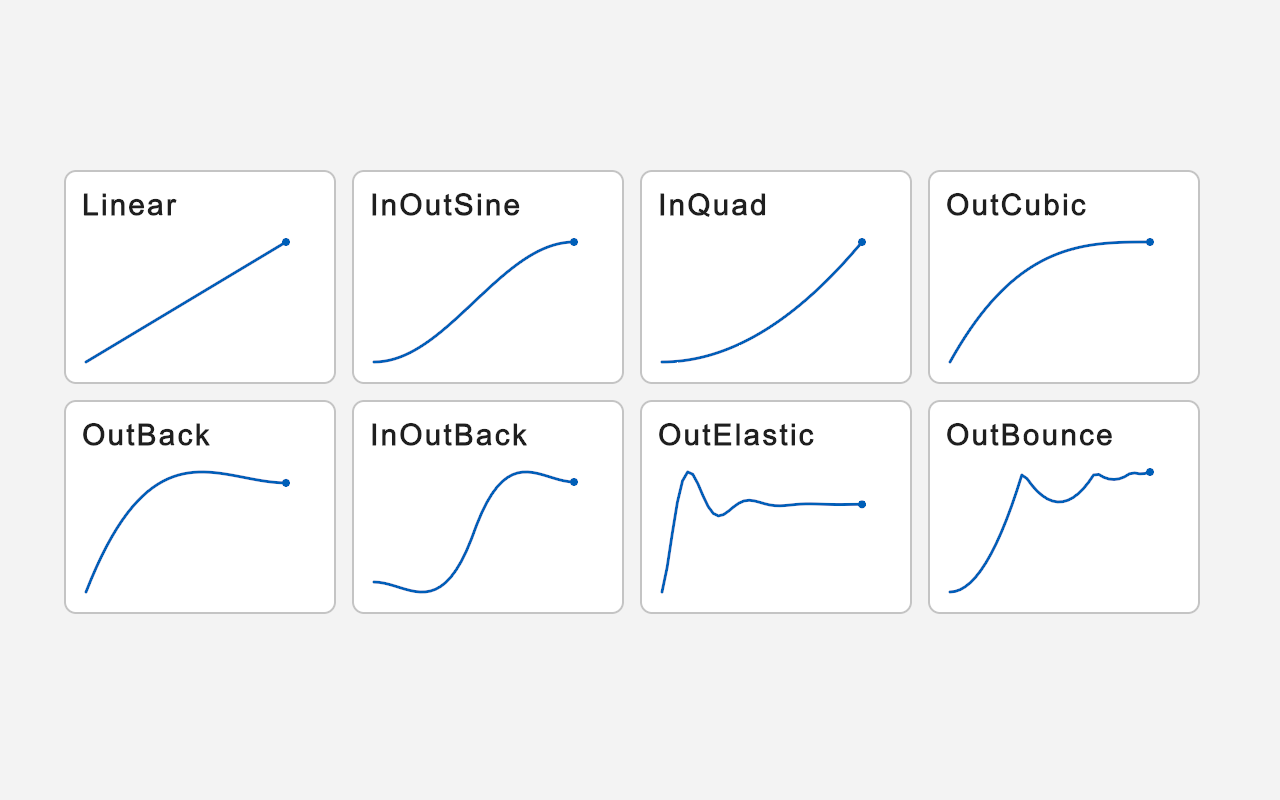
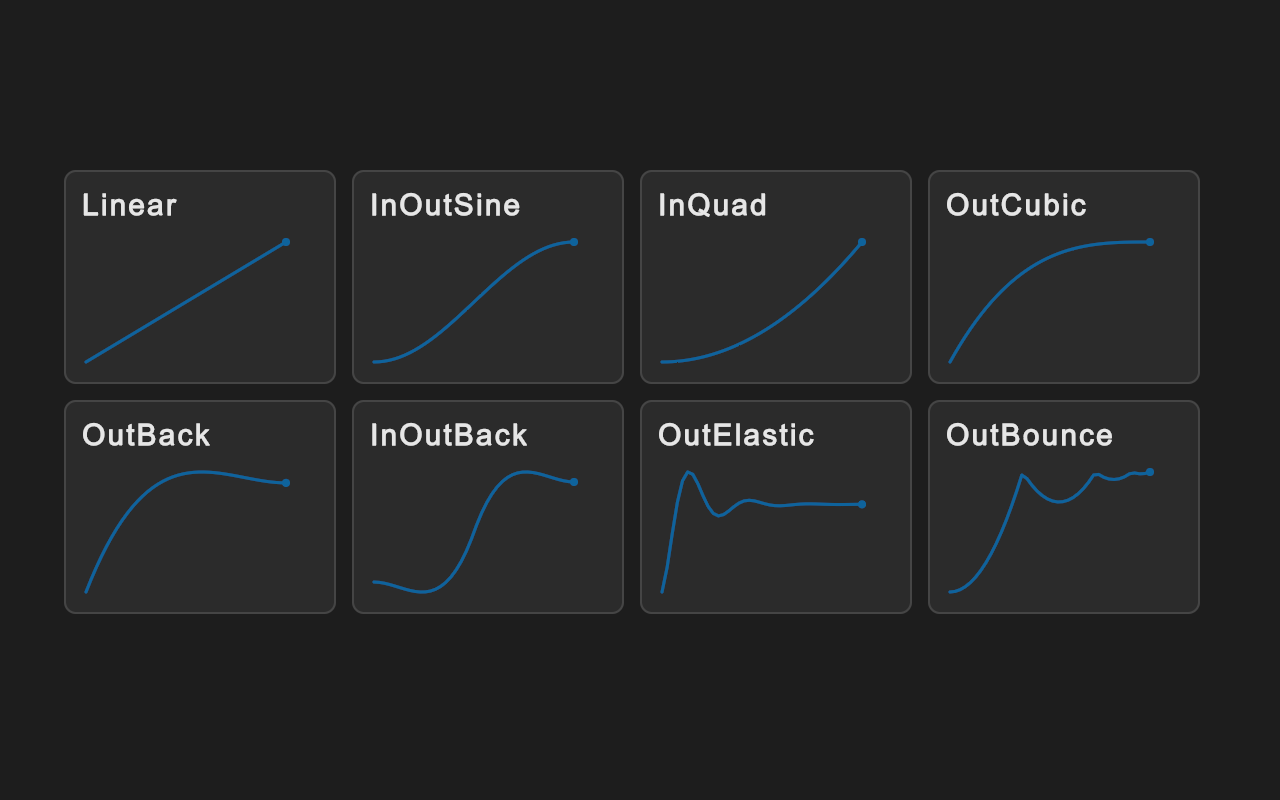
Easing |
USS 关键字 |
|---|---|
Linear |
linear |
InSine、OutSine、InOutSine |
ease-in-sine、ease-out-sine、ease-in-out-sine |
InQuad、OutQuad、InOutQuad |
仅代码 |
InCubic、OutCubic、InOutCubic |
ease-in-cubic、ease-out-cubic、ease-in-out-cubic |
InQuart、OutQuart、InOutQuart |
仅代码 |
InQuint、OutQuint、InOutQuint |
仅代码 |
InExpo、OutExpo、InOutExpo |
仅代码 |
InCirc、OutCirc、InOutCirc |
ease-in-circ、ease-out-circ、ease-in-out-circ |
InBack、OutBack、InOutBack |
ease-in-back、ease-out-back、ease-in-out-back |
InElastic、OutElastic、InOutElastic |
ease-in-elastic、ease-out-elastic、ease-in-out-elastic |
InBounce、OutBounce、InOutBounce |
ease-in-bounce、ease-out-bounce、ease-in-out-bounce |
关键字给出与其 Easing 相同的曲线,只有两处小差异:Unity 的 ease-in-out-back 越过两端的距离只有 InOutBack 的一半,Unity 的 ease-in-out-elastic 摆动得比 InOutElastic 更快。关键字 ease、ease-in、ease-out 和 ease-in-out 是 CSS 的贝塞尔曲线,没有对应的 Easing。
在 USS 中
transition-timing-function 以及主题变量 --tb-animation-easing-default、--tb-animation-easing-entrance 和 --tb-animation-easing-exit 只接受 USS 关键字。仅代码的曲线没有关键字,USS 文件也无法添加。
.my-badge--anim-show {
    transition-property: scale;
    transition-duration: 400ms;
    transition-timing-function: ease-out-back;
}
在代码中
Evaluate 给出曲线在从 0 到 1 的时间部分处的值。低于 0 的部分给出 0 处的值,高于 1 的部分给出 1 处的值。
// 1.0877: past the end, on its way back
var value = Easing.OutBack.Evaluate(0.5f);

// A menu slides in from the left, goes a little past its place and comes
// back
ToolboxAnimation.Tween(menu, 400, part =>
    menu.style.translate =
        new Translate(Mathf.LerpUnclamped(-300, 0, part), 0),
            Easing.OutBack);
做动画的控件在 UXML、Inspector 和代码中接受曲线和时间。每条曲线默认为 OutCubic。
| 控件 | 曲线 | 时间 |
|---|---|---|
Accordion(栏目的高度) |
animation-easing |
animation-duration(180 ms) |
Callout(TargetMark 的标记) |
animation-easing |
animation-duration(250 ms) |
Drawer(滑向吸附点) |
animation-easing |
animation-duration(180 ms) |
TourOverlay(孔的滑动) |
animation-easing |
animation-duration(300 ms) |
OptionSelector(文字的滑动) |
animation-easing |
animation-duration(160 ms) |
SpiderChart(形状的移动) |
animation-easing |
animation-duration(300 ms) |
FlipView(翻页) |
transition-easing |
transition-duration(300 ms) |
<tb:Accordion animation-easing="OutBack" animation-duration="300" />
<tb:FlipView transition-easing="OutBounce" />
提示:请用 Mathf.LerpUnclamped 而不是 Mathf.Lerp 来映射进程部分。Mathf.Lerp 会把进程限制在 0 和 1 之间,切掉 Back 和 Elastic 的过冲。只限制不可能超出范围的值,例如低于 0 的大小,或 0 到 1 之外的不透明度。