

 AnimatedImage
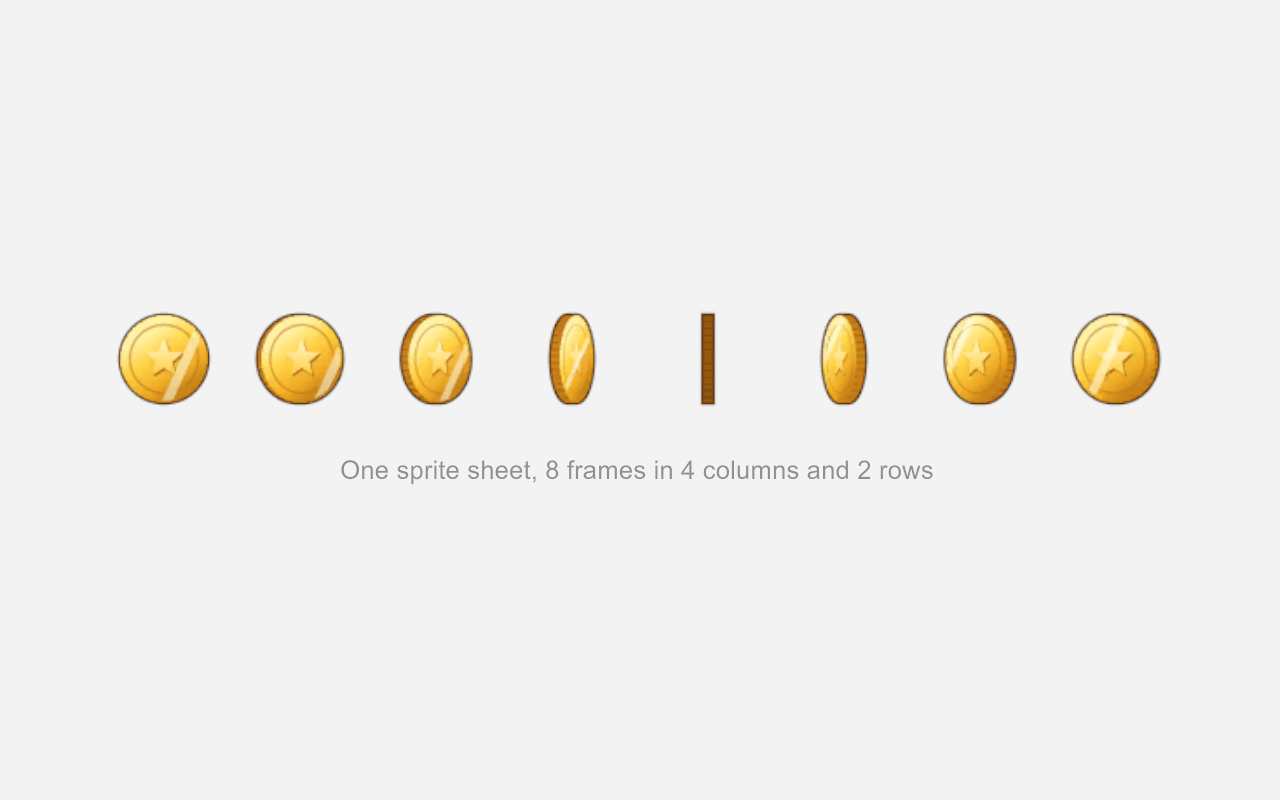
An AnimatedImage plays a sprite-sheet animation: a coin that spins, a torch that flickers, a hero that walks and swings a sword. The frames come from a SpriteSheet asset with named clips, from a texture cut in a grid, or from sprites set in code. With no other setting it loops at 12 frames per second. Use it for animated icons, characters in a menu or a dialogue, pickups, loading spinners and effects such as an explosion.
<tb:AnimatedImage clip="idle"
    sprite-sheet="project://database/Assets/Art/Knight.asset"
    style="width: 128px; height: 128px;" />
<tb:AnimatedImage sheet="project://database/Assets/Art/coin.png"
    columns="4" rows="2" />
var knight = new AnimatedImage { SpriteSheet = knightSheet };
knight.Play("walk");
knight.FlipX = true;
attackButton.clicked += () => knight.PlayOnce("attack", "idle");
panel.Add(knight);
In UI Builder an empty control shows a spinning coin in a dashed outline, and a control with frames shows its PreviewFrame and does not play.
| Member | Description |
|---|---|
SpriteSheet (sprite-sheet) |
A SpriteSheet asset with the frames, the frames per second and named clips. Setting it takes its rate. |
Sheet (sheet) |
A texture with the frames in a grid, left to right, then top to bottom. It needs no slicing. It wins over SpriteSheet. |
Columns (columns), Rows (rows) |
The grid of Sheet. 1 by default. |
FrameCount (frame-count) |
The number of frames in the grid, for a sheet whose last cells are empty. 0 (the default) uses every cell. |
Frames |
Sprites in order, such as the sprites of a sliced sheet. They win over Sheet and SpriteSheet. C# only. |
Clip (clip) |
The clip of the SpriteSheet that plays, such as walk. Empty plays every frame. Setting it takes the mode and the rate of the clip. |
FramesPerSecond (frames-per-second) |
The rate. 12 by default. A SpriteSheet and a clip set their own rate when they are set. |
Speed (speed) |
Scales the rate: 2 plays twice as fast, 0 freezes the frame. 1 by default. |
Mode (mode) |
Loop (the default), Once (stops and holds the last frame), PingPong (there and back) or Reverse. |
Autoplay (autoplay) |
Plays as soon as the control shows. On by default. Off waits for Play. |
UnscaledTime (unscaled-time) |
Plays in real time, also while the game is paused with Time.timeScale = 0. On by default. Off follows the game time. |
PreviewFrame (preview-frame) |
The frame that shows in UI Builder. 0 by default. |
ScaleMode (scale-mode) |
The fit of the frame: ScaleToFit (the default) keeps the whole frame in its shape, ScaleAndCrop covers the control, StretchToFill fills it. |
Tint (tint) |
Multiplies the colors of the frames. White by default. A white sheet, such as a spinner, takes any color. |
FlipX (flip-x) |
Mirrors the frames left to right, such as a hero that walks the other way. Off by default. |
Mask (mask), MaskTexture (mask-texture), MaskChannel (mask-channel), Invert (invert), Threshold (threshold), Softness (softness), CornerRadius (corner-radius), Saturation (saturation) |
Cut the frames to a shape or a wipe, as the members of the same names of MaskImage do. Mask is None by default and draws nothing. See Mask below. |
Frame |
The frame of the clip that shows. Setting it shows that frame. |
FrameTotal |
The number of frames of the clip, or of every frame when no clip is set. |
IsPlaying |
True while the animation plays. A Once animation stops at its last frame. |
Play(), Pause(), Stop(), Restart() |
Play from the frame that shows, stop on it, stop on the first frame, or play from the first frame. Play() after a Once animation has finished plays it again. |
Play(clip) |
Plays a clip of the SpriteSheet from its first frame. The clip that already plays goes on. |
PlayOnce(clip, then) |
Plays a clip once, then the clip then, such as an attack that goes back to idle. With no then, the last frame stays. |
Advance(seconds) |
Moves the animation by this many seconds. Set Autoplay to false and call it to drive the control from a clock of your own. |
FrameChanged, Looped, Finished |
Fired when the frame changes, when a looping animation starts again, and when a Once animation ends. After PlayOnce with a next clip, the next clip already plays when Finished fires. |
A sheet in the project
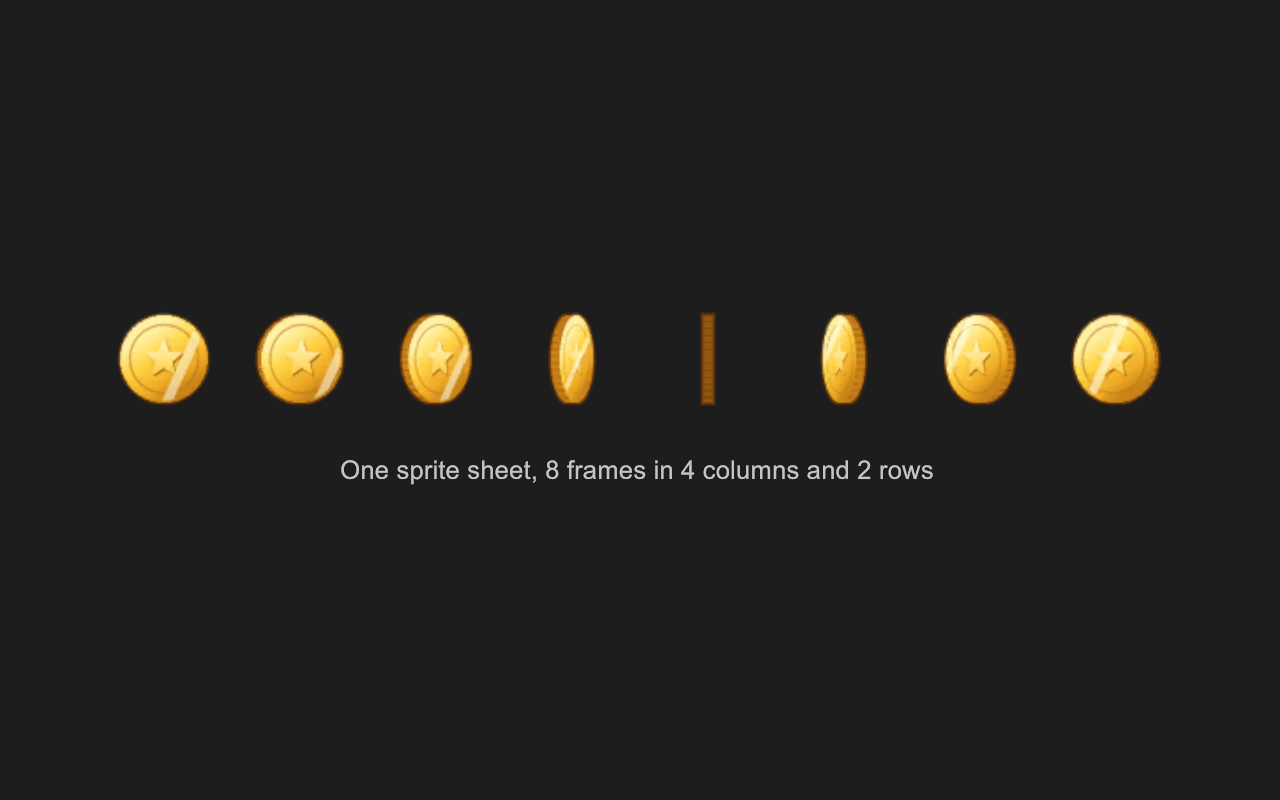
A sprite sheet is one picture with the frames in a grid, left to right and then top to bottom, with no space between the cells.
Sliced sprites and a SpriteSheet asset. This is the way for named clips and the one the demo uses.
- Select the picture. In the Inspector set Texture Type to Sprite (2D and UI) and Sprite Mode to Multiple, then Apply.
- Open the Sprite Editor, choose Slice > Grid By Cell Size, enter the size of a cell and slice. Delete the empty cells at the end, if any, and Apply. The Sprite Editor comes with the 2D Sprite package (
com.unity.2d.sprite); add it in the Package Manager if the window is not there. - Make the asset with Assets > Create > UI Toolbox > Sprite Sheet. Drag the sprites into Frames in order, set Frames Per Second, and add a clip for each run of frames, such as
walkfrom frame 8, 8 frames,Loop.
A plain texture and a grid. For a sheet with one animation, there is no slicing: set Sheet, Columns and Rows, and FrameCount when the last cells are empty.
var coin = new AnimatedImage
{
    Sheet = coinTexture,
    Columns = 4,
    Rows = 2,
};
In the import settings of the picture, set Filter Mode to Point for pixel art, so its edges stay sharp. Leave some space around each drawing, so the filtering does not take pixels from the next cell.
Clips and events
A clip is a run of frames of a SpriteSheet with a name, a mode and a rate; a clip with rate 0 takes the rate of the sheet. Play(clip) and Clip take the mode and the rate of the clip; Speed scales every rate, so slow motion is one setting.
In C#, a clip is a SpriteClip in the Clips array of the SpriteSheet: Name, First (the index of its first frame), Count (its number of frames), Mode (an AnimatedImageMode: Loop, Once, PingPong or Reverse) and FramesPerSecond (0 takes the FramesPerSecond of the sheet). SpriteSheet.FindClip(name) gives the clip with that name, or null.
chest.PlayOnce("open");
chest.Finished += _ =>
    particles.Burst(chest, ParticleSettings.Coins(coinCounter));

hero.Looped += _ => stepSound.Play();
hero.FrameChanged += h =>
{
    if (h.Clip == "attack" && h.Frame == 3) HitEnemy();
};
Mask
Set Mask to cut every frame to a circle, a rounded square, a hexagon, a diamond or your own mask texture, or animate Threshold for a radial wipe or a dissolve over the animation. The shape fits the frame as ScaleMode places it. The settings are the ones of MaskImage: the control draws its frames through a MaskImage child and shares the drawing code of MaskImage, so a masked animation behaves like a masked image.
<tb:AnimatedImage clip="idle" mask="Circle"
    sprite-sheet="project://database/Assets/Art/Knight.asset" />
knight.Mask = MaskShape.RadialWipe;
knight.Threshold = 0.4f; // 40% hidden, clockwise from the top
With Mask at None, no invert, saturation 1 and no threshold, the control draws no mask and costs what it did before. A mask draws the frame into a render texture at each change of frame, so it makes no garbage but does a draw per frame change. A masked frame must be a grid cell or a sprite that is not packed tight or rotated in an atlas; other frames show without the mask.
Performance
The control ticks only while it plays, is on a panel and shows: a paused control, a Once animation that has ended or a control in a hidden tab costs nothing. The frame follows the time, so a late frame of the game skips frames of the animation instead of slowing it down. A change of frame sets one style value of the image, and a frame makes no garbage. The control makes no textures: a grid sheet and a sprite show their cell of the texture through the background position. A sprite that a Sprite Atlas packs tight or rotates shows as a sprite, which makes some garbage at each change of frame; pack such atlases with Tight Packing and Allow Rotation off.
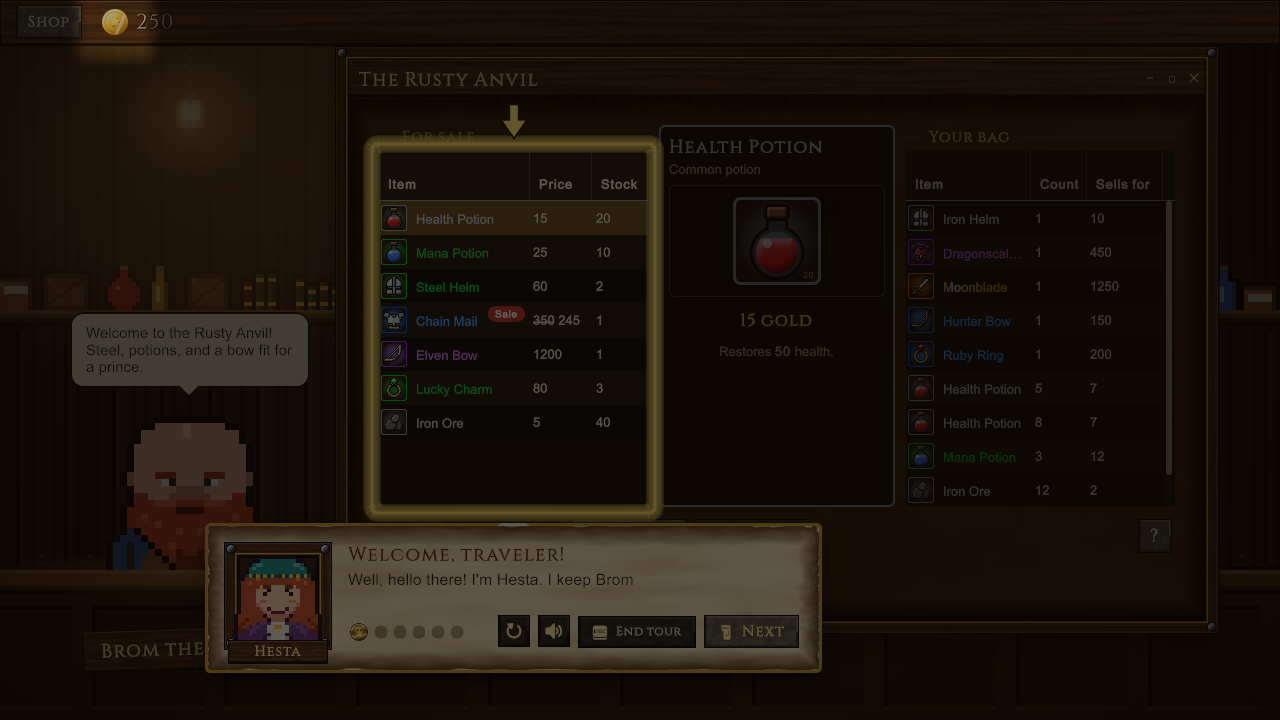
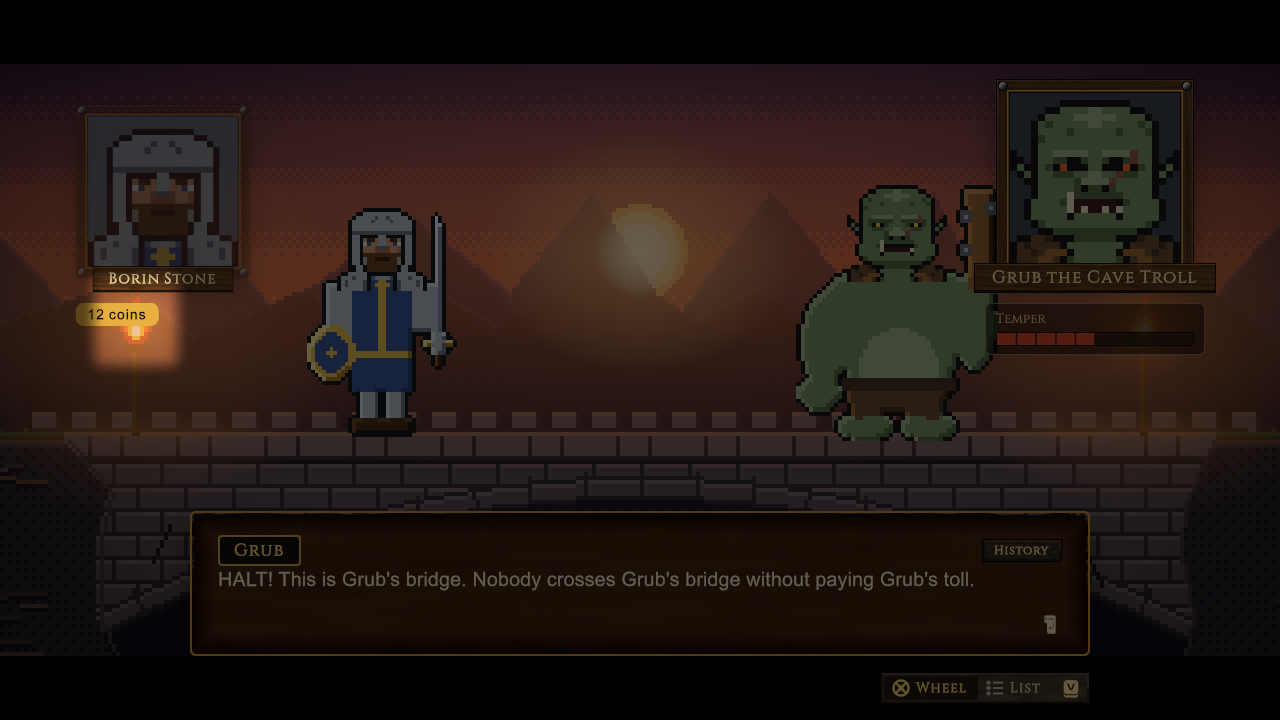
In the examples
Styling
| Class | Element |
|---|---|
tb-animated-image |
The control: 64 by 64 px when no size is set. It clips the image for ScaleAndCrop. |
tb-animated-image__image |
The image, in the shape of a frame and placed by ScaleMode. |
.my-hud .tb-animated-image { width: 32px; height: 32px; }