

 Crosshair and hits
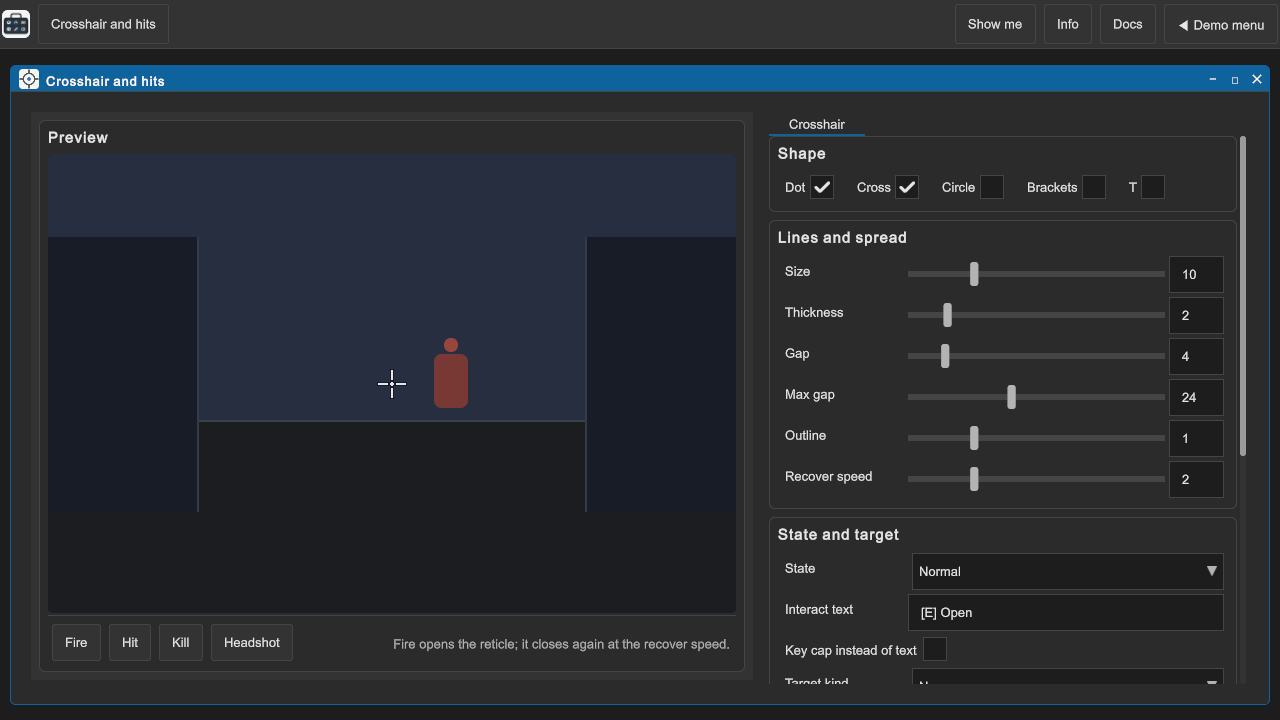
The crosshair of a shooter. The Crosshair tab puts a Crosshair on a dark game backdrop, with buttons that fire and hit and a field for each setting, and shows the UXML and the C# of the crosshair, made from the live values. The wedges that point at a hit are in the DamageIndicatorDemo scene; see DamageIndicator.
Scene: Assets/UIToolbox/Examples/Scenes/CombatHudDemo.unity. Folder: Assets/UIToolbox/Examples/CombatHudDemo.
Try it
- Open the scene. The Crosshair tab shows a cross with a dot in the center of the backdrop.
- Click Fire several times. Each shot raises the spread by 0.25, so the gap opens a quarter of the way from Gap to Max gap. The reticle closes again at the Recover speed.
- Click Hit, Kill and Headshot. Each shows its hit marker, and the status line names it.
- Turn the shape toggles on and off: Dot, Cross, Circle, Brackets and T. Move the Size, Thickness, Gap, Max gap and Outline sliders. The UXML and the C# under the fields follow each change.
- Set State to Interact. The Interact text shows under the reticle. Disabled dims the reticle, and Hidden hides the reticle and the hit marker.
- Pick Enemy in Target kind. The reticle turns red. Ally turns it green.
What it shows
Crosshair tab
| Field | Setting |
|---|---|
| Dot, Cross, Circle, Brackets, T | The flags of Shape. |
| Size, Thickness, Gap, Outline | Size, Thickness, Gap and Outline, in pixels. |
| Max gap | MaxGap, the gap at full spread. |
| Recover speed | RecoverSpeed, the spread that the reticle loses each second. |
| State | State: Normal, Interact, Disabled or Hidden. |
| Interact text | InteractText, the text under the reticle in the Interact state. |
| Target kind | TargetKind: None clears it, the others color the reticle. |
The buttons call AddSpread(0.25f) and ShowHit(CrosshairHit.Hit), ShowHit(CrosshairHit.Kill) and ShowHit(CrosshairHit.Headshot). The status line follows the HitShown event, where a game plays its hit sound.
How it is built
CombatHudDemoController finds the window by WINDOW_ID, the controls by their names, and binds each field to one setting. The UXML panel lists only the settings that differ from the defaults; the C# panel lists them all.
Use it in your game
<ui:VisualElement name="hud" picking-mode="Ignore" style="flex-grow: 1;">
    <tb:Crosshair name="crosshair" />
</ui:VisualElement>
var crosshair = GetComponent<UIDocument>().rootVisualElement
    .Q<Crosshair>("crosshair");

// On a shot
crosshair.AddSpread(0.25f);

// When the shot hits
crosshair.ShowHit(killed ? CrosshairHit.Kill : CrosshairHit.Hit);
See also
- Crosshair
- DamageIndicator
- Breach, a shooter with both controls
- Example scenes