

 ConsoleView
 in UIToolbox is an in-game developer console: a log and a command line. The player types gold 50 and presses Enter, and the game runs the command and writes the answer in the log. Use it for cheats, debug tools, level jumps, a server console or a shell in a game. By default it is a drawer that slides in from the top of the screen when the player presses the backquote key, as the console of a shooter does.
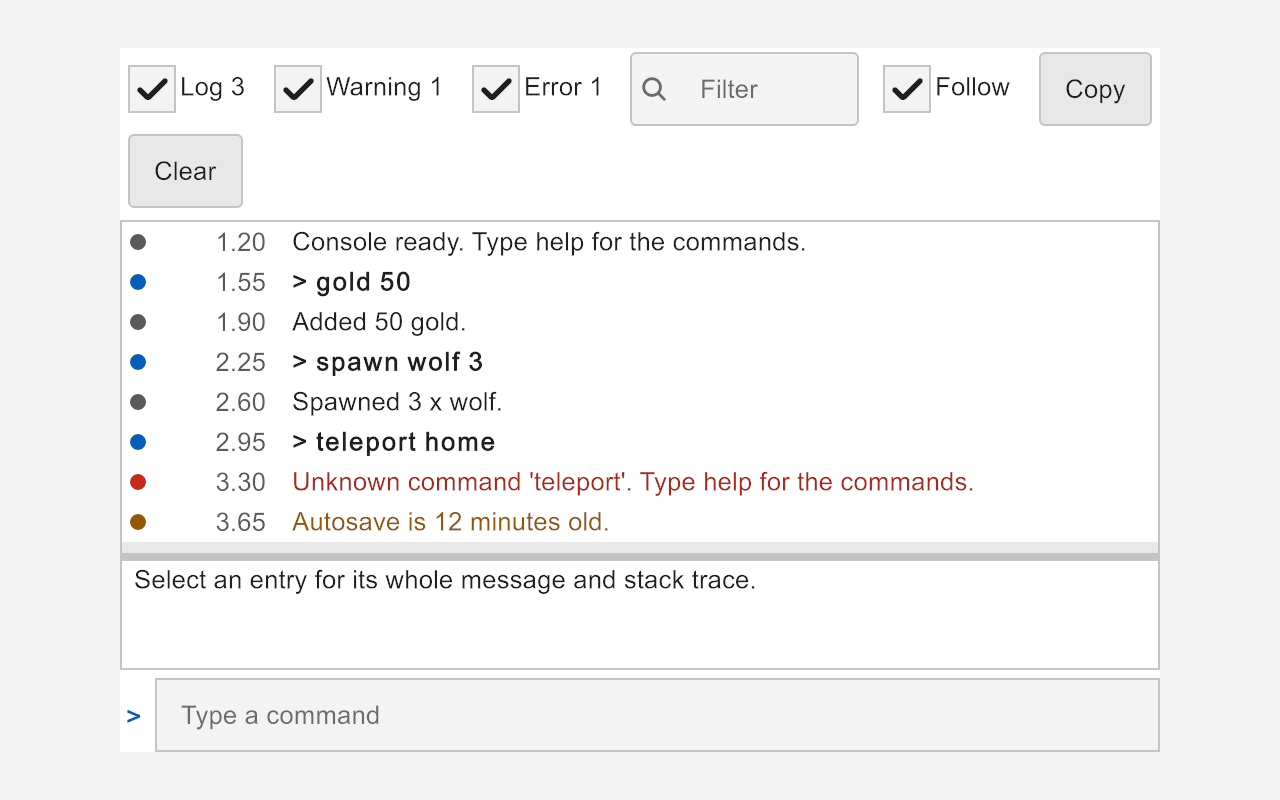
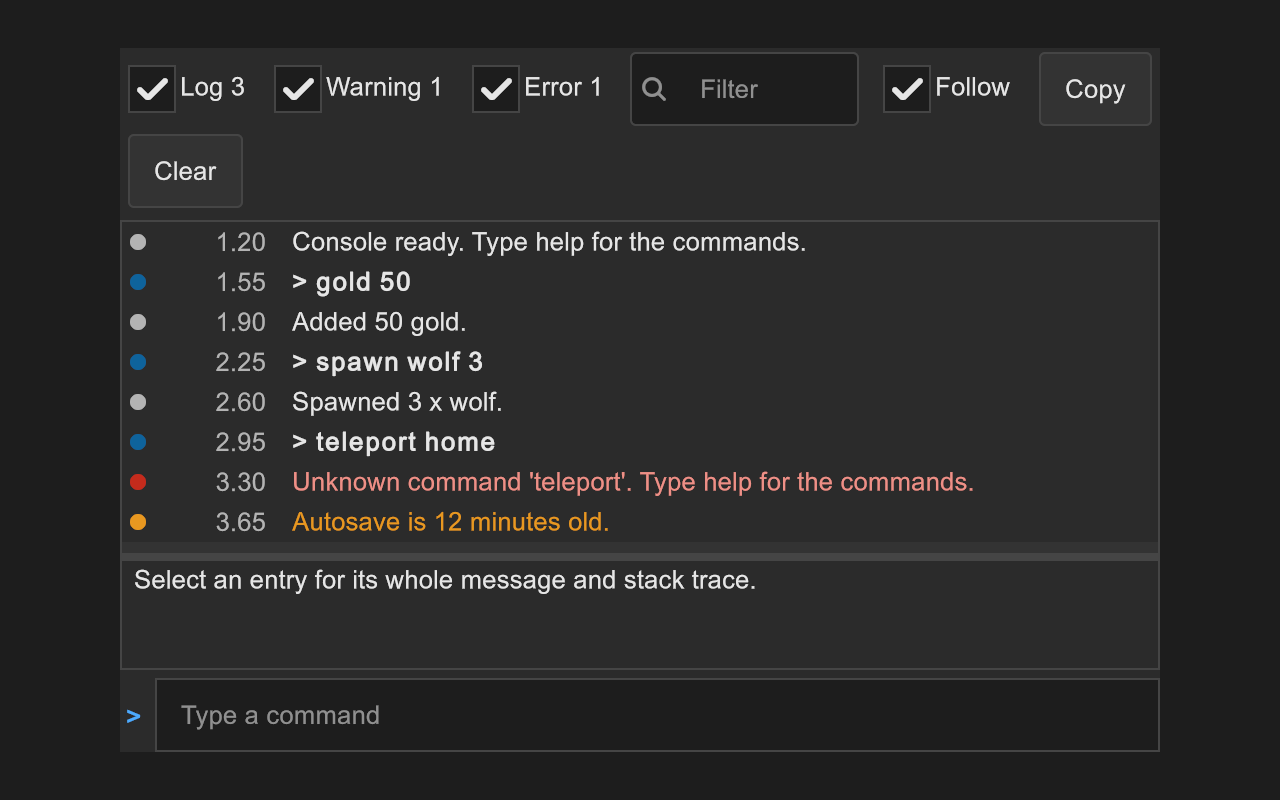
Video tutorial: ConsoleView. All videos: Video tutorials.
<tb:ConsoleView
    name="console"
    key="BackQuote"
    prompt=">"
    history-size="50" />
Put it last in the root of the document, so it shows over the other controls.
public class Cheats : MonoBehaviour
{
    private int _gold;

    private void Start()
    {
        var console = GetComponent<UIDocument>().rootVisualElement
            .Q<ConsoleView>("console");

        // Every method with a [ConsoleCommand] attribute becomes a
        // command
        console.RegisterAttributes(this);
        console.SetCompletions("spawn", 0, () =>
            new[] { "wolf", "golem", "bandit" });

        // Or register a command by hand
        console.Register("ping", words => console.Print("pong"),
            "Answers.");

        console.OpenChanged += open => Time.timeScale = open ? 0 : 1;
    }

    [ConsoleCommand("gold", "Adds gold.")]
    private string gold(int amount)
    {
        _gold += amount;
        return $"Gold: {_gold}";
    }

    [ConsoleCommand("spawn", "Puts enemies on the map.")]
    private void spawn(string enemy, int count = 1) =>
        Spawner.Spawn(enemy, count);
}
Settings
| Setting (UXML) | Type | Default | Does |
|---|---|---|---|
key |
KeyCode |
BackQuote |
The key that opens and closes the drawer. None turns the key off. |
drawer |
bool | true | True makes the console a panel at the top of its parent that slides in and out. False makes it part of the layout, always open, for a console in a window or a tool. |
capture-unity-log |
bool | true | Shows the messages of Debug.Log, warnings and errors in the log, also those from a worker thread. |
prompt |
string | > |
The text before the command line and before each command in the log. Empty hides it. |
history-size |
int | 50 | The number of command lines that Up and Down recall. 0 keeps none. |
IsOpen is true while the console shows. It is false at the start with drawer on and true with drawer off. Set it in code to open or close the console, or call Toggle(). History lists the command lines, the oldest first. A line that runs again moves to the end, so each line is there once. The history is the one of CommandField, an AutoCompleteField with a HistorySize of 50.
Log is the LogView of the console, so Log.Add, MaxItems and the filter work as in LogView. CommandField is the AutoCompleteField of the command line.
Methods
| Method | Does |
|---|---|
Register(name, action, help) |
Adds a command. action gets the words after the name. A command with the same name, in any case, replaces the old one. |
RegisterAttributes(object) |
Registers the instance and static methods of an object that have a [ConsoleCommand] attribute. |
RegisterAttributes(Type) |
Registers only the static methods of a type. |
SetCompletions(command, argIndex, provider) |
Gives Tab the words for one argument of a command. provider returns the words each time the player presses a key. |
Print(text, kind) |
Writes text in the log, one entry for each line. kind is a LogEntryKind (Log by default). |
Execute(line) |
Runs a command line as if the player typed it. The line goes into the history. |
Toggle() |
Opens the console, or closes it. |
Commands
[ConsoleCommand("name", "help")] marks a method. The name is the word that runs it and its case does not matter. The method can be public or private, static or not.
A parameter reads one word of the command line, and its type decides how:
| Parameter | Reads |
|---|---|
string |
The word as it is. |
int, long, float, double |
A number. The decimal point is a point in every language. |
bool |
true, false, on, off, yes, no, 1 or 0. |
| an enum | A name of the enum, in any case. Tab completes the names. |
a last string[] |
All the other words. |
ConsoleView |
No word. The method gets the console, for example to call Print. |
A parameter with a default value is optional. A method that returns text writes the text in the log. The help command shows the usage of a command, built from the names and the types of its parameters: spawn <enemy> [count].
A wrong command line writes an error entry and runs nothing: an unknown command, a missing argument, too many arguments, a word that is not a number, a bool or one of the enum names, or a quote that is not closed. A command that throws writes an error entry with the message of the exception, so throw an exception with a text for the player to report a wrong value.
[ConsoleCommand("difficulty", "Sets the difficulty.")]
// Tab completes Easy, Normal, Hard
private string difficulty(Difficulty level)
{
    _level = level;
    return $"Difficulty: {level}";
}

[ConsoleCommand("say", "Shows a message.")]
private void say(string[] words) => Hud.Show(string.Join(" ", words));
A word in double or single quotes keeps its spaces: say "hello world" has one word. In quotes, a backslash writes the next quote or backslash as it is, so \" is a quote in the word.
Register gives a command without types: its action gets all the words as strings and checks them itself.
Built-in commands
help lists the commands. help gold shows the usage and the help of one command. clear removes all the entries of the log. A command that you register with the same name replaces them.
Events
| Event | When |
|---|---|
Executed |
After a command line ran, with the line. It also comes for a line that failed. |
OpenChanged |
IsOpen changes, with the new value. A game can pause on it. |
ToggleKeyPressed |
The player presses the toggle key. It comes also with drawer off, where the key opens nothing, so the game can show the console its own way. |
Keyboard
| Key | Does |
|---|---|
| Toggle key | Opens or closes the drawer. The key does not type its character in the command line. Opening puts the focus on the command line, and closing gives the focus back to the element that had it. |
| Enter | Runs the line and empties the field. A line with only spaces does nothing. |
| Up, Down | Recall the earlier command lines. Down after the last one gives back the line that the player was typing. |
| Tab | Completes the command name, or the value of an enum or bool argument, or a word from SetCompletions. |
| Ctrl+Space | Shows the choices for an empty word, such as the values of the next argument. |
| Escape | Clears the typed line first. With an empty line it closes the drawer, and it does nothing in a console without a drawer. |
The completion list opens as the player types. Enter with a choice selected inserts the choice and does not run the line yet.
Texts
The texts of the console come from ToolboxText, so they follow the language of the game. Replace them with ToolboxText.Lookup or the string files of your project.
| Key | Default |
|---|---|
tb.type-a-command |
Type a command (the placeholder of the command line) |
tb.console-unknown |
Unknown command '{0}'. Type help for the commands. |
tb.console-usage |
Usage: {0} |
tb.console-missing |
Missing argument '{0}'. Usage: {1} |
tb.console-too-many |
Too many arguments. Usage: {0} |
tb.console-bad-argument |
'{0}' is not {1}. |
tb.console-whole-number, tb.console-number, tb.console-boolean, tb.console-one-of |
The kind of value in the line above: a whole number, a number, true or false, one of: {0} |
tb.console-open-quote |
A quote is not closed. |
tb.console-help-help, tb.console-clear-help |
The help text of help and clear. |
Performance
- The console does nothing per frame. It works on a key press and on a command.
- The log is a LogView: it virtualizes its entries, so thousands of lines scroll smoothly, and
MaxItemskeeps the oldest ones from piling up. - The words of a command line are made when the player presses Enter, not each frame.
Styling
| Class | Element |
|---|---|
tb-console |
The console (background). |
tb-console--drawer |
The console as a drawer: a panel at the top of its parent, 45% high. |
tb-console--hidden, --anim-in, --anim-out |
The closed look, where the slide starts and ends, and the transitions of the slide. |
tb-console__log |
The LogView. Its list and detail pane shrink to the height that the command line leaves; the detail pane keeps one line of the detail (tb-log-view__detail-pane). |
tb-console__row |
The row with the prompt and the command line. |
tb-console__prompt |
The prompt text. |
tb-console__input |
The command line. |
Put the console over a dark game view, or change the height of the drawer:
.tb-console--drawer {
    height: 60%;
    background-color: rgba(10, 10, 15, 0.92);
}
.tb-console__prompt { color: #ffb000; }
The slide follows the animation settings of the theme (--tb-animation-duration-fast). With animations off, the drawer shows and hides at once.
The ConsoleDemo scene shows a drawer console over a small game: typed commands, the history, the completion, the settings and the events. Its Debug console tab holds a second console in the layout, with capture-unity-log: it shows the Unity log, also the messages of a worker thread, and F1 shows the tab from anywhere.