
Cursors
The toolbox ships hardware cursors for the Window edges, splitters,
text fields, buttons and drag handles. They show in a built game, where
the keyword cursors of USS (text, resize-horizontal) do not work.
You do not set anything up: the cursors come with the theme.
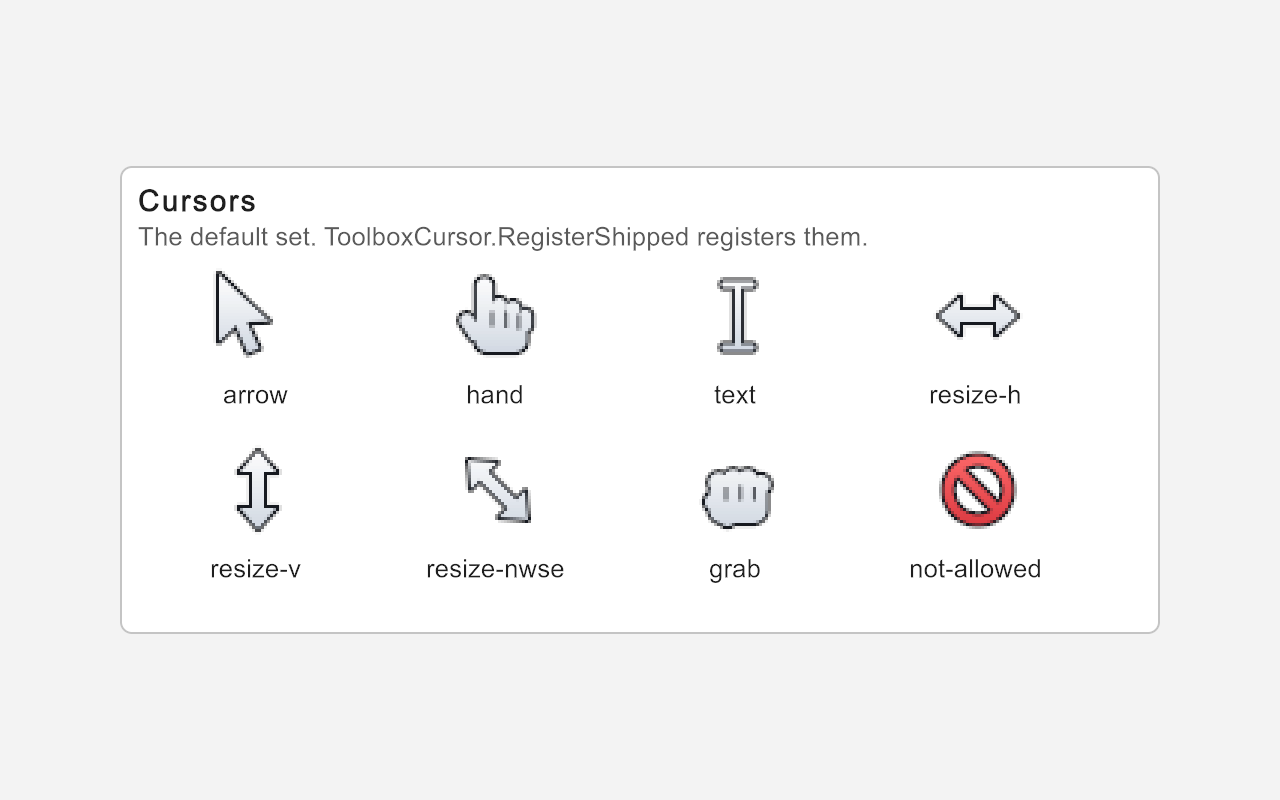
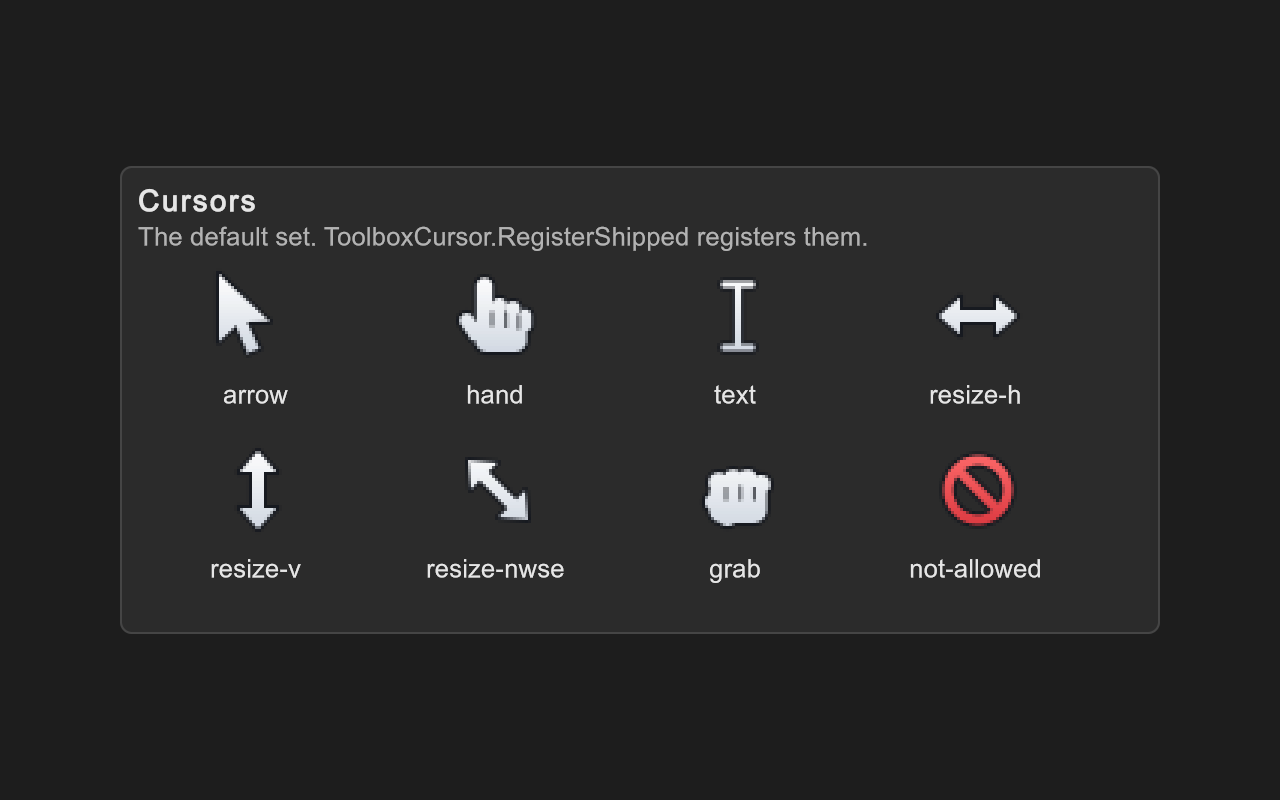
What ships
Three sets live in Resources/UIToolbox/Cursors: default, game
and high-contrast. The dark theme and the other themes use
default; game.uss uses game; high-contrast.uss uses
high-contrast. Each set holds 32 px textures with a 64 px @2x
texture beside each one:
| Name | Where it shows |
|---|---|
arrow |
disabled buttons |
hand (variable link) |
buttons, tabs, menu items |
text |
text fields and the controls built on them |
resize-h, resize-v |
window edges, splitters |
resize-nwse, resize-nesw |
window corners |
move |
free for your own use |
grab |
drawer handles, slider thumbs |
not-allowed |
free for your own use |
busy-0 to busy-7 |
frames of an animated busy cursor |
Tools/cursors/cursors.mjs draws them. Run
node Tools/cursors/cursors.mjs to draw them again.
How USS cursors work at runtime
A runtime panel shows texture cursors only. A rule such as
cursor: url("...") 3 2 works in the Editor and in a player. A keyword
such as cursor: text works in the Editor only.
cursor is not inherited, so a rule names the element under the
pointer. The controls do this for you. The theme sheets hold the
textures in variables:
:root, .tb-workspace {
    --tb-cursor-arrow: url("../Cursors/default/arrow.png") 3 2;
    --tb-cursor-link: url("../Cursors/default/hand.png") 11 2;
    --tb-cursor-resize-h: url("../Cursors/default/resize-h.png")
        16 16;
}
The two numbers are the hotspot: the pixel of the texture that clicks,
counted from the top left. The variables are --tb-cursor-arrow,
-link, -text, -resize-h, -resize-v, -resize-nwse,
-resize-nesw, -move, -grab, -busy and -not-allowed.
Use your own cursors
- Import your cursor PNGs. In the import settings set the texture type to Cursor, compression to None, and turn off mip maps. A cursor texture is 32 by 32 px for the best result on every system.
- Name a bigger version
name@2x.png(64 by 64 px). Unity picks it on a high-density screen. - Put the files under
Resourcesin a folder of your own, for exampleResources/MyGame/Cursors. - Add a USS file that overrides the variables you want, and add it after the theme:
:root, .tb-workspace {
    --tb-cursor-arrow:
        url("project://database/Assets/MyGame/arrow.png") 0 0;
    --tb-cursor-link:
        url("project://database/Assets/MyGame/hand.png") 8 0;
}
Use the hotspot of your own art. A variable you leave out keeps the
cursor of the theme.
5. Load the sheet with workspace.AddUserStyleSheet(sheet), or add it
to the style sheets of the panel root after the theme.
To keep the cursor of the operating system for a control, add a rule after the toolbox sheets that resets it:
.unity-base-text-field__input,
.unity-base-text-field__input > .unity-text-element {
    cursor: initial;
}
ToolboxCursor: the cursor over your game
ToolboxCursor sets the hardware cursor by name, for the game world
outside the UI.
ToolboxCursor.RegisterShipped("game");
ToolboxCursor.Register("attack", swordTexture, new Vector2(4, 4));

ToolboxCursor.Set("attack");   // pointer over an enemy
ToolboxCursor.Reset();         // back to the system cursor
Push shows a cursor and remembers the one before it, and Pop
brings it back. Use them for a temporary state:
ToolboxCursor.Push("busy");
await LoadLevel();
ToolboxCursor.Pop();
RegisterShipped registers the shipped cursors under their names
(arrow, hand, text, resize-h, ... and an animated busy). Pass
"default", "game" or "high-contrast".
Animated cursors
Register frames of the same size and a frame rate:
ToolboxCursor.Register("spin", frames, new Vector2(16, 16), 12f);
ToolboxCursor.Set("spin");
A hidden object advances the frames, and only while an animated cursor
shows. The update allocates nothing. To drive the animation yourself,
call ToolboxCursor.Advance(deltaTime).
Controls that react to the pointer set their cursor through USS. A
cursor you set with ToolboxCursor shows where no control sets one.