

 CurveField
 in UIToolbox is a field for an AnimationCurve that works in a game, outside the Unity editor. Use it for the arc of a jump, a damage falloff, the ease of a camera move or the volume over a distance. The field shows a small picture of the curve; a click opens an editor in a popup, with keys that drag, tangent modes, presets and zoom to fit. The editor draws with the same plot code as Graph.
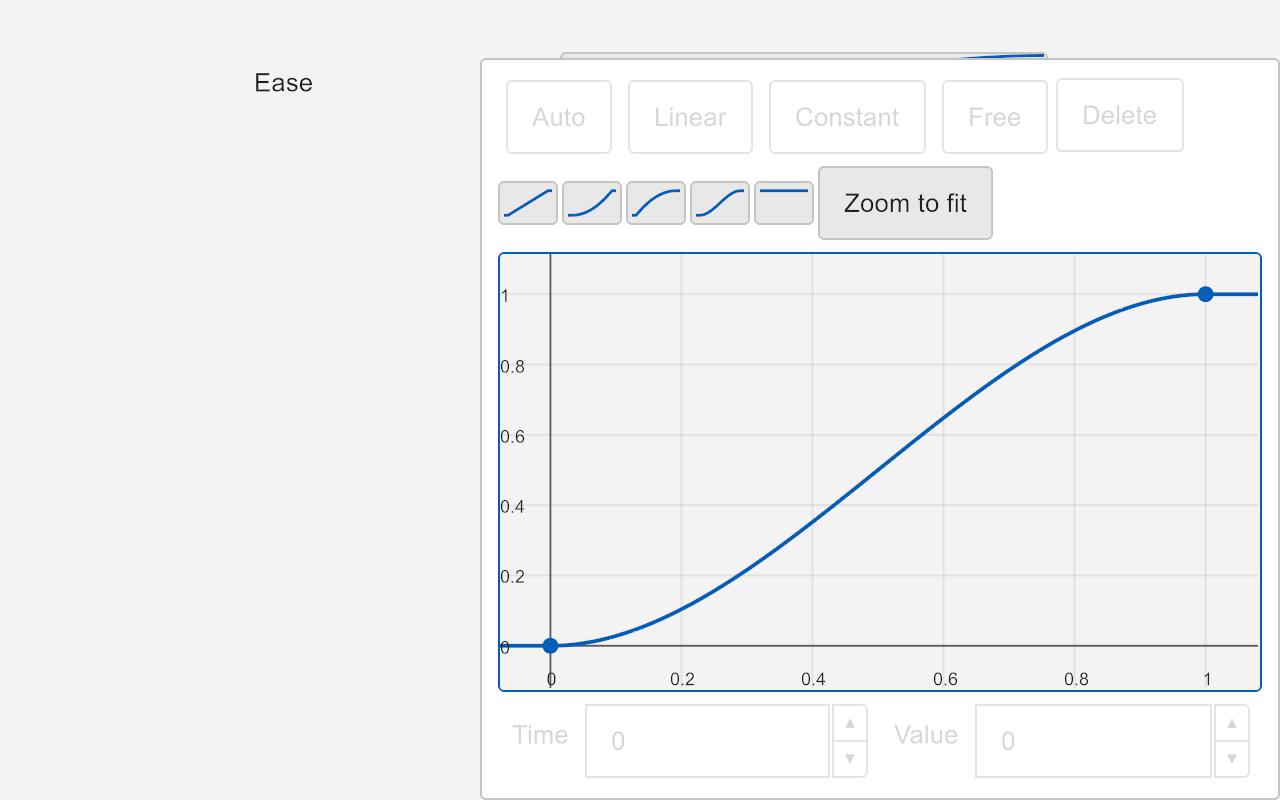
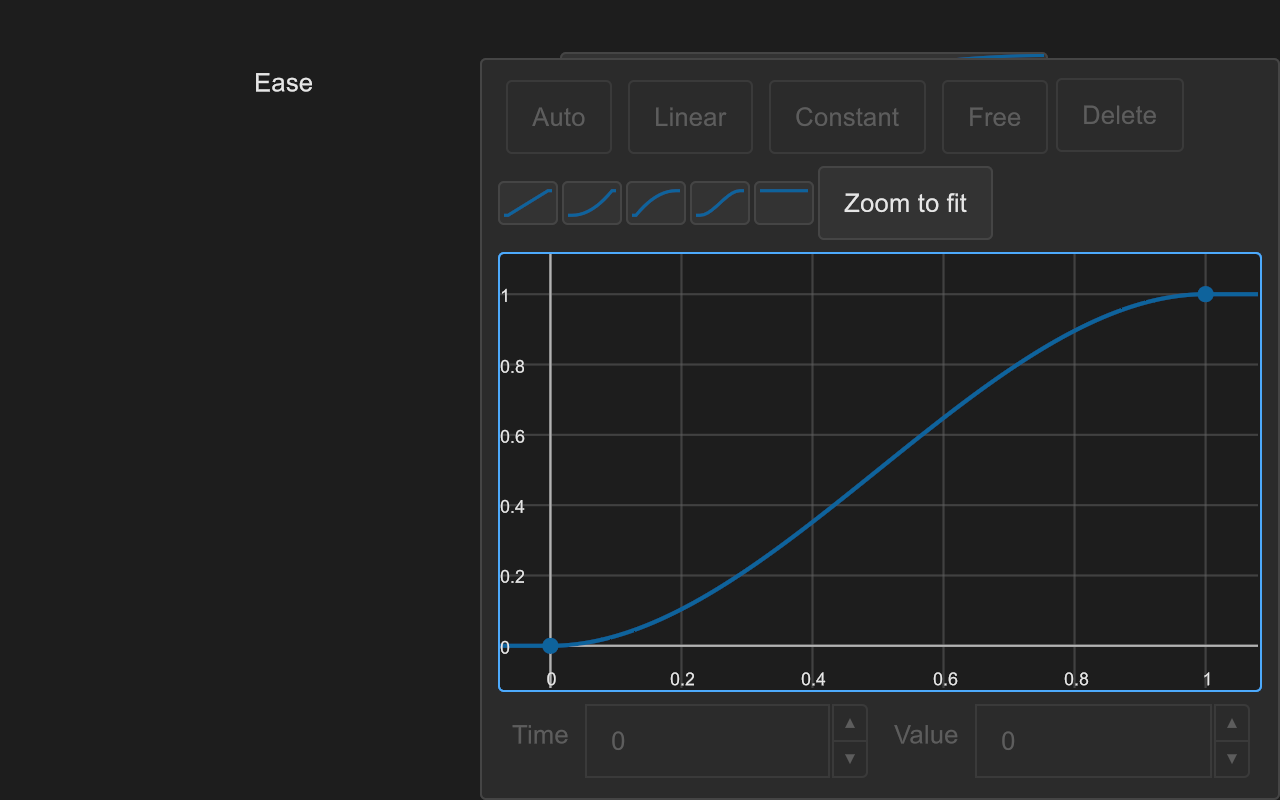
Video tutorial: CurveField. All videos: Video tutorials.
<tb:CurveField name="jump" label="Jump" />
var jump = root.Q<UIToolbox.CurveField>("jump");
// The keys stay from 0 to 1 in time and in height
jump.Range = new Rect(0, 0, 1, 1);
jump.value =
    new AnimationCurve(new Keyframe(0, 0, 4, 4),
        new Keyframe(0.5f, 1, 0, 0), new Keyframe(1, 0, -4, -4));

jump.RegisterValueChangedCallback(evt => player.JumpArc = evt.newValue);
// While a key drags, Editing gives the curve as it changes
jump.Editing += curve => preview.Arc = curve;
UnityEditor.UIElements has a CurveField too. In a file that uses both namespaces, write UIToolbox.CurveField or add using CurveField = UIToolbox.CurveField;. In UXML, the tb: prefix picks this one.
The field never changes the curve that it gets: value keeps the curve that you set until the user edits it, and each edit sets a new curve. A change event comes once for each edit, on the release of a drag. An undo, for example PropertyGrid.Undo, gets the old curve back unchanged. A null value is an empty curve.
Settings
| Setting (UXML) | Type | Default | Does |
|---|---|---|---|
label |
string | "" | The text beside the field. |
range |
Rect |
zero | The box that the keys stay inside: X is the time and Y the value. A zero width or height leaves that axis free. When it is set, the preview shows this box and the presets fill it. Set it from C# as Range. |
View is the part of the curve that the editor shows. The editor fits it to the curve (or to Range) when it opens; a pan, the wheel and View = rect change it. SelectedKey is the index of the selected key, or -1.
Tangent modes
| Mode | The curve at the key |
|---|---|
Auto |
Smooth. The tangents follow the keys beside it and are flat at the ends and at peaks, so the curve does not overshoot. |
Linear |
Straight lines to the keys beside it. |
Constant |
Steps: the value holds until the next key. |
Free |
The tangents stay as they are, and the handles set them. A drag of a handle makes the key Free. |
The modes set the same bits as the Unity curve editor, so a curve made in the game opens the same way in the Unity Inspector.
Methods
| Method | Does |
|---|---|
Open(), Close(), Toggle() |
Show or hide the editor under the field. IsOpen is true while it shows. |
AddKey(time, value) |
Adds a key with the Auto mode, selects it and returns its index. Returns -1 when a key has that time already. |
DeleteKey(index) |
Removes a key. The key after it, or else the last key, is selected. |
MoveKey(index, time, value) |
Moves a key. It stays between the keys beside it and inside Range. |
SetTangentMode(index, mode) |
Sets the tangent mode of a key, a CurveTangentMode, and shapes the curve to it. |
ApplyPreset(preset) |
Replaces the curve with a CurvePreset: Linear, EaseIn, EaseOut, EaseInOut or Flat, across Range when it is set, else from 0 to 1. |
ZoomToFit() |
Shows the whole curve (or Range) with a margin. |
GetTangentMode(key), WithTangentMode(key, mode) |
Static. Read the mode of a Keyframe, or give it one. |
Events
| Event | When |
|---|---|
ChangeEvent<AnimationCurve> |
The user or code sets a new curve: on the release of a drag, on a key press, a preset or a mode. |
Editing |
On each move of a drag, with the curve as it is. Use it to show the change at once. The field reuses this curve, so do not keep it. |
Mouse and keyboard
| Input | Does |
|---|---|
| Click, Enter or the submit button on the field | Opens or closes the editor. |
| Left drag on a key | Selects it and moves it. |
| Double click on the background | Adds a key there, and a drag goes on to move it. |
| Left drag on a tangent handle | Sets both tangents of the selected key, and makes it Free. |
| Left drag on the background | Pans. A click clears the selection. |
| Mouse wheel | Zooms around the pointer. With Shift, it zooms the time only. |
| Left and Right arrows (or the gamepad) | Select the key before or after. |
| Shift + Left or Right | Moves the selected key in time by a grid step. |
| Up and Down | Move the selected key in value by a grid step. |
| Delete or Backspace | Deletes the selected key. |
| Insert | Adds a key after the selected one, on the curve. |
| Home | Zooms to fit. |
| Escape | Closes the editor. |
The Time and Value fields under the plot edit the selected key with numbers. On a touch screen, a tap is a click and a drag with one finger moves a key or pans.
Performance
- The preview and the editor draw with
generateVisualContent; a repaint allocates nothing. - A drag of a tangent handle allocates nothing: the field reuses its keys and its working curve, and writes the Time and Value fields only when a number changes.
- A drag of a key, or a pan, writes new numbers in the Time and Value fields and the tick labels, which makes a few small strings for each move.
- Each edit that ends (the release of a drag, a key press) makes one new
AnimationCurve, so an undo keeps the old one.
Styling
| Class | Element |
|---|---|
tb-curve-field |
The field. |
tb-curve-field__preview |
The picture of the curve in the field (20 px high). |
tb-curve-field__popup |
The editor in the popup (400 px wide). |
tb-curve-field__toolbar |
A row of buttons: the tangent modes and Delete act on the selected key, the presets and Zoom to fit on the whole curve. |
tb-curve-field__mode |
A tangent mode button (a ToggleButton). |
tb-curve-field__preset, __preset-icon |
A preset button and the picture in it. |
tb-curve-field__canvas |
The plot with the grid, the curve and the keys (220 px high). |
tb-curve-field__tick-label--x, --y |
The numbers on the time and value axes. |
tb-curve-field__key-row |
The row of the Time and Value fields. |
| Variable | On | Description |
|---|---|---|
--tb-curve-field-color |
tb-curve-field |
The color of the curve and the keys (the accent). |
--tb-curve-field-selected |
tb-curve-field |
The color of the selected key and its handles. |
--tb-curve-field-grid |
tb-curve-field |
The color of the grid lines. |
--tb-curve-field-axis |
tb-curve-field |
The color of the zero lines and the Range box. |
.jump-field { --tb-curve-field-color: #f0c040; }
.jump-field .tb-curve-field__canvas { height: 300px; }
A PropertyGrid gives each AnimationCurve member a CurveField. See also GradientField.
The CurveDemo scene shows a jump arc that moves a round character: they hop back and forth along the curve, stretch as they rise, squash and raise dust when they land, and each hop makes a sound that the button in the corner of the stage mutes. It also shows a longbow in a PropertyGrid: a plot draws its damage falloff curve, targets at four distances show the damage that each takes, and the arrow trail takes the colors of its gradient. The GradientFieldDemo scene shows a sky over a day and a health bar that take their colors from a GradientField.