
Customize windows
Eight live windows that show what a window can wear. Each window has an icon, the title bar buttons switch off and on, the title bar holds a Badge and a search field, a video strip or a slider, one window swaps its chrome, and one gets a Badge from code. The windows are the ones of the custom chrome templates page, running.
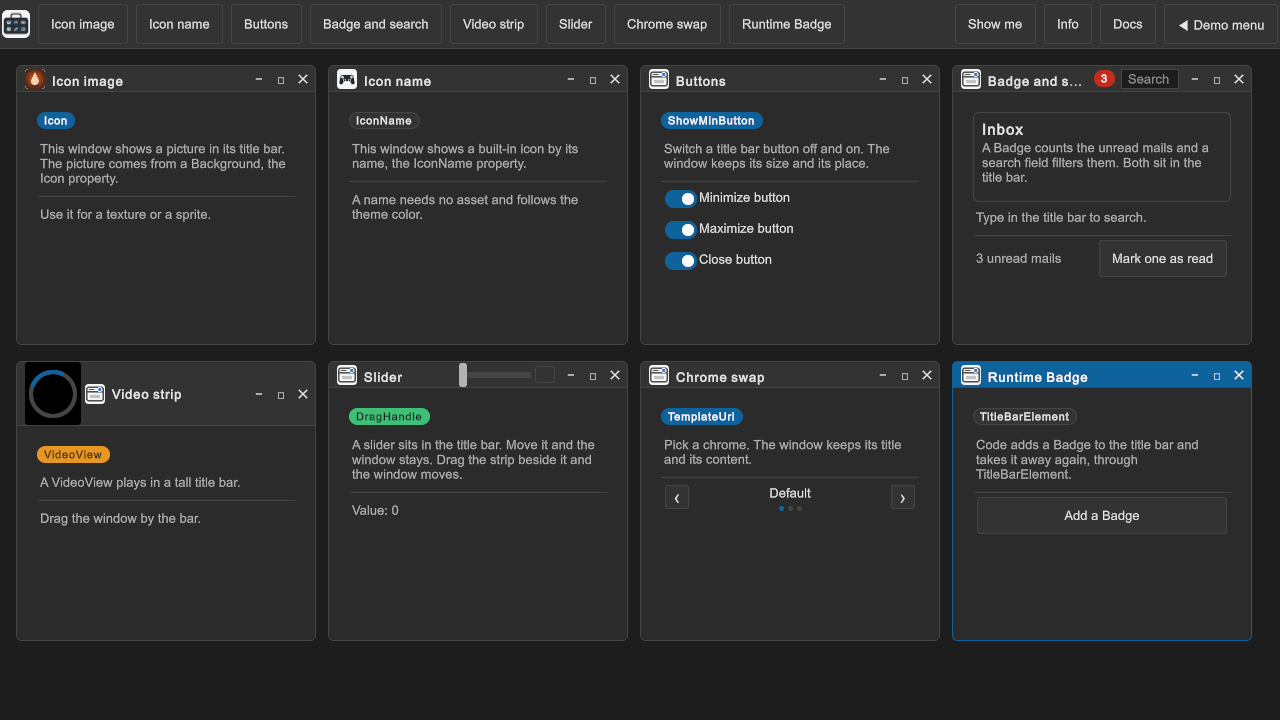
Scene: Assets/UIToolbox/Examples/Scenes/CustomizeWindows.unity. Folder: Assets/UIToolbox/Examples/CustomizeWindows.
Try it
- Open the scene and press Show me in the header. The tour walks the windows in order.
- In Buttons, switch Minimize, Maximize and Close off and on. The window keeps its size and its place.
- In Badge and search, type in the field of the title bar. The window shows what you search for. Press Mark one as read and the Badge counts down.
- In Video strip, watch the clip play in the title bar, and drag the window by the strip.
- In Slider, move the slider of the title bar: the value changes and the window stays. Drag the strip beside the slider and the window moves.
- In Chrome swap, pick Glass, then Banner, then Default. The title and the content stay.
- In Runtime Badge, press Add a Badge. A Badge appears in the title bar. Press the button again to remove it.
- Change the language in the header. Every text of the scene, the tour included, changes with it.
What it shows
| Window | What it shows |
|---|---|
| Icon image | Icon, a Background that the title bar shows as a picture. |
| Icon name | IconName, the name of a built-in icon. |
| Buttons | ShowMinButton, ShowMaxButton and ShowCloseButton as three Switches. |
| Badge and search | A template with a Badge and a text field in the title bar. |
| Video strip | A template with a tall title bar and a VideoView. |
| Slider | A template with a slider and a DragHandle in the title bar. |
| Chrome swap | One window with the Default, the Glass and an own Banner chrome. |
| Runtime Badge | TitleBarElement: code inserts a Badge and removes it again. |
How it is built
CustomizeWindows.uxml declares the eight windows. The icon windows use the icon and icon-name attributes of tb:Window. The three windows with extra title bar elements use template-uri with a template in Resources/UIToolboxSamples: TitleBadgeSearchWindow, TitleVideoWindow and TitleScrubWindow. A fourth template, BannerWindow, is the third chrome of the swap.
CustomizeWindowsController reads the title bar of a window through WindowDescriptor.TitleBarElement. A window makes its chrome when it opens, so the controller sets the parts of the title bar again from the StateChanged event. The search field and the slider send their change events up to the root, so one handler of each serves the window even after a chrome swap.
The title bar buttons hide through style.display, because ShowMinButton, ShowMaxButton and ShowCloseButton apply when the window is made. A chrome has no live setter, so the swap removes the window and registers it again with the same id, title, bounds and content. The content keeps its state.
All texts live in the files of Strings, in nine languages, under the keys customize.*. The markup holds no text. The names on the Badges of the windows (Icon, IconName, VideoView and so on) are the names of the API and stay the same in every language.
Use it in your game
A template that puts a Badge and a search field in the title bar:
<ui:VisualElement name="windowContainer" class="tb-window">
  <ui:VisualElement name="childWindow" class="tb-child-window">
    <tb:TitleBar name="titleBar" class="tb-title-bar">
      <ui:Label name="titleLabel" class="tb-title-label" />
      <tb:Badge name="unread" count="3" tone="Error" />
      <ui:TextField name="search" />
      <ui:VisualElement class="tb-button-group">
        <ui:Button name="closeButton"
                   class="tb-window-button tb-close-button" />
      </ui:VisualElement>
    </tb:TitleBar>
    <ui:VisualElement name="windowContent"
                      class="tb-window-content" />
  </ui:VisualElement>
</ui:VisualElement>
// Use the template, then read the parts by name
var mail = WindowDescriptor.Builder()
    .WithId("mail")
    .WithTitle("Mail")
    .WithTemplate("MyGame/MailWindow")
    .Build();
workspace.RegisterWindow(mail, true);

var bar = mail.TitleBarElement;
bar.Q<Badge>("unread").Count = 7;

// Insert an element at run time
bar.Insert(1, new Badge { Count = 1, Tone = BadgeTone.Accent });