

 GradientField
 in UIToolbox is a field for a Gradient that works in a game, outside the Unity editor. Use it for the color of a sky over a day, a health bar that turns red, the heat of a weapon or the colors of a trail. The field shows the colors over a checker board; a click opens an editor in a popup, with alpha stops above the bar, color stops below it, a ColorPicker for the selected color stop and the blend mode.
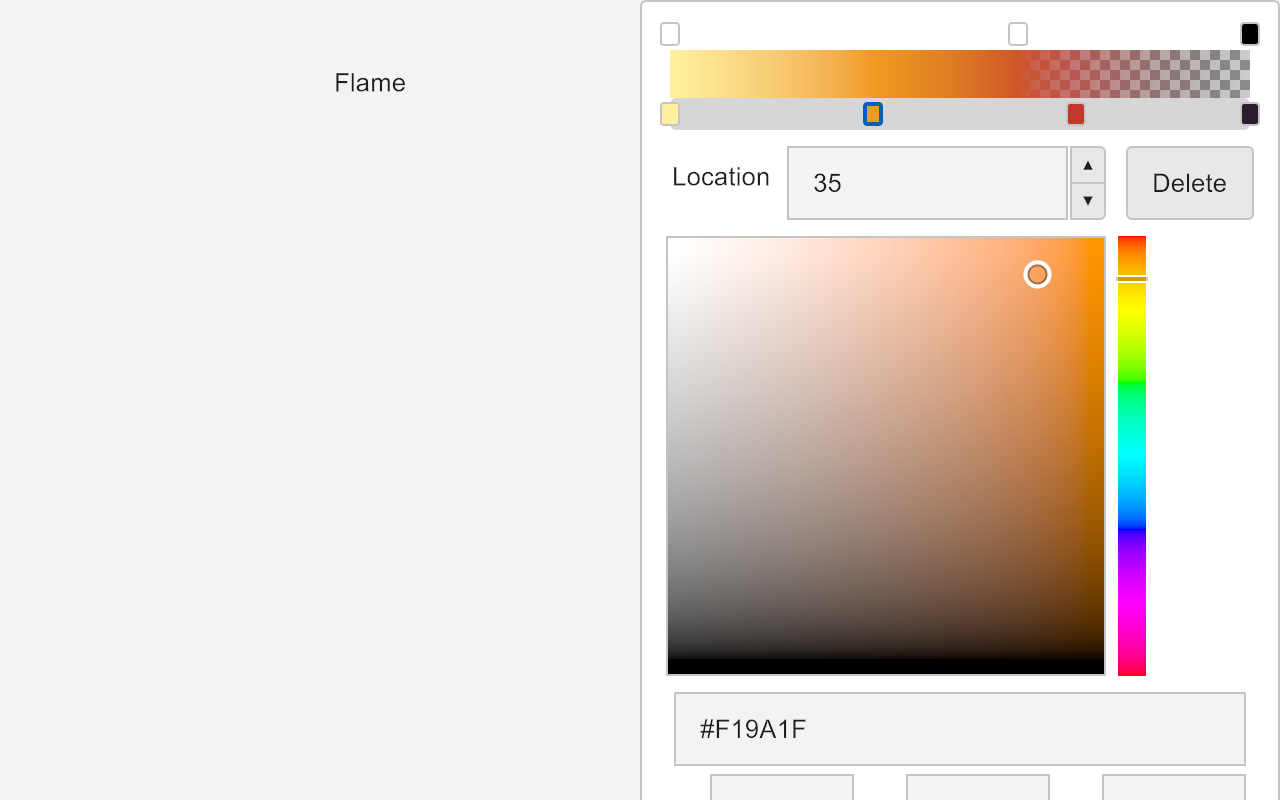
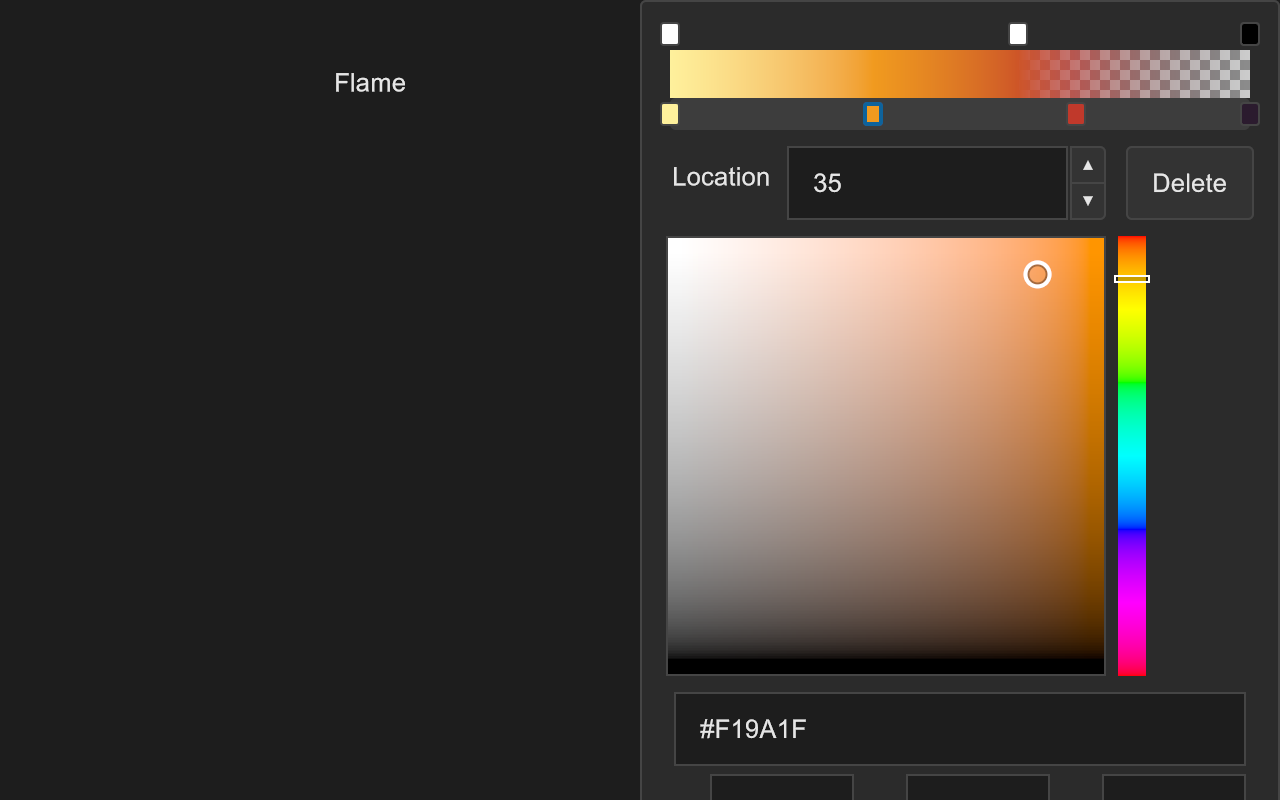
Video tutorial: GradientField. All videos: Video tutorials.
<tb:GradientField name="health" label="Health colors" mode="Blend" />
var health = root.Q<UIToolbox.GradientField>("health");
var colors = new Gradient();
colors.SetKeys(
    new[]
    {
        new GradientColorKey(Color.red, 0),
        new GradientColorKey(Color.yellow, 0.5f),
        new GradientColorKey(Color.green, 1)
    },
    new[] { new GradientAlphaKey(1, 0), new GradientAlphaKey(1, 1) });
health.value = colors;

health.RegisterValueChangedCallback(evt => bar.Colors = evt.newValue);
// Each frame: a color, and no garbage
fill.style.backgroundColor = health.value.Evaluate(hp / maxHp);
UnityEditor.UIElements has a GradientField too. In a file that uses both namespaces, write UIToolbox.GradientField or add using GradientField = UIToolbox.GradientField;. In UXML, the tb: prefix picks this one.
The field never changes the gradient that it gets: each edit sets a new gradient, with a change event, so an undo, for example PropertyGrid.Undo, gets the old one back unchanged. A null value is the default gradient, black to white and opaque.
Settings
| Setting (UXML) | Type | Default | Does |
|---|---|---|---|
label |
string | "" | The text beside the field. |
mode |
GradientMode |
Blend |
How the colors between the stops blend: Blend, PerceptualBlend (through colors that look even) or Fixed (hard steps). It is part of the value. |
A gradient has at most eight color stops and eight alpha stops (MAX_KEYS), as in Unity, and keeps at least two of each (MIN_KEYS): a Unity gradient with one stop holds a copy at 0 and at 1. SelectedColorKey and SelectedAlphaKey are the index of the selected stop, or -1; one stop is selected at a time.
Methods
| Method | Does |
|---|---|
Open(), Close(), Toggle() |
Show or hide the editor under the field. IsOpen is true while it shows. |
AddColorKey(time, color), AddAlphaKey(time, alpha) |
Add a stop in time order, select it and return its index. Return -1 when the gradient has eight. |
RemoveColorKey(index), RemoveAlphaKey(index) |
Remove a stop. The last stop stays, and an index out of range does nothing. |
SetColorKey(index, time, color), SetAlphaKey(index, time, alpha) |
Move and change a stop. The selection follows it. |
SelectColorKey(index), SelectAlphaKey(index) |
Select a stop in the editor. |
Events
| Event | When |
|---|---|
ChangeEvent<Gradient> |
The user or code sets a new gradient: on the release of a drag, on a key press, a color or a mode. |
Editing |
On each move of a drag, with the gradient as it is. Use it to show the change at once. The field reuses this gradient, so do not keep it. |
Mouse and keyboard
| Input | Does |
|---|---|
| Click, Enter or the submit button on the field | Opens or closes the editor. The first color stop is selected. |
| Left click in the alpha row or the color row | Adds a stop there with the color or alpha of the gradient at that point, or selects the stop under the pointer. |
| Left drag on a stop | Moves it. A drag more than 30 px above or below the row fades the stop, and the release removes it. |
| Tab | Moves between the alpha row, the color row and the fields. |
| Left and Right arrows (or the gamepad) | Select the stop before or after in the row that has the focus. |
| Shift + Left or Right | Moves the selected stop by 1%. |
| Delete or Backspace | Removes the selected stop. |
| Escape | Closes the editor. |
The Location (0 to 100) and Alpha (0 to 255) fields edit the selected stop with numbers, the ColorPicker sets the color of a color stop, and the Mode list sets the blend mode. The picker hides while an alpha stop is selected.
Performance
- The preview and the bar draw with
generateVisualContent: one mesh with a quad for each part between two stops, over a checker board with one mesh for each row. A repaint allocates nothing. Gradient.Evaluateallocates nothing, so a game can read a color each frame.- Each edit that ends makes one new
Gradient, so an undo keeps the old one.
Styling
| Class | Element |
|---|---|
tb-gradient-field |
The field. |
tb-gradient-field__preview |
The picture of the gradient in the field (20 px high). |
tb-gradient-field__popup |
The editor in the popup (320 px wide). |
tb-gradient-field__lane, --alpha, --color |
The row of the alpha stops above the bar, and of the color stops below it. |
tb-gradient-field__bar |
The gradient in the editor (24 px high). |
tb-gradient-field__stop |
A stop, with --selected, and --removing while a drag away would remove it. |
tb-gradient-field__stop-row |
The row of the Location and Alpha fields and the Delete button. |
tb-gradient-field__picker |
The ColorPicker of the selected color stop. |
tb-gradient-field__mode |
The Mode list. |
The field uses the theme variables (--tb-color-border, --tb-color-accent, --tb-radius-sm) and has no variables of its own.
.health-field .tb-gradient-field__preview { height: 28px; }
.health-field .tb-gradient-field__stop--selected {
    border-color: #ffffff;
}
A PropertyGrid gives each Gradient member a GradientField. See also CurveField and ColorPicker.
The GradientFieldDemo scene shows a sky that takes its color from a gradient over a day, a health bar that turns red as health drops, and the rarity colors of loot in Fixed mode. The CurveDemo scene shows a gradient in a PropertyGrid that colors the trail of an arrow.