

 InteractionPrompt
An InteractionPrompt is the prompt for something that the player can use: the glyph of the button, a verb and an object, such as "[E] Open Door". With no settings, it is hidden. You call Show with the HudTarget that the player aims at, and the prompt hangs over it. The glyph is the key on the keyboard and the button of a gamepad (an Xbox, a PlayStation or a Switch button), whichever device the player used last. With a hold time, the player holds the button and a ring around the glyph fills; Completed tells you when the ring is full.
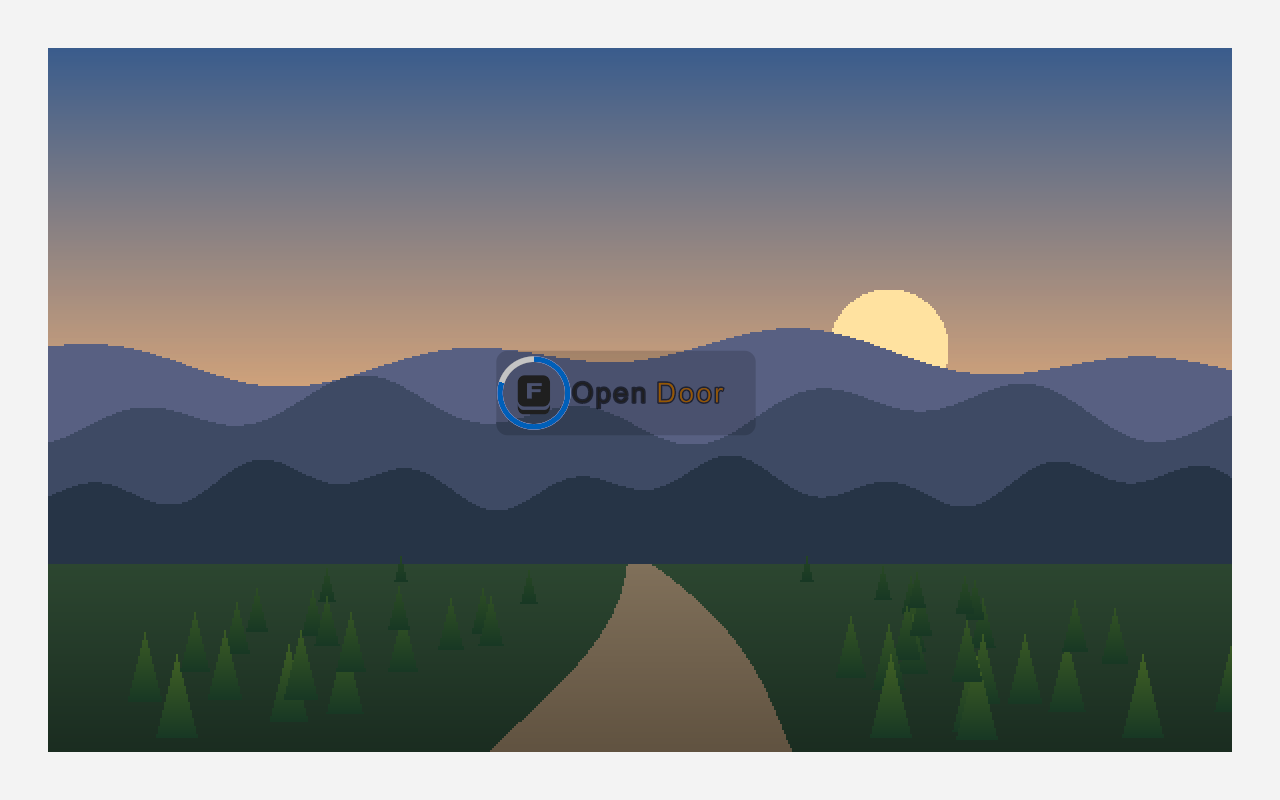
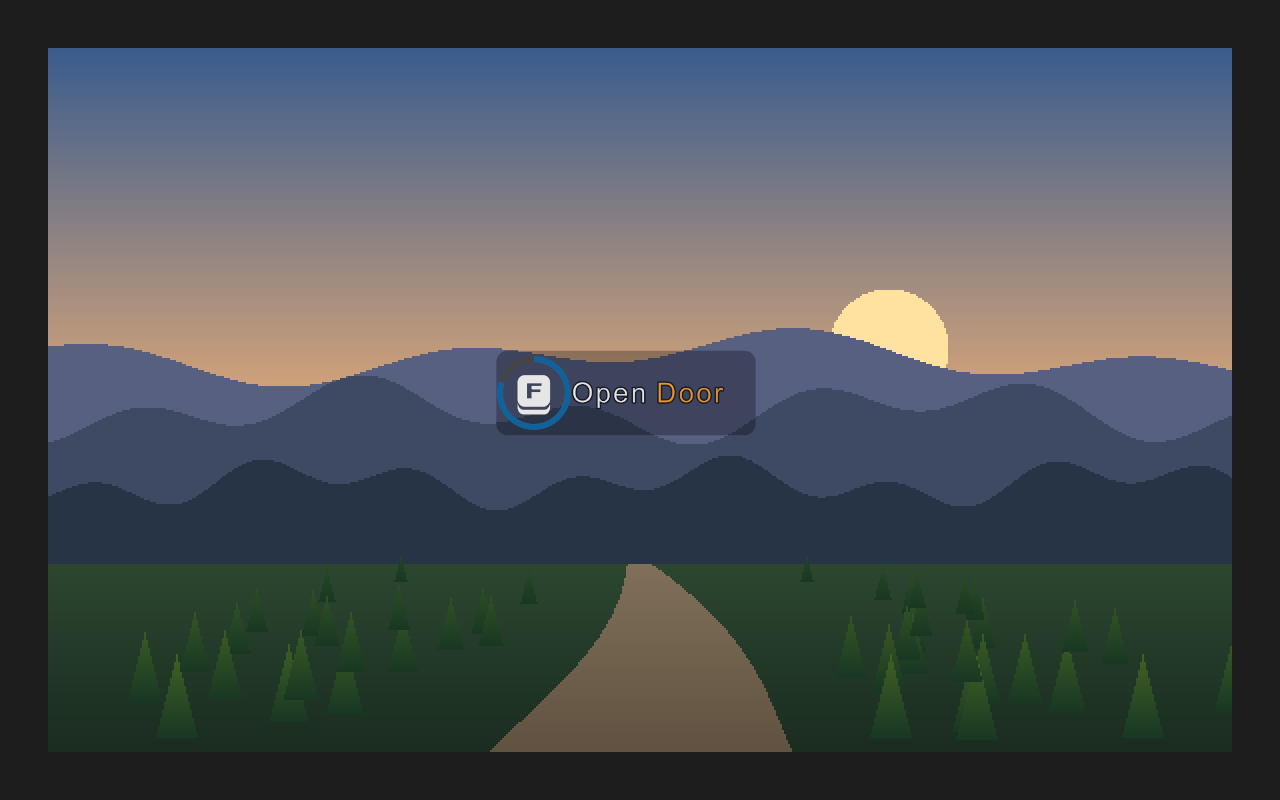
Demo scene: PromptsDemo.unity. Sample: Breach.
How to add a prompt:
<ui:VisualElement class="hud-root">
    <tb:InteractionPrompt
        name="prompt"
        verb="Take"
        noun="Ammo"
        hold-duration="500" />
    <!-- the other HUD controls -->
</ui:VisualElement>
The prompt places itself in its parent, so put it in the element that covers the game view, such as the root of the HUD.
How to show it over the object that the player aims at:
var prompt = root.Q<InteractionPrompt>("prompt");

// Each frame: the prompt follows the target. A call with the same
// arguments changes nothing.
if (aimed != null) prompt.Show(aimed.GetComponent<HudTarget>());
else prompt.Hide();

// Or with the texts and the hold of the moment
prompt.Show(crate.GetComponent<HudTarget>(), "Take", "Ammo",
    holdDuration: 500);

// the player pressed, or held until the ring is full
prompt.Completed += target => Take(target);
How to use it with no object in the 3D scene, such as a door in a 2D room, a terminal or a tutorial:
// no target: the prompt stays where its parent puts it
prompt.Show(null, "Talk", "Guard");
prompt.Press();                       // a touch button of your own
prompt.Release();
| Member | Description |
|---|---|
Verb (verb) |
What the player does, such as "Open". A key of the text table of the game shows its translation. ToolboxText.INTERACT is a ready-made verb. Empty shows no verb. |
Noun (noun) |
The thing that the player uses, such as "Door". Shown after the verb in a warm color that reads on the dark pill. Empty shows no object. |
HoldDuration (hold-duration) |
The milliseconds that the player holds the button. 0 (default) is a tap: the press completes the prompt. |
DrainRate (drain-rate) |
How fast the ring empties after a release before it is full, in rings per second. Default 4: a full ring empties in a quarter of a second. 0 empties it at once. |
ReadInput (read-input) |
The prompt reads Key and Button itself. On by default. Off: only Press, Release and the pointer press the prompt. |
Key (key) |
The key of the keyboard, or Mouse0 to Mouse2 for a mouse button. Default E. The glyph shows it after the player used a key or a mouse button. None reads no key, and the glyph then shows the default key of Button (Enter for the south button) unless KeyboardGlyph has a name. |
Button (button) |
The button of the gamepad, a GamepadGlyphButton. Default South. The glyph shows it in the family of the gamepad. |
KeyboardGlyph (keyboard-glyph) |
The glyph for the keyboard and the mouse, a PromptFont name such as "keyboard-e". Empty (default) shows the glyph of Key. Use it when the player rebinds the key, or for a key that the font has no glyph for. |
LabelSide (label-side) |
The side of the glyph where the verb and the object show: Right, Left, Above or Below. Default (default) is Right. The type is PromptLabelSide. |
Camera |
The camera of the game view. Null (default) uses Camera.main. |
Viewport |
The element that shows the render texture of Camera, or null when the camera draws on the screen. |
Show(target, verb, noun, holdDuration) |
Shows the prompt over a HudTarget. Only target is required. A null verb or noun, or a negative holdDuration, keeps the value of now. A null target shows the prompt where its parent puts it, with nothing to follow. The same arguments again change nothing. |
Hide() |
Hides the prompt and ends a hold under way. The texts stay for the next Show. |
Press(), Release() |
Press and release the button from code, for input that the prompt does not read. |
Completed |
Raised once for each press. A tap raises it when the button goes down, and a hold raises it when the ring is full. The argument is the target, or null. The handler can call Hide or Show. |
Target, IsShown |
The target of now, and true from Show until Hide. |
Progress |
The part of the hold that is done, from 0 to 1. |
Glyph |
The GamepadGlyph of the prompt, to change its size or its other settings. |
Input:
| Input | Result |
|---|---|
Key on the keyboard (E by default) |
A tap prompt completes when the key goes down. A hold prompt fills while the key is down. |
Button on a gamepad (South by default), with the Input System package |
The same, on any gamepad. |
| A pointer press or a touch on the prompt | The same. The prompt keeps the pointer until it comes up. |
Press() and Release() |
The same, for your own input. |
- A key that is down when the prompt shows does not count. The player has to let go first, and then press. The same holds after a completion and when the target comes back into view.
- A full ring stays full until the player lets go. Then it empties and the next press counts.
- A hold that ends before the ring is full empties at
DrainRate. A target that goes off the screen hides the prompt, and the hold starts again when the target comes back. - The prompt hides itself when its target is disabled or destroyed, as
Hidedoes. - The prompt ignores the key while a text field has the focus.
- The prompt takes no keyboard focus. It belongs to the HUD, and the input belongs to the game.
- A hold counts real time. A frame longer than 0.1 seconds counts 0.1 seconds, so a hitch does not fill the ring.
- A
Buttonthat is not one button (Dpad,LeftStick,RightStick) shows its glyph and reads no input. Without the Input System package the prompt reads the key and the mouse button only. - The prompt shows in the UI Builder and in an editor window, with its texts, so that you can style it.
Tips:
- For many objects, use an InteractionLayer. It finds the objects near the player, shows a hint on each one, and shows a prompt on the one that the player can use, with no code.
- Give every object that the player can use a
HudTarget, set theCameraonce, and callShowfrom the code that finds the object the player aims at. - A WorldMarkerLayer marker stands at the same point as the prompt. Take
HudShowOn.Markeroff theShowOnof the target while the prompt shows, as the Breach example does. - Use a hold of 0.3 to 1 second for an action that costs something, such as taking items or opening a door, and a tap for a talk or a switch.
- The south button of a gamepad also presses the control that has the focus in a menu. Use another
Button, such asWest, in a screen that has buttons, as the Prompts demo does. - For a text with a style of its own, set
VerbandNounfrom a key of the text table: the prompt changes the text when the language changes.
Styling
| Class | Element |
|---|---|
tb-interaction-prompt |
The prompt. It is the point where the body hangs. |
tb-interaction-prompt--hidden |
The prompt while it does not show: before Show, after Hide, and while the target is off the screen. |
tb-interaction-prompt--anchored |
The prompt while it follows a target. It is an absolute point of no size, and its body hangs above it. |
tb-interaction-prompt--pressed |
The prompt while the player holds the button and the hold counts. The body is a little smaller. |
tb-interaction-prompt--label-right, --label-left, --label-above, --label-below |
The prompt, for the LabelSide of now. One of the four is always set. |
tb-interaction-prompt--placed |
The prompt while an InteractionLayer places it. The glyph centers on the point of the object, and the texts are a bubble on the side of the glyph. |
tb-interaction-prompt__body |
The pill: the glyph and the texts. |
tb-interaction-prompt__glyph |
The GamepadGlyph. |
tb-interaction-prompt__label |
The element that holds the verb and the object. It does not show while both are empty. |
tb-interaction-prompt__verb, tb-interaction-prompt__noun |
The two labels. |
| Variable | Description |
|---|---|
--tb-interaction-prompt-background |
The color of the pill. --tb-color-overlay by default. |
--tb-interaction-prompt-noun |
The color of the object. --tb-color-warning by default, a color that reads on the dark pill in every theme. |
--tb-input-glyph-ring-color, --tb-input-glyph-ring-track, --tb-input-glyph-ring-width |
The ring of the hold, on the glyph. See GamepadGlyph. |
/* A green prompt with a thick ring and a larger glyph */
.my-hud .tb-interaction-prompt {
    --tb-interaction-prompt-noun: rgb(120, 220, 120);
}

.my-hud .tb-interaction-prompt__glyph {
    font-size: 32px;
    --tb-input-glyph-ring-color: rgb(120, 220, 120);
    --tb-input-glyph-ring-width: 4;
}
Performance
- A prompt that does not show runs no scheduled item and allocates no memory. A prompt that shows runs one item in each frame, to place the prompt, read the input and step the hold.
- That item allocates no memory per frame: not while the prompt follows a target, not while it holds or drains, and not for a tap. The ring draws again only when the progress changes.
- The glyph changes when the player changes the device, not in each frame. The prompt shares one tracker of the last used device with the other glyphs (see GamepadGlyph).
See also
- GamepadGlyph and InputGlyph: the glyph, the ring and the last used device
- InteractionLayer and Interactable: hints and a prompt for each object that the player can use
- PromptBar
- HudTarget and WorldAnchor
- Crosshair
- Breach example