
Loading
A loading screen covers the game while the next scene loads. It shows the progress and a tip, and it blocks the input. This example loads a level scene in the background behind a LoadingScreen, with a progress ring or bar and tips that fade in turn. The screen is a small scene of its own: a night over the mountains passes by behind it, a mine cart rides along the bar, the tips sit on a card with a lantern, and crystals float up for the player to catch while they wait. The Travel window has the same art and colors: the town at night passes by slowly behind it, and the cave of the mine after you arrive. The window is the dark card with the gold edge that holds the tips.
Scene: Assets/UIToolbox/Examples/Scenes/Loading.unity. Folder: Assets/UIToolbox/Examples/Loading.
Try it
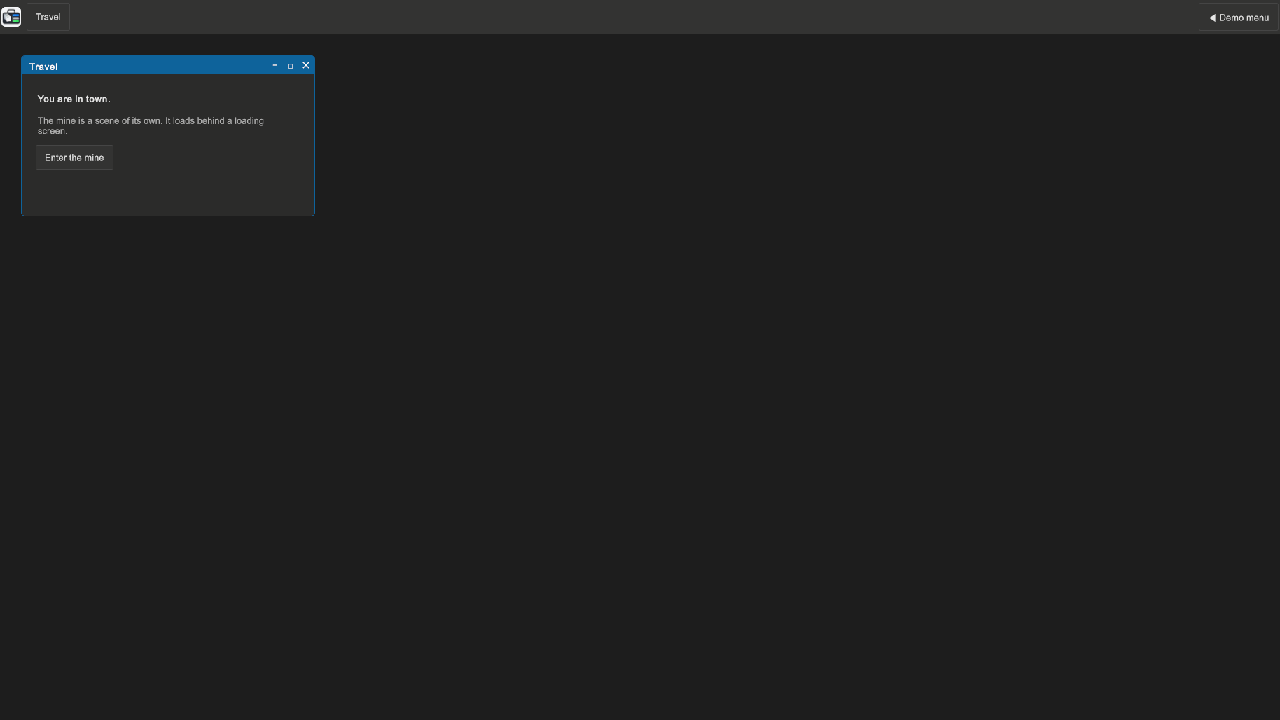
- Open the scene. The Travel window says "You are in town." by a lantern and has a gold Enter the mine button with the focus. Behind the window, the town at night passes by slowly under the moon, with lamp light in the windows, a chapel and the rails to the mine.
- Press Enter or click the button. The loading screen fades in over the whole panel with the title "Entering the mine". Behind it, the stars, the far ridge, the pine hills and the rails pass by at their own speeds under the moon.
- Watch the mine cart ride along the bar as it fills, with its wheels turning. The tip on the card changes every 2.5 seconds. Each tip types itself in, and then it stays so you can read it.
- Click a crystal that floats up at a side of the screen. It bursts into sparkles, a shard flies to the score at the top right, the score counts it and a chime rings. The crystal comes back at the bottom a moment later.
- Try to press a key or click the window. Nothing reaches the window behind the screen.
- After at least 4 seconds, the screen fades out. The window says "You are in the Deep Mine." and the status says "You arrive in the Deep Mine." Behind the window is now the cave of the mine, with stalactites, glowing crystals and the rails.
- Turn off Mine cart on a bar (off: a ring) and turn on Wait for a key at the end, then press Leave the mine. A gold ring fills instead of the bar. At the end the screen shows "Press any key to continue" with the key glyph, pulses, and waits until you press a key.
What it shows
Travel window
A window in a workspace. It has a label for the place, a text, two toggles for the next travel, the Travel button and a status label. The button text and the place change with the state of the level scene.
The window has the art and the colors of the loading screen. The controller puts a second LoadingBackdrop behind the workspace, and the workspace has background-opacity="0", so the art shows around the window. The art is the Town look in town and the Cave look in the mine. Its Speed is 0.15, so it pans slowly, and it rests while the loading screen covers it. Loading.uss sets the theme tokens of the workspace to the colors of the screen and gives the window the look of the tip card: a dark card with a gold edge, a warm title with an outline, and a gold primary button. The pixel lantern of the tip card lights the name of the place.
Loading screen
A LoadingScreen that the UXML declares next to the workspace, so it covers the whole panel when it shows. The UXML sets minimum-time (4 seconds), tip-duration (2.5 seconds) and type-tips, so each tip types itself in. The longest tip types in about 1 second, so each tip stays more than 1 second after it is typed. The controller sets the tips, and for each travel the title, the indicator and the key wait. The screen fades in and out, shows the ring or the bar, and turns the tips with a fade. The indicator shows the smaller of the real progress and the part of the minimum time that passed, so it fills at an even speed.
Blocked input
While the screen shows, no pointer, key or gamepad input reaches the workspace, and the screen has the focus. When it hides, the focus goes back to the Travel button.
Press any key
The second toggle sets PressAnyKey. When the level is loaded and the minimum time passed, the screen shows the prompt and waits for a key, a click, or the submit or cancel button of a gamepad.
Game art
The look of the screen comes from pixel art in Resources/LoadingArt, which Tools/skins/loading.mjs draws, and from rules in Loading.uss:
- Backdrop. A
LoadingBackdropbehind the content shows a sky with a moon, and four layers: the stars, a far ridge, the pine hills and the ground with rails. Each is a 256 x 128 image. Each pixel of the art is a square of a whole number of screen pixels, the height of the backdrop over 128 rounded up, with point filtering, so the art fills the height and stays sharp. The sky stays still. Each layer is a seamless tile that repeats left and right, and the layer is one tile wider than the screen. A tick moves it to the left by part of a tile, the near layers faster than the far ones, so the scene has depth and loops with no seam. Nothing draws again; a tick sets only a translate. ABackdropLooknames the five images in Resources, and six presets come with it:Mine,Meadow,Frost,Neon,TownandCave.Speedsets how fast the layers pass by; the Travel window uses a slow pan. - Mine cart. A
LoadingRunnerrides along the bar to the progress. It is anAnimatedImage: it plays its frames while it moves, rests on the first frame while it stands, faces the way it goes withFlipX, and shows only while the screen shows the bar. The two frames of the cart are pixel art side by side incart.png, with point filtering, so the cart stays sharp at three times its size. - Tip card. The controller moves the tips of the screen onto a Card with the pixel art lantern of
lantern.png. The tips still type themselves in. - Crystals. Six crystals float up at the sides of the screen. A click bursts one into sparkles on a ParticleLayer and sends a shard to a ResourceCounter with
Collect; the counter adds one as the shard lands. The chime is a clip made in code.
How it is built
| File | Does |
|---|---|
Loading.uxml |
Declares the workspace with no fill and the Travel window with the lantern by the place, and the loading screen after it. |
Loading.uss |
Gives the Travel window the colors and the card of the screen, and gives the loading screen its game look: the gold ring and bar, the tip card, the crystals and the score. |
Resources/LoadingArt/*.png |
The pixel art: the five layers of each look, the mine cart and the lantern. Their import keeps the pixels sharp (point filtering, no compression). |
LoadingController.cs |
Loads and unloads the level, sets the title, the tips, the indicator and the key wait of the screen, and hands the scene operation to LoadAsync. It adds the art, the cart, the tip card and the crystals, and the art behind the Travel window. The file also holds LoadingBackdrop, BackdropLook and LoadingRunner. |
SampleLevel.cs |
A component in LoadingLevel.unity with the name of the place. |
The screen is the last element of the root, after the workspace. It stays hidden where it is until the controller shows it.
<tb:LoadingScreen name="loadingScreen" minimum-time="4000"
    tip-duration="2500" type-tips="true" />
The level loads additively, so the example scene and its UI stay loaded behind the screen. The controller loads or unloads depending on the scene state. The scene is the state, so no flag can go out of date.
public bool InLevel => SceneManager.GetSceneByPath(LEVEL_PATH).isLoaded;
// ...
var entering = !InLevel;
var operation = entering
    ? SampleScenes.LoadAsync(LEVEL_PATH, LoadSceneMode.Additive)
    : SceneManager.UnloadSceneAsync(LEVEL_PATH);
Then the controller sets the screen and hands it the operation. LoadAsync shows the screen, follows the operation, waits for the minimum time and the key, and hides the screen. The task is true at the end, and false when something hides the screen first.
_screen.Title = entering ? "Entering the mine" : "Leaving the mine";
_screen.Indicator = _barToggle.value ? LoadingIndicator.Bar
    : LoadingIndicator.Ring;
_screen.PressAnyKey = _keyToggle.value;
var done = await _screen.LoadAsync(operation);
The tips come from a list in the controller:
_screen.Tips = new List<string>(TIPS);
The art goes in the screen behind its content. Attach adds the backdrop, places it before the content and plays it while the screen shows. The runner adds itself beside the bar.
_art = new LoadingBackdrop(BackdropLook.Mine);
_art.Attach(_screen);
_cart = new LoadingRunner(_screen, 48, 36)
{
    Sheet = Resources.Load<Texture2D>(CART_IMAGE),
    Columns = 2,
    FramesPerSecond = 7,
};
The art behind the Travel window is the first child of the root, so it draws behind the workspace. It pans slowly and rests while the screen covers it:
_travelArt = new LoadingBackdrop(BackdropLook.Town)
    { Speed = TRAVEL_ART_SPEED, Playing = true };
_workspace.parent.Insert(0, _travelArt);
_screen.Opened += () => _travelArt.Playing = false;
_screen.Closed += () => _travelArt.Playing = true;
A click on a crystal bursts it and sends a shard to the score:
_sparks.Burst(crystal, _burst);
_score.Collect(_sparks, crystal, 1, _shard);
ToolboxAudio.Play(_chime);
Use it in your game
- Declare a
LoadingScreenin your UXML next to the workspace, and setminimum-time,tip-duration,backgroundand the title there. - For a scene in the build settings,
LoadSceneAsync("Mine", LoadSceneMode.Additive)does the load too, and holds the scene until the screen is ready. This example usesLoadAsyncbecause it loads the level by its path in the editor, even when the build settings do not list it, and because it unloads the level with the same screen. - Set
LEVEL_PATHto your scene andTIPSto your tips. In a player build, add the scene to the build settings. Without it,SampleScenes.LoadAsyncreturns null and the status says "The level is not in the build." - A load in
LoadSceneMode.Singlemode destroys the scene that holds the screen. Load additively, as here, or put the screen in a UIDocument that stays. - The mine, the tips and the Travel window are sample content. The
LoadingScreenand the call ofLoadAsyncare the parts to copy. - For art behind the screen, add any element to the screen and call
PlaceBehindwith the element of theCONTENT_CLASSclass, asLoadingBackdrop.Attachdoes. With noBackground, the screen shows no scrim, so the art shows at full strength. A pointer goes through an element withPickingMode.Ignore, and a toy in the art can take clicks: the screen still blocks the workspace. - Pick a
BackdropLookpreset, or make your own from five 256 x 128 images of your own in a Resources folder: a sky, and four see-through seamless tiles for the stars, the far ridge, the near skyline and the ground. You can also mix the layers of the presets. For a hero on the bar, give aLoadingRunneryour own frames as on anyAnimatedImage, such as the walk clip of aSpriteSheet. - Put a
LoadingBackdropbehind a menu or a map too, with a lowSpeed, so the screens of your game share one art. Travel()returns a task. It is false during another travel and when the level is not in the build.