

 QuickSelect
 is the d-pad quick bar of a console game: a cross of four AbilitySlots, one for each direction of the d-pad. Each direction holds a list of items, and its slot shows the default item. A tap uses the default item. A hold opens a strip of the items of that direction to pick another default, or uses the item in another way, such as throw instead of drink. View opens a wheel of every item to put an item on a direction. With no settings, it reads the d-pad, the keys 1 to 4, View and Tab.
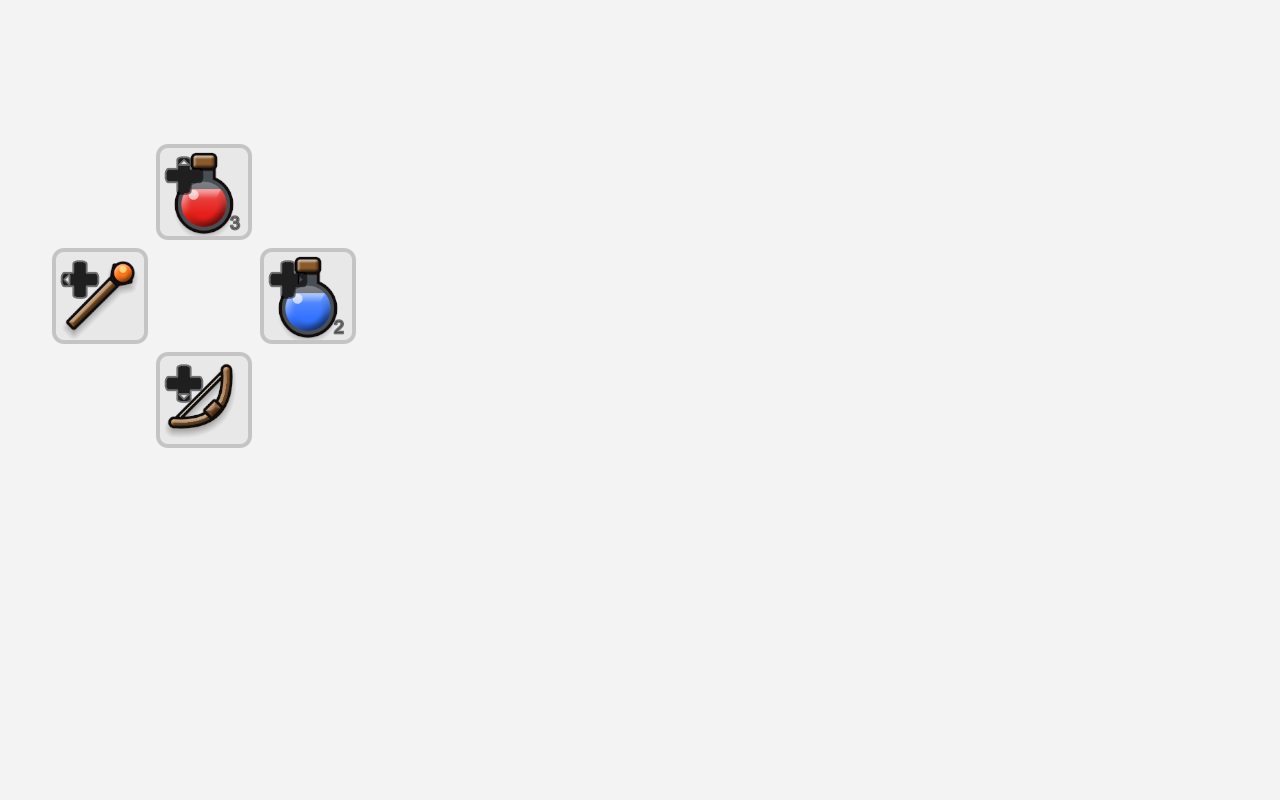
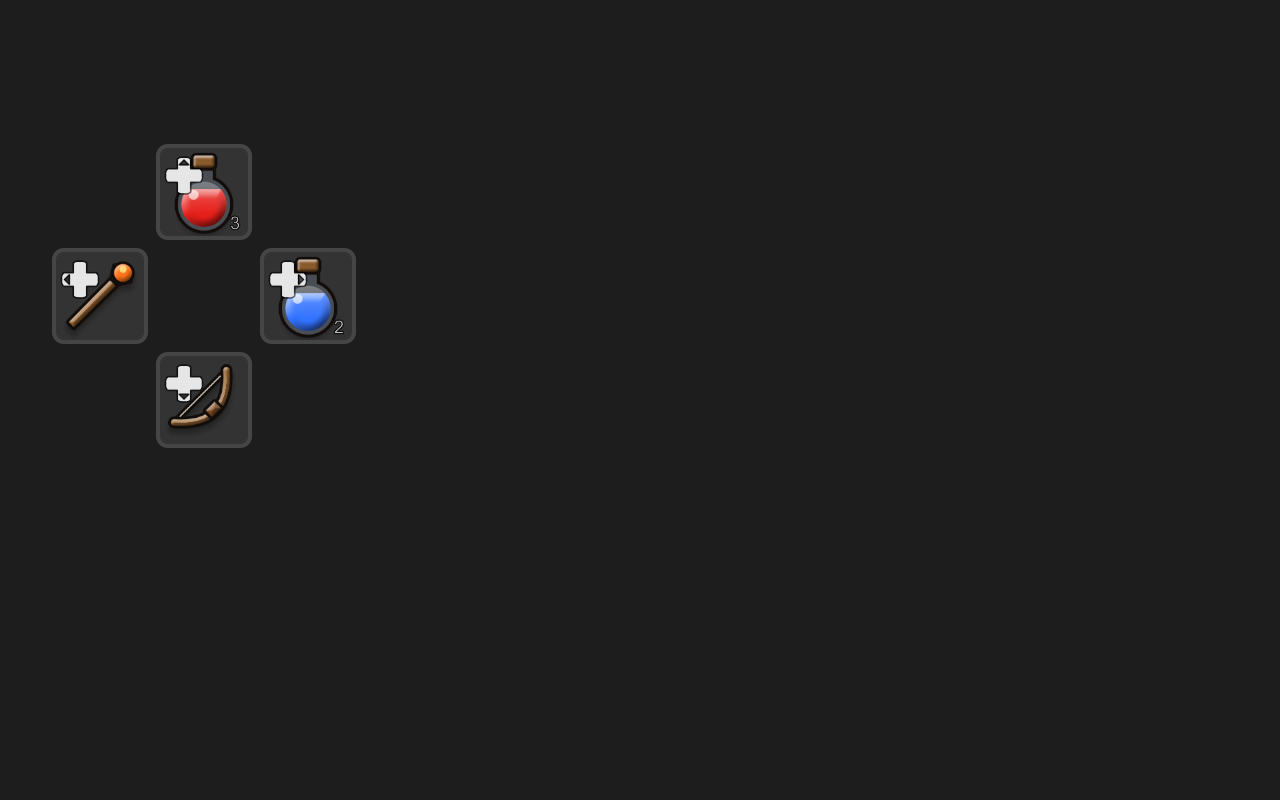
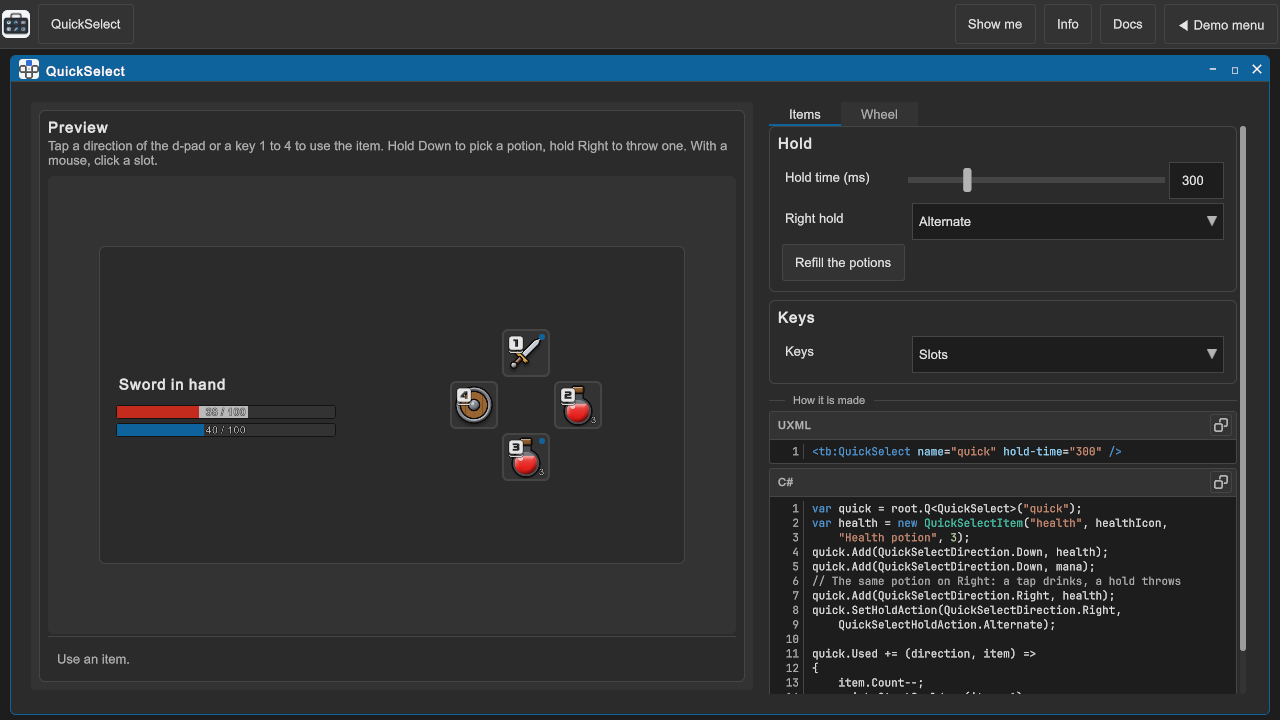
Demo scene: QuickSelectDemo.unity.
How to add a cross:
<tb:QuickSelect name="quick" hold-time="300" />
How to fill it and answer the uses:
var quick = root.Q<QuickSelect>("quick");
var potion = new QuickSelectItem("potion", potionIcon, "Potion", 3);
var bomb = new QuickSelectItem("bomb", bombIcon, "Bomb", 5);
quick.Add(QuickSelectDirection.Down, potion);
quick.Add(QuickSelectDirection.Down, bomb);
quick.Used += (direction, item) =>
{
    item.Count--;
    quick.StartCooldown(item, 2);
};
The first item of a direction is its default. Set Count, Usable or Icon of an item and each slot that shows it follows. A cooldown belongs to the item, so it shows on every direction and in the strip.
How to throw on a hold instead of picking:
quick.SetHoldAction(QuickSelectDirection.Right,
    QuickSelectHoldAction.Alternate);
quick.AlternateUsed += (direction, item) => Throw(item);
How to offer the rest of the bag on the wheel, with the game slowed:
quick.TimeWhileOpen = QuickSelectTime.Slow;
foreach (var item in bag) quick.AddWheelItem(item);
quick.Assigned += (direction, item) => Save(direction, item);
How to read the game's own Input System actions:
quick.Actions = new[] { up, right, down, left };
quick.AssignAction = openWheel;
| Member | Description |
|---|---|
HoldTime (hold-time) |
The milliseconds a direction is held before the hold action. Default 300. |
HoldAction (hold-action) |
A QuickSelectHoldAction for every direction: Pick (the default) opens the strip, Alternate raises AlternateUsed, None uses the item on the release. |
TimeWhileOpen (time-while-open) |
A QuickSelectTime while the wheel is open: Run (the default), Slow or Pause. The strip never changes the time. |
SlowScale (slow-scale) |
The share of the game time with Slow, 0 to 1. Default 0.25. |
AssignWheel (assign-wheel) |
True opens the wheel on View or Tab. False leaves that binding to the game. |
ListenKeys (listen-keys) |
The control reads its input. False leaves the input to you; call Press and Release. |
Keys (keys) |
A QuickSelectKeys: Slots (the default) puts the key or button on each slot; Center puts one d-pad glyph in the middle of the cross and no key on the slots. |
Add, Remove, Clear |
The items of a direction. |
ItemsOf, DefaultOf, SetDefault |
The items and the default item of a direction. SetDefault raises no event. |
SetHoldAction, HoldActionOf |
The hold action of one direction. |
AddWheelItem, WheelItems |
Items the wheel offers besides the items on the directions. |
Assign(direction, item) |
Puts an item on a direction as its default. |
StartCooldown, SetCooldown, ClearCooldown |
The cooldown of an item, on every slot that shows it. |
Press, Release, Step, Point |
Drive the control from your own input. |
OpenWheel, CloseWheel, Cancel |
Open and close the wheel; Cancel also closes the strip. |
IsOpen, IsStripOpen, IsWheelOpen |
The strip or the wheel shows. Read no stick in your game then. |
OwnsInput |
True while a direction is held, the strip or the wheel shows, or one closed in this frame. Skip your own read of B or Escape then, so the press that closes the wheel does not open your menu. |
SlotOf(direction), Wheel |
The slot of a direction and the RadialMenu of the wheel. |
Actions, AssignAction |
Input System only: the game's actions in place of the d-pad, the keys 1 to 4, View and Tab. The slots show their bindings. |
Used |
A tap used the default item of a direction. |
AlternateUsed |
A hold with Alternate used the item. |
DefaultChanged |
The strip set another default item. |
Assigned |
The wheel put an item on a direction. |
Opened, Closed |
The strip or the wheel opened or closed. |
- In the strip, the other directions, either stick, the arrow keys and the mouse wheel move the highlight. The right stick leaves the left thumb on the d-pad. The release of the held direction sets the default. B and Escape close the strip with the default unchanged.
- In the wheel, the stick or the mouse aims and a direction (or a key 1 to 4) puts the highlighted item there. The wheel stays open for the next item. View, Tab, B, Escape, a click in the middle or outside the wheel, or the right mouse button closes it.
- A hold of a direction with one item uses the item on the release.
- While a direction is held or the strip or the wheel shows, the d-pad, A and B reach no focused button, so the cross never moves the focus.
- The cross waits while a text field has the focus, or a window or a menu that does not hold the cross. In the window that holds the cross, the d-pad drives the cross and the left stick moves the focus.
- Leaving the panel closes the strip and the wheel and gives the game its time back.
- Both the Input System and the old Input Manager work. The old Input Manager reads only the keys 1 to 4, Tab, Escape and the mouse wheel, so the gamepad (the d-pad, View, the stick and B) needs the Input System. Without it, call
Press,ReleaseandOpenWheelfrom your own input. - The control allocates nothing in a frame. The strip slots and the wheel items are pooled.
Tips:
- Show a
QuickSelectwhile the player uses a gamepad and a Hotbar for the mouse and the keyboard. Outpost and Crypt switch onLastInputDevice.IsGamepad. - Walk with the left stick only while the cross is on the d-pad.
- Use
Keys = Centerfor a clean cross on a gamepad. After the keyboard or the mouse the glyph hides and the slots show the keys 1 to 4 again, as a d-pad means nothing there. - Set
ListenKeysto false only while a menu uses the d-pad. An information panel does not need it.
Styling
| Class | Element |
|---|---|
tb-quick-select |
The cross. |
tb-quick-select__dpad |
The d-pad glyph in the middle of the cross, with Keys = Center. |
tb-quick-select--open |
The strip or the wheel shows. |
tb-quick-select__slot |
A slot of the cross, with --up, --right, --down and --left. |
tb-quick-select__slot--held |
The slot of the held direction. |
tb-quick-select__more |
The dot on a slot whose direction holds more than one item. |
tb-quick-select__strip |
The strip, with --up, --right, --down and --left. |
tb-quick-select__pick |
A slot of the strip. |
tb-quick-select__pick--picked |
The highlighted slot of the strip. |
tb-quick-select__wheel |
The wheel. |
The slots use the classes and variables of AbilitySlot, and the wheel those of RadialMenu.
.my-hud .tb-quick-select__strip {
    background-color: rgba(0, 0, 0, 0.7);
}
SVG: The icon of an item is a Background. An SVG imported as a VectorImage works as well as a texture. See Pictures: PNG or SVG.