

 ResourceCounter
 shows one resource of a game, such as gold, wood or mana, as an icon and an amount. When you set a new Value, the change shows as a delta (+25, -40) that moves into or out of the amount. A gain waits above the amount and falls into it, and then the number counts up to the new value and flashes green. A loss counts the number down at once and flashes red, while its delta leaves the amount, waits and fades. A capacity adds a limit (120 / 200), and a rate adds a rate (+3/s). Collect sends coins from any element to the icon, and the amount grows as each coin arrives.
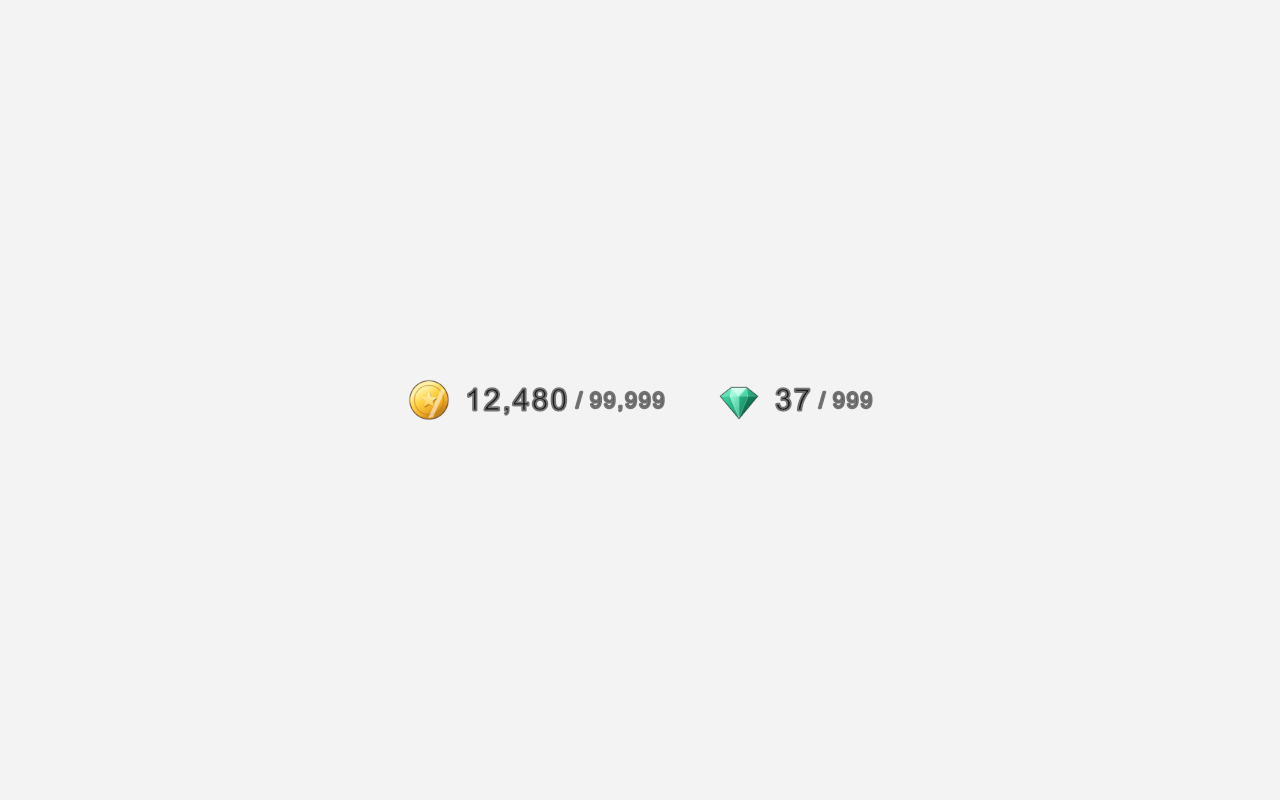
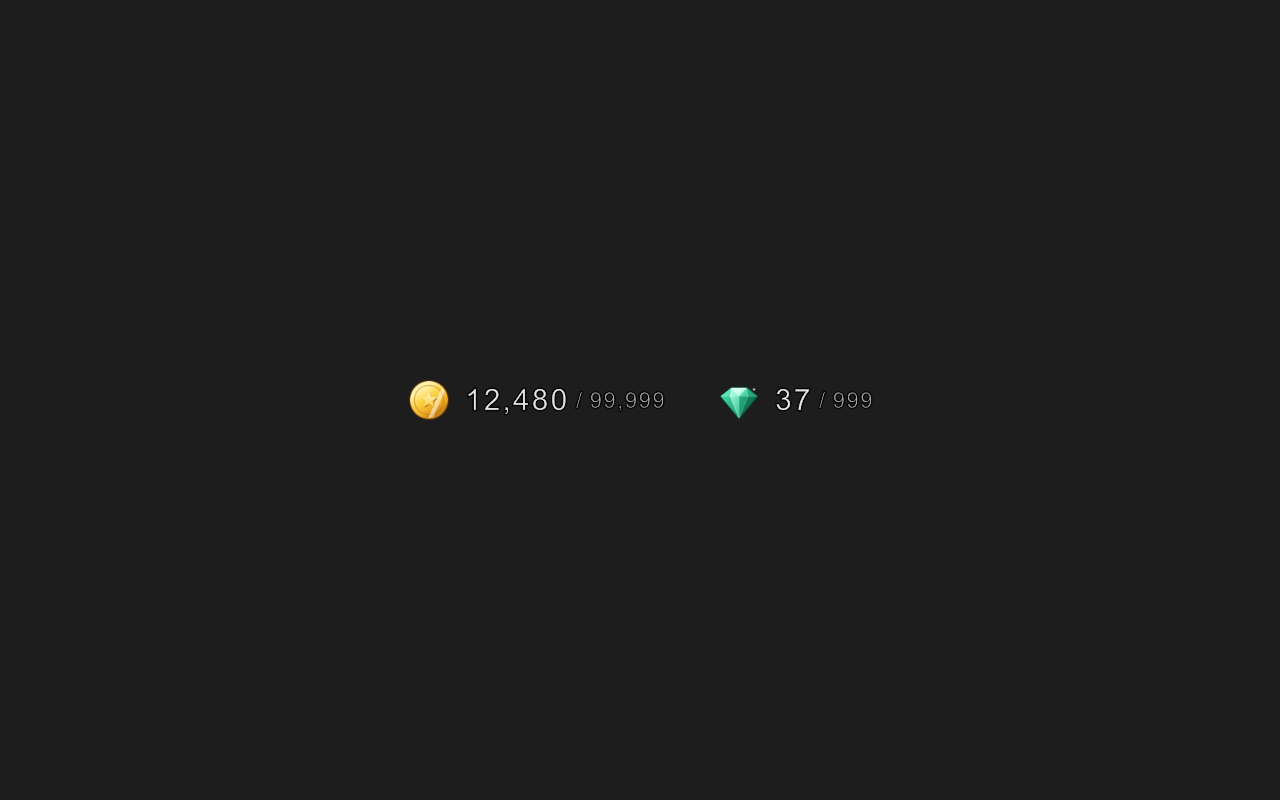
Demo scene: ResourceCounterDemo.unity. Samples: Kingdom, Shop, Factory.
How to add a counter:
<tb:ResourceCounter
    name="gold"
    class="gold"
    value="120"
    max-value="500"
    format-string="{0:N0}" />
<tb:ResourceCounter
    name="wood"
    rate="2"
    roll-duration="0"
    flash-duration="0"
    show-icon="false" />

<!-- In a bar at the top, the deltas show under the amount -->
<tb:ResourceCounter name="stone" delta-side="Bottom" delta-wait="600" />
The icon is a picture that you give from a style sheet, or a sprite in the icon attribute:
.gold .tb-resource-counter__icon {
    background-image: url("Art/icon-gold.png");
}
How to change the amount from code:
var gold = root.Q<ResourceCounter>("gold");

// +25 waits, falls in, and the amount counts up
gold.Value += 25;
// the amount counts down at once, and -40 leaves it
gold.Value -= 40;
// a load or a respawn: no delta, no roll and no flash
gold.SetValue(500, animate: false);

gold.MaxValue = 500;                   // 120 / 500
gold.Rate = 2.5f;                      // +2.5/s

// each delta waits 1000 ms next to the amount
gold.DeltaWait = 1000;
// the deltas show under the amount
gold.DeltaSide = ResourceDeltaSide.Bottom;

gold.ValueChanged += value => Save(value);
How to send coins to the counter. The coins fly on a ParticleLayer from the element that you name to the icon:
// The layer covers the screen. The quest card is where the reward comes
// from.
gold.Collect(layer, questCard, 60);

// Your own coins. The counter sets the Target of the settings to its
// icon.
gold.Collect(layer, questCard, 60,
    new ParticleSettings { Count = 8, Texture = coinTexture,
        Size = new Vector2(18, 18) });
How to bind the amount to your data:
<tb:ResourceCounter name="gold" format-string="{0:N0}">
  <Bindings>
    <ui:DataBinding
        property="Value"
        data-source-path="Gold"
        binding-mode="ToTarget" />
  </Bindings>
</tb:ResourceCounter>
The first value of the binding shows at once. Each later value of your data shows its change as a delta.
| Member | Description |
|---|---|
Value (value) |
The amount. Another value shows its change as a delta, rolls the amount to it and flashes the change. The first value that is set shows at once. A value over MaxValue becomes the capacity. Default 0. |
MaxValue (max-value) |
The limit, shown after the amount (/ 200). 0 means no limit and shows nothing. A capacity under the current value lowers the value. Default 0. |
Rate (rate) |
The rate per second, shown after the amount (+3/s, -2/s). 0 shows nothing. The counter only shows the rate; your game moves the value. Default 0. |
Icon (icon) |
The sprite of the icon. Without one, the icon element shows the background-image of your style sheet. |
VectorIcon (vector-icon) |
An SVG (VectorImage) for the icon. Setting it replaces Icon. |
IconAnimation (icon-animation), IconAnimationClip (icon-animation-clip) |
A SpriteSheet that plays in the icon while the amount changes, such as a coin that spins on a gain, and the clip that plays. Between changes it shows its first frame. It covers Icon. None (the default) keeps the still icon; an empty clip plays every frame. IconAnimationElement is its AnimatedImage. |
Drum (drum) |
Shows the amount on the drums of a RollingDigits instead of as text. The drums follow the rolling amount, so a gain turns them like the wheels of an odometer. Off (the default) shows the text. |
DrumDigits (drum-digits) |
The number of drums while Drum is on, from 1 to 12, with the zeros shown. 0 sizes the drums to the amount, with no leading zeros. Default 0. |
DrumElement |
The RollingDigits of the amount while Drum is on, or null. |
ShowIcon (show-icon) |
Shows the icon. Off leaves the amount alone, for a counter whose surroundings name the resource. On by default. |
FormatString (format-string) |
The text of the amount. {0} is the number: {0:N0} adds a thousands separator, {0} g adds a unit. The capacity uses the same format. Default {0}. |
HigherIsBetter (higher-is-better) |
A larger value is better. Off swaps the colors, so a gain and its delta are red, as for a debt. On by default. |
Animate (animate) |
Rolls the amount, flashes a change and moves the deltas. Off shows each change at once, with no delta. On by default. |
RollDuration (roll-duration) |
The milliseconds that a roll takes, whatever the size of the change. 0 shows a change at once. Default 600. |
FlashDuration (flash-duration) |
The milliseconds that a change stays colored on the amount. 0 turns the flash and the deltas off. Default 800. |
ShowDelta (show-delta) |
Shows each change as a delta (+25) that moves into or out of the amount. Off rolls the amount to each change at once, with no delta. On by default. |
DeltaWait (delta-wait) |
The milliseconds that a delta waits next to the amount. Then a gain falls into the amount, and a loss fades. Another change of the same sign in the wait adds to the delta (+25 becomes +35) and starts the wait again. Default 600. |
DeltaSide (delta-side) |
The side of the amount where the deltas show. Top: a gain falls into the amount from above, and a loss rises out of it. Bottom: a gain rises into the amount from below, and a loss drops out of it, for a bar at the top of the screen. Default Top. |
SetValue(value, animate) |
Sets the value. With animate false the amount shows the value at once, with no delta, no roll and no flash. |
Collect(layer, source, amount, settings) |
Sends coins from source to the icon on layer. The value grows by amount in shares as the coins arrive. settings is optional. |
Advance(seconds) |
Moves the deltas, the roll and the flash forward. The counter calls it by itself while it has work. A test can call it. The coins fly on the layer, which has its own Advance. |
ValueChanged |
The value changed. The handler gets the new value. It runs when the value changes, not when a delta lands or on each step of the roll. |
ShownValue, Text |
The number that shows now, and the text of the amount. They differ from Value while a gain waits in its delta and while the amount rolls. |
IsRolling, IsFlashing, IsCollecting, IsTicking |
The amount rolls, a change flashes, coins are on their way, and the counter runs its tick. A gain rolls once its delta reaches the amount. |
DeltaCount |
The number of deltas that show now, from 0 to 4. |
IconElement, AmountLabel, CapacityLabel, RateLabel, DeltaElement |
The parts of the counter, to place your own element over one or to change its style from code. DeltaElement is the newest delta. |
ResourceDeltaSide |
The values of DeltaSide: Top and Bottom. |
The counter takes no keyboard focus and no input. Its parts ignore the pointer, so a tooltip or a click handler on the counter itself works.
- The first value that is set shows at once. A counter that starts from the
valueattribute or from a binding does not roll up from 0. - A gain waits in its delta: the amount shows the old number until the delta reaches it, and then counts up.
ValueandValueChangedhave the new value at once. - A loss counts the amount down at once. The gains that wait join the amount with it, so the amount rolls to the new value.
- A change while a delta of the same sign waits adds to that delta, so
+25and+10read+35, and the wait starts again. A delta takes changes for at most three waits, so a steady stream of gains still lands. - A gain and a loss do not add up: each gets a delta of its own. At most four deltas show. One more change ends the oldest delta at once.
- A coin of
Collecthas reached the icon, so its share joins the amount as it arrives. The delta of the shares shows next to the amount and falls in after them. - A new value during a roll continues from the number that shows. The roll always takes
RollDuration. - A second change during a flash colors the whole change since the flash started, and the flash starts again.
- The deltas are centered on the amount and take no room in the row, so the counter keeps its size while they move. Leave room for one line of text above the amount, or under it with
Bottom. - At the capacity the amount takes the warning color. The color of a flash shows over it.
- A rate in the better direction is green, and the other direction is red.
HigherIsBetterdecides which is which. - The
/sof the rate is the texttb.per-secondofToolboxText, so a language table can change it. - A format that
string.Formatrejects logs one warning, and{0}is used instead. Collectsplitsamountover the coins. Each coin that arrives adds its share, and the last one adds the rest. While the coins fly,Valueand the amount do not change.Collectadds the amount at once when the amount is negative, when the counter or the layer is not on a panel, or when the layer has no room for coins (MaxParticles).- Coins that never arrive, because the layer is cleared or the counter leaves the panel, add their shares at once, so a counter never loses an amount.
- With
ShowIconoff, the coins fly to the amount. - When the counter leaves its panel, the deltas, the roll, the flash and the flight end at once, at the final value.
- The counter steps at most 0.1 seconds in one frame, so a frame that takes long does not finish a roll at once.
Tips:
- Set
Valuefrom your game state inUpdateor in an event of the state. A change that is not a change (the same value) does nothing, so it costs nothing. - Use
SetValue(value, animate: false)for a load, a respawn or a first fill. It shows no delta. - Use
delta-side="Bottom"for a counter in a bar at the top of the screen, so the deltas stay on the screen. Collectadds the amount toValue. For a counter that is bound to your data, add the amount to the data when the coins arrive, or do not useCollect.- Give each counter its own
ParticleSettings: the counter sets theTargetof the settings it gets. - Use
roll-duration="0"andflash-duration="0"for a resource that changes every frame, such as a rate that you add up. The amount then shows each change at once, with no delta. - Put the
ParticleLayerlast in the screen, so that the coins draw over the other elements.
In the examples
Styling
| Class | Element |
|---|---|
tb-resource-counter |
The counter: a row with the icon, the box of the amount, the capacity and the rate. |
tb-resource-counter__icon |
The icon. Its size is --tb-resource-icon-size. |
tb-resource-counter__amount-box |
The box around the amount. The deltas move in it, centered on the amount. |
tb-resource-counter__amount |
The label of the amount. |
tb-resource-counter__capacity |
The label of the capacity. It shows while the counter has the class tb-resource-counter--capped. |
tb-resource-counter__rate |
The label of the rate. It shows while the counter has the class tb-resource-counter--rate. |
tb-resource-counter__delta |
Each delta (+25), a StatDelta in the box of the amount. Its classes tb-stat-delta--better and tb-stat-delta--worse give its color. The counter moves it with translate and fades it with opacity, in heights of the delta, so its path follows its font size. |
tb-resource-counter--flashing |
The counter while a change flashes on the amount. |
tb-resource-counter--better, tb-resource-counter--worse |
The counter while the flash shows a gain, or a loss. The rate label has them too, for the direction of the rate. |
tb-resource-counter--capped |
The counter has a capacity. |
tb-resource-counter--full |
The value is at the capacity. |
tb-resource-counter--rate |
The counter has a rate. |
tb-resource-counter--drum |
The counter shows its amount on drums (Drum). The text of the amount is hidden. |
tb-resource-counter__drums |
The RollingDigits of the amount. Style its drums with the --tb-rolling-digits-* variables of RollingDigits. |
| Variable | Description |
|---|---|
--tb-resource-icon-size |
The width and the height of the icon. Default 24px. |
--tb-resource-text-size |
The font size of the amount. Default the large font size of the theme (--tb-font-size-lg). |
--tb-resource-small-text-size |
The font size of the deltas, the capacity and the rate. Default the small font size of the theme (--tb-font-size-sm). |
To make a bigger counter, set the three variables together, so the deltas grow with the amount.
The colors come from the theme: --tb-color-success for a gain, --tb-color-text-danger for a loss, --tb-color-warning for a full counter, --tb-color-text for the amount and --tb-color-hud-outline for the outline of the amount and the deltas.
/* A big gold counter with a coin, and a flash and deltas in your own
   green */
.my-hud .gold {
    --tb-resource-icon-size: 32px;
    --tb-resource-text-size: 28px;
    --tb-resource-small-text-size: 20px;
}

.my-hud .gold .tb-resource-counter__icon {
    background-image: url("Art/coin.png");
}

.my-hud .gold.tb-resource-counter--better .tb-resource-counter__amount,
.my-hud .gold .tb-resource-counter__delta.tb-stat-delta--better {
    color: rgb(120, 220, 120);
}
Performance
- A counter at rest allocates no memory and runs no scheduled item. The counter has one repeating item that runs only while a delta moves, the amount rolls, a change flashes or coins fly.
- A rolling counter and its moving deltas allocate no memory per frame. The deltas are at most four labels that the counter reuses, and they move by
translateandopacity, so a step needs no layout. - The text of a whole number and of a delta is made the first time it shows and kept, so a change makes garbage only for numbers that show for the first time.
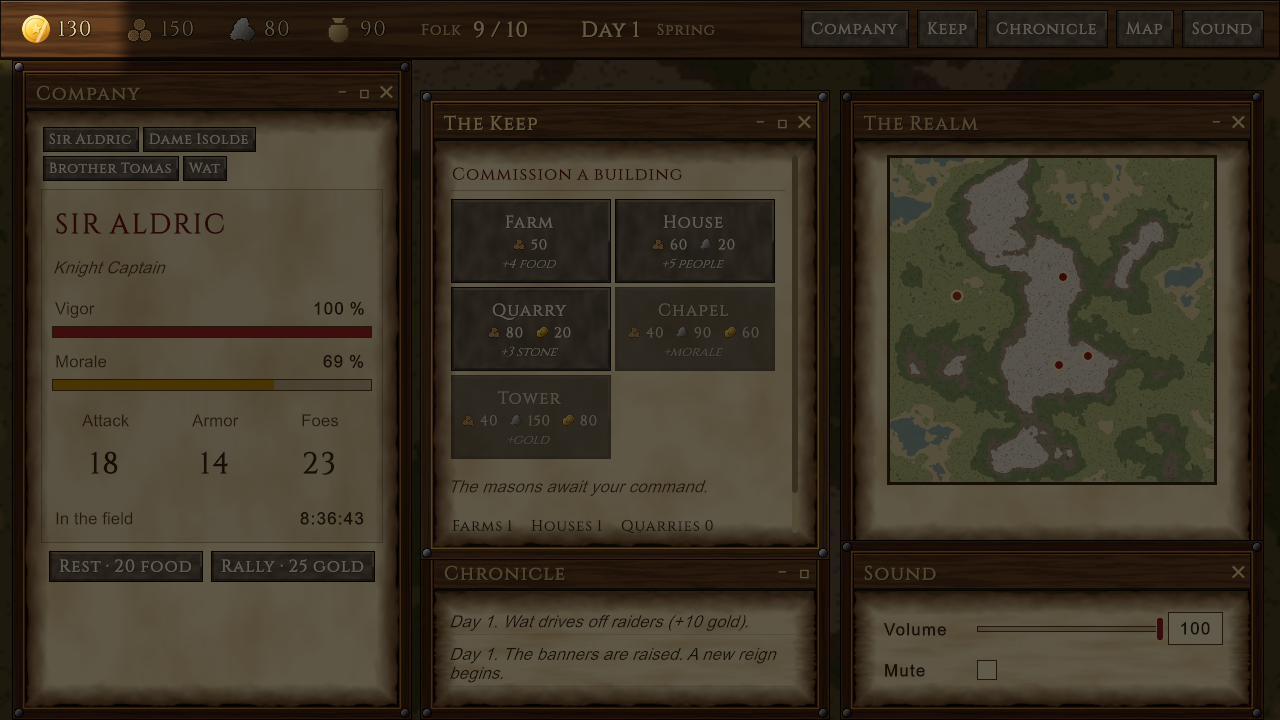
The ResourceCounterDemo scene shows a gold counter with no setup and its deltas, coins that fly from a chest to the purse, a shop whose prices turn red, storage with a capacity and rates, five formats and two looks of its own.
Build a settlement in the Storage tab
Three families need shelter. Harvest wood, then build each hut for 50 wood and 20 stone. Each finished hut fills a plot. The goal and status badge show progress.
Food drains while the settlement runs. At zero food, gathering and building stop. Hunt restores 20 food and resumes work. Storage rates continue while another tab shows, so food matters when you return.
The third hut completes the settlement and pauses its rates. Restart settlement clears the plots and restores the starting supplies. Restart keeps your Capacity and Rate settings, including expanded storage.
Use Tab or the D-pad to reach Harvest, Build, Hunt, Bigger storage or Restart settlement. Submit activates the focused button once. The final build moves focus to Restart. F or the gamepad west button still harvests wood. These actions do not use the window movement controls.
The controller owns the hut count, costs and food rules. ResourceCounter shows the values, capacity and rate. Copy this split into a game: validate the purchase, update the resources, then update the village view.