

 ScreenStack
A ScreenStack holds the screens of a menu as a stack. Only the top screen shows and takes input. A button pushes a screen on top of it and the new screen slides in; Back removes the top screen and the screen below comes back, with the focus where the user left it. Use it for a game menu that goes deeper, such as Main, Options, then Audio, Video or Controls.
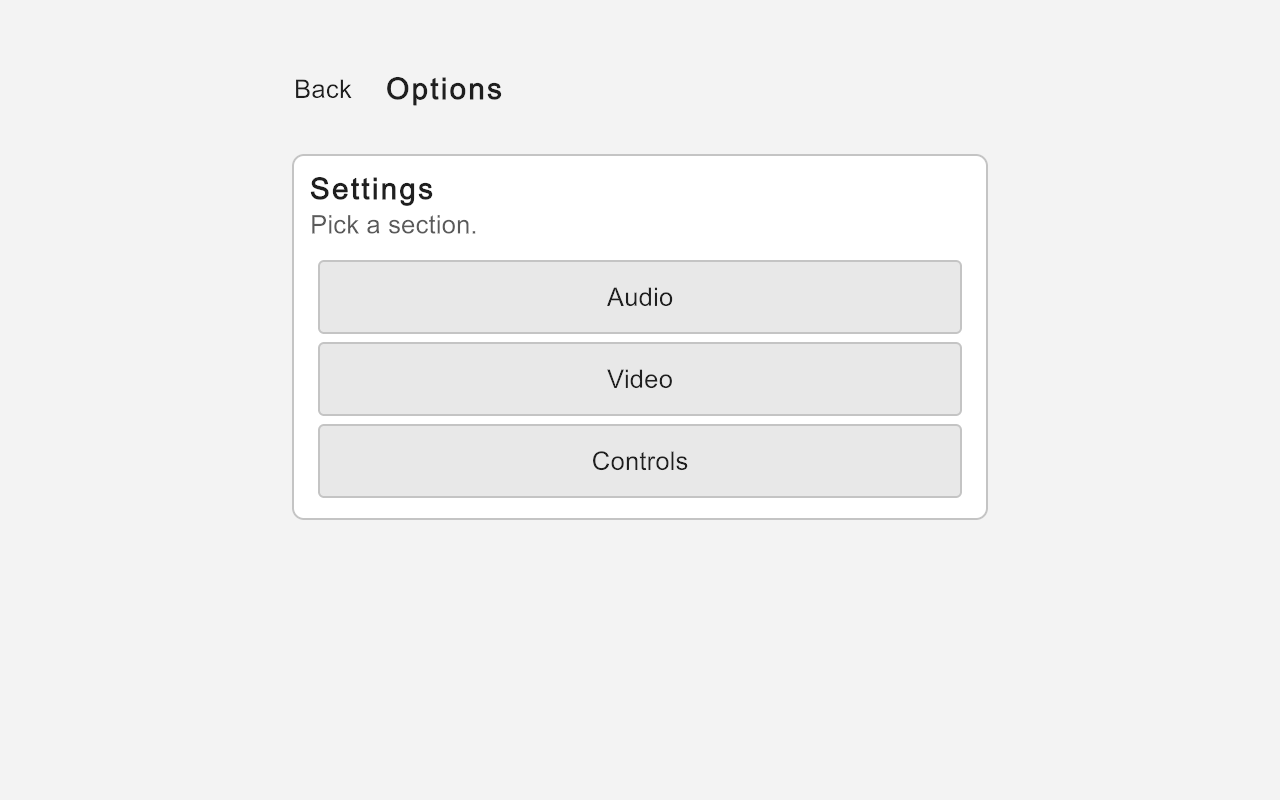
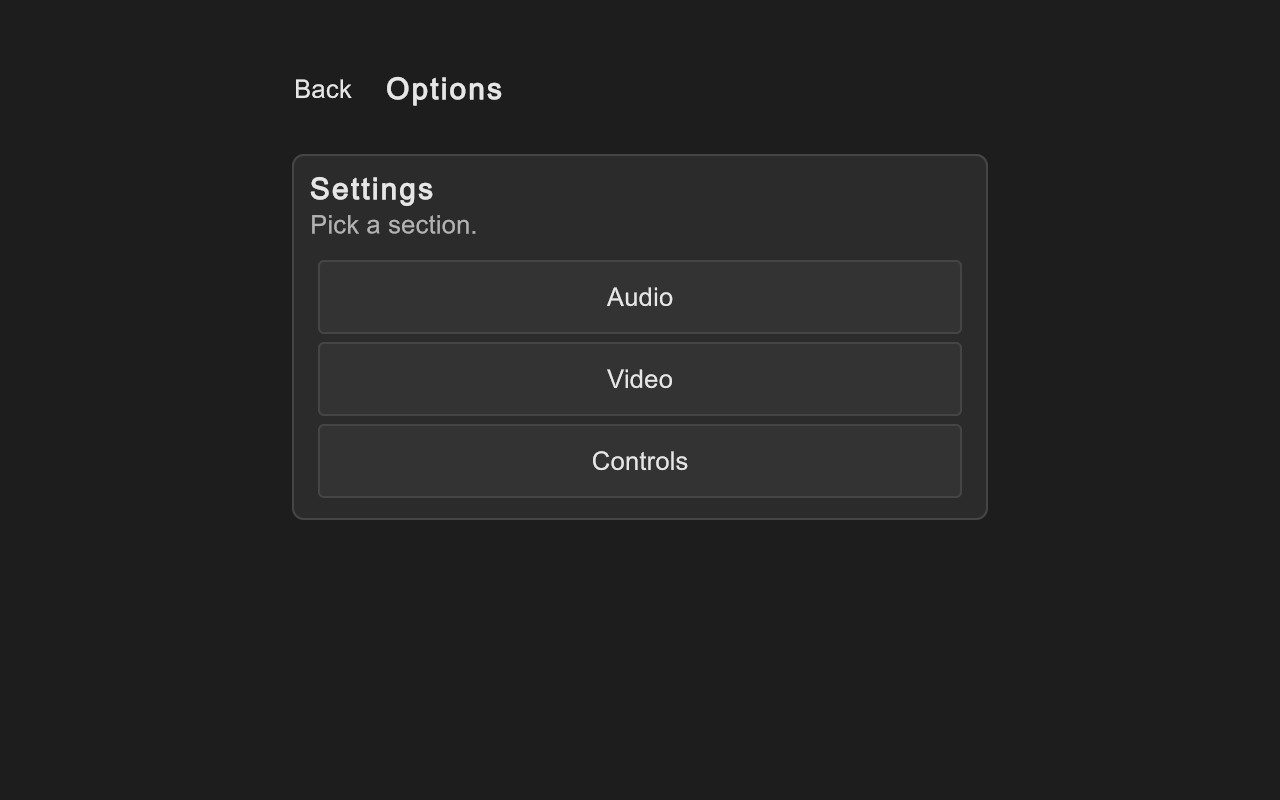
How to build a menu with screens:
- Add a
ScreenStackand put aStackScreenin it for each screen. The first one is the root. - Give each screen a
screen-idand atitle. - In the click of a button, call
Pushwith the id of the screen to open.
<tb:ScreenStack name="menu">
    <tb:StackScreen screen-id="main" title="Main">
        <ui:Button name="optionsButton" text="Options" />
    </tb:StackScreen>
    <tb:StackScreen screen-id="options" title="Options">
        <ui:Button name="audioButton" text="Audio" />
    </tb:StackScreen>
    <tb:StackScreen screen-id="audio" title="Audio" />
</tb:ScreenStack>
var menu = root.Q<ScreenStack>("menu");
root.Q<Button>("optionsButton").clicked += () => menu.Push("options");
root.Q<Button>("audioButton").clicked += () => menu.Push("audio");
B on a gamepad, Escape on a keyboard and the Back button of the header (a click or a tap) all call Pop. The d-pad, the left stick, the arrow keys and Tab only move the focus. They never close a screen.
| Member | Description |
|---|---|
Push(screen) |
Puts a screen on top. The screen can be any VisualElement. The screen below keeps its place and its focus. |
Push(screenId) |
Puts the screen with this screen-id on top and returns true. Returns false when no screen has the id. |
Pop() |
Removes the top screen and returns true. At the root it does nothing and returns false. |
PopTo(screen) and PopTo(screenId) |
Pops until this screen is on top. Returns false when the screen is not in the stack. |
PopToRoot() |
Pops until only the root is left. |
Replace(screen) |
Swaps the top screen for another one, with no Back step for the old one. |
Count |
The number of screens in the stack, the root included. |
Top |
The screen on top, or null when the stack is empty. |
Root |
The first screen. |
ScreenAt(index) |
The screen at an index of the stack, from the root. |
IsAnimating |
true while a screen moves. |
Pushed |
Raised after a screen was pushed, with the screen. |
Popped |
Raised after a screen was popped, with the screen that went away. |
BackAtRoot |
Raised when the user presses Back and only the root is left. |
Transition (transition) |
Slide (the default), Fade or None. |
TransitionDuration (transition-duration) |
The time of a move in milliseconds. Default 250. 0 turns the move off. |
ShowHeader (show-header) |
Shows a header with the Back button and the title of the top screen. On by default. |
ReduceMotion (reduce-motion) |
Turns the move off for this stack. Windows animations that are off do the same. |
BackButton |
The Back button of the header. |
StackScreen.ScreenId (screen-id) |
The name that Push(screenId) looks for. |
StackScreen.Title (title) |
The text in the header while the screen is on top. A key of ToolboxText shows its translation. |
- The root does not pop. Back at the root raises
BackAtRoot, so the game decides what happens: a quit dialog, a pause screen or nothing. With no subscriber the key is not handled and reaches the rest of the game. - Back closes an open popup first, such as a dropdown list, and the screen after that.
Pushremembers the focused element of the screen below and focuses the first focusable element of the new screen.Popgives the focus back to the element that was focused.- During a move a cover takes the pointer, so a click does not reach a screen that leaves. The move takes the time of
TransitionDuration, and a newPushorPopfirst ends the move that runs. - A move is a USS transition on classes, so it costs no frame time in C#. Only the screens that take part in a move are laid out; the others are hidden.
- The header hides its Back button at the root.
- While the focus is in the stack, a
PromptBarshows the Back hint when the stack has more than one screen. At the root it shows Select only, unless aBackAtRoothandler is set. - The text "Back" comes from
ToolboxText. See Localization.
Tips:
- Put the content of a screen in a
ScrollViewwhen it can be taller than the stack. - A screen needs a background color of its own, because during a move it covers the screen below. The
StackScreenhas none by default. - For a pause menu that opens over the game, put the
ScreenStackin aWindowor an overlay and callPopToRootwhen it closes.
Styling
| Class | Element |
|---|---|
tb-screen-stack |
The stack. |
tb-screen-stack__header |
The row with the Back button and the title. |
tb-screen-stack__back |
The Back button. |
tb-screen-stack__title |
The title. |
tb-screen-stack__screens |
The element that holds the screens. |
tb-screen-stack--slide and tb-screen-stack--fade |
On the stack, for the transition. |
tb-screen-stack--animating |
On the stack while a screen moves. |
tb-screen |
A screen. |
tb-screen--hidden |
A screen that is not on top. It is not displayed. |
tb-screen--above and tb-screen--below |
The start and end poses of a screen in a move. |
To change a move, set transition-duration, transition-timing-function or the poses of tb-screen--above and tb-screen--below in your own style sheet.