
Terms and conditions
The first-launch screen of a game: the terms of service in a window over the title art. The terms are a MarkdownView with headings, lists and a tip, in a ScrollView. "I accept" stays disabled until the player reaches the end of the text, and a ToolTip on it says why. A thin StatBar and a hint with InputGlyph prompts show how far the player has read. After "I accept" the screen moves on to the title with "Press start"; Decline asks first with a MessageBox.
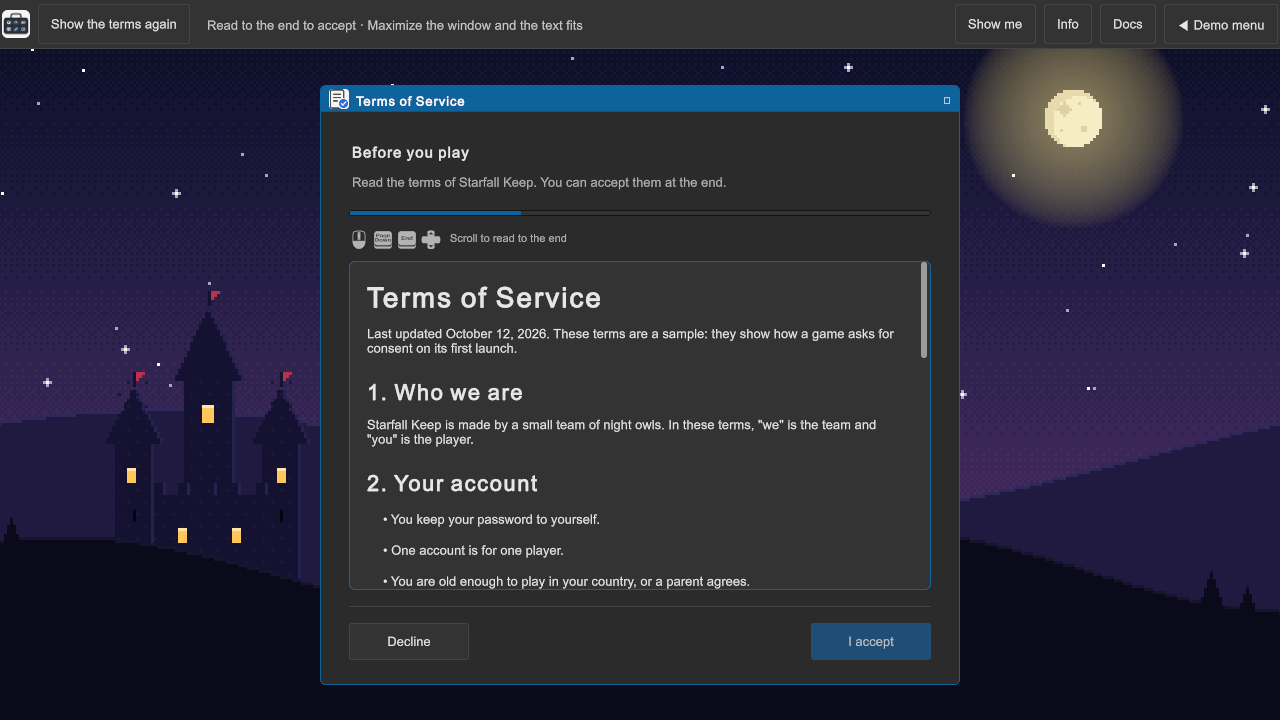
Scene: Assets/UIToolbox/Examples/Scenes/TermsDemo.unity. Folder: Assets/UIToolbox/Examples/TermsDemo.
Try it
- Open the scene. The terms show at the top, and "I accept" is disabled.
- Point at "I accept". The tooltip "Read the terms first" says that you scroll to the end of the terms to accept them.
- Scroll the terms with the wheel, drag the scroll bar, or press Page Down. The bar under the heading fills as you read. A scroll back up keeps the bar: it shows the farthest part that you saw.
- Press End, or scroll to the last line. The bar turns green, the hint says that you read the terms, a soft bell rings, and "I accept" works. Its tooltip is gone.
- Press Decline. The quit box of the examples asks whether you decline the terms and quit. Resume has the focus, so Escape or B reads on; Quit declines.
- Press "I accept". The window closes, a toast welcomes you, a fanfare plays, and the title "Starfall Keep" fades in with "Press start". Press Enter or the A button of a gamepad, or click it.
- Press "Show the terms again" in the toolbar. The terms open at the top, and "I accept" is disabled again.
- Maximize the window on a big screen. When the whole text fits with no scroll bar, "I accept" works at once.
- With a gamepad, the d-pad scrolls the terms. At the end of the text, the next press moves the focus to the buttons.
What it shows
How far the player has read
Each way to scroll moves the verticalScroller of the ScrollView: the wheel, a drag of the bar, the keys and the d-pad. The controller listens to the valueChanged of verticalScroller, so it does not need one handler for each input. It also listens to the GeometryChangedEvent of the view and of the text: a resize of the window, or another text, can make the text fit.
| Value | What it is |
|---|---|
ReadPart |
The largest part of the text that the player has seen: the bottom of the view over the height of the text. A scroll back up keeps it. |
HasRead |
True when the scroll offset reaches verticalScroller.highValue, or when the text fits in the view. |
HasAccepted |
True after "I accept". |
The end of the text is verticalScroller.highValue, with a slack of 2 pixels for a scroll that stops just short of it.
A tooltip on a disabled button
A disabled element gets no pointer events, so a tooltip on the button itself never shows. The button sits in an enabled holder, and the ToolTip targets the holder. When the player has read the terms, the controller sets the Body of the tooltip to an empty string, and the holder has no tooltip.
<ui:VisualElement name="acceptHolder">
    <ui:Button name="accept" text="I accept" />
</ui:VisualElement>
<tb:ToolTip target="acceptHolder" title="Read the terms first"
    description="Scroll to the end of the terms to accept them." />
Keys and the gamepad
The ScrollView is focusable, and it takes the focus at the start and at a click on the text. Page Up and Page Down scroll by the height of the view, and Home and End go to the start and the end; they work anywhere in the window. Up, Down and the d-pad come as a NavigationMoveEvent and scroll by 40 pixels. When the text is already at the top or the end, the event goes on, and the focus moves to the buttons.
The title screen
The title is a layer over the workspace that fades in with a USS transition on opacity. It lets the pointer through. Its Start button takes clicks and the focus only while the title shows, so Tab and the gamepad do not reach it while it is clear.
How it is built
| File | Does |
|---|---|
TermsDemo.uxml |
The backdrop, the workspace with the terms window (the heading, the bar, the hint, the ScrollView with the MarkdownView, the buttons and the tooltip), and the title layer. |
TermsDemo.uss |
The layout of the window with the theme tokens, the green hint at the end, and the colors and the fade of the title. |
TermsDemoController.cs |
The terms in Markdown, the measure of the reading, the keys, Accept and Decline, the sounds and the title art. |
Resources/TermsDemoArt/title.png |
The title art: the night sky, the moon, the hills and Starfall Keep, pixel art that Tools/skins/terms.mjs draws. |
The measure runs at each change of verticalScroller and of the layout:
var hidden = text - view;
var fits = hidden <= 1;
var offset = _scroll.scrollOffset.y;
var part = fits ? 1 : Mathf.Clamp01((offset + view) / text);
if (part > _readPart)
{
    _readPart = part;
    _bar.Value = part * 100;
}
var end = _scroll.verticalScroller.highValue;
var atEnd = end > 0 && offset >= Mathf.Min(hidden, end) - END_SLACK;
if (!_read && (fits || atEnd)) markRead();
Decline asks first with the quit box that every example uses (Resume or Quit), and a game quits on Quit:
var declined = await DemoNavigation.AskQuitAsync(_content,
    "You need to accept the terms to play Starfall Keep. " +
    "Decline them and quit?");
To use it in a game, put your terms into TERMS, or set MarkdownView.Source to a text asset, and load your first scene in startGame. The art of the title screen is the pixel art Resources/TermsDemoArt/title.png, 480 x 270, which Tools/skins/terms.mjs draws. The controller shows it at the smallest whole zoom that covers the screen, so each pixel stays square and sharp; only the glow of the moon is a mesh, and it draws again only when the screen changes size:
_artZoom = PixelZoom.Cover(_backdrop, TITLE_ART, out _artOffset);
_backdrop.MarkDirtyRepaint();