

 VirtualCursor
A VirtualCursor is a pointer that the gamepad moves, for a screen made for the mouse: a desktop, a map, a shop grid or a node graph. The left stick moves an arrow, A clicks, X clicks with the right button, the right stick scrolls and B raises Cancelled. The panel sees a mouse, so hover styles, clicks, drag and drop, context menus and scroll views work with no change. The cursor shows only while the player uses a gamepad and hides when the mouse moves, so mouse and touch players never see it. For the d-pad and focus navigation, see Keyboard and gamepad shortcuts.
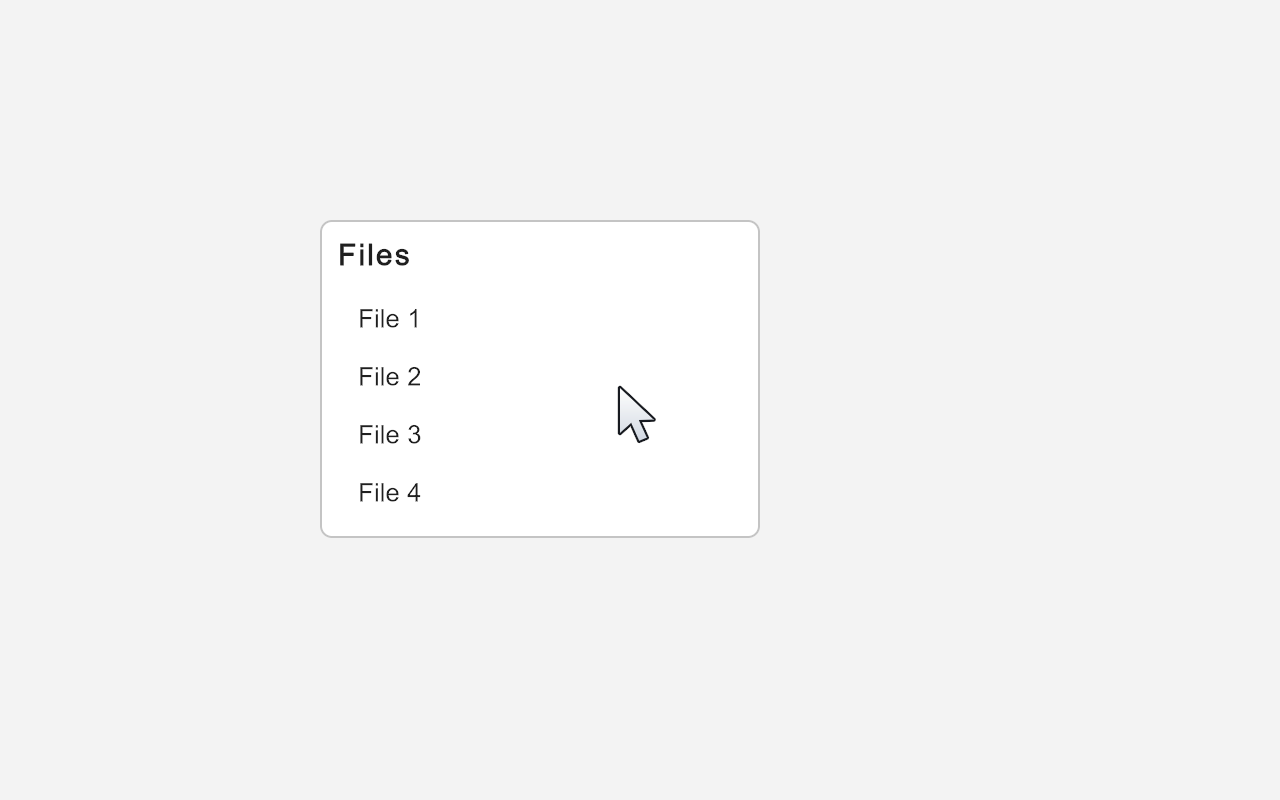
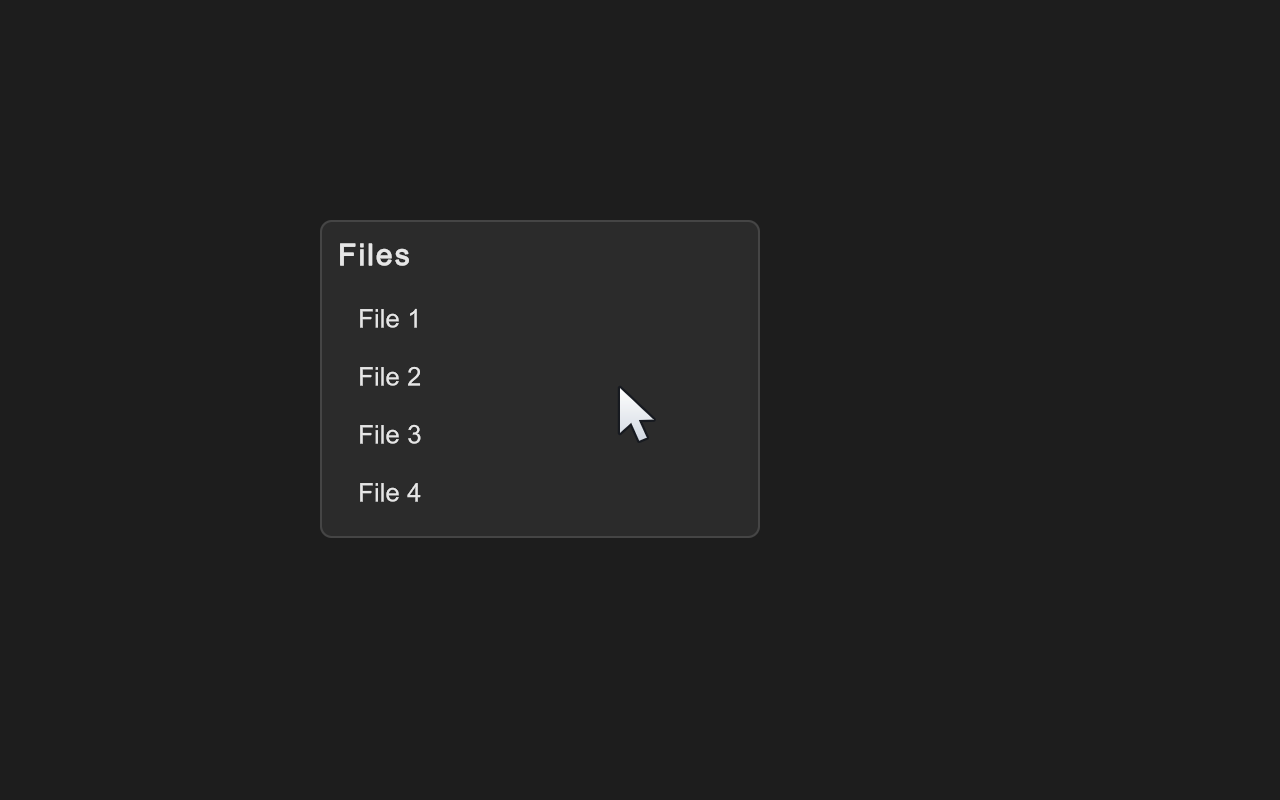
Demo scenes: VirtualCursorDemo, RetroPC (the computer on the desk) and Reactor (the board of the game).
<!-- The cursor goes last, so it draws over the rest -->
<UIToolbox.VirtualCursor speed="900" deadzone="0.1" />
var cursor = new VirtualCursor { Speed = 900 };
cursor.Cancelled += () => LeaveTheComputer();
root.Add(cursor);

// A menu of the game takes A and B back
cursor.Enabled = false;
The cursor needs no setup. Add it as the last child of the root of the screen, so it draws over the other elements. Its position is in panel coordinates, and it starts at the center of the panel or of Bounds. It needs the Input System package: without it the cursor never moves.
| Member | Description |
|---|---|
Enabled (cursor-enabled) |
Lets the cursor show while the player uses a gamepad (on). Off hides it and gives A, B and the sticks back to the screen, as while a menu of the game shows. |
Speed (speed) |
The fastest speed in pixels of the panel per second, with the stick pushed all the way (900). |
Acceleration (acceleration) |
The speed is the push of the stick to this power (2). 1 is linear; 2 aims finely near the center and moves fast at the edge. |
AccelerationCurve |
A curve from the push (0 to 1) to the share of the speed, in place of Acceleration. |
Deadzone (deadzone) |
The push of a stick, from 0 to 1, under which it rests (0.1). |
PrecisionSpeed (precision-speed) |
The share of the speed while the left trigger is held, for fine aim (0.35). |
ScrollSpeed (scroll-speed) |
The fastest scroll of the right stick in pixels per second (600). |
SecondaryClick (secondary-click) |
X clicks with the right button, as for a context menu (on). Off leaves X to the game. |
Bounds |
The area that the cursor stays in, in panel coordinates. Null (the default) is the whole panel. |
Position |
The point of the cursor. A set moves the cursor there, inside the bounds, and the panel sees the pointer move. |
IsShown |
True while the cursor shows and owns A, B and the sticks. |
IsPressed |
True while A or X is down. |
Show() |
Shows the cursor now, as if the player had moved the stick. It still hides when the mouse moves. |
Hide() |
Hides the cursor until the player moves a stick or presses A again. |
POINTER_ID |
The pointer id of the cursor: the last tracked pointer id, which no mouse, touch or pen uses. |
How it reaches UI Toolkit
The cursor sends PointerMoveEvent, PointerDownEvent and PointerUpEvent to the panel with the pointer type mouse and the pointer id VirtualCursor.POINTER_ID. The panel finds the element under the point and keeps the hover state of that pointer, so :hover styles, Clickable, pointer capture and drag and drop work as they do with the mouse. A comes down as button 0 and X as button 1. Each press is a single click: the cursor sends no double click. The right stick sends WheelEvent, which a ScrollView under the cursor scrolls by.
A handler that reads the pointer id sees POINTER_ID, not PointerId.mousePointerId. Use evt.pointerId for the capture, as for a touch:
row.RegisterCallback<PointerDownEvent>(evt =>
{
    row.CapturePointer(evt.pointerId);
});
Gamepad buttons
| Button | While the cursor shows |
|---|---|
| Left stick | Moves the cursor. The first push shows it. |
| Left trigger | Slows the cursor to PrecisionSpeed while held. |
| A (south) | Clicks with the left button. Hold it to drag. |
| X (west) | Clicks with the right button, unless SecondaryClick is off. |
| Right stick | Scrolls the element under the cursor. |
| B (east) | Raises Cancelled. |
| D-pad | Moves the keyboard focus and hides the cursor, so A presses the focused control. |
| Start | Goes on to the game, as for its menu. |
One press has one owner. While the cursor shows, A and B do not also submit or cancel the focused control, the left stick does not move the focus, and the right stick scrolls under the cursor, not around the focus. A key on a keyboard still does. While the cursor hides, the buttons work as without it. A moved mouse or a touch hides the cursor at once; the next push of the left stick shows it again where it was.
Stick aim and scroll
The dead zone is not a jump: a push at the edge of the dead zone gives speed 0 and a full push gives Speed, so the cursor starts slowly. The share of the speed is the push to the power Acceleration, or the value of AccelerationCurve when it is set. The cursor keeps its speed in every direction and stops at the edge of Bounds. The left trigger, pushed past half, multiplies the speed by PrecisionSpeed. The right stick scrolls in a straight line up to ScrollSpeed, with the same dead zone, and sends the wheel to the element under the cursor. A push of a stick past the dead zone shows the cursor, also when the last device was the mouse.
// A slower cursor with a soft start
cursor.Speed = 700;
cursor.Deadzone = 0.15f;
cursor.AccelerationCurve = AnimationCurve.EaseInOut(0, 0, 1, 1);
Actions
The cursor makes its own actions with the default gamepad bindings. To let the player rebind them, give it the actions of the game. The game enables them; null gives the default back.
cursor.MoveAction = actions.FindAction("UI/Point Pad");
cursor.ClickAction = actions.FindAction("UI/Click Pad");
cursor.BackAction = actions.FindAction("UI/Back");
| Member | Default |
|---|---|
MoveAction |
The left stick (a Vector2). |
ClickAction |
A (south). |
SecondaryClickAction |
X (west). |
ScrollAction |
The right stick (a Vector2). |
BackAction |
B (east). |
PrecisionAction |
The left trigger (an axis). |
Events
| Event | When |
|---|---|
Clicked |
A comes up, after the click went to the panel. It gives the point in panel coordinates. |
Scrolled |
Each frame that the right stick scrolls, with the scroll in pixels. |
Cancelled |
B goes down while the cursor shows, for the host to back out, such as to leave a computer. |
The cursor makes no garbage while it moves, clicks or scrolls: it reuses one pointer state and one wheel event. Mouse and touch players pay nothing: the cursor sleeps until a gamepad is the last device.
Styling
| Class | Element |
|---|---|
tb-virtual-cursor |
The arrow, 32 by 32, with the hotspot at the point. It ignores the pointer. |
tb-virtual-cursor--shown |
The cursor while it shows. |
tb-virtual-cursor--pressed |
The cursor while A or X is down. It scales down a little. |
The arrow is the picture in --tb-virtual-cursor-image. Each theme sets it to the arrow of its cursors. To use your own picture, set the variable on the root of the screen:
.my-screen {
    --tb-virtual-cursor-image: url("Cursors/hand.png");
}
The VirtualCursorDemo scene shows a desktop made for the mouse: a file list that scrolls with the right stick, files that A drags to the trash, a context menu on X, and fields that set the speed, the dead zone and the acceleration.