

 WeekSchedule
 in UIToolbox is a day and week view with time slots and events. Use it for a guild calendar, a shift plan, a crafting queue, a quest board with times, or the appointments of a management game. Events are blocks in the column of their day, and events that overlap share the width. The user drags a block to move it to another time or day, and drags its top or bottom edge to change when it starts or ends. A line shows the time now, a click on an empty slot raises SlotClicked, and a toolbar steps through the weeks and switches between a day, the work week and the whole week.
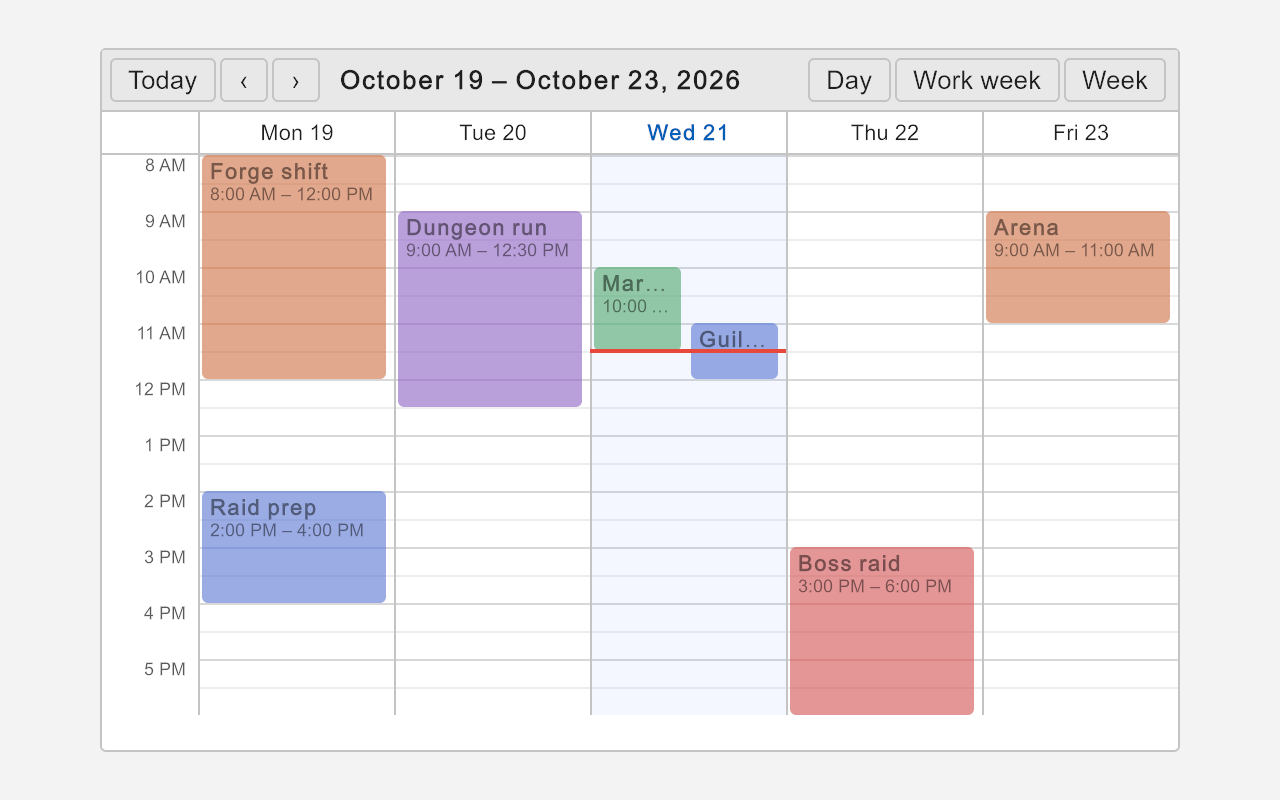
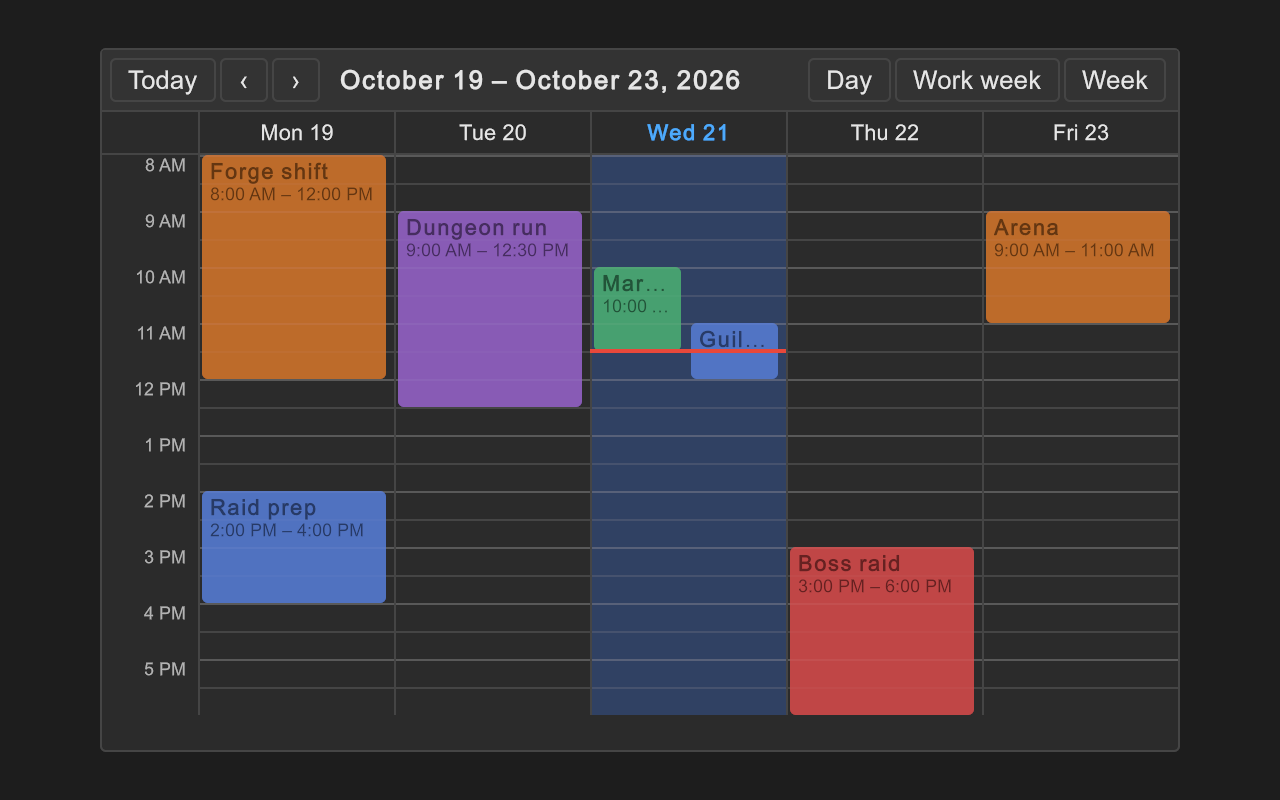
Video tutorial: Week schedule. All videos: Video tutorials.
<tb:WeekSchedule
    name="schedule"
    date="2027-05-05"
    view="WorkWeek"
    start-hour="7"
    end-hour="21"
    slot-minutes="30"
    show-calendar="true" />
var schedule = root.Q<WeekSchedule>("schedule");

// An event has a title, a start, an end and, if you like, a color
schedule.AddEvent("Forge shift", new DateTime(2027, 5, 3, 8, 0, 0),
    new DateTime(2027, 5, 3, 12, 0, 0), new Color(0.84f, 0.47f, 0.16f));

// The control keeps no data of its own: the events are yours. After the
// user moved or resized one, it has its new Start and End.
schedule.EventMoved += e => Save(e);
schedule.EventResized += e => Save(e);

// A click on an empty slot books a quest of one hour
schedule.SlotClicked += start =>
    schedule.SelectedEvent =
        schedule.AddEvent("New quest", start, start.AddHours(1));

// A game rule: no two events at one time
schedule.AllowChange = (e, start, end) =>
    !OverlapsAnother(e, start, end);

// The week starts on Monday, and the game has its own clock
schedule.FirstDayOfWeek = DayOfWeek.Monday;
schedule.Clock = () => game.Now;
A WeekSchedule with no attributes shows the week of today, from 0:00 to 24:00, with slots of 30 minutes. It scrolls to 7:00 when it opens, so the working day is in view.
Settings
| Setting (UXML) | Type | Default | Does |
|---|---|---|---|
date |
string | today | The shown date as an ISO date, such as 2027-05-12. The schedule shows this day, or the week that holds it. A text that is not an ISO date is ignored. |
view |
ScheduleView |
Week |
Week (seven days), WorkWeek (the week without Saturday and Sunday) or Day. |
start-hour |
int | 0 | The first hour of the grid, from 0 to 23. |
end-hour |
int | 24 | The hour at which the grid ends, from 1 to 24. When it is not after start-hour, the grid is one hour long. |
slot-minutes |
int | 30 | The minutes of one slot: the grid line, the snap of a drag and the length of a click. From 5 to 60. A value that does not divide 60 evenly becomes 30. |
hour-height |
float | 48 | The height of one hour in pixels, at least 16. The grid scrolls when the hours do not fit. |
show-now-line |
bool | true | A line at the time now, in the column of today. |
show-calendar |
bool | false | A MonthCalendar at the left of the grid. A click on a day shows the week of it. |
show-header |
bool | true | The toolbar with the Today, previous and next buttons, the title and the Day, Work week and Week buttons. |
editable |
bool | true | The user can move and resize events. False keeps them in place. They can still be selected and clicked. |
These settings are for code:
| Property | Type | Default | Does |
|---|---|---|---|
FirstDayOfWeek |
DayOfWeek? |
null | The first column of the week. Null uses the first day of the culture. |
Culture |
CultureInfo |
the current culture | The day names, the hours (12 or 24 hours) and the title. |
Clock |
Func<DateTime> |
null | The time now. Null uses DateTime.Now. A game with its own clock returns its date and time. |
AllowChange |
Func<ScheduleEvent, DateTime, DateTime, bool> |
null | A game rule for the drag. See Game rules. |
value is the shown date. Setting it raises a ChangeEvent<DateTime> when the schedule is on a panel, so RegisterValueChangedCallback follows the date. SetValueWithoutNotify(date) sets it quietly. Events lists the events and VisibleDays the shown days. SelectedEvent is the selected event, or null. Cursor is the slot that the keyboard acts on. Calendar is the MonthCalendar (made on first use) for limits and marks. ScrollView is the scroll view of the grid.
ScheduleEvent
| Property | Type | Default | Does |
|---|---|---|---|
Title |
string | "" | The text on the event. |
Start, End |
DateTime |
The span. An event that ends when it starts, or before, shows one slot long. A span over midnight shows in each day that it touches. | |
Color |
Color? |
null | The background color. Null uses --tb-color-accent. The text is dark on a light color and white on a dark one. |
ClassName |
string | null | A USS class for the element of the event, for a look from a style sheet. |
Locked |
bool | false | The user cannot move or resize this event. It can still be selected. |
Data |
object | null | Anything the game keeps with the event, such as the quest or the appointment it stands for. |
Duration |
TimeSpan |
End - Start. |
The schedule changes Start and End when the user drags an event. After code changes an event, call RefreshEvents().
Methods
| Method | Does |
|---|---|
AddEvent(event) |
Adds an event and shows it. |
AddEvent(title, start, end, color) |
Adds an event with a title and a span (the color is optional) and returns it. |
RemoveEvent(event) |
Removes an event. Returns false when the schedule does not hold it. |
ClearEvents() |
Removes all events. |
SetEvents(events) |
Replaces the events with these. Use it to load many events at once. |
RefreshEvents() |
Places the events again, after code changed a title, a time or a color. |
Page(direction) |
Steps the date by a day (in the Day view) or by a week. -1 goes back and 1 goes forward. |
GoToToday() |
Shows today. |
ScrollToHour(hour) |
Scrolls so that this hour (7.5 is 7:30) is at the top of the grid. |
RefreshNow() |
Moves the now line, and the marks of today, to the time of Clock. The schedule does this once a minute by itself. Call it when a game clock jumps. |
TimeAt(panelPosition) |
The day and time at a pointer position in panel coordinates, not snapped. Use it to drop something onto the schedule. |
GetEventElement(event) |
The element of an event in its first shown day, for example to anchor a popup. Null when the event is not shown. |
Events
| Event | When |
|---|---|
EventMoved(event) |
The user finished moving an event to another time or day, by pointer or keys. The event has its new Start and End. |
EventResized(event) |
The user finished dragging the top or bottom edge of an event, or changed its end with the keys. |
SlotClicked(start) |
The user clicked an empty slot, or pressed Enter on one. It gives the start of the slot. |
EventClicked(event) |
The user clicked an event, or pressed Enter on one. The event is selected. |
EventActivated(event) |
The user double clicked an event, or pressed Enter on the selected event. |
DayClicked(day) |
The user clicked the name of a day above the columns. |
ViewChanged(view) |
The user switched the view with a button of the toolbar, or code changed View. |
ChangeEvent<DateTime> |
The shown date changed: the toolbar, the calendar, the keys PageUp and PageDown, or value. |
With the pointer, EventMoved and EventResized come once, when the user lets go, and only when the event ended up at a different time than where it began. With the keys, each press that changes the event raises one. A press that does not move an event raises EventClicked.
Game rules
AllowChange runs while the user drags or uses the keys, for each new start and end, before the event changes. Return false to keep the event where it is. The drag goes on, and the event follows the pointer again as soon as a later position is allowed. Use it for a rule such as no double booking:
schedule.AllowChange = (moving, start, end) =>
{
    foreach (var other in schedule.Events)
        if (other != moving && other.Start < end && other.End > start)
            return false;
    return true;
};
It does not run for changes that code makes.
Mouse and keyboard
| Input | Does |
|---|---|
| Drag an event | Moves it to another time or day. The start snaps to a slot. The grid scrolls while the pointer is near its top or bottom edge. |
| Drag the top or bottom edge of an event | Changes its start or its end, at least one slot long. |
| Click an event | Selects it and raises EventClicked. A double click raises EventActivated. |
| Click an empty slot | Clears the selection, moves the keyboard cursor there and raises SlotClicked. |
| Click the name of a day | Raises DayClicked. |
| Mouse wheel | Scrolls the grid. A drag on an empty slot scrolls it on a touch screen. |
| Arrow keys | Move the keyboard cursor by a slot or a day. In the work week the cursor skips the weekend. When the cursor leaves the shown days, the schedule shows the days that hold it. |
| Alt + arrow keys | Move the selected event by a slot or a day. |
| Shift + Up or Down | Changes the end of the selected event by a slot. |
| PageUp, PageDown | Show the previous or next day or week. |
| Home, End | Move the cursor to the first or last slot of the day. |
| Enter, Space | On an event: selects it, and activates it when it is selected. On an empty slot: raises SlotClicked with the slot of the cursor. |
| Escape | Cancels a drag, and the event goes back to where it was. Else clears the selection. |
The keys work while the schedule has the focus: click it or press Tab. Locked events, and all events when editable is false, do not move. The keyboard cursor shows as a frame while the schedule has the focus. The schedule handles Escape itself, so a press of Escape in it does not close a dialog around it. A gamepad uses the navigation actions of the UI: the stick moves the cursor and the submit button acts like Enter.
Performance
- The schedule keeps one element for each shown part of an event and reuses them. A layout that finds the same events in the same places builds nothing, and the text of an event changes only when its time or title changes.
- A drag changes the layout only when the snapped time changes, and it allocates only the new time text of the dragged event then. A pointer move inside a slot allocates nothing.
- The now line moves once a minute, on the minute, with one timer. The timer runs only while the line shows: the schedule is on a panel,
show-now-lineis on and today is among the shown days. With the line off, no timer runs at all. - The grid has one line for each slot and one label for each hour, made when the hours or the slot length change.
Styling
| Class | Element |
|---|---|
tb-week-schedule |
The schedule (grows; background, border). It has the variables of the table below. |
tb-week-schedule__header, __nav, __title, __views, __view |
The toolbar, its previous, next and Today buttons, the title, the group of view buttons and a view button. __view--active marks the button of the shown view. |
tb-week-schedule__body, __calendar, __main |
The row that holds the calendar and the grid, the MonthCalendar, and the column with the day names and the grid. |
tb-week-schedule__head, __corner, __day-head |
The row of the day names, its corner over the hours, and a day name. __day-head--today and __day-head--weekend mark them. |
tb-week-schedule__scroll, __grid, __gutter, __hour |
The scroll view, the grid, the column of the hours and an hour label. |
tb-week-schedule__days, __lines, __line, __columns, __column |
The area of the days, the layer of the slot lines, a line (__line--hour at a full hour), the layer of the columns and a column. __column--today and __column--weekend mark them. |
tb-week-schedule__event |
An event. With --selected, --dragging, --locked, --compact (a short event shows the title only), --clip-start and --clip-end (the event goes on over the edge of the shown hours or days). |
tb-week-schedule__event-title, __event-time, __event-handle |
The title and the time of an event, and its top and bottom edges (__event-handle--top, --bottom). |
tb-week-schedule__now, __cursor |
The now line and the frame of the keyboard cursor. |
| Variable | On | Description |
|---|---|---|
--tb-week-now |
tb-week-schedule |
The color of the now line. |
--tb-week-today |
tb-week-schedule |
The tint of the column of today. |
--tb-week-weekend |
tb-week-schedule |
The tint of the weekend columns. |
--tb-week-grid |
tb-week-schedule |
The color of the slot lines. |
--tb-week-grid-major |
tb-week-schedule |
The color of the lines at a full hour. |
The schedule also reads --tb-color-surface, --tb-color-surface-alt, --tb-color-border, --tb-color-text, --tb-color-text-muted and --tb-color-accent from the theme, so a style family restyles it. Give an event its own look with ScheduleEvent.Color, or with a class:
quest.ClassName = "quest-event";
.tb-week-schedule.night {
    --tb-week-now: #ffcc00;
    --tb-week-today: rgba(255, 204, 0, 0.08);
}
.tb-week-schedule__event.quest-event {
    background-color: #6a4bd8;
    border-radius: 0;
}
The WeekScheduleDemo scene shows a schedule with no settings and a field for each attribute, a guild week with events that you drag and resize, a click on an empty slot that books a quest and a rule that stops double booking, a blacksmith's day under a game clock, and two looks in USS. The Styles scene shows the schedule in each style family.