

 XYPad
An XYPad sets two numbers at once with one handle in a box. Use it for a filter morph, a camera offset, a color picked from two axes or any pair of values that go together. Its value is a Vector2. For a single value, see Knob.
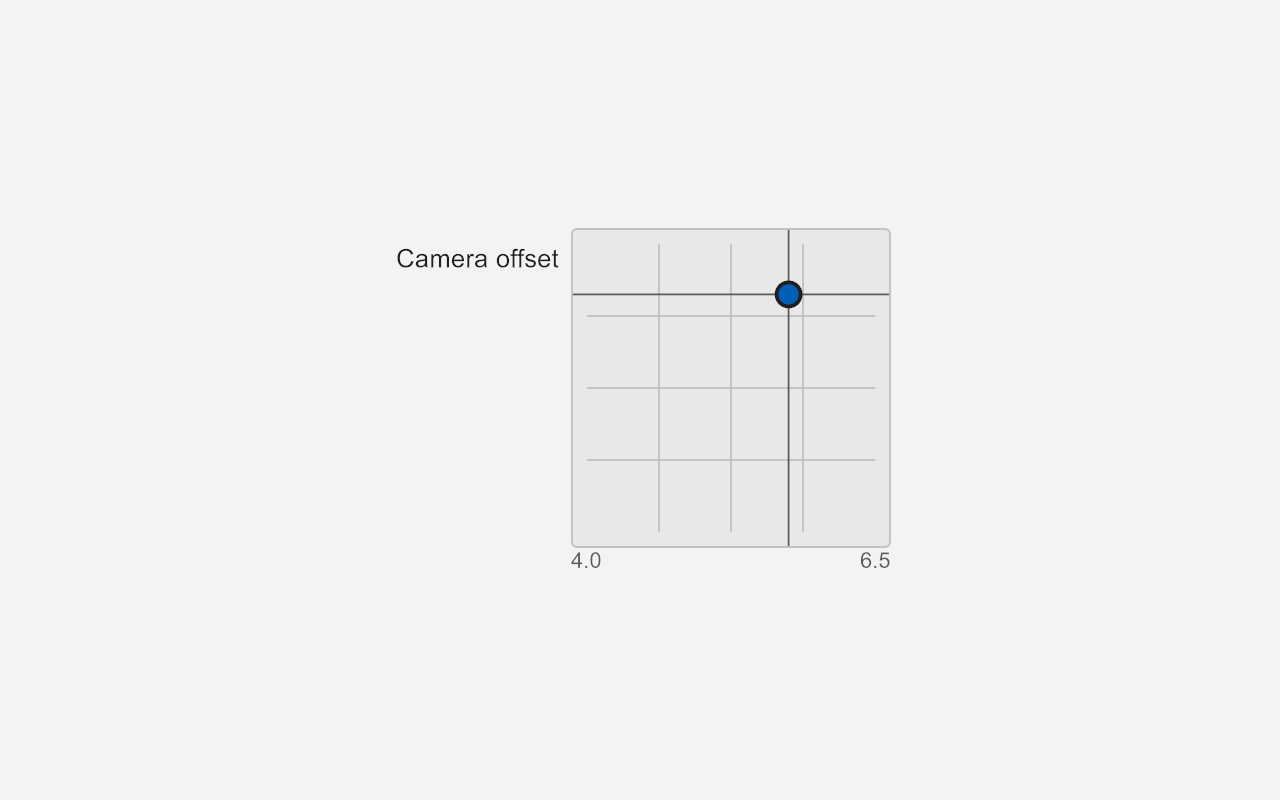
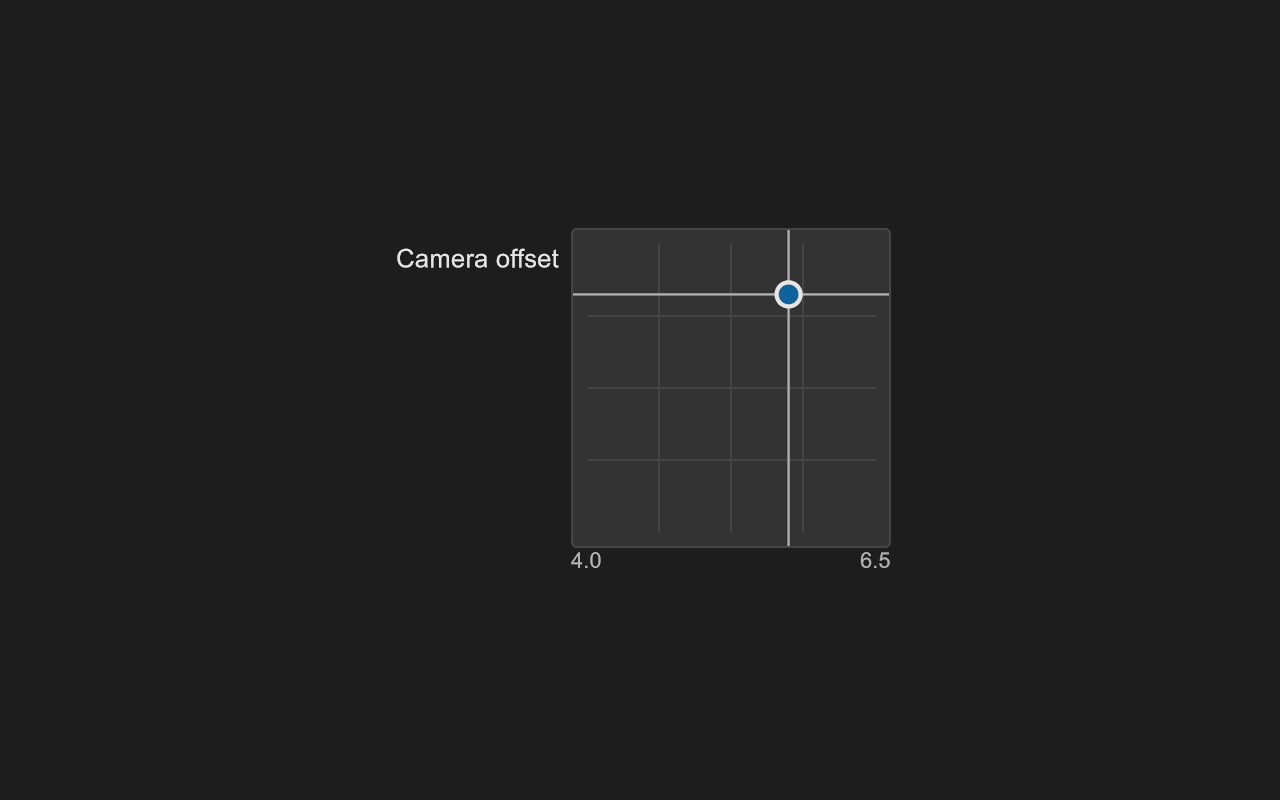
<UIToolbox.XYPad label="Morph" />
var pad = new XYPad("Morph")
{
    MinValue = Vector2.zero,
    MaxValue = new Vector2(100, 1),
    Snap = new Vector2(12.5f, 0.125f),
    DefaultValue = new Vector2(40, 0.2f),
};
pad.RegisterValueChangedCallback(evt =>
{
    filter.Cutoff = evt.newValue.x;
    filter.Resonance = evt.newValue.y;
});
The pad needs no setup. Without limits both axes go from 0 to 1. The UI Builder writes the Vector2 attributes.
| Member | Description |
|---|---|
MinValue (min-value) |
The value at the left and at the bottom of the pad, as a Vector2 (0, 0). Each axis of the maximum stays at or above it. |
MaxValue (max-value) |
The value at the right and at the top of the pad (1, 1). |
Snap (snap) |
The distance between the values on each axis, counted from MinValue, and between the grid lines. An axis with 0 (the default) takes any value. |
DefaultValue (default-value) |
The value that a double click, Enter and Space set (0, 0). It stays between the limits. |
Resettable (resettable) |
A double click, Enter and Space set DefaultValue (on). Off, a double click moves the handle as a press does, and Enter and Space go on to the parent. |
KeyStep (key-step) |
What one arrow key press changes on each axis, and the size of one step of the right stick of a gamepad. An axis with 0 (the default) moves by one snap step, or by 1% of its range when the snap is 0. |
InvertY (invert-y) |
The y value grows downward, as the rows of a screen do. By default it grows upward, as on a graph. |
ShowGrid (show-grid) |
Shows grid lines at each snap step, or at each quarter of an axis when the snap is 0 (on). |
ShowValue (show-value) |
Shows the two numbers as text under the pad, x at the left and y at the right (on). |
FormatString (format-string) |
A .NET numeric format for both numbers, such as F2 or 0 Hz. The default shows up to two decimals. The text rounds the numbers to hundredths and uses the current culture. |
value |
The value. A set snaps each axis to the snap and clamps it to the limits. |
A change of a limit or the snap applies to the current value again. The UXML value attribute comes after the limits and the snap.
Pointer
- A press in the pad moves the handle to the pointer and focuses the pad. The drag goes on with it, also outside the pad: the handle stops at the edge.
- A snap makes the handle jump between the grid points.
- A double click sets
DefaultValue, unlessResettableis off. - Escape during a drag puts the value back to what it was before the press.
The center of the handle stays inside the pad by the radius of the handle, so the whole handle always shows. The crosshair lines run across the whole pad.
Keyboard and gamepad
The pad is a focus stop.
| Key | Action |
|---|---|
| Left, Right | Moves the handle on the x axis by the x KeyStep, or by the x snap, or by 1% of the x range. |
| Up, Down | Moves the handle on the y axis by the y KeyStep, or by the y snap, or by 1% of the y range. Up raises y, unless InvertY is on. |
| Enter, Space | Sets DefaultValue, unless Resettable is off. The submit button of a gamepad does the same. |
| Escape | Ends a drag and puts the value back. |
A key at the edge of the pad moves the focus on. The D-pad and the left stick of a gamepad only move the focus. While the pad has the focus, the right stick moves the handle on both axes, and Up raises y unless InvertY is on. A full push sweeps the range of an axis in 2 seconds. The right stick does not scroll a ScrollView around the pad while the pad has the focus.
Events
A change of the value from the pointer, the keys or value sends one ChangeEvent<Vector2>. A drag step that changes nothing sends none, and SetValueWithoutNotify sends none. To link a pad with two knobs, as the Filter tab of the XYPadDemo scene does, set the other control with SetValueWithoutNotify in the callback, so the two do not call each other.
Committed comes once when an edit is done: at the end of a drag, for an arrow key, for the right stick when it comes to rest, and for a double click, Enter or Space that sets DefaultValue. A drag sends a change event for each move, but only one Committed, at the release. A value set in code and a drag that Escape puts back do not send it. The Color tab of the XYPadDemo scene bursts sparkles on Committed.
pad.Committed += value => SaveSetting(value);
A pad makes no garbage while it is idle or dragged: the text of each number is made once and kept. Setting FormatString clears the kept texts.
Styling
| Class | Element |
|---|---|
tb-xypad |
The field. |
tb-xypad__pad |
The box with the grid and the handle (160 by 160). |
tb-xypad__values |
The row with the two numbers. tb-xypad__value-x and tb-xypad__value-y mark the two labels. |
The grid, the crosshair and the handle are drawn from custom properties on .tb-xypad:
| Property | Default | Used for |
|---|---|---|
--tb-xypad-grid |
--tb-color-border |
The grid lines. |
--tb-xypad-cross |
--tb-color-text-muted |
The crosshair lines through the handle. |
--tb-xypad-handle |
--tb-color-accent |
The fill of the handle. |
--tb-xypad-handle-border |
--tb-color-text |
The outline of the handle. |
--tb-xypad-handle-outline |
none | A thin ring inside the outline, so a light outline shows on a light pad too. |
The box takes its background, border and radius from the theme, and its border takes the accent color on focus.
The saturation/brightness square of a ColorPicker is an XYPad with a clear handle, a white outline and a dark inner ring.
The XYPadDemo scene shows a pad that aims a camera over an arena, a filter morph linked to two knobs with a response curve, a stick with a round dead zone, a team color picked from hue and saturation over a picture made in code, and four looks in USS.